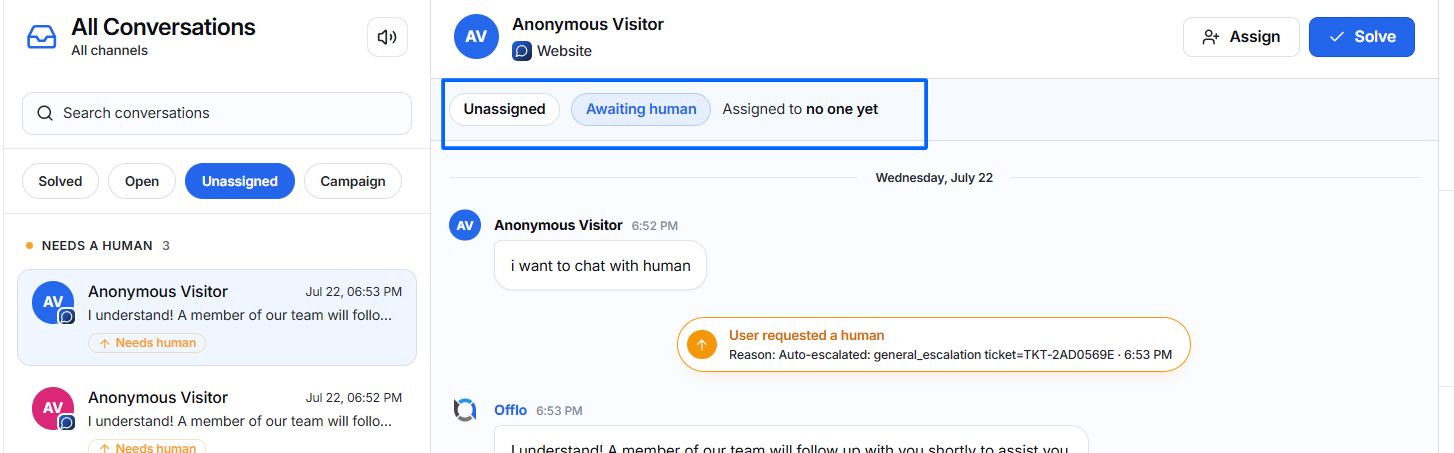
The following illustrates the typical conversation lifecycle:
Customer sends message
│
▼
AI Employee responds
│
▼
Successfully answered?
│ │
Yes No
│ │
▼ ▼
Solved Open / Awaiting Human
│
▼
Assign to Team Member
│
▼
Human replies
│
▼
Solve Conversation
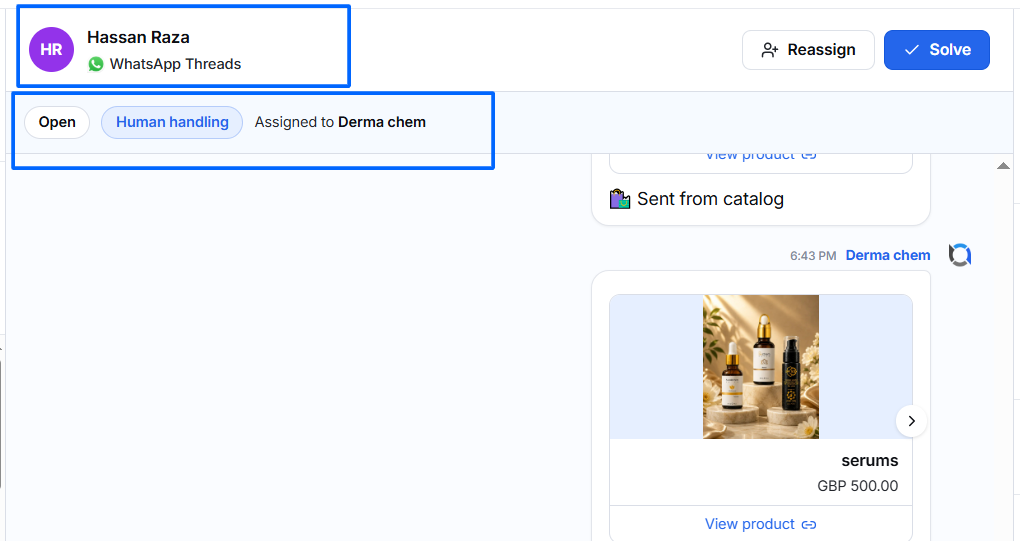
Conversation Header
Each conversation displays important information.
This includes:
- Customer Name
- Communication Channel
- Current Status
- AI Handling or Human Handling
- Assigned Team Member
Reply Area
At the bottom of every conversation is the reply composer.
Agents can:
- Send text replies
- Upload attachments
- Use microphone input (if enabled)
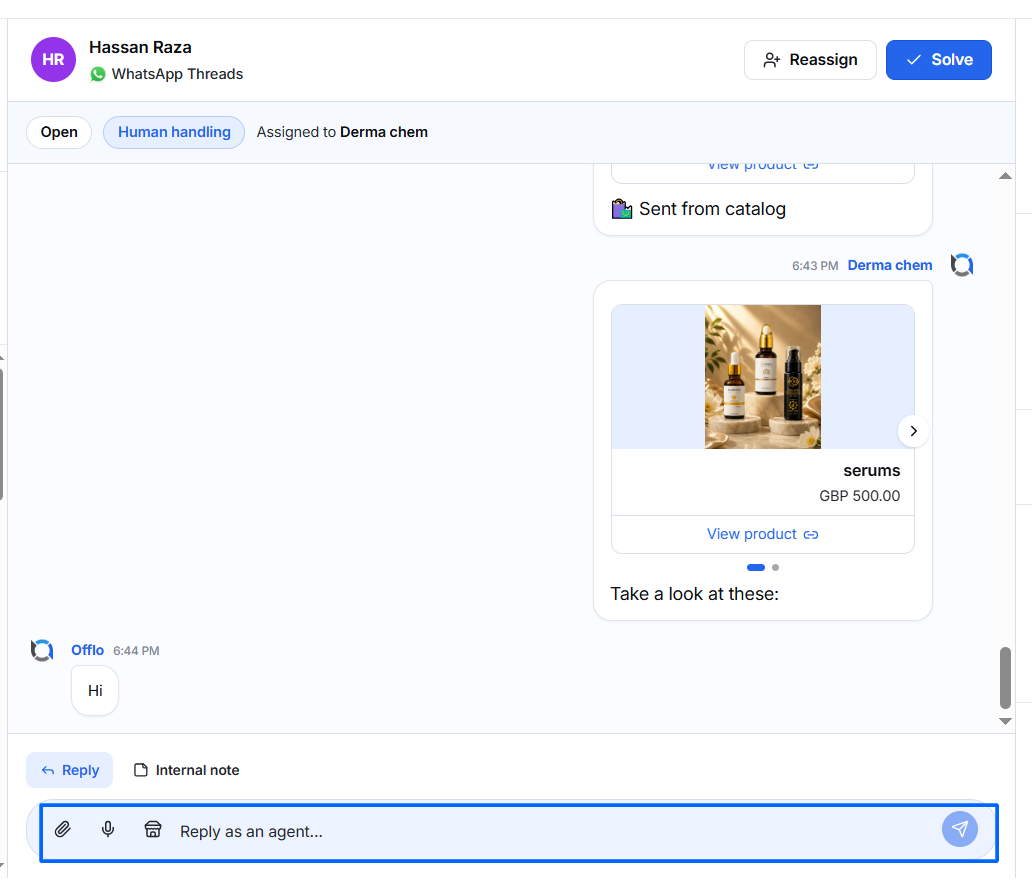
Messages are delivered immediately.
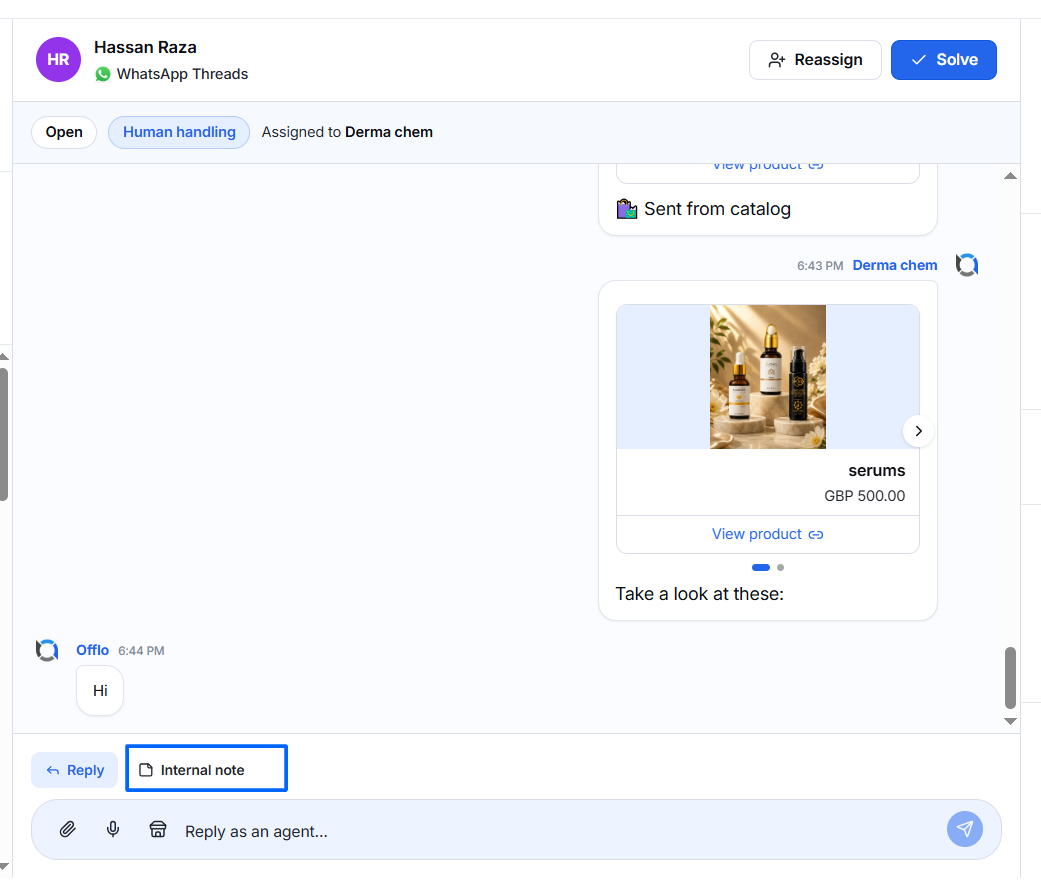
Internal Notes
Internal Notes allow team members to communicate privately.
Customers cannot see internal notes.
Use them to:
- Leave follow-up reminders.
- Share important customer information.
- Record troubleshooting details.
- Coordinate between team members.
Tags
Tags help organize conversations.
Examples:
- Sales
- Billing
- Support
- VIP
- Follow Up
Tags make searching and reporting easier.
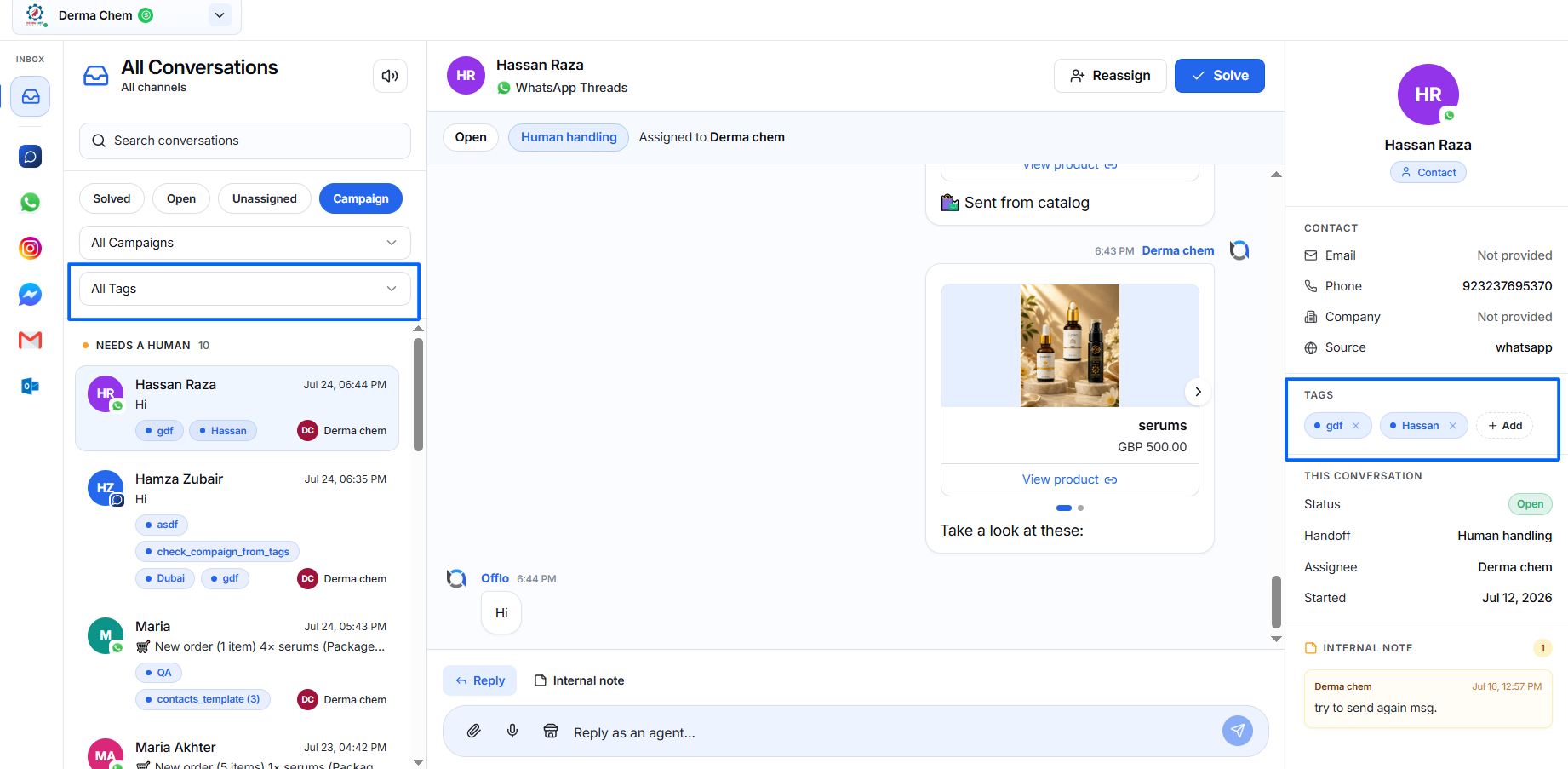
Conversation Details
The information panel also shows:
Status
Current conversation status.
Examples:
- Solved
- Open
- Unassigned
Handoff
Shows whether the conversation is managed by:
- AI Handling
- Human Handling
- Awaiting Human
Assignee
Displays the assigned team member.
If no one is assigned: “Assigned to no one yet”
Started
Shows when the conversation first began.
Human Escalation
Whenever AI determines that human intervention is required—or the customer explicitly requests a human agent—the system automatically escalates the conversation.
The conversation will:
- Display Awaiting Human.
- Appear in the Unassigned tab if no agent has been assigned.
- Show the escalation reason.
- Wait for a team member to accept it.