The Actions feature allows the Offlo AI Employee to perform tasks through API calls after collecting the required information from visitors.
For example, an Action can help the AI Employee:
- Check the order status.
- Book an appointment.
- Retrieve account information.
- Submit a refund request.
- Create or update data in an external system.
- Run multiple API requests in a defined sequence.
In this article, you’ll learn
- How the Actions screen works
- How to create an Action
- How to define when an Action runs
- How to create an Action sequence
- How input and output variables work
- How visitor confirmation works
- How to activate and manage Actions
- How to use templates
- How to search, sort, edit, and delete Actions
Open the Actions Screen
- Open the required Offlo AI Employee.
- Go to the Behaviour section.
- Select Actions.
The Actions screen contains two main tabs:
- My Actions
- Templates
My Actions
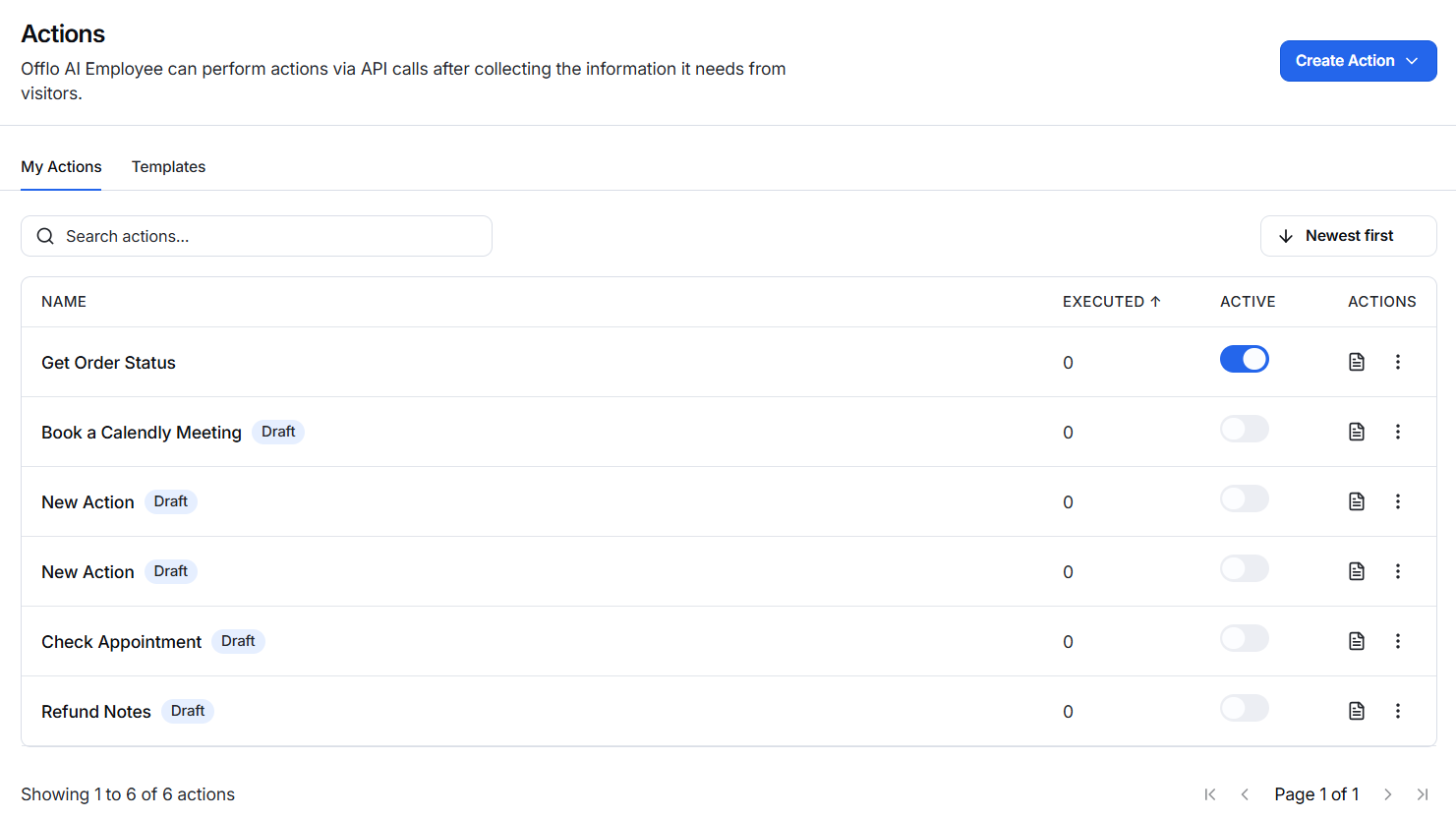
The My Actions tab displays all Actions created for the selected AI Employee.
The table includes the following information.
Name
Shows the name assigned to the Action.
A Draft label appears next to Actions that have not yet been activated.
Executed
Shows how many times the Action has been run.
Use this number to check whether the AI Employee is using the Action during customer conversations.
Active
The toggle controls whether the Action is available to the AI Employee.
- Enabled: The AI Employee can use the Action when its trigger instructions match the visitor’s request.
- Disabled: The Action remains saved but cannot be used.
Actions
The icons in this column allow you to review or manage the selected Action.
Available options include:
- Open the Action’s execution details or logs.
- Edit the Action.
- Delete the Action.
Search for an Action
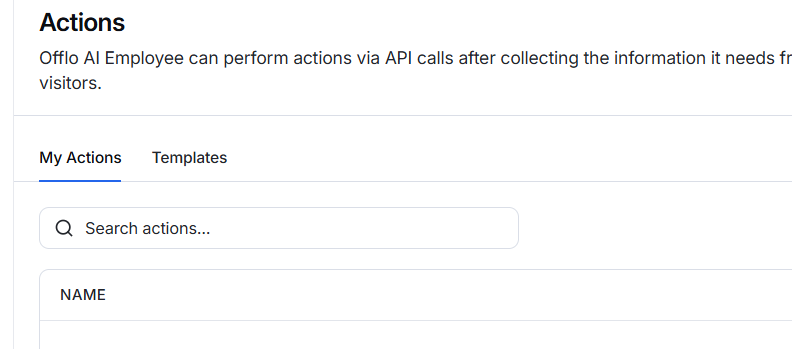
Use the Search actions field to find an Action by name.
- Open My Actions.
- Enter the full or partial Action name.
- Review the filtered results.
Sort Actions
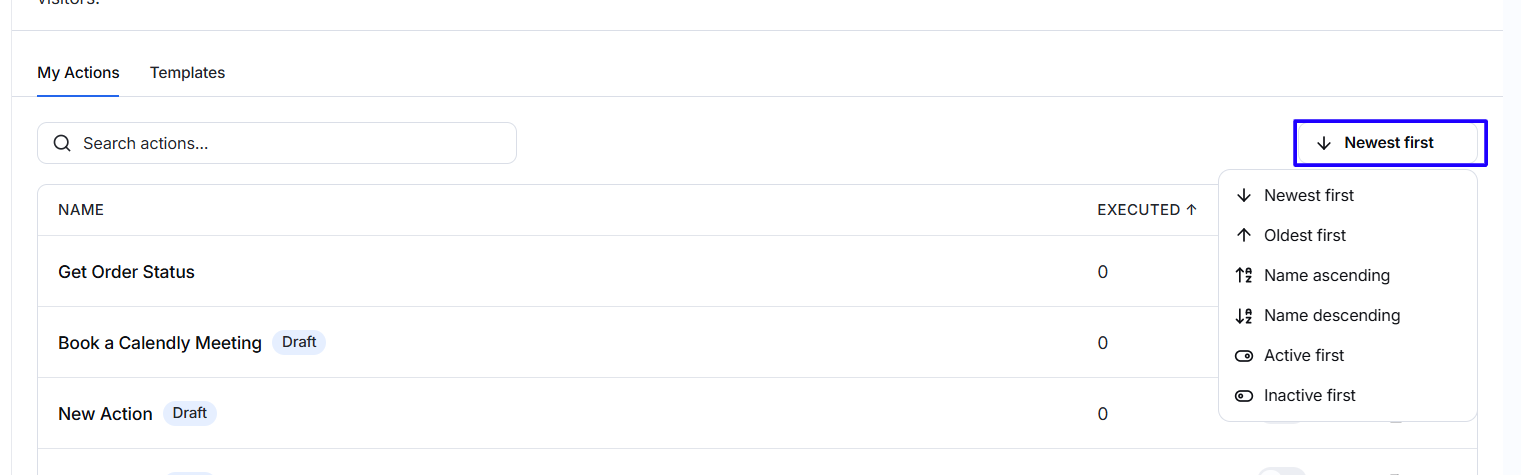
Use the sorting menu in the upper-right corner to arrange the list.
Available sorting options include:
- Newest first
- Oldest first
- Name ascending
- Name descending
- Active first
- Inactive first
Sorting makes it easier to find recently created, alphabetically ordered, active, or inactive Actions.