
The WhatsApp Integration page allows you to connect and manage your WhatsApp Business account with Offlo. Once connected, your AI agent can automatically respond to incoming WhatsApp messages on your connected number.
WhatsApp Integration — Before Connecting
The WhatsApp Integration allows you to connect your WhatsApp conversations to your Offlo inbox through Meta Embedded Signup.
Before connecting WhatsApp, this page provides an overview of the integration and explains how it can help your team manage customer conversations from one place.
Connect WhatsApp
Click the Connect button at the top-right of the page to start the WhatsApp connection process.
The connection uses Meta Embedded Signup to connect your WhatsApp Business account with Offlo.
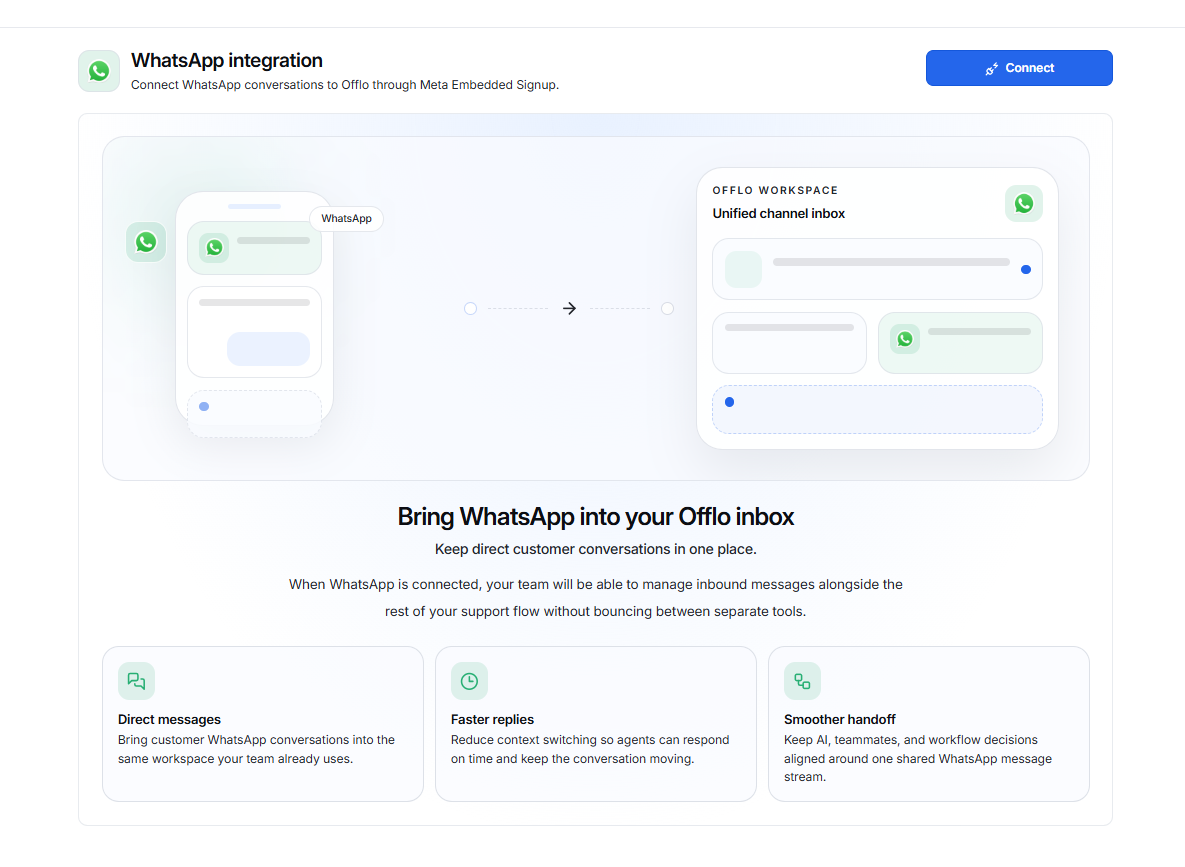
Benefits of WhatsApp Integration
The page highlights three main benefits of connecting WhatsApp with Offlo.
Direct Messages
Bring your customer WhatsApp conversations directly into the same workspace your team already uses.
This allows your team to manage WhatsApp conversations without switching between different tools.
Faster Replies
Keep conversations in one place so agents can respond faster without repeatedly switching between platforms.
Smoother Handoff
Keep AI, team members, and workflow decisions connected around the same WhatsApp conversation.
This helps your team provide a smoother customer support experience.
How to Connect WhatsApp
- Go to Settings.
- Select WhatsApp under Channels.
- Review the WhatsApp integration information.
- Click Connect.
- Follow the Meta Embedded Signup steps.
- Complete the WhatsApp Business account connection.
- After successful connection, your WhatsApp integration will become active.
Once connected, your AI agent can automatically respond to incoming WhatsApp messages on the connected number.
Connection Status
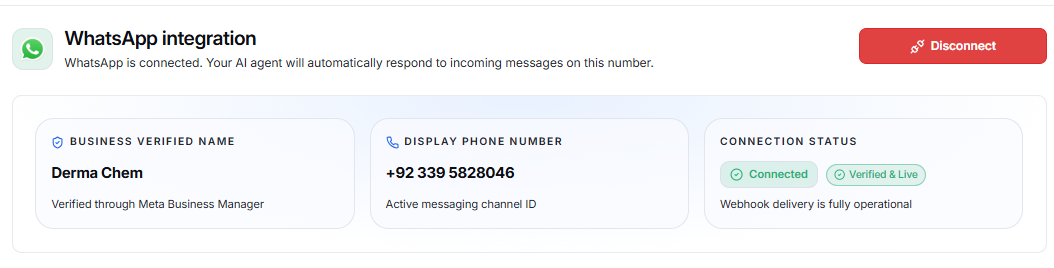
At the top of the page, you can see the current WhatsApp connection status.
Business Verified Name
Displays the verified business name connected to WhatsApp.
Example: Derma Chem
The page also shows that the business was verified through Meta Business Manager.
Display Phone Number
Shows the WhatsApp phone number connected to Offlo.
Example: +92 339 5828046
Connection Status
Shows whether the WhatsApp integration is working correctly.
In the example:
- Connected – WhatsApp is successfully connected.
- Verified & Live – The WhatsApp number is verified and live.
- Webhook delivery is fully operational – Messages can be delivered successfully between WhatsApp and Offlo.
Disconnect WhatsApp
The Disconnect button allows you to remove the current WhatsApp connection from Offlo.
Before disconnecting, make sure you understand that the WhatsApp integration will no longer be connected to Offlo.
Messaging Limits
The Messaging Limits section shows the current WhatsApp messaging capacity and account quality.
Daily Limit
Shows the maximum number of unique customers you can message within 24 hours.
Example: 2,000 / day
This means you can message up to 2,000 unique customers per 24 hours based on the current limit.
Quality Rating
Shows the quality of your WhatsApp messaging activity based on recent user feedback.
In the example:
Green
A green rating indicates good messaging quality.
Business Verification
Shows whether the business has been verified through Meta Business Manager.
In the example:
Verified
WhatsApp QR Code
The WhatsApp QR Code allows customers to quickly start a WhatsApp conversation by scanning the QR code.
This can be useful for:
- Flyers
- Product packaging
- Physical stores
- Posters
- Customer counters
- Marketing materials
How to Use the QR Code
- Display the QR code where customers can easily scan it.
- Customers scan the code using their phone.
- WhatsApp opens with the connected business number.
- Customers can start a conversation.
Download QR Code
Click Download QR Code (PNG) to save the QR code as a PNG image.
You can then use the downloaded image in your marketing or printed materials.
Floating Web Widget
The Floating Web Widget allows you to add a WhatsApp chat button to your website.
Visitors can click the button to start a WhatsApp conversation with your business.
How to Add the Widget
- Go to the Floating Web Widget section.
- Click Copy to copy the provided HTML code.
- Add the copied code to your website.
- Place the code before the closing </body> tag.
- Save and publish your website.
- The WhatsApp chat button will appear on your website.
The widget works without requiring external JavaScript and is designed to be compatible with modern browsers.
WhatsApp Integration Flow
Settings → WhatsApp → Connect WhatsApp → Verify Business/Number → WhatsApp Connected → Configure QR Code or Web Widget
Once connected, your AI agent can automatically respond to incoming WhatsApp messages on the connected number.