Organization Switcher
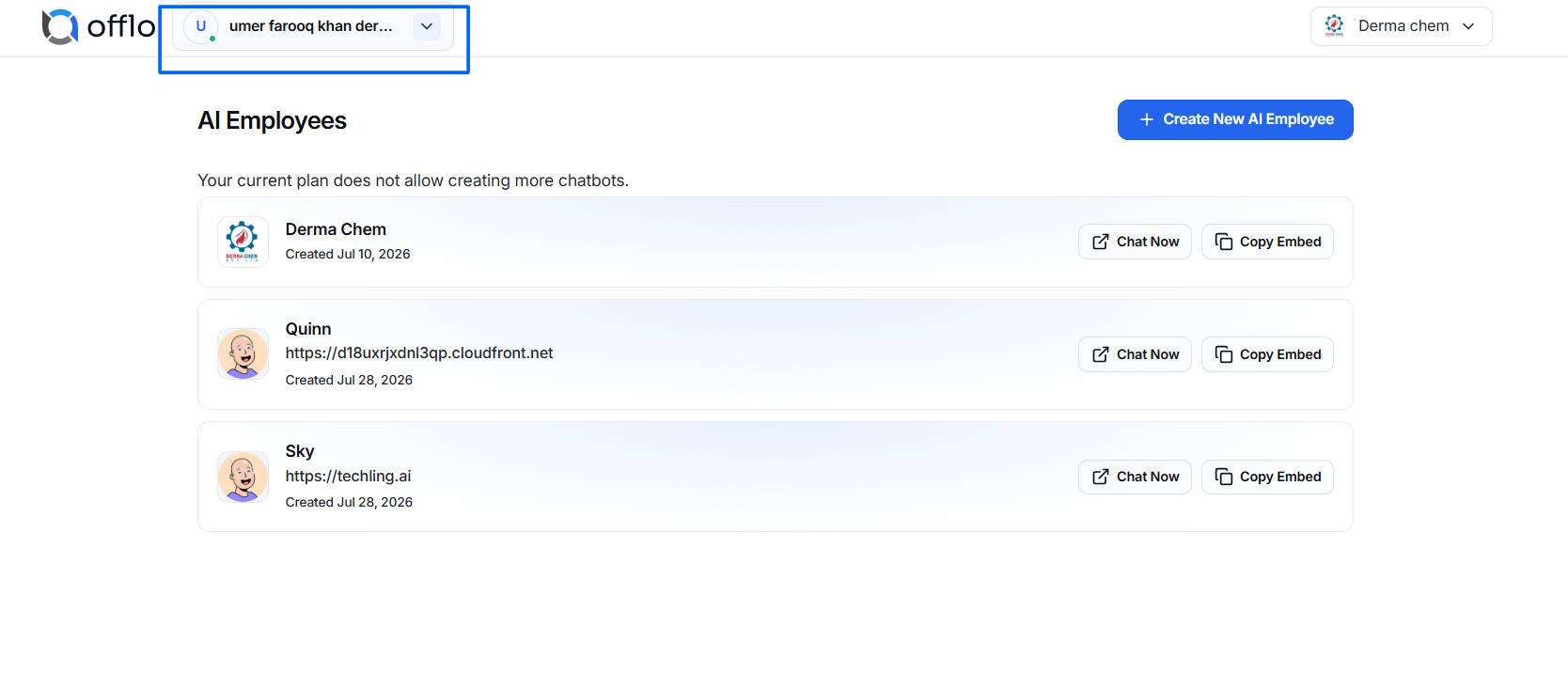
At the top of the dashboard, you'll find the Organization Switcher.
It allows you to quickly switch between organizations without signing out.
When you click your organization name, a dropdown menu appears showing:
- Current Organization
- Available Organizations
- Open Teams
Simply select another organization to instantly switch your workspace.
Open Teams
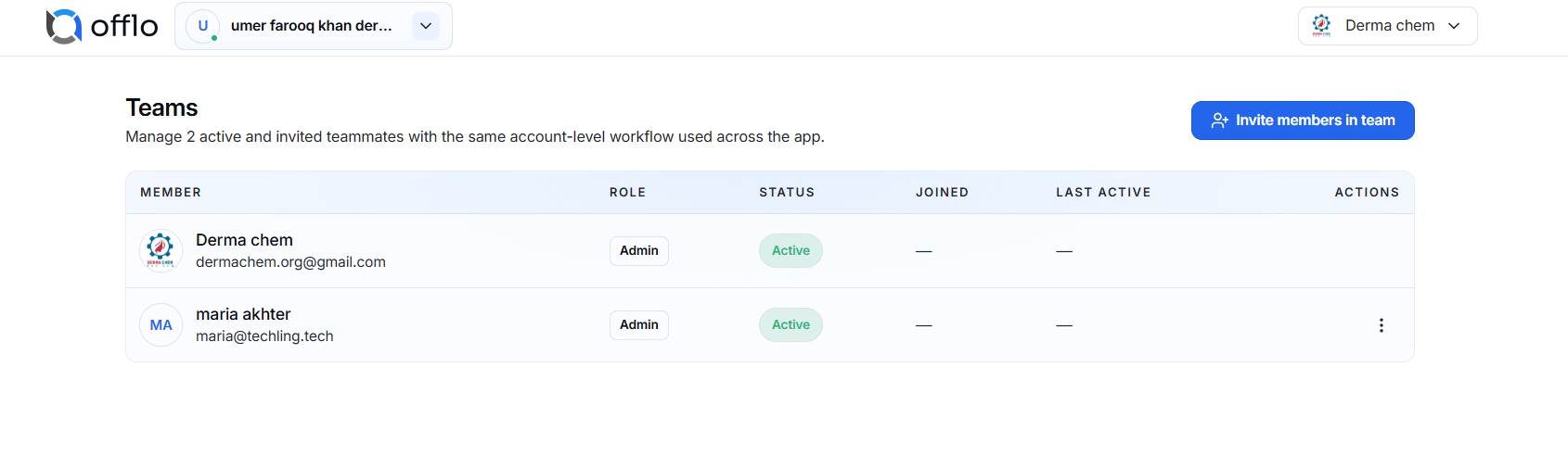
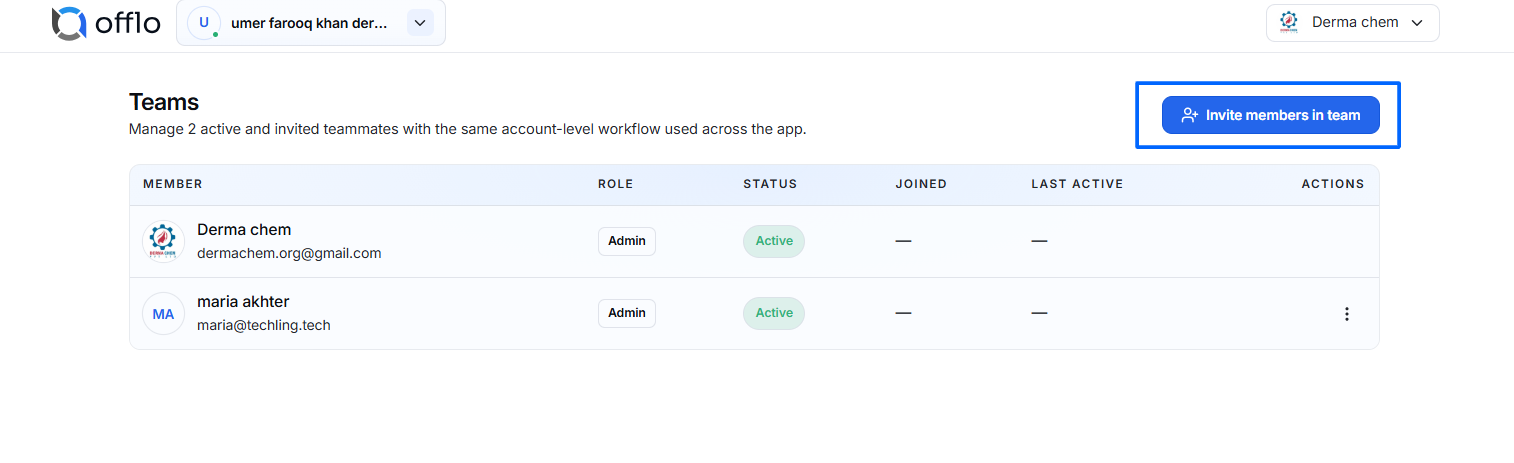
Selecting Open Teams opens the Team Management page for the currently selected organization.
This page allows administrators to manage everyone working inside that organization.
Team Management
The Team Management page displays all members belonging to the selected organization.
For every member, Offlo displays:
- Name
- Email Address
- Role
- Status
- Joined Date
- Last Active
- Available Actions
Invite Team Members
To invite a new team member:
- Click Invite Members in Team.
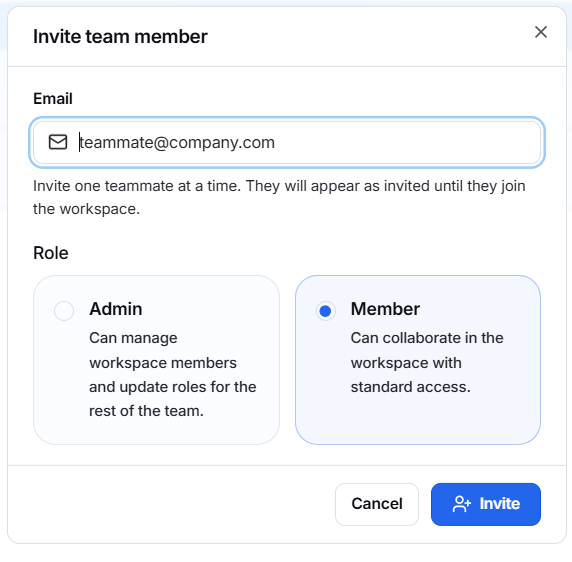
- Enter the user's email address.
- Select a role.
- Click Invite.
The invited user will receive an invitation email to join your organization.
User Roles
Admin
Administrators have full access to the organization.
They can:
- Invite members
- Remove members
- Update member roles
- Manage AI Employees
- Configure organization settings
- Access all conversations
- Manage workflows
Member
Members have standard workspace access.
They can:
- View assigned AI Employees
- Work with conversations
- Use permitted features
Members cannot perform organization-level administrative actions unless granted additional permissions.
Update Member Roles
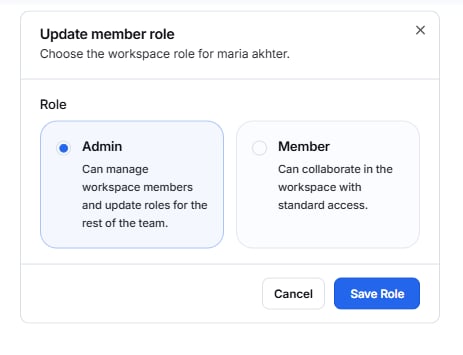
Administrators can change a member's role at any time.
To update a role:
- Open the member's action menu.
- Select Change Role.
- Choose the new role.
- Save the changes.
The new permissions are applied immediately.
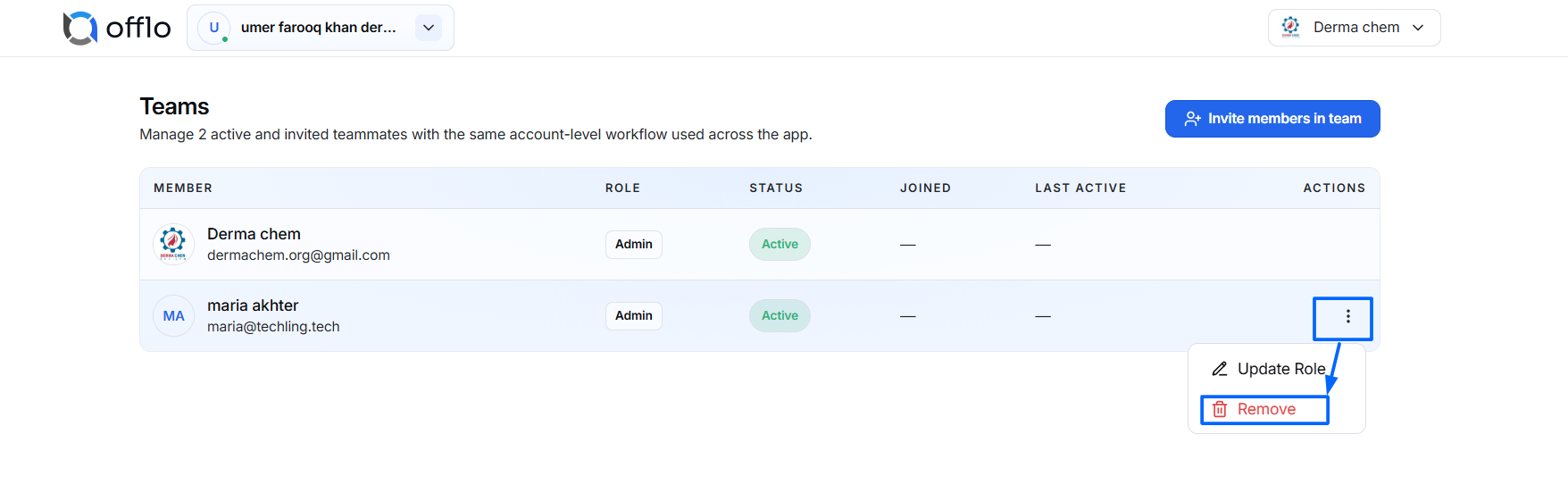
Remove Team Members
Administrators may remove users from the organization.
To remove a member:
- Open the member's action menu.
- Select Remove Member.
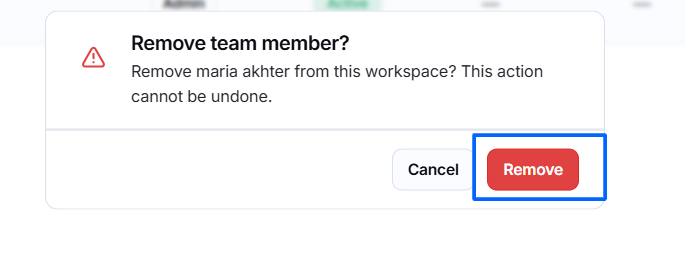
- Confirm the action.
- The user immediately loses access to the selected organization.