
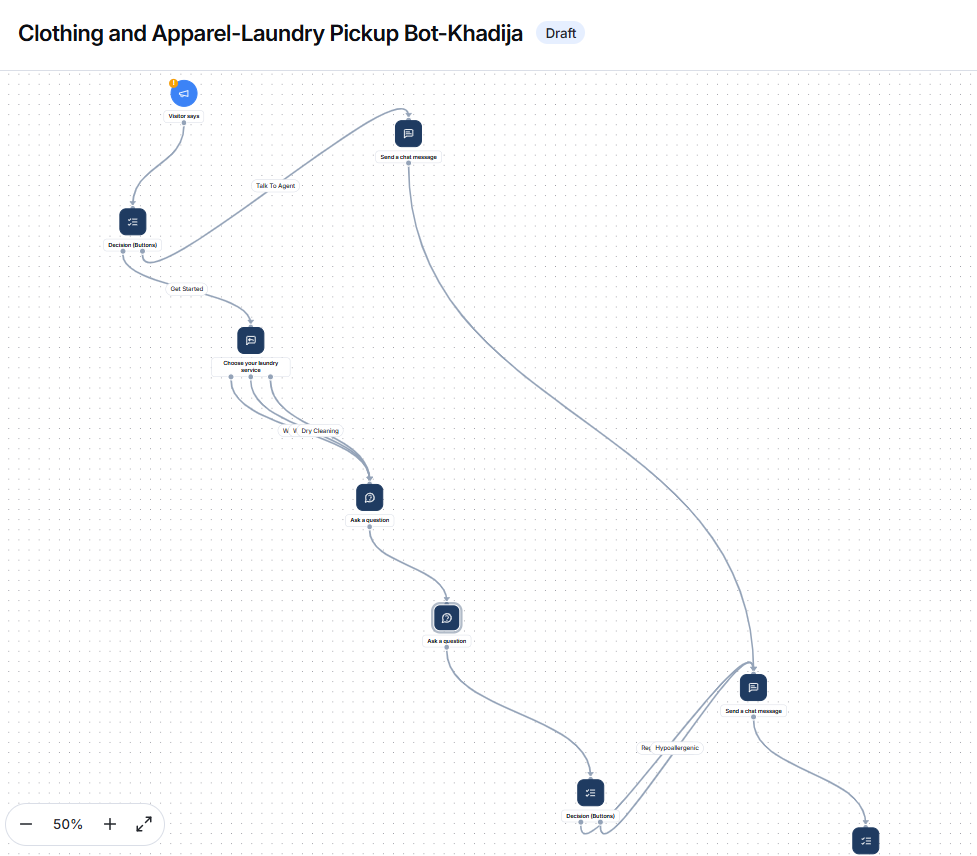
Flows allow you to automate customer conversations and business processes in Offlo. A flow starts when a selected trigger occurs and then follows the actions and conditions added to the visual flow builder.
You can build a flow from scratch, use a ready-made system template, or import an existing flow from a JSON file.
What you can do with Flows
Use the Flows feature to:
- Automatically engage website visitors.
- Respond when a visitor sends a message.
- Send automated messages and questions.
- Guide visitors through different conversation paths.
- Collect customer or lead information.
- Create sales, lead-generation, and support automations.
- Trigger flows based on visitor activity.
- Add conditions to control which path a visitor follows.
- Connect supported external platforms such as Shopify and Instagram.
- Import reusable flows from JSON files.
- Save flows as drafts before activating them.
- Review and manage all existing flows from one place.
Understanding how a flow works
A flow usually contains three main elements:
Trigger
A trigger defines when the flow should begin.
For example, a flow can begin when:
- A visitor opens the website for the first time.
- A returning visitor comes back to the website.
- A visitor scrolls a page.
- A visitor opens a specific page.
- The visitor’s mouse leaves the browser window.
- A visitor sends a message in the chat widget.
- A Shopify customer adds a product to the cart.
- A Shopify cart is abandoned.
- An Instagram user replies to a story.
- A scheduled day or time is reached.
Action
An action defines what Offlo should do after the trigger occurs.
Depending on the available flow nodes, actions may be used to:
- Send an automated message.
- Ask a visitor a question.
- Collect customer details.
- Continue the conversation.
- Call an API.
- Perform an integration-related task.
- Move the visitor to the next part of the flow.
Condition
A condition checks whether specific criteria are true or false.
Conditions help you create different branches inside the flow. For example:
- If the visitor selects Yes, continue to one branch.
- If the visitor selects No, move to another branch.
- If the visitor provides a particular answer, show a related response.
- If the required customer information is available, continue with the next action.
Together, these elements create the following automation:
Trigger → Action → Condition → Next Action
My Flows
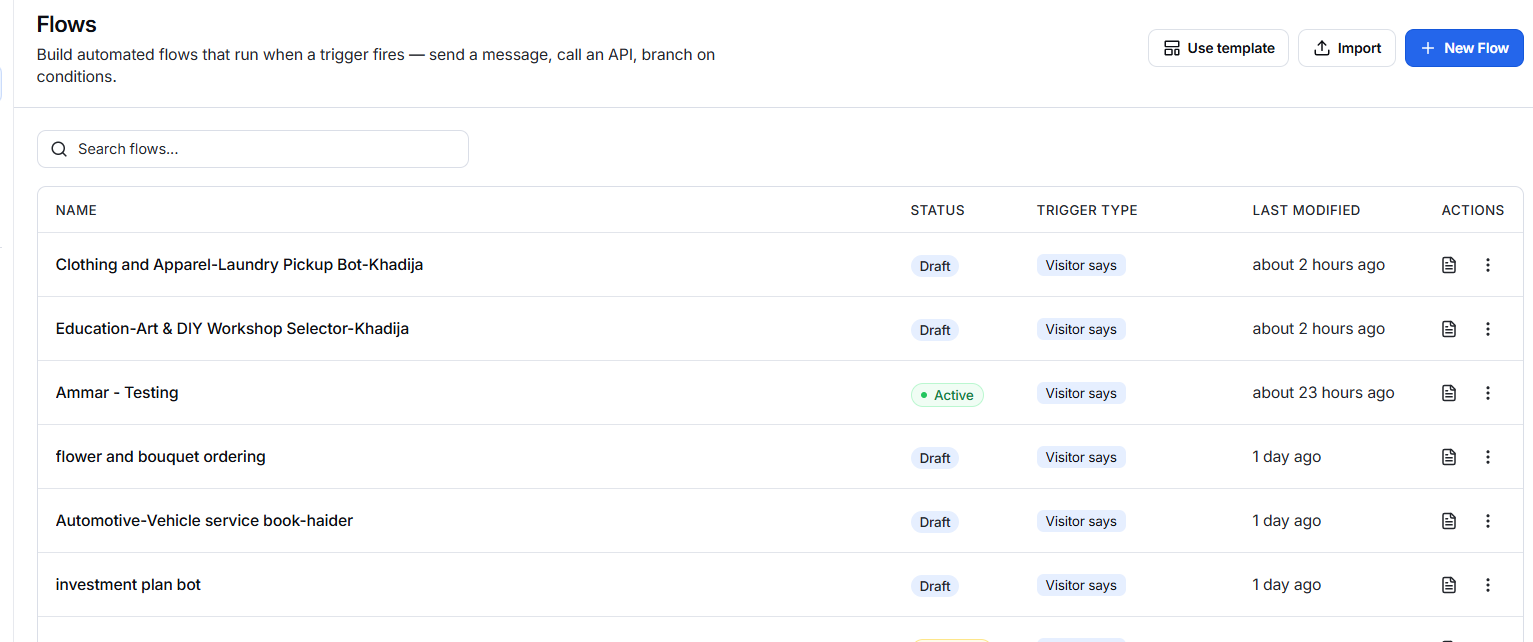
The My Flows section displays all flows created or added to the selected chatbot workspace.
From this screen, you can:
- Search for an existing flow.
- Review the flow name.
- Check its current status.
- See which trigger starts the flow.
- View when it was last modified.
- Open the flow for review or editing.
- Access additional flow-management options.
- Create a new flow.
- Use a system template.
- Import a flow.
Information displayed in the flow list
Name
Shows the name assigned to the flow.
Use a clear and descriptive name so team members can easily understand its purpose. For example:
- Lead Generation Flow
- Laundry Pickup Bot
- Appointment Booking
- Customer Feedback
- IT Support Flow
Status
Shows whether the flow is currently available to visitors.
Draft
The flow is still being created or edited. A draft flow is not ready to run for visitors.
Active
The flow is enabled and can run when its configured trigger occurs.
Inactive
The flow has been disabled and will not start, even if its trigger conditions are met.
Trigger Type
Shows the event that starts the flow. For example, Visitor says means the flow begins through a visitor’s interaction in the chat widget.
Last Modified
Shows when the flow was most recently updated.
This helps team members identify recently created or edited automations.
Actions
The icons in the Actions column provide options for opening or managing the selected flow. Use the three-dot menu to view any additional actions available for that flow.
Search for a flow
- Open Flows > My Flows.
- Select the Search flows field.
- Enter the full or partial name of the flow.
- Review the filtered results.