The Messenger Integration allows you to connect a Facebook Page to Offlo so your team can manage Messenger conversations from within the Offlo workspace.
Before Connection
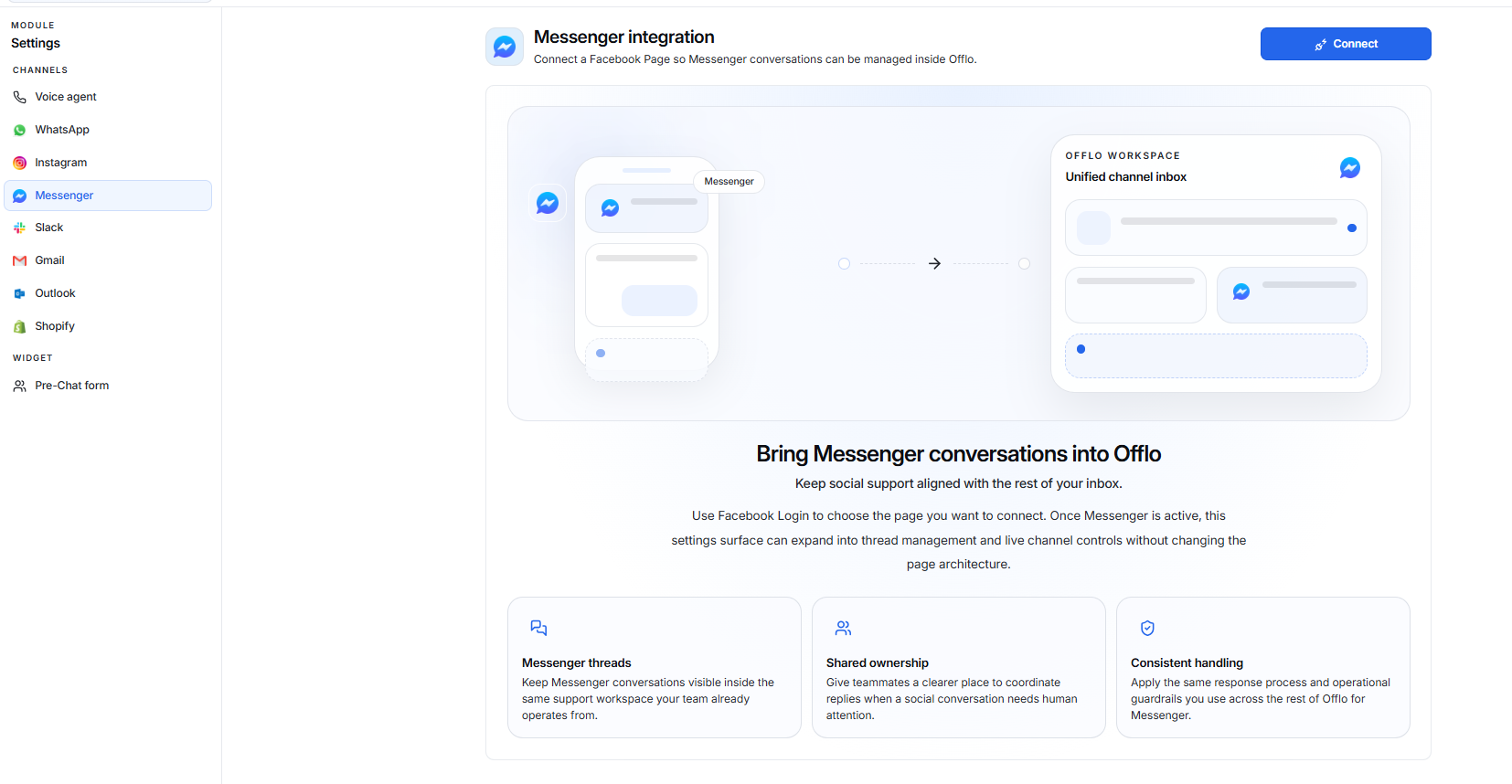
When Messenger is not connected, the integration page displays:
- Connect button
- Information about bringing Messenger conversations into Offlo
- Benefits such as:
- Messenger threads
- Shared ownership
- Consistent handling
Connect Messenger
- Go to Settings.
- Select Messenger under Channels.
- Click Connect.
- Sign in with your Facebook account if required.
- Select the Facebook Page you want to connect.
- Complete the Facebook authorization process.
- After successful authorization, Messenger will be connected to Offlo.
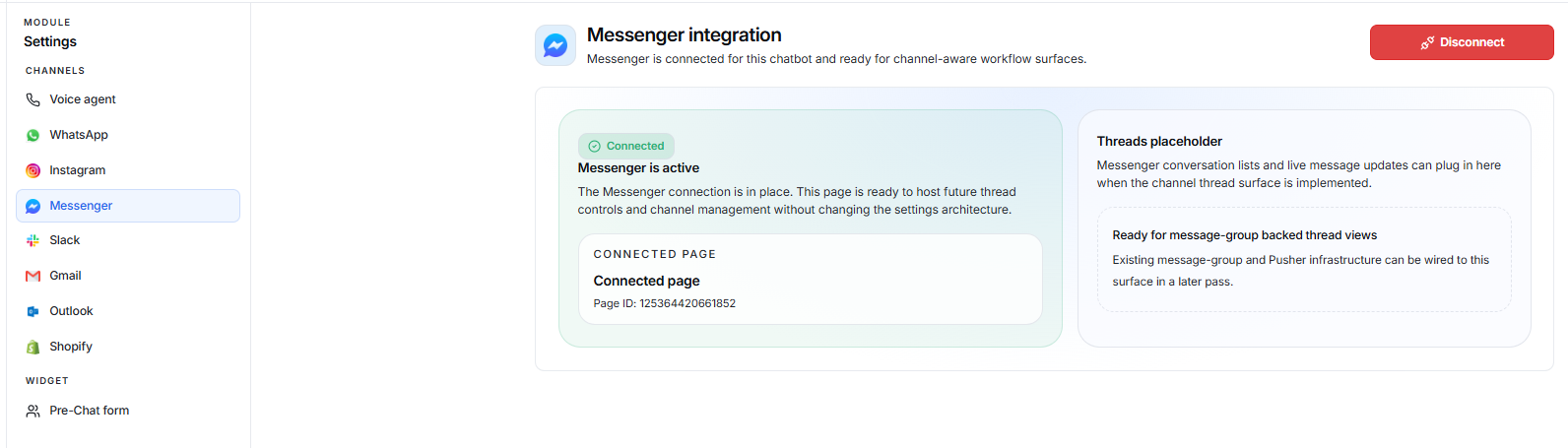
After Connection
Once the connection is successful, the page shows:
- Connected status
- Messenger is active message
- Connected Facebook Page information
- Disconnect button
- Threads area for future Messenger conversations
Connected Page
The Connected Page section shows the Facebook Page currently linked to Offlo.
It displays the connected page and its Page ID.
Disconnect Messenger
If you no longer want to use Messenger with Offlo:
- Open Settings → Messenger.
- Click Disconnect.
- Confirm the action if prompted.
After disconnecting, the Messenger connection will no longer be active.