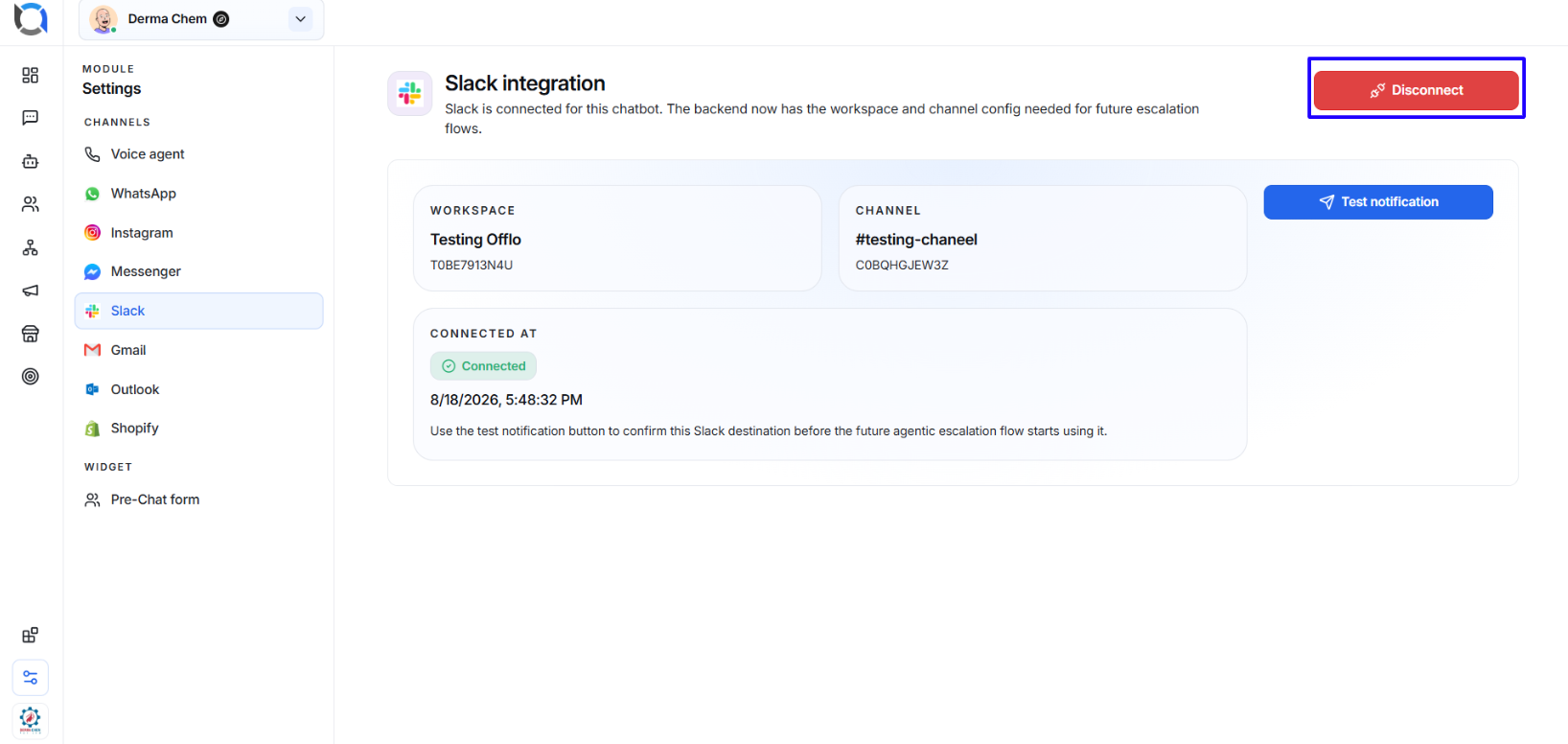
The Slack Integration connects Offlo with your Slack workspace so your team can receive and view Offlo chatbot conversations directly in a selected Slack channel.
This is especially useful for human handoff and escalation, allowing your team to stay informed about customer conversations without continuously monitoring Offlo.
What you can do here
Use Settings > Slack to:
- Connect Offlo with your Slack workspace.
- Select a specific Slack workspace.
- Choose the Slack channel where Offlo messages should appear.
- Receive chatbot messages and notifications in Slack.
- View the connected workspace and channel information.
- Send a test notification to verify the connection.
- Disconnect Slack when the integration is no longer required.
Connect Slack with Offlo
1. Open Slack Settings
Go to:
Settings > Channels > Slack
The Slack Integration page will appear.
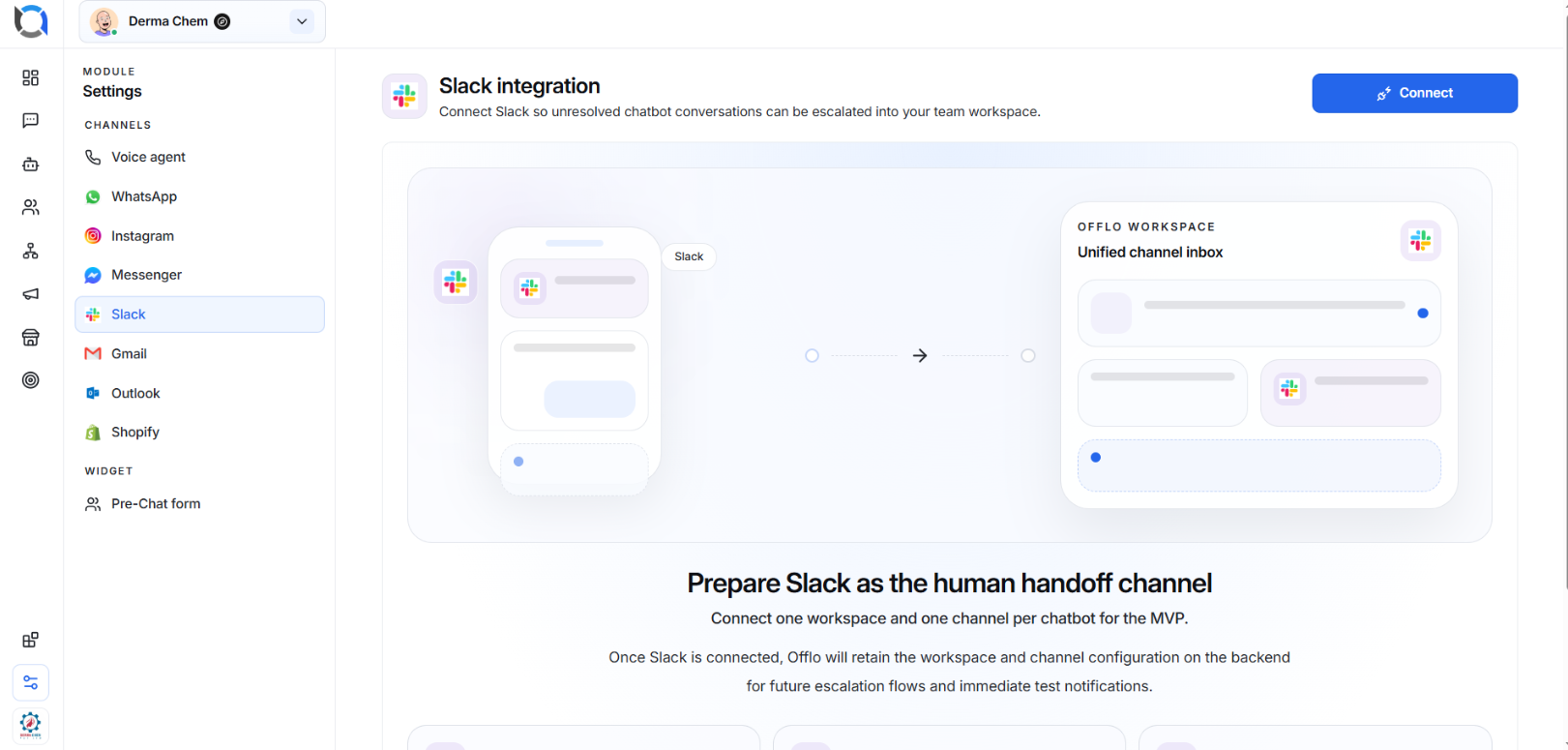
Click Connect to start connecting your Slack account with Offlo.
2. Select your Slack Workspace
You will be redirected to Slack.
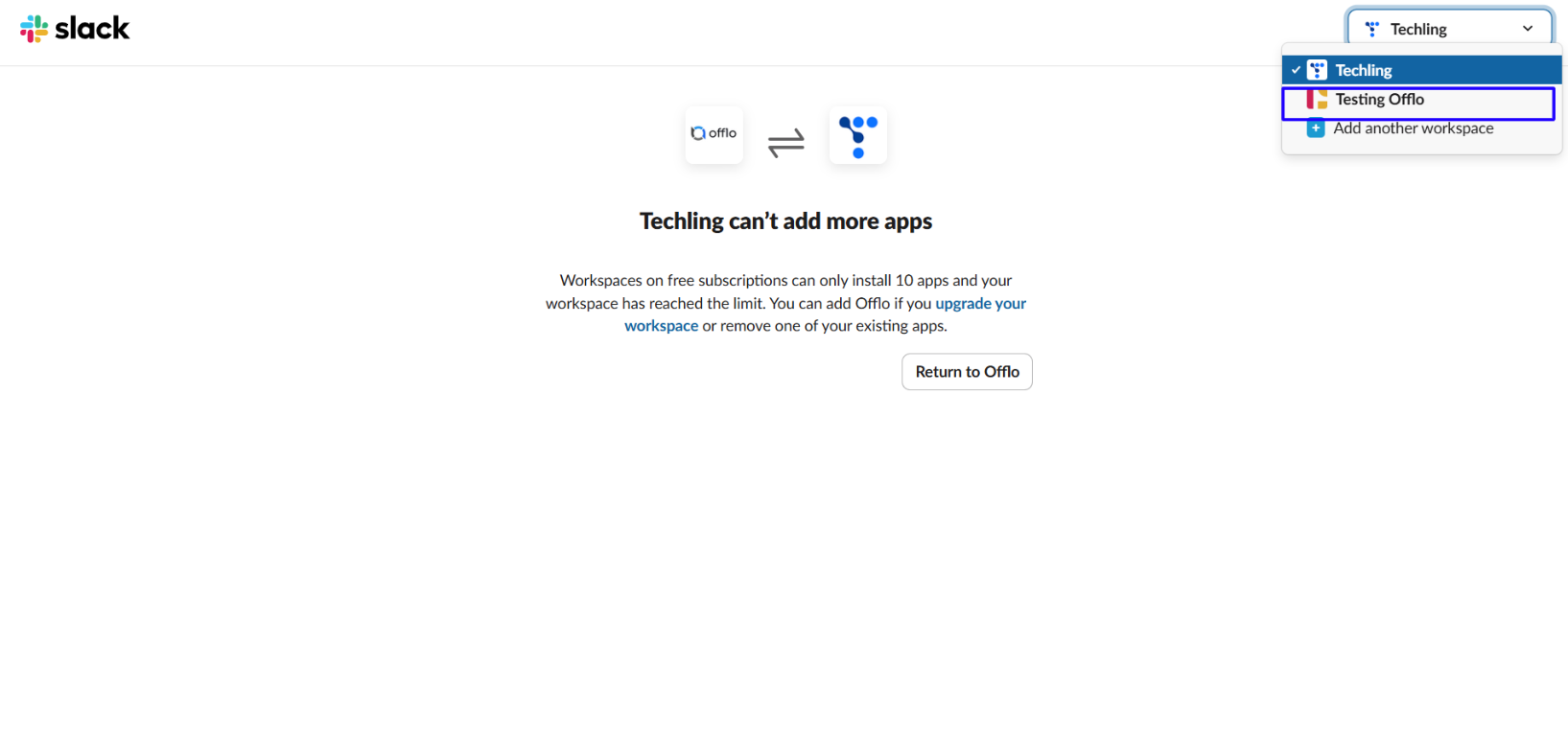
Select the workspace that you want to connect with Offlo.
If the required workspace is not available, you can choose Add another workspace and sign in to the appropriate Slack workspace.
3. Check your Slack workspace limits
Depending on your Slack plan, there may be limitations on the number of apps that can be installed.
For example, if your workspace has reached its app installation limit, Slack may prevent Offlo from being added.
In this situation, you may need to:
- Remove an existing Slack app, or
- Upgrade your Slack workspace.
After resolving the limitation, return to Offlo and start the connection again.
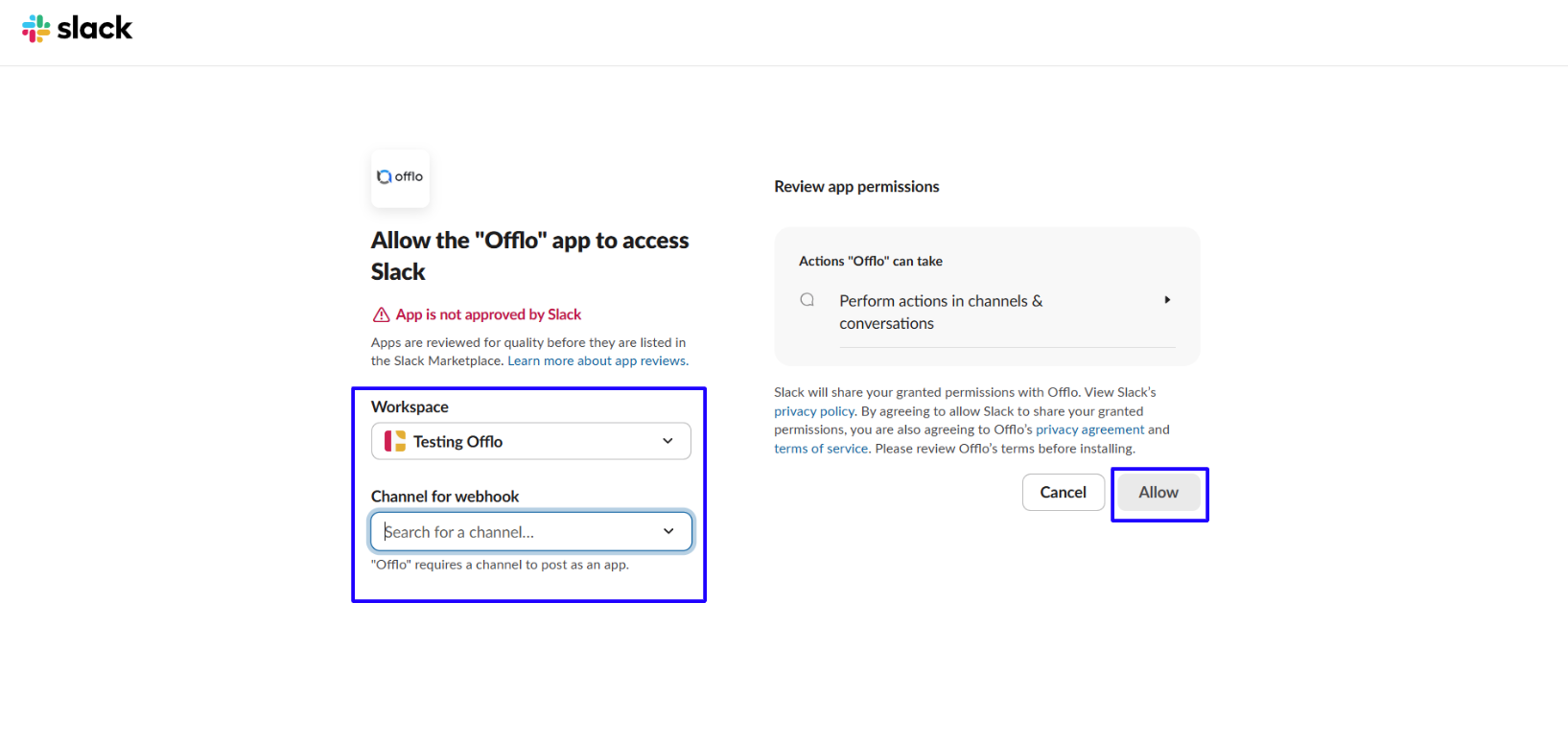
4. Select a Slack Channel
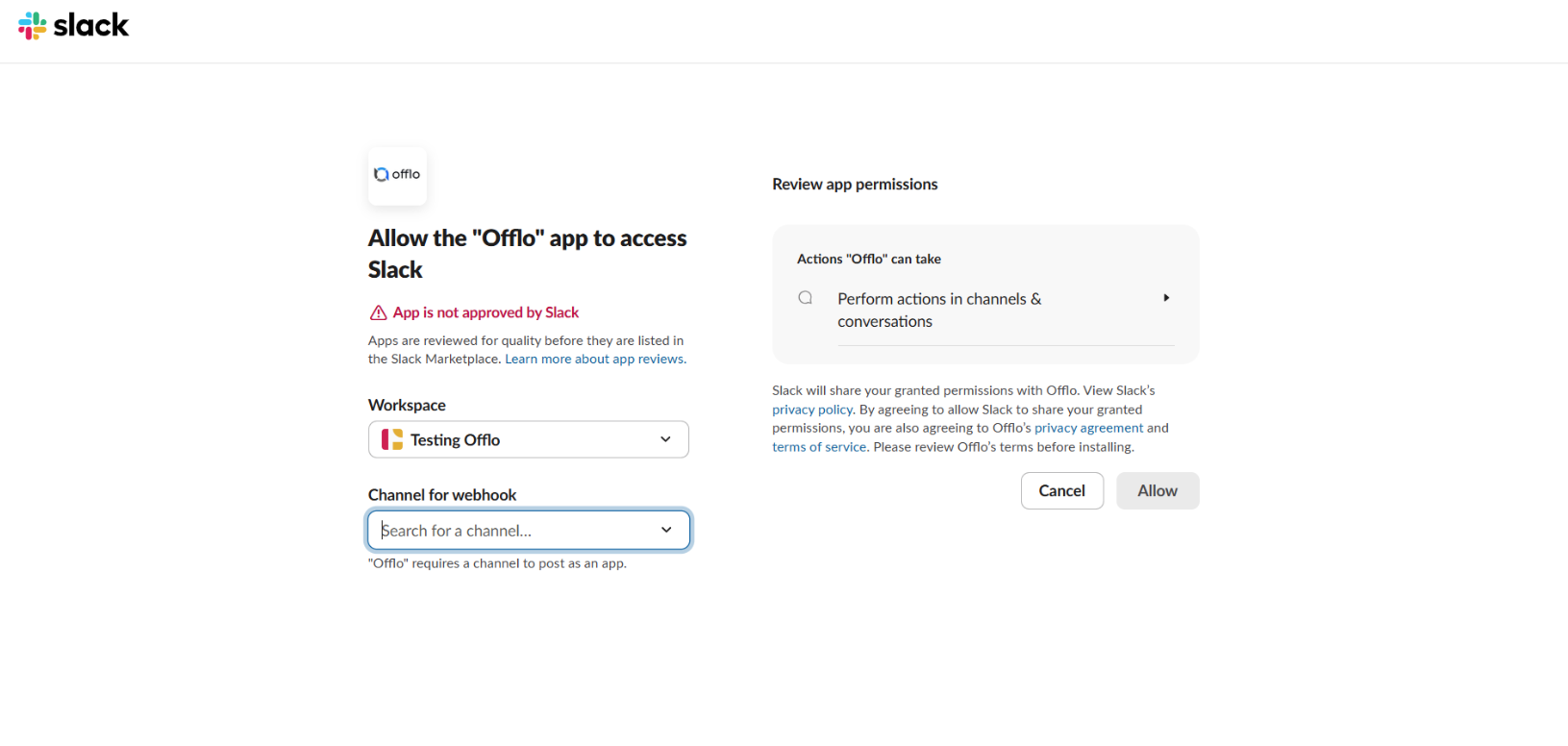
After selecting the workspace, choose the Channel for webhook.
This is the Slack channel where Offlo will send chatbot messages and notifications.
For example:
Workspace: Testing Offlo Channel: #testing-channel
Choose a channel that your support or customer service team actively monitors.
5. Review Permissions
Slack will display the permissions requested by Offlo.
Review the permissions and selected workspace/channel carefully.
Click Allow to authorize the integration.
Once authorization is successful, you will automatically return to Offlo.
Slack Connected Successfully
After successful connection, the Slack Integration page displays the connection information, including:
- Workspace — the connected Slack workspace.
- Channel — the Slack channel selected for notifications.
- Connected At — when the Slack integration was connected.
- Connected status — confirms that the integration is currently active.
Offlo stores the selected workspace and channel configuration so it can use this destination for chatbot notifications and escalation flows.
How Messages Work
Once Slack is connected, the selected channel becomes the destination for applicable Offlo chatbot notifications and conversations.
The basic flow is:
User sends a message in Offlo → Offlo processes the conversation → Relevant notification/conversation is sent to the connected Slack channel → Your team can view it in Slack
This allows team members to keep track of customer conversations from their Slack workspace and supports human handoff when a conversation requires team attention.
Test the Slack Connection
After connecting Slack, click the Test notification.
Offlo will send a test notification to the selected Slack channel.
Check the Slack channel and confirm that the test message was received successfully.
It is recommended to test the integration immediately after connecting it so you know that the correct workspace and channel have been configured.
Disconnect Slack
If you no longer want Offlo to send messages to the connected Slack workspace, click Disconnect.
The existing Slack connection will be removed from the chatbot.
You can use Connect again whenever you need to configure another workspace or channel.