
Click Use Template to open the library of pre-built WhatsApp Flow forms.
Templates provide a ready-made starting structure that you can customize according to your business requirements.
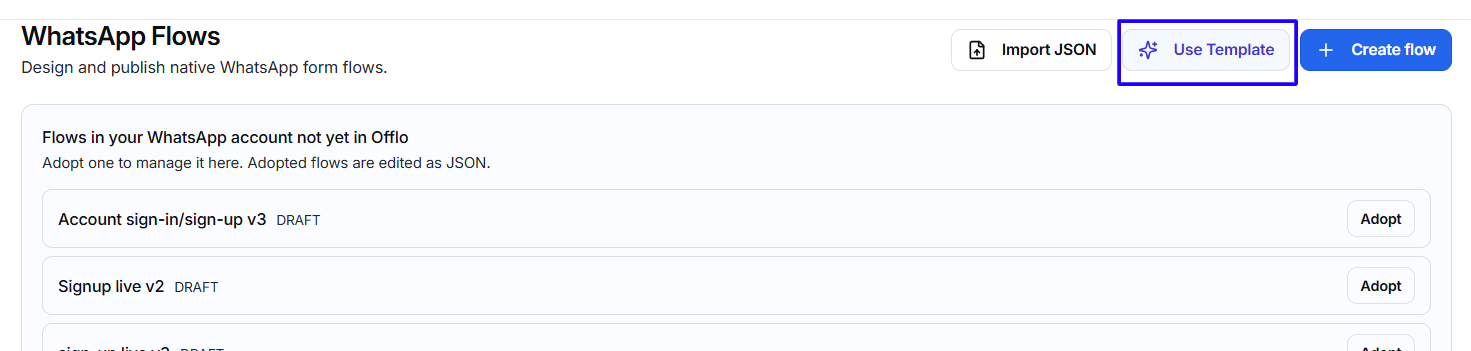
Browse templates
The template library includes the following filters:
- All Templates
- Static (Without Endpoint)
- Dynamic (With Endpoint)
You can also use the Search templates field to find a template by name or purpose.
Static Templates
Static templates work without an external endpoint.
They are suitable for collecting information that does not require live data from another system.
Examples include:
- Collect Purchase Interest
- Get Feedback
- Customer Support
- Default Flow
Use a Static Flow when you want to:
- Capture lead details.
- Collect survey responses.
- Receive support information.
- Create a simple form.
- Display fixed questions and options.
Dynamic Templates
Dynamic templates use an endpoint to retrieve or submit information while the Flow is running.
Examples include:
- Appointment Booking
- Provide Insurance Quote
Use a Dynamic Flow when you need to:
- Display live availability.
- Retrieve information from an external system.
- Submit data through an API.
- Produce a customized response.
- Connect the Flow with a scheduling or business platform.
Dynamic templates require a correctly configured endpoint.
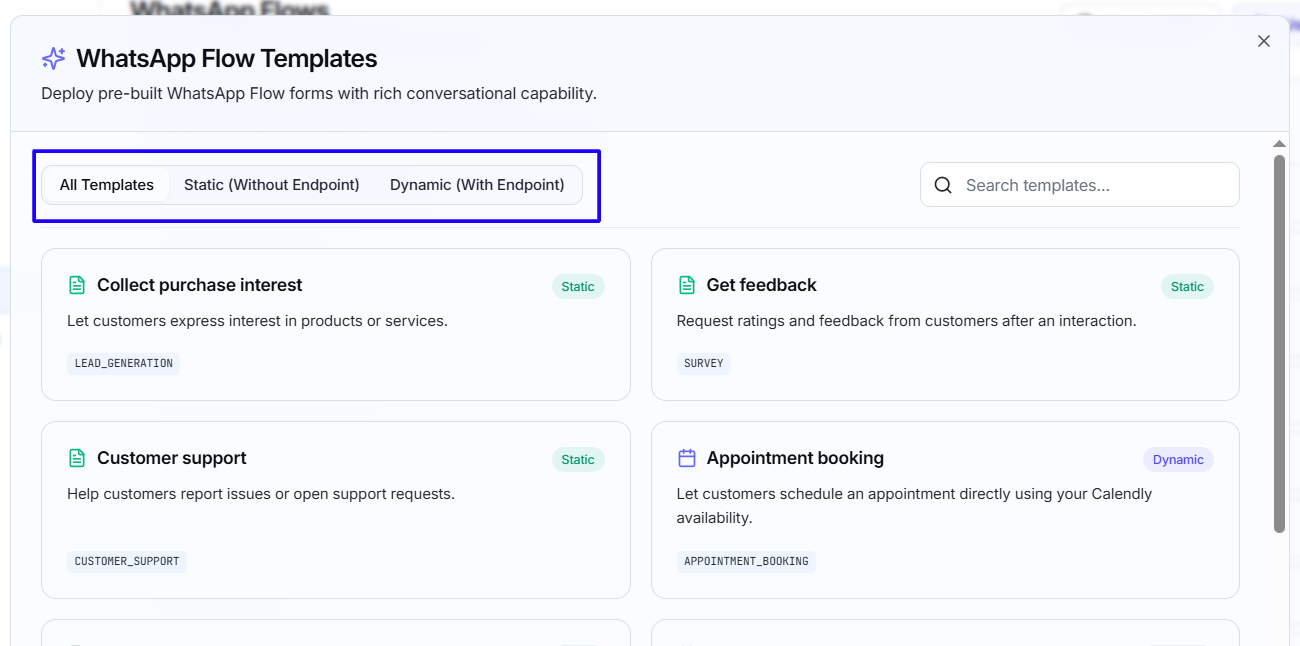
Available template examples
Collect Purchase Interest
Allows customers to express interest in products or services.
Type: Static. Category: Lead Generation
Get Feedback
Collects ratings and feedback after a customer interaction.
Type: Static. Category: Survey
Customer Support
Allows customers to report issues or open support requests.
Type: Static. Category: Customer Support
Appointment Booking
Allows customers to schedule an appointment using available Calendly slots.
Type: Dynamic. Category: Appointment Booking
Default
Creates a simple blank Flow containing a welcome screen.
Type: Static. Category: Other
Provide Insurance Quote
Collects information such as age, coverage, and family details to retrieve a customized quote.
Type: Dynamic. Category: Lead Generation
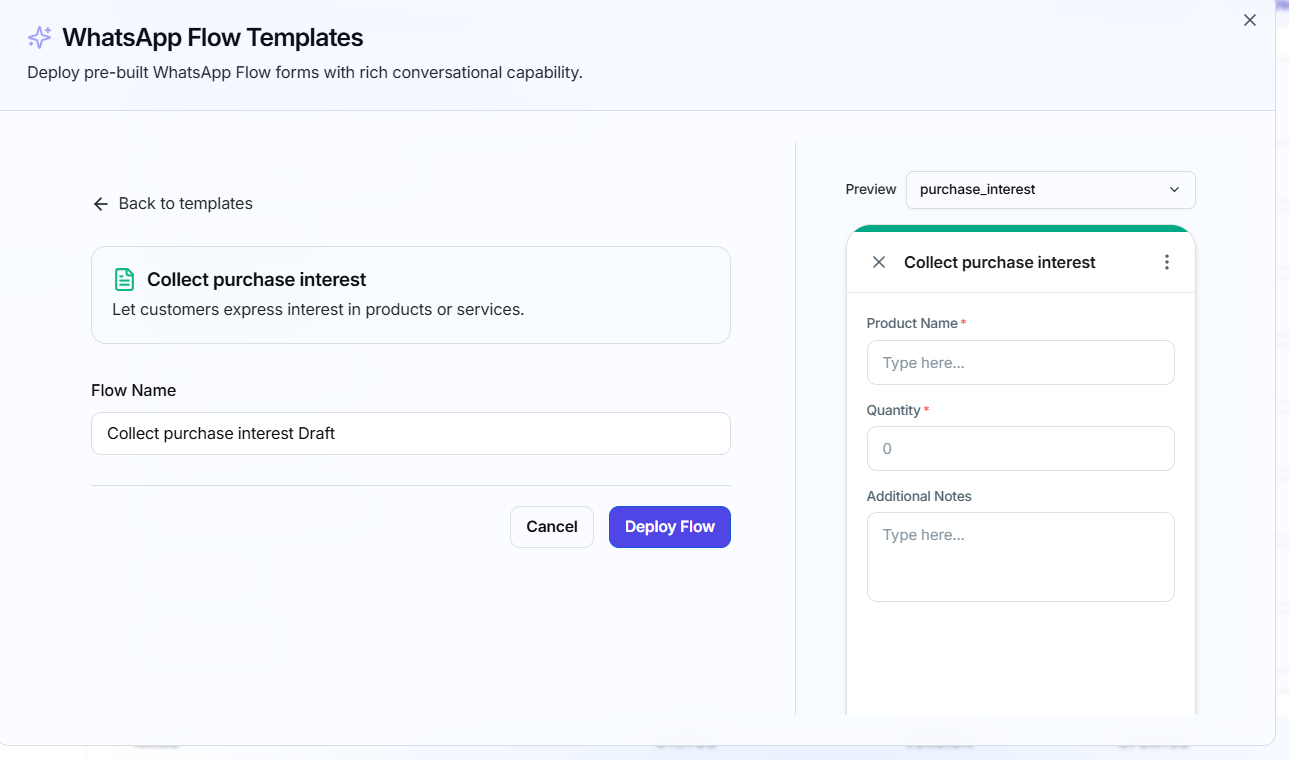
Create a Flow from a template
- Click Use Template.
- Browse or search the available templates.
- Select All, Static, or Dynamic.
- Choose the template that matches your requirement.
- Review its type and category.
- Add the template to your workspace.
- Customize its content and settings.
- Test it before publishing.
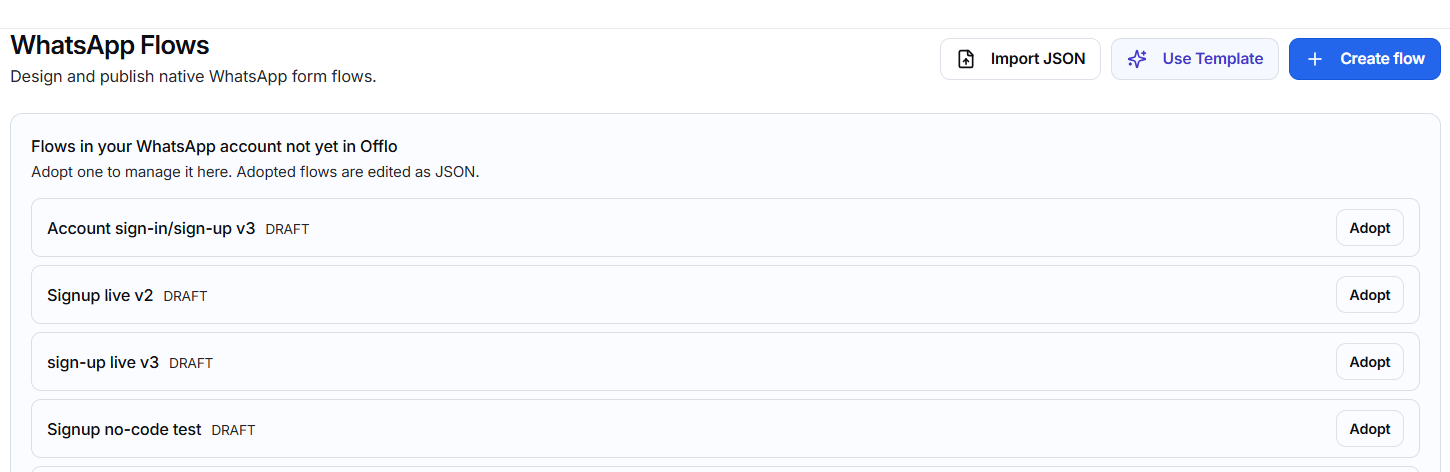
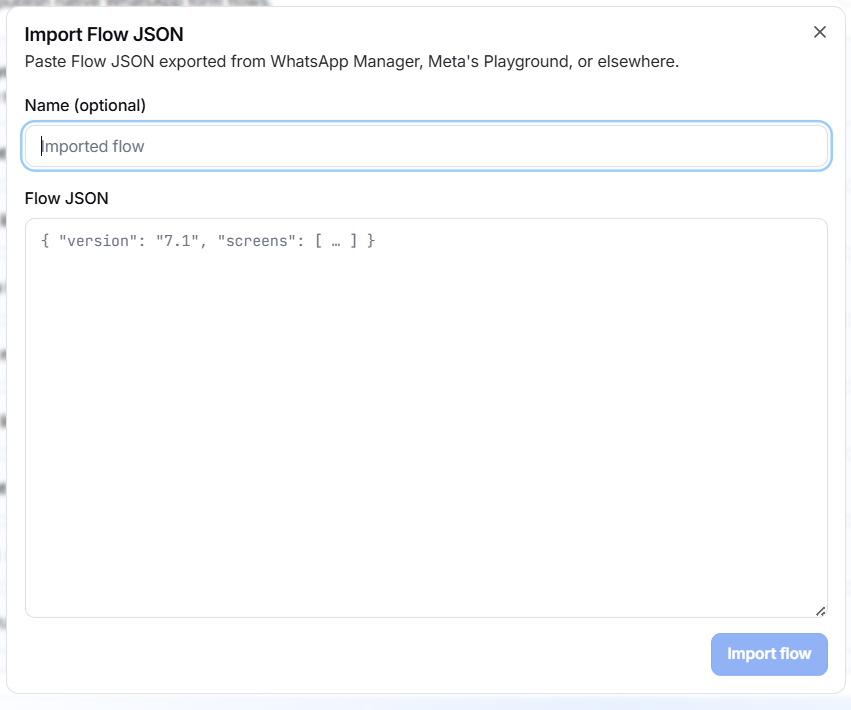
Import Flow JSON
Use Import JSON to add a Flow created in WhatsApp Manager, Meta’s Playground, or another supported source.
Import a Flow
- Click Import JSON.
- Enter an optional name.
- Paste the complete Flow JSON into the Flow JSON field.
- Confirm that the JSON uses the required WhatsApp Flow structure.
- Click Import flow.
- Review the imported Flow.
- Correct any validation problems.
- Save or publish it when ready.
Name
The name is optional. If entered, use a clear title that identifies the imported Flow.
Flow JSON
Paste the valid JSON definition for the WhatsApp Flow.
The JSON may contain:
- Flow version
- Screens
- Form components
- Navigation
- Fields
- Actions
- Data definitions
- Endpoint-related configuration
The Import flow button becomes available after the required JSON has been entered.
Import requirements
- Paste valid JSON only.
- Use a supported WhatsApp Flow version.
- Make sure all screens and components follow Meta’s required format.
- Review endpoint details for Dynamic Flows.
- Do not include incorrect or expired credentials.
- Validate and test the imported Flow before publishing.
Manage Flows in Offlo
Flows managed in Offlo appear in the table below the adoption section.
The table includes:
- Name
- Status
- Version
- Updated
- Actions
Name
Shows the name assigned to the WhatsApp Flow.
Use clear names so team members can understand the Flow’s purpose.
Status
Shows the current Flow state.
Draft
The Flow is still being created or updated. It is not yet available for normal campaign use.
Draft Flows can be reviewed, edited, validated, and tested before publication.
Published
The Flow has been published and is available for use where supported.
Carefully review all screens, fields, navigation, and endpoint behavior before publishing.
Version
Shows the WhatsApp Flow version, such as v1.
The version helps identify the current Flow definition being managed.
Updated
Shows the date when the Flow was last updated.
Use this information to identify recently changed Flows.
Actions
Shows the management options available for the selected Flow.
The displayed options may depend on the Flow’s current status.