
The Segments page allows you to group contacts based on specific rules. Segments help you select the right contacts for targeted WhatsApp campaigns and follow-ups.
1. View Contacts
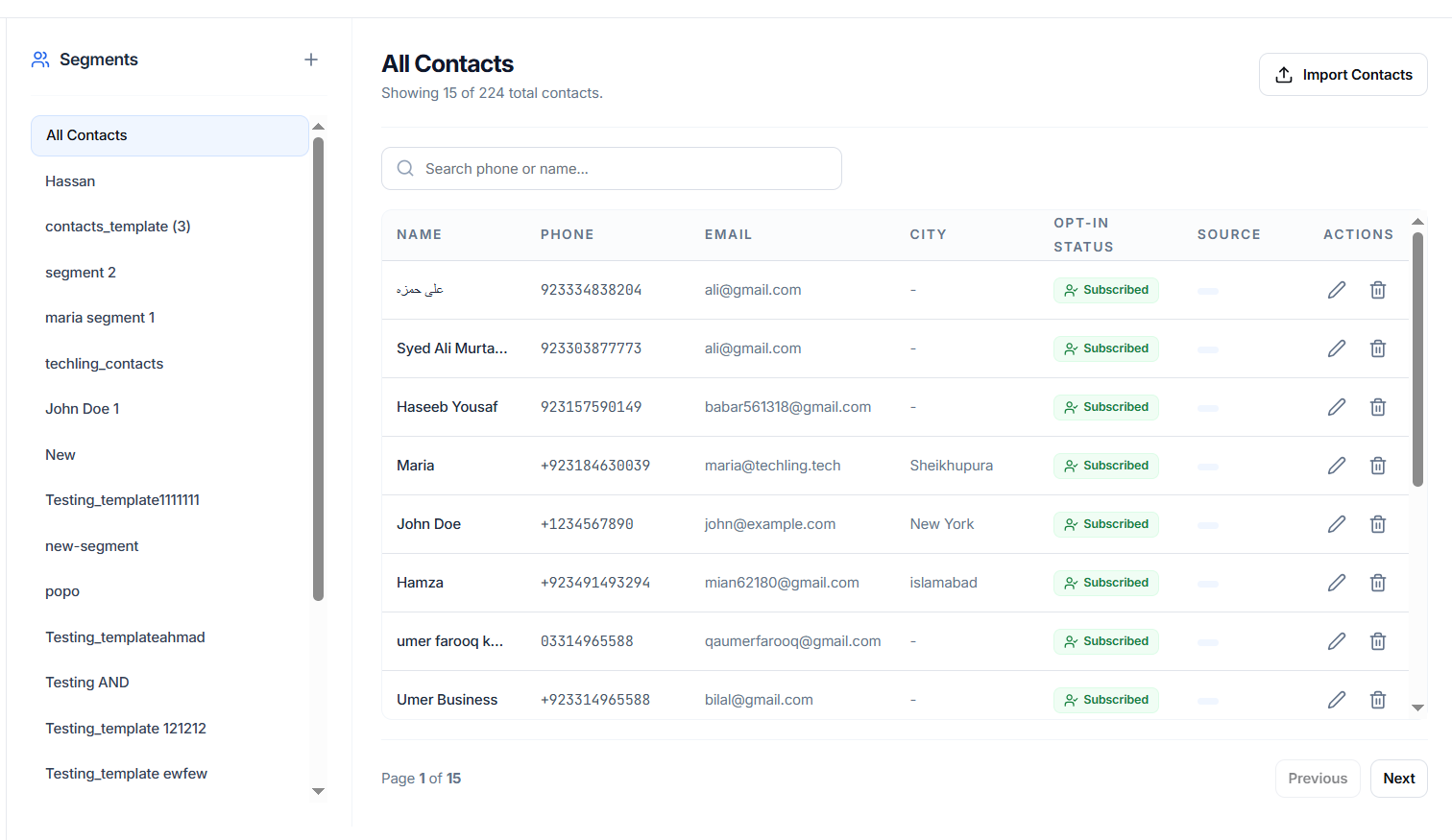
The left panel displays all available segments, including All Contacts and previously created segments.
Select a segment to view the contacts included in that segment.
The contact list shows details such as:
- Name
- Phone
- City
- Opt-in Status
- Source
- Actions
You can also search contacts by phone number or name.
2. Create a Segment
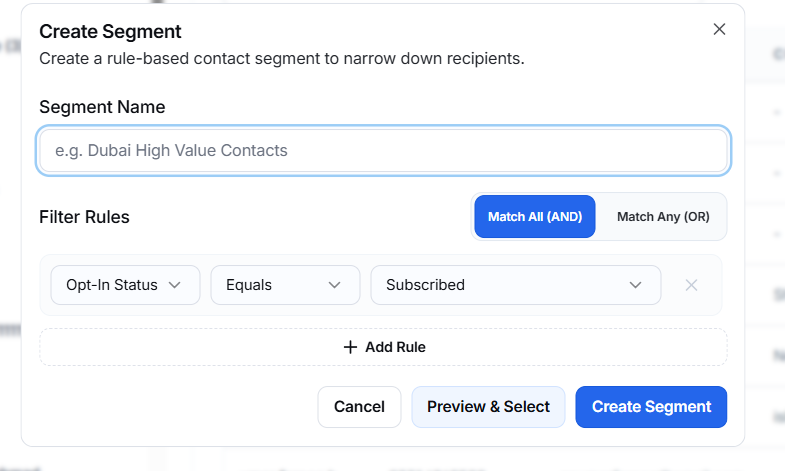
Click the + icon next to Segments to create a new segment.
Segment Name
Enter a name that clearly describes the group.
Example: Dubai High Value Contacts
Filter Rules
Add rules to determine which contacts should be included.
For example:
Opt-In Status → Equals → Subscribed
You can use multiple rules and choose between:
- Match All (AND) – A contact must meet all rules.
- Match Any (OR) – A contact only needs to meet one of the rules.
Click Add Rule to add additional conditions.
Preview & Select
Click Preview & Select to review the contacts that match your rules before creating the segment.
Create Segment
Click Create Segment to save the segment.
3. Import Contacts
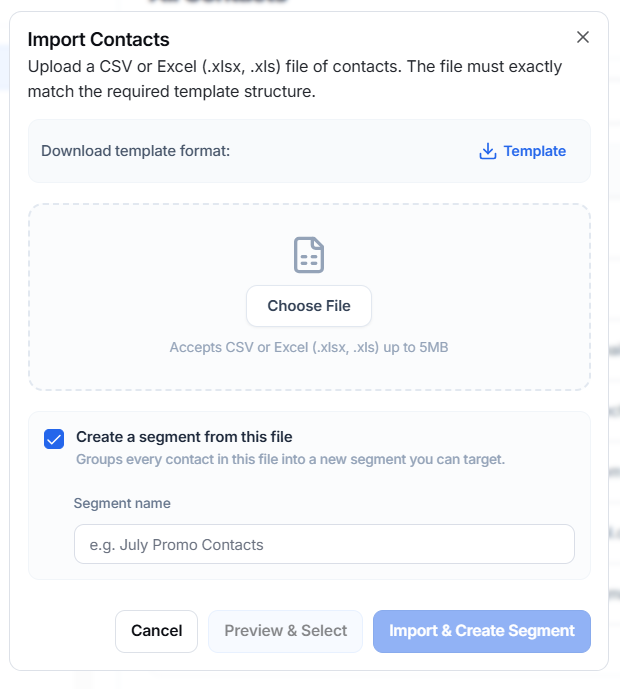
Click Import Contacts to add contacts from a CSV or Excel file.
You can download the provided Template to use the required file format.
Supported formats:
- CSV
- Excel (.xlsx, .xls)
- Maximum file size: 5 MB
After selecting the file, you can enable Create a segment from this file to automatically group the imported contacts into a new segment.
Enter a Segment Name, then use Preview & Select to review the contacts and Import & Create Segment to complete the import.
4. Edit Contact
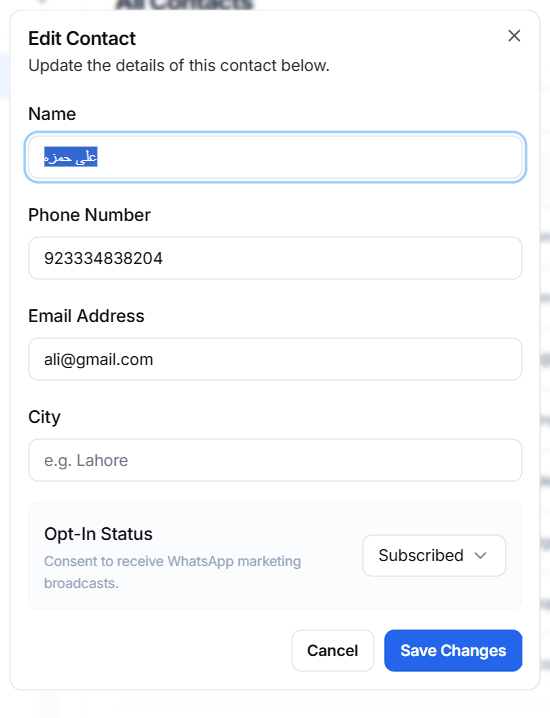
Click the Edit icon beside a contact to update their information.
You can update:
- Name
- Phone Number
- Email Address
- City
- Opt-In Status
Click Save Changes to apply the updates.
5. Manage Contacts
From the contact list, you can use the available action icons to edit or delete individual contacts.
Segments can then be used as targeted audiences when creating campaigns or follow-ups.