An action is a flow node that tells the flow to perform a specific task. Actions allow you to create automated and interactive conversations for your visitors.
In this article, you’ll learn
- How to use actions
- Which actions are available
- Where to find actions in the Flow Editor
How to Use Actions
Every flow begins with a trigger, which determines when the flow starts. An action determines what the flow should do after that trigger occurs.
For example, an action can:
- Send a message.
- Ask the visitor a question.
- Display response options.
- Collect customer information.
- Update a contact property.
- Add a tag.
- Call an external API.
- Perform a Shopify-related task.
To add an action:
- Open the flow in the Flow Editor.
- Click Add node.
- Open the Actions tab in the right-hand panel.
- Select the required action.
- Configure its settings.
- Connect it to the previous node.
- Add and connect the next node if required.
- Resolve any displayed errors.
- Save and test the flow.
Available Actions
You can use the following actions to build your flow.
Messages and Questions Action
- Send a chat message: Send an automated message to the visitor.
- Ask a question: Ask the visitor a question and collect their response.
- Send a form: Displays a form to collect visitor information.
Visitor Decisions Actions
- Decision – Quick Replies: Displays short reply options so the visitor can select an answer.
- Decision – Buttons: Displays clickable buttons that direct the visitor to different flow paths.
- Decision – Card Messages: Displays information and choices in a visual card format.
- Randomize: Randomly sends visitors through different flow paths.
Flow Timing and Control Actions
- Delay: Pauses the flow for a selected amount of time before continuing.
- Chat flow ended: Marks the automated conversation as completed.
- Disable text input: Prevents the visitor from typing a custom message.
- Enable text input: Allows the visitor to type messages again.
Contact and Session Management Actions
- Update Contact Property: Adds or updates information stored in the visitor’s contact profile.
- Update Session Variable: Adds or updates temporary information used during the current flow session.
- Add a Tag: Adds a tag to the visitor for organization, filtering, segmentation, or follow-up purposes.
Website and Analytics Actions
- Open Website in Modal: Opens a selected webpage inside a modal window without taking the visitor away from the conversation.
- Send an Event to Google Analytics: Sends a configured flow event to Google Analytics for tracking.
- API Call: Sends or retrieves information through an external API.
Shopify Actions
The following actions are designed for Shopify-related flows and require a connected Shopify store.
- Check Order Status: Allows the customer to check the current status of an order.
- Product Availability: Checks whether a selected product is available.
- Shipping Zones: Provides information about available delivery or shipping areas.
- Coupon Code: Shares a configured discount or promotional code.
- Recommend Products: Shows relevant product recommendations to the visitor.
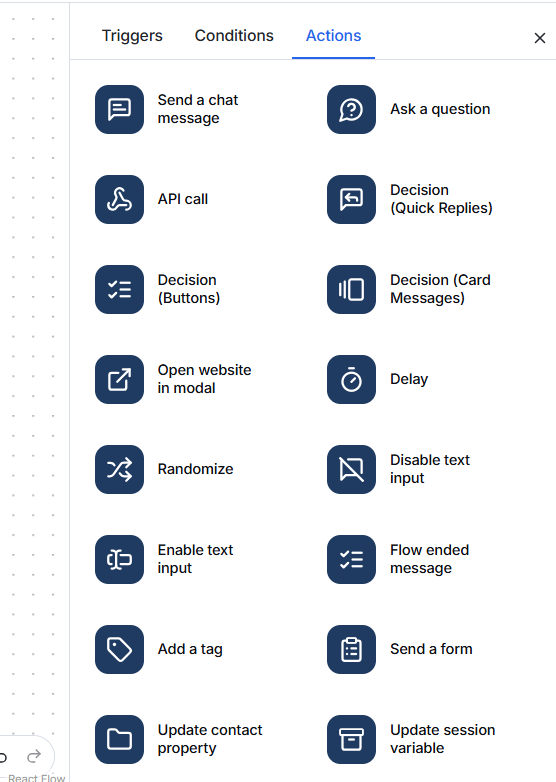
Where to Find Actions
All available actions appear under the Actions tab in the right-hand editing panel of the Flow Editor.
Select an action to add it to the canvas. After adding it:
- Complete its required settings.
- Connect it to the flow.
- Add the next step where required.
- Check for validation errors.
- Save and test the flow.
Action Errors
A red error indicator appears when an action is incomplete.
Common reasons include:
- The action is not connected to the flow.
- A required field is empty.
- A required value has not been selected.
- The next flow path is incomplete.
- A required integration is not connected.
Select the affected action to review and correct the error.
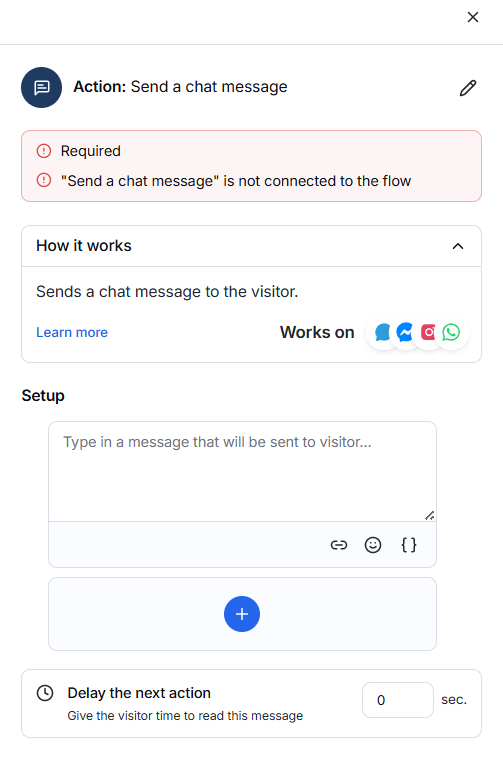
Send a Chat Message
The Send a chat message action automatically sends a message to the visitor when they reach this step in the flow.
How to configure it
- Add Send a chat message from the Actions tab.
- Enter the message you want to send.
- Connect the action to the previous flow node.
- Connect it to the next node if the conversation should continue.
- Resolve any errors and save the flow.
Message options
- Link: Add a clickable website link.
- Emoji: Add emojis to make the message friendlier.
- Variables { }: Add available visitor or flow information to personalize the message.
- Plus (+): Add another supported content element.
- Edit icon: Rename the action for easier identification.
Delay the next action
Enter the number of seconds Offlo should wait before continuing to the next node. A short delay gives visitors enough time to read the message.
Supported channels
The action works with supported channels such as website chat, Messenger, Instagram, and WhatsApp. The relevant integration must be connected.
Required errors
A red error appears when:
- The message is empty.
- The action is not connected to the flow.
- A required setting is missing.
Complete the required information and connect the node correctly before saving or activating the flow.
Example
Hello! 👋 How can we help you today?
Ask a Question
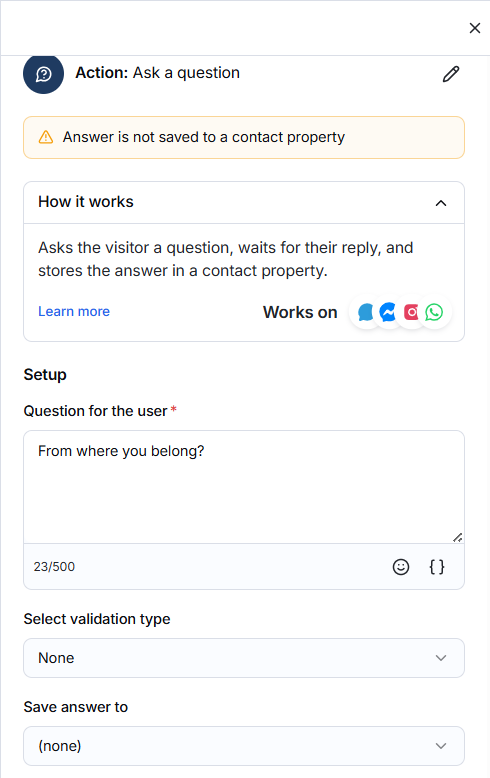
The Ask a question action sends a question to the visitor, waits for their reply, and can save the answer in a selected contact property.
How to configure it
- Add Ask a question from the Actions tab.
- Enter the question for the visitor.
- Select a validation type if the answer must follow a specific format.
- Choose the contact property where the answer should be saved.
- Connect the action to the previous and next flow nodes.
- Resolve any warnings and save the flow.
Question for the user
Enter the question you want to ask. The question can contain up to 500 characters.
You can also use:
- Emoji: Add an emoji to the question.
- Variables { }: Personalize the question with available visitor or flow information.
- Edit icon: Rename the action for easier identification.
Select validation type
Validation controls which type of answer the visitor can submit.
Select None when any text response is acceptable. Choose another available validation type when the reply must match a particular format.
Save answer to
Select a contact property to store the visitor’s answer. This allows the information to be used later in the flow or saved in the visitor’s contact profile.
If None is selected, the answer will not be saved to a contact property and a warning will appear.
Supported channels
The action works with supported channels such as website chat, Messenger, Instagram, and WhatsApp. The relevant integration must be connected.
Warnings and errors
A warning or error may appear when:
- The question field is empty.
- The answer is not assigned to a contact property.
- The action is not connected to the flow.
- A required setting is missing.
Complete the missing settings and connect the node correctly before activating the flow.
Example
What type of service are you interested in?
Save the visitor’s reply to a suitable contact property, such as Service Interest.
API Call
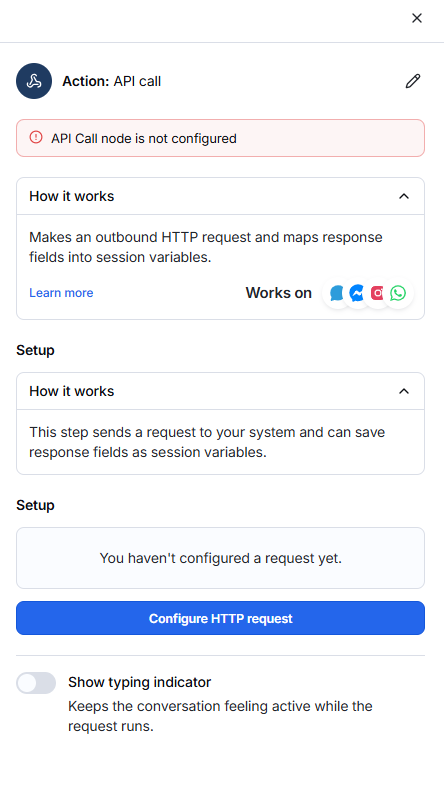
The API Call action connects the flow with an external system. It can send visitor information to another application, request data, and use the returned response in the next flow steps.
How to configure it
- Add API Call from the Actions tab.
- Enter the API endpoint URL.
- Select the required request method.
- Add headers or authentication details if required.
- Add the request parameters or body.
- Use variables to send visitor or flow information.
- Configure how the API response should be stored.
- Connect the action to the previous and next nodes.
- Test the request and save the flow.
Request method
Select the method required by the external API:
- GET: Retrieve information.
- POST: Send or create information.
- PUT/PATCH: Update existing information.
- DELETE: Remove information.
Use the method specified in the external service’s API documentation.
Headers and authentication
Add any headers required by the API, such as:
- Content type
- Authorization token
- API key
Keep API keys and access tokens secure. Do not include sensitive credentials in visitor-facing messages.
Request data
Add the information that should be sent to the API. You can use available variables to include details collected earlier in the flow, such as the visitor’s name, email address, or order number.
API response
The returned response can be saved and used in later actions or conditions. For example, the flow can display an order status or continue through a different branch based on the response.
Errors
An error may appear when:
- The endpoint URL is missing or invalid.
- Authentication details are incorrect.
- Required request data is missing.
- The external server does not respond.
- The API returns an unsuccessful status.
- The action is not connected to the flow.
Review the configuration and test the request before activating the flow.
Example
A visitor enters an order number. The API Call sends it to the order-management system, retrieves the current status, and the next message displays that status to the visitor.
Decision (Quick Replies)
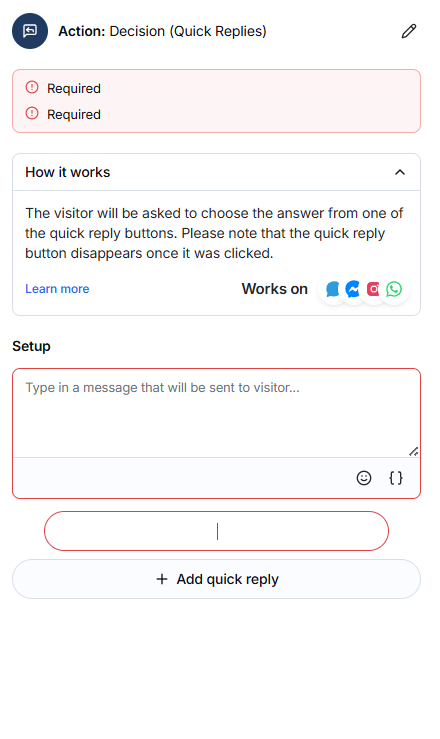
The Decision (Quick Replies) action asks the visitor to choose an answer from a list of quick-reply options. Each reply can direct the visitor to a different flow path.
Quick-reply buttons disappear after the visitor selects an option.
How to configure it
- Add Decision (Quick Replies) from the Actions tab.
- Enter the message or question for the visitor.
- Click Add quick reply.
- Enter the text for each reply option.
- Add more quick replies when required.
- Connect each reply to its corresponding next node.
- Resolve any errors and save the flow.
Message options
- Emoji: Add an emoji to the message.
- Variables { }: Personalize the message using available visitor or flow information.
- Edit icon: Rename the action for easier identification.
Quick-reply options
Each quick reply represents a choice the visitor can select.
For example:
How can we help you today?
Quick replies:
- Product Information
- Track My Order
- Talk to an Agent
Each option can lead to a different message, condition, or action.
Supported channels
The action works with supported channels such as website chat, Messenger, Instagram, and WhatsApp. The relevant integration must be connected.
Required errors
A red error appears when:
- The message field is empty.
- No quick reply has been added.
- A quick-reply label is empty.
- The action is not connected to the flow.
- A reply does not have a valid next path.
Complete the required fields and connect all replies before activating the flow.
Decision (Buttons)
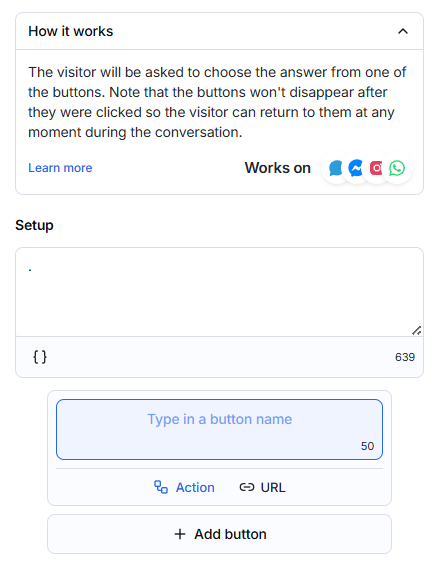
The Decision (Buttons) action displays a message with clickable buttons. Each button can continue the flow through a selected action or open a website URL.
Unlike quick replies, buttons remain visible after selection, allowing visitors to return to them later in the conversation.
How to configure it
- Add Decision (Buttons) from the Actions tab.
- Enter the message for the visitor.
- Enter a name for the first button.
- Select Action or URL as the button type.
- Click the Add button to include more options.
- Connect action buttons to their corresponding flow nodes.
- Resolve any errors and save the flow.
Message options
- Variables { }: Personalize the message using available visitor or flow information.
- Edit icon: Rename the action for easier identification.
- Character counter: Shows how many characters remain for the message.
Button types
- Action: Directs the visitor to another action, condition, or branch in the flow.
- URL: Opens the website address added to the button.
Button names can contain up to 50 characters.
Example
What would you like to do?
Buttons:
- View Products → Opens the product flow
- Track Order → Opens the order-status flow
- Visit Website → Opens a website URL
Supported channels
The action works with supported channels such as website chat, Messenger, Instagram, and WhatsApp. The relevant integration must be connected.
Errors
A red error appears when:
- The message field is empty.
- A button name is missing.
- An action button is not connected.
- A URL button does not contain a valid link.
- A required setting is incomplete.
Decision (Card Message)
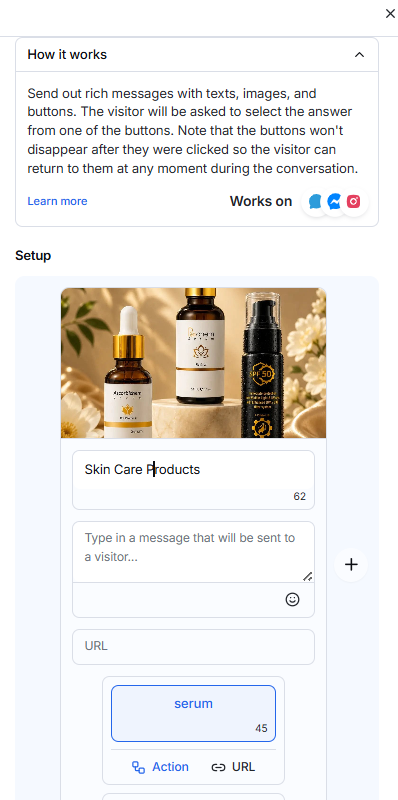
The Decision (Card Message) action sends a visual card containing an image, title, description, and buttons. Visitors can select a button to continue through the flow or open a website.
The buttons remain visible after selection, allowing visitors to return to them later in the conversation.
How to configure it
- Add Decision (Card Message) from the Actions tab.
- Upload or select an image.
- Enter the card title and description.
- Add a URL if required.
- Enter a name for each button.
- Select Action or URL as the button type.
- Connect action buttons to the correct flow nodes.
- Save and test the flow.
Card elements
- Image: Displays the product, service, or offer.
- Title: Provides the main heading of the card.
- Description: Adds supporting information for visitors.
- URL: Links the card to a webpage.
- Emoji: Adds an emoji to the description.
- Plus (+): Adds another card to the message.
Button types
- Action: Directs the visitor to another action, condition, or branch.
- URL: Opens the website address assigned to the button.
Example
A skincare product card can include:
- Product image
- Title: Skin Care Products
- Description: Explore our available skincare range.
- Button: View Serum
- Action: Continue to the serum product flow
Supported channels
The action works with the supported channels displayed in the editor, including website chat, Messenger, and Instagram.
Required errors
An error may appear when:
- The required card field is empty.
- An image or button setting is incomplete.
- An action button is not connected.
- A URL is missing or invalid.
- The card is not connected to the flow.
Open Website in Modal
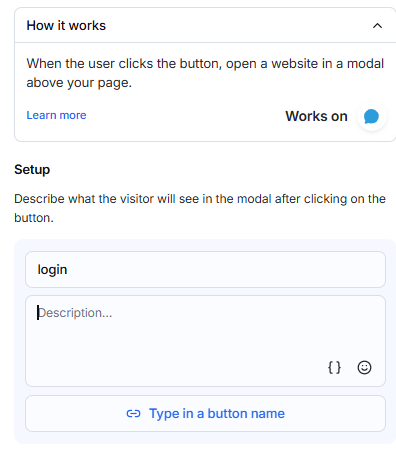
The Open Website in Modal action displays a button in the chat. When the visitor clicks it, the selected website opens in a modal window above the current page.
This allows visitors to view another page without leaving the conversation.
How to configure it
- Add Open Website in Modal from the Actions tab.
- Enter a title for the message.
- Add a short description.
- Enter a name for the button.
- Add the website URL that should open.
- Connect the action to the previous flow node.
- Resolve any errors and save the flow.
Setup options
- Title: Provides the main heading shown to the visitor.
- Description: Explains what will open after the button is clicked.
- Variables { }: Personalizes the description with available visitor or flow information.
- Emoji: Adds an emoji to the description.
- Button name: Defines the clickable text displayed to the visitor.
- URL: Specifies the webpage that will open in the modal.
- Edit icon: Renames the action for easier identification.
Example
- Title: Customer Login
- Description: Click the button below to sign in to your account.
- Button: Open Login
- URL: Your customer login page
Supported channels
This action works on the website chat channel shown in the editor.
Required errors
A red error appears when:
- A required field is empty.
- The website URL is missing or invalid.
- The action is not connected to the flow.
- The button setup is incomplete.
Delay
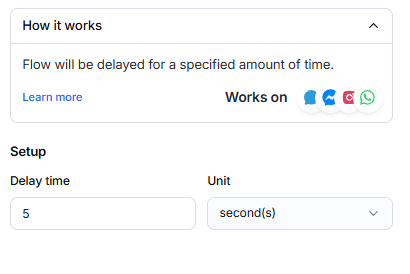
The Delay action pauses the flow for a specified amount of time before starting the next action.
It helps control conversation timing and gives visitors enough time to read each message.
How to configure it
- Add Delay from the Actions tab.
- Enter the required value in Delay time.
- Select the time Unit.
- Connect the Delay action between two flow nodes.
- Resolve any errors and save the flow.
Setup options
- Delay time: Defines how long the flow will pause.
- Unit: Defines the time measurement, such as seconds.
- Edit icon: Renames the action for easier identification.
Example
Set:
- Delay time: 5
- Unit: Seconds
The flow will wait five seconds before continuing to the next action.
Supported channels
The action works with supported channels such as website chat, Messenger, Instagram, and WhatsApp.
Required errors
An error appears when:
- The action is not connected to the flow.
- The delay time is missing or invalid.
- A time unit is not selected.
- There is no next action after the delay.
Randomize
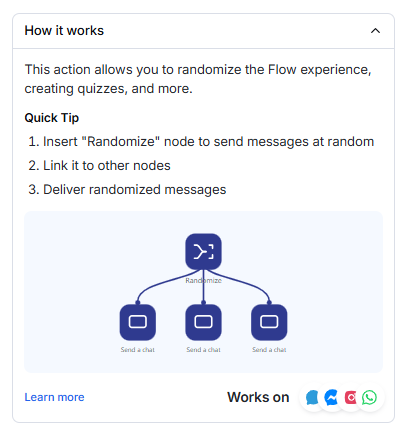
The Randomize action randomly directs visitors to one of several connected flow paths.
It can be used to create varied conversations, quizzes, random responses, or different visitor experiences.
How to configure it
- Add Randomize from the Actions tab.
- Connect it to the previous flow node.
- Add the actions that should be selected randomly.
- Connect each action to the Randomize node.
- Resolve any errors and save the flow.
Example
Connect the Randomize action to three different Send a chat message nodes. When visitors reach this step, they will receive one of the connected messages at random.
Common uses
- Display different welcome messages.
- Create quizzes or games.
- Show varied promotional content.
- Test different conversation responses.
- Distribute visitors across multiple flow paths.
Supported channels
The action works with supported channels such as website chat, Messenger, Instagram, and WhatsApp.
Required errors
An error appears when:
- Randomize is not connected to the flow.
- No outgoing actions are connected.
- A connected branch is incomplete.
- A required next node is missing.
Disable Text Input
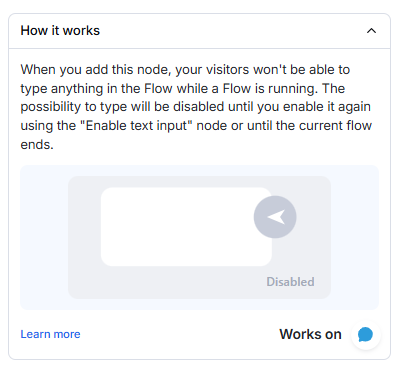
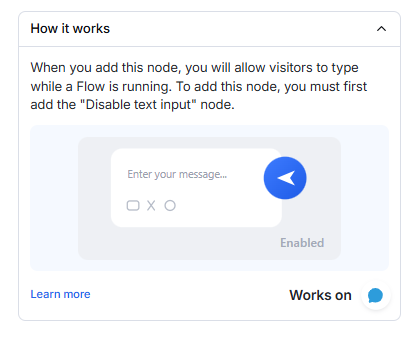
The Disable Text Input action prevents visitors from typing custom messages while a flow is running.
Visitors can still use the buttons or quick replies provided in the flow.
How to configure it
- Add Disable Text Input from the Actions tab.
- Connect it to the previous flow node.
- Add buttons or quick replies for the visitor.
- Add Enable Text Input where visitors should be allowed to type again.
- Resolve any errors and save the flow.
How it works
Text input remains disabled until:
- The flow reaches an Enable Text Input action, or
- The current flow ends.
Example
Use Disable Text Input before displaying fixed options such as:
- View Products
- Track Order
- Talk to an Agent
This keeps the visitor on the intended conversation path.
Supported channels
This action works on the website chat channel shown in the editor.
Required errors
An error appears when:
- The action is not connected to the flow.
- The next flow step is missing.
- Visitors have no available button or quick-reply option.
Enable Text Input
The Enable Text Input action allows visitors to type custom messages while a flow is running.
This action can only be used after the Disable Text Input action has been added earlier in the flow.
How to configure it
- Add Disable Text Input before the steps where typing should be blocked.
- Add Enable Text Input where visitors should be allowed to type again.
- Connect it to the previous and next flow nodes.
- Resolve any errors and save the flow.
How it works
When the flow reaches this action, the chat input field becomes available again and visitors can enter a free-text response.
Example
A flow may:
- Disable text input.
- Ask the visitor to select a service using buttons.
- Enable text input.
- Ask the visitor to describe their requirement.
Supported channels
This action works on the website chat channel shown in the editor.
Required errors
An error appears when:
- The action is not connected to the flow.
- Disable Text Input was not added earlier.
- The previous or next flow step is missing.
Flow Ended Message
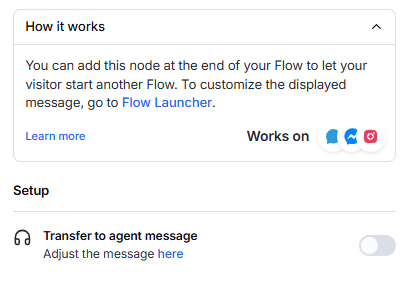
The Flow Ended Message action completes the current flow and allows the visitor to start another flow.
Add this action at the end of the conversation path.
How to configure it
- Add Flow Ended Message from the Actions tab.
- Connect it to the final node of the flow.
- Enable the transfer-to-agent message if required.
- Save and test the flow.
Customize the message
The message displayed after the flow ends can be customized from the Flow Launcher settings.
Use a clear message that tells visitors they can select another flow or continue with a different support option.
Transfer to agent message
Enable Transfer to agent message when you want to display an additional handoff message after the flow ends.
Select the available link to adjust the message settings.
Supported channels
This action works with the supported channels displayed in the editor, including website chat, Messenger, and Instagram.
Required errors
An error appears when:
- The action is not connected to the flow.
- It is placed before required flow steps.
- The final conversation path is incomplete.
Add a Tag
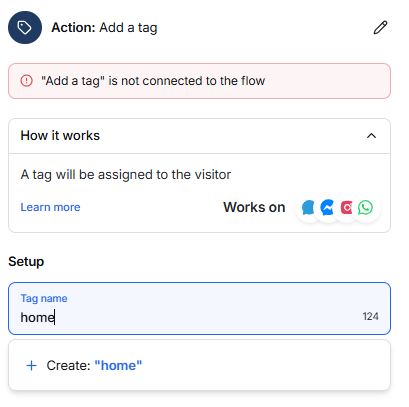
The Add a Tag action automatically assigns a tag to a visitor when they reach this step in the flow.
Tags help organize contacts and identify visitors by their interests, actions, or support needs.
How to configure it
- Add Add a Tag from the Actions tab.
- Connect it to the previous flow node.
- Enter a tag name.
- Select an existing tag or click Create to add a new one.
- Connect the next flow step.
- Resolve any errors and save the flow.
Example
Assign the tag Interested in Skincare when a visitor selects skincare products.
The tag can later help you identify, filter, or segment relevant contacts.
Common uses
- Mark potential leads.
- Identify product interests.
- Categorize support requests.
- Track campaign engagement.
- Prepare contacts for follow-ups or segments.
Supported channels
The action works with supported channels such as website chat, Messenger, Instagram, and WhatsApp.
Required errors
An error appears when:
- The action is not connected to the flow.
- A tag has not been selected or created.
- The tag name is empty.
- The next flow step is incomplete.
Send a Form
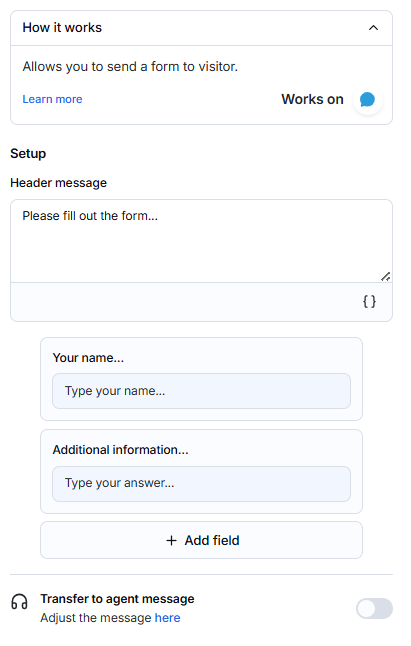
The Send a Form action displays a form in the chat and allows visitors to submit requested information.
Use it to collect contact details, enquiries, feedback, or other structured information.
How to configure it
- Add Send a Form from the Actions tab.
- Enter a header message.
- Configure the field name and placeholder text.
- Click Add field to collect more information.
- Enable the transfer-to-agent message if required.
- Connect the action to the previous and next flow nodes.
- Resolve any errors and save the flow.
Setup options
- Header message: Explains why the visitor should complete the form.
- Variables { }: Personalizes the header using available visitor or flow information.
- Field name: Describes the information being requested.
- Placeholder: Provides an example or instruction inside the field.
- Add field: Adds another input to the form.
- Edit icon: Renames the action for easier identification.
Transfer to agent message
Enable Transfer to agent message when the visitor should be offered human support after submitting the form.
Use the available link to adjust the handoff message.
Example
- Header: Please complete the form below.
- Name: Type your name
- Email: Type your email address
- Additional information: Describe your request
Supported channels
This action works on the website chat channel shown in the editor.
Required errors
An error appears when:
- The action is not connected to the flow.
- The header message is empty.
- A required field is incomplete.
- No form field has been added.
- The next flow step is missing.
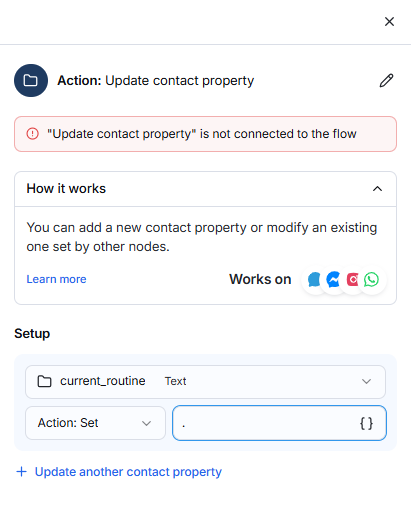
Update Contact Property
The Update Contact Property action adds new information to a visitor’s contact profile or changes an existing value.
Use it to save information collected or determined during the flow.
How to configure it
- Add Update Contact Property from the Actions tab.
- Select the contact property you want to update.
- Choose the required operation, such as Set.
- Enter the new value or select a variable.
- Click Update another contact property if required.
- Connect the action to the previous and next nodes.
- Resolve any errors and save the flow.
Setup options
- Contact property: Selects the profile field to update.
- Property type: Shows the selected property’s data type, such as Text.
- Action – Set: Replaces the current value with the entered value.
- Value: Defines the information that will be saved.
- Variables { }: Uses available visitor or flow information as the value.
- Update another contact property: Updates multiple profile fields in one action.
Example
- Contact property: Current routine
- Action: Set
- Value: Morning skincare routine
When the visitor reaches this step, the value is saved to their contact profile.
Supported channels
The action works with supported channels such as website chat, Messenger, Instagram, and WhatsApp.
Required errors
An error appears when:
- The action is not connected to the flow.
- A contact property is not selected.
- The value is empty or invalid.
- The value does not match the property type.
Update Session Variable
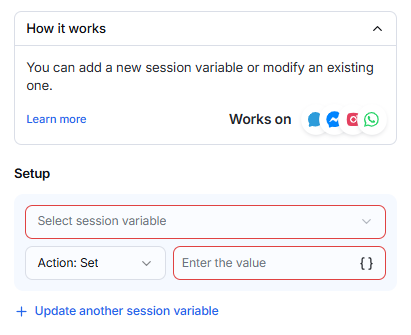
The Update Session Variable action creates or updates temporary information used during the visitor’s current flow session.
Unlike a contact property, a session variable is used within the active conversation and is not saved permanently to the visitor’s contact profile.
How to configure it
- Add Update Session Variable from the Actions tab.
- Select the session variable you want to update.
- Choose an operation, such as Set.
- Enter the value or select a variable.
- Click Update another session variable if required.
- Connect the action to the previous and next nodes.
- Resolve any errors and save the flow.
Setup options
- Session variable: Selects the temporary field to update.
- Action – Set: Assigns the entered value to the variable.
- Value: Defines the information stored during the session.
- Variables { }: Uses available visitor or flow information as the value.
- Update another session variable: Updates multiple session variables in one action.
Example
- Session variable: Selected service
- Action: Set
- Value: Home delivery
The flow can use this value later to display a personalized message or select the correct branch.
Supported channels
The action works with supported channels such as website chat, Messenger, Instagram, and WhatsApp.
Required errors
An error appears when:
- A session variable is not selected.
- A value has not been entered.
- The action is not connected to the flow.
- The next flow step is incomplete.
Send WhatsApp Flow
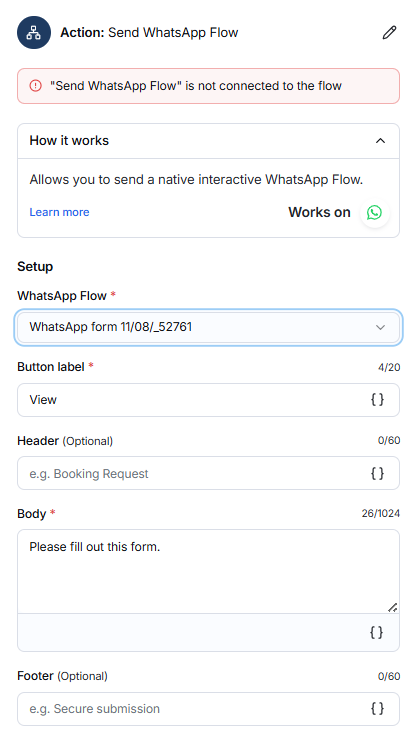
The Send WhatsApp Flow action sends a native interactive form or experience directly inside a WhatsApp conversation.
Visitors can open and complete the selected WhatsApp Flow without leaving WhatsApp.
How to configure it
- Add Send WhatsApp Flow from the Actions tab.
- Select an available WhatsApp Flow.
- Enter the button label.
- Add an optional header.
- Enter the required body message.
- Add an optional footer.
- Connect the action to the previous and next nodes.
- Resolve any errors and save the flow.
Setup options
- WhatsApp Flow: Selects the interactive flow or form to send.
- Button label: Defines the button visitors click to open the flow. Maximum: 20 characters.
- Header: Adds an optional heading. Maximum: 60 characters.
- Body: Explains what the visitor should do. Maximum: 1,024 characters.
- Footer: Adds optional supporting information. Maximum: 60 characters.
- Variables { }: Personalizes supported fields with visitor or flow information.
Example
- Button label: View
- Header: Booking Request
- Body: Please complete this form to submit your booking request.
- Footer: Secure submission
Supported channels
This action works only on WhatsApp. A WhatsApp integration and an available WhatsApp Flow are required.
Required errors
An error appears when:
- A WhatsApp Flow is not selected.
- The button label or body is empty.
- A field exceeds its character limit.
- The WhatsApp integration is unavailable.
- The action is not connected to the flow.
WhatsApp Media Carousel
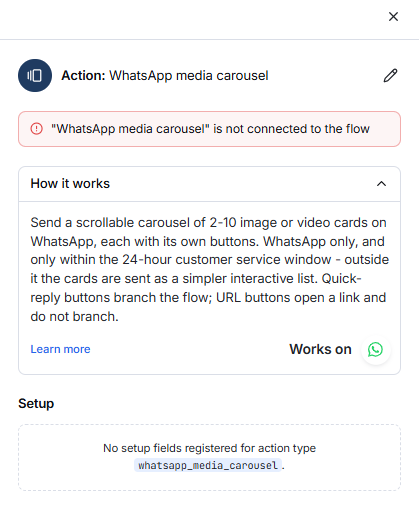
The WhatsApp Media Carousel action sends a scrollable collection of image or video cards in a WhatsApp conversation.
Each carousel can contain 2 to 10 cards, and every card can include its own buttons.
How it works
- Visitors can scroll between the cards.
- Quick-reply buttons can direct visitors to different flow branches.
- URL buttons open a link and do not create a new flow branch.
- Within the 24-hour customer-service window, cards appear as a carousel.
- Outside that window, cards are sent as a simpler interactive list.
How to configure it
- Add WhatsApp Media Carousel from the Actions tab.
- Add between 2 and 10 image or video cards.
- Configure the content and buttons for each card.
- Connect quick-reply buttons to the appropriate flow paths.
- Connect the action to the previous node.
- Resolve any errors and save the flow.
Common uses
- Display multiple products.
- Promote available services.
- Show event or package options.
- Present visual recommendations.
- Allow visitors to browse and select an item.
Supported channels
This action works only on WhatsApp and requires an active WhatsApp integration.
Required errors
An error appears when:
- The action is not connected to the flow.
- Fewer than 2 or more than 10 cards are added.
- A card is missing required media or content.
- A quick-reply button is not connected.
- The WhatsApp integration is unavailable.
If no configuration fields appear under Setup, the carousel setup may not yet be available for the selected workspace or action configuration.
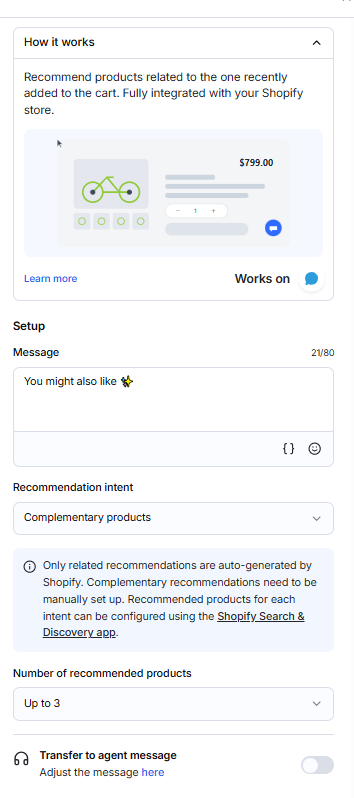
Recommend Products (Shopify)
The Recommend Products action suggests products related to an item the visitor recently added to their Shopify cart.
This action is fully integrated with the connected Shopify store.
How to configure it
- Add Recommend Products from the Actions tab.
- Enter the message shown above the recommendations.
- Select the recommendation intent.
- Choose how many products should be displayed.
- Enable the transfer-to-agent message if required.
- Connect the action to the previous and next nodes.
- Resolve any errors and save the flow.
Setup options
- Message: Introduces the recommended products.
- Variables { }: Personalizes the message with available visitor or flow information.
- Emoji: Adds an emoji to the message.
- Recommendation intent: Selects the type of products to recommend.
- Number of recommended products: Defines how many products are shown, such as up to three.
- Transfer to agent message: Offers human assistance after the recommendations.
Recommendation intent
- Related products: Automatically generated by Shopify.
- Complementary products: Must be configured manually in Shopify.
Recommended products for each intent can be managed through the Shopify Search & Discovery app.
Example
You might also like ✨
The flow displays up to three products related to the item recently added to the visitor’s cart.
Supported channels
This action works on the website chat channel shown in the editor and requires an active Shopify integration.
Required errors
An error appears when:
- Shopify is not connected.
- The action is not connected to the flow.
- The message or recommendation intent is missing.
- No products are configured for the selected intent.
- The next flow step is incomplete.
Send a Coupon Code
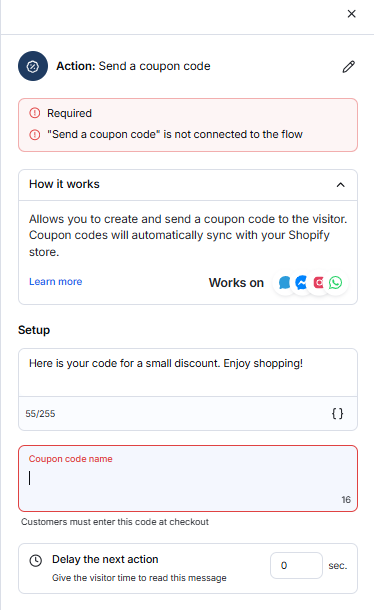
The Send a Coupon Code action creates and sends a discount code to the visitor.
Coupon codes automatically synchronize with the connected Shopify store. Customers can enter the code during checkout.
How to configure it
- Add Send a Coupon Code from the Actions tab.
- Enter the message shown with the discount code.
- Enter a coupon code name.
- Set a delay before the next action if required.
- Connect the action to the previous and next nodes.
- Resolve any errors and save the flow.
Setup options
- Message: Explains the discount to the visitor. Maximum: 255 characters.
- Variables { }: Personalizes the message with visitor or flow information.
- Coupon code name: Defines the code customers enter at checkout. Maximum: 16 characters.
- Delay the next action: Sets how many seconds the flow waits before continuing.
- Edit icon: Renames the action for easier identification.
Example
- Message: Here is your code for a small discount. Enjoy shopping!
- Coupon code: SAVE10
- Delay: 5 seconds
The customer enters SAVE10 during Shopify checkout.
Supported channels
The action works with website chat, Messenger, Instagram, and WhatsApp. An active Shopify integration is required.
Required errors
An error appears when:
- The action is not connected to the flow.
- The message is empty.
- A coupon code name has not been entered.
- A field exceeds its character limit.
- Shopify is not connected.
Check Order Status
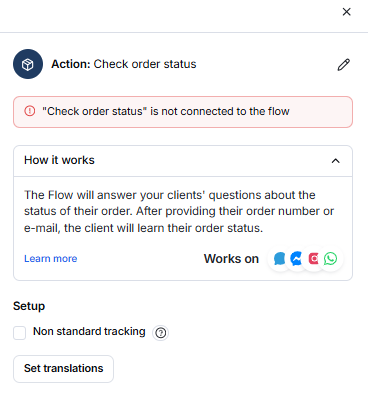
The Check Order Status action allows customers to check the current status of their Shopify order.
The flow asks the customer to provide an order number or email address and then displays the matching order information.
How to configure it
- Add Check Order Status from the Actions tab.
- Enable Non-standard tracking if required.
- Configure message translations when needed.
- Connect the action to the previous and next nodes.
- Resolve any errors and save the flow.
Setup options
- Non-standard tracking: Supports an alternative tracking setup when standard Shopify tracking is not used.
- Set translations: Customizes the messages shown to customers in different languages.
- Edit icon: Renames the action for easier identification.
How customers use it
- The customer starts the order-status flow.
- The flow requests their order number or email address.
- The customer provides the requested information.
- The flow retrieves and displays the order status.
Supported channels
The action works with website chat, Messenger, Instagram, and WhatsApp. An active Shopify integration is required.
Required errors
An error appears when:
- The action is not connected to the flow.
- Shopify is not connected.
- The order information cannot be found.
- The customer provides incorrect details.
- A required flow path is incomplete.
Check Product Availability
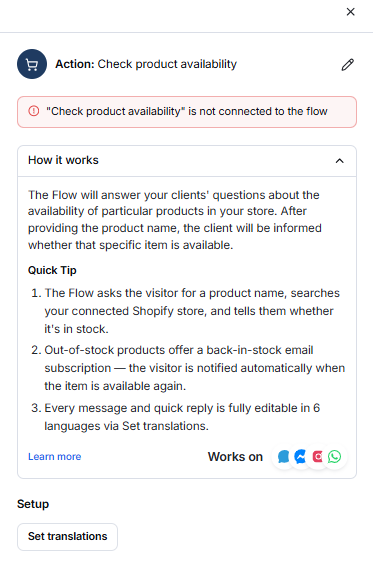
The Check Product Availability action allows customers to check whether a product is currently available in your Shopify store.
The flow asks for the product name, searches the connected store, and displays its availability.
How it works
- The flow asks the visitor for a product name.
- It searches the connected Shopify store.
- It informs the visitor whether the selected product is in stock.
- If the product is unavailable, the visitor can subscribe to a back-in-stock email.
- The visitor is notified automatically when the product becomes available again.
How to configure it
- Add Check Product Availability from the Actions tab.
- Click Set translations to customize the messages if required.
- Connect the action to the previous and next flow nodes.
- Resolve any errors and save the flow.
Set translations
The messages and quick replies can be edited in up to six languages using Set translations.
Supported channels
The action works with website chat, Messenger, Instagram, and WhatsApp. An active Shopify integration is required.
Required errors
An error appears when:
- The action is not connected to the flow.
- Shopify is not connected.
- The product cannot be found.
- Required flow paths are incomplete.
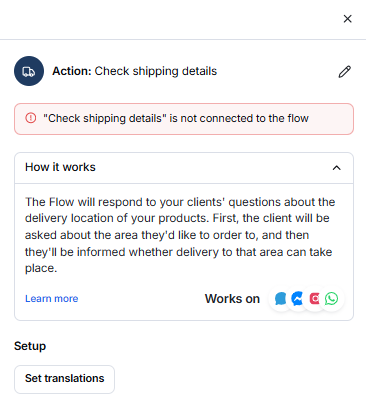
Check Shipping Details
The Check Shipping Details action allows customers to check whether delivery is available in their area.
The flow asks for the delivery location and then confirms whether the order can be shipped there.
How it works
- The flow asks the visitor for their delivery area.
- The visitor provides the requested location.
- The flow checks the connected store’s shipping information.
- The visitor is informed whether delivery is available.
How to configure it
- Add Check Shipping Details from the Actions tab.
- Click Set translations to customize the messages if required.
- Connect the action to the previous and next flow nodes.
- Resolve any errors and save the flow.
Set translations
Use Set translations to customize the questions, responses, and available reply options for different customer languages.
Supported channels
The action works with website chat, Messenger, Instagram, and WhatsApp. An active Shopify integration with correctly configured shipping zones is required.
Required errors
An error appears when:
- The action is not connected to the flow.
- Shopify is not connected.
- Shipping zones are not configured.
- The customer’s location cannot be identified.
- A required flow path is incomplete.