
The Templates page allows you to manage WhatsApp message templates used for campaigns. You can view existing templates, sync approved templates from Meta, or register a new template.
Templates List
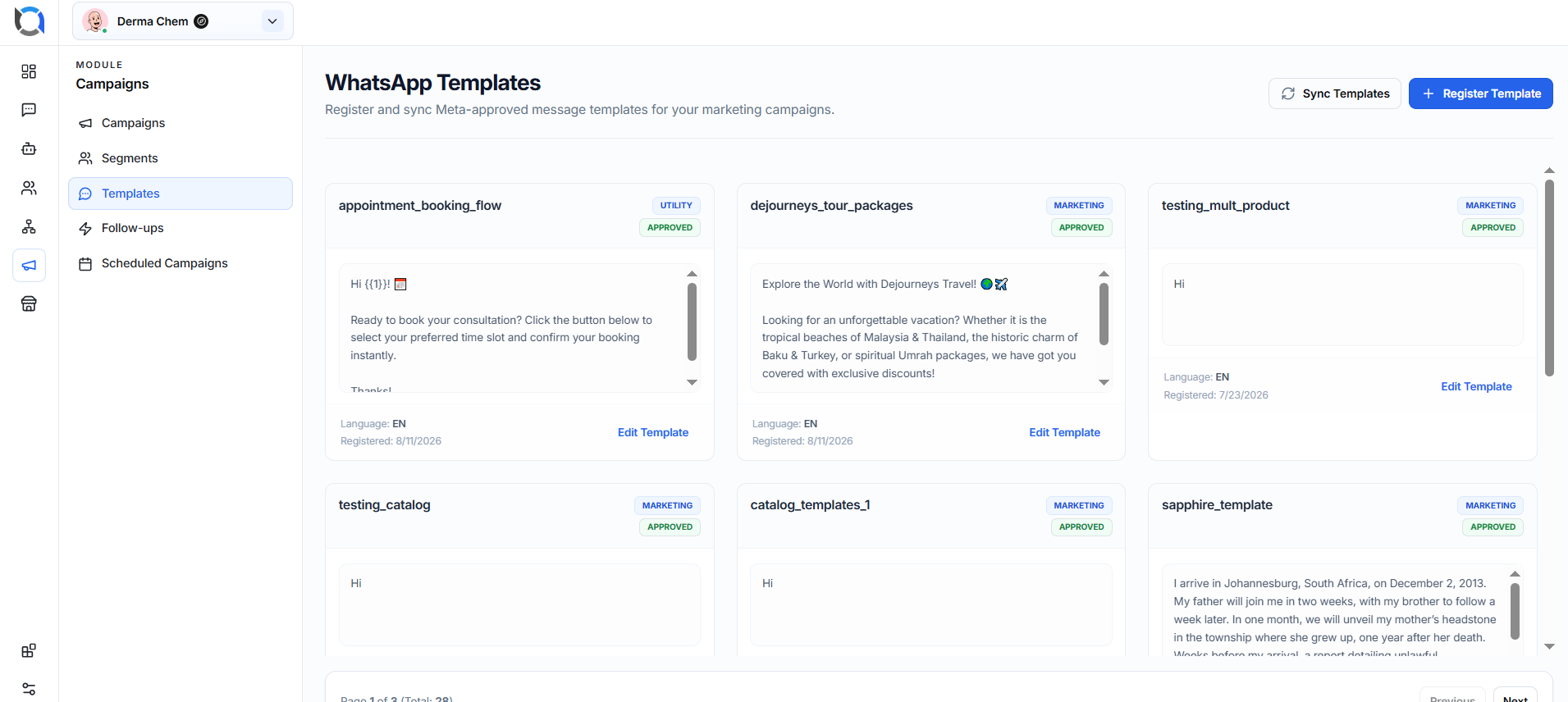
The Templates page displays all registered WhatsApp templates.
Each template card shows:
- Template Name – Name of the template.
- Category – Marketing or Utility.
- Approval Status – Shows whether the template is approved.
- Message Content – Preview of the template message.
- Language – Language used in the template.
- Registered Date – Date the template was registered.
- Edit Template – Opens the template for editing.
1. Sync Templates
Click Sync Templates to fetch the latest WhatsApp templates from Meta.
This is useful when templates have been created or approved in Meta and need to be available in the application for campaigns.
2. Register a New Template
Click Register Template to create a new WhatsApp template.
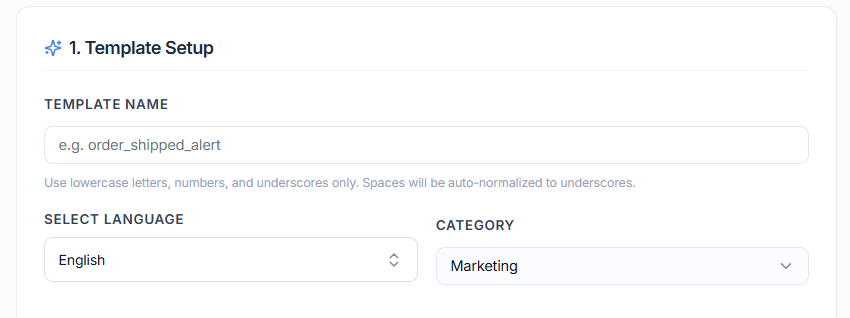
2.1. Template Setup
The Template Designer opens, where you can enter the required information.
Template Name
Enter a unique name for the template.
Example: order_shipped_alert
Use letters, numbers, and underscores. Spaces are automatically converted to underscores.
Select Language
Choose the language for the template.
Category
Select the template category, such as:
- Marketing – Promotional or marketing messages.
- Utility – Transactional or service-related messages.
2.2. Add Header
The header is optional. You can select:
- None
- Text
- Image
- Video
- Document
Choose the appropriate header type based on the content of your campaign message.

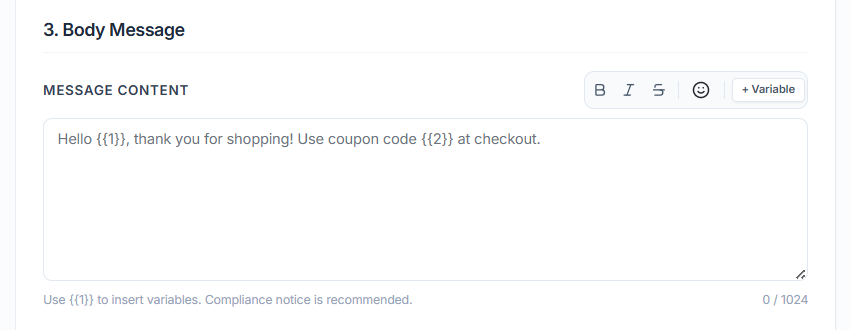
2.3. Add Body Message
Enter the main message that will be sent to customers.
You can also use variables to personalize messages.
Example:
Hello {{1}}, thank you for your order!
Variables can be replaced with contact-specific information when the campaign is sent.
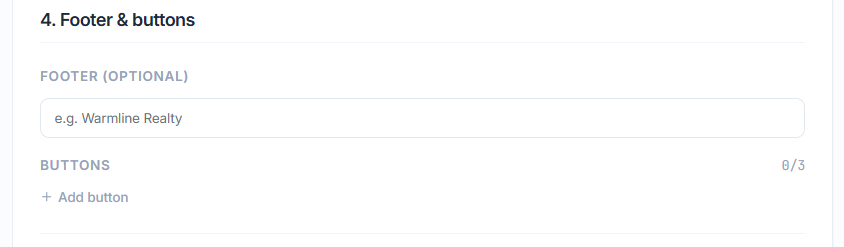
2.4. Add Footer & Buttons
Footer
Add an optional short footer to the message.
Example: Warmline Realty
Buttons
You can add buttons to make the message interactive. The available options depend on the supported WhatsApp template configuration.
2.5. Message Preview
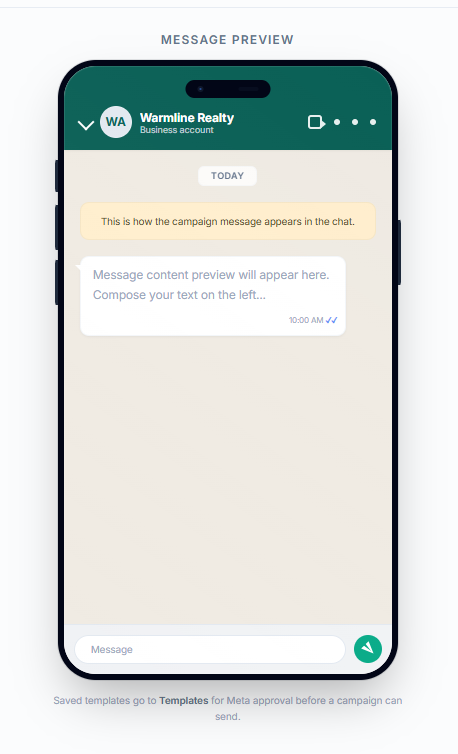
The Message Preview on the right side shows how the WhatsApp message will appear to the customer.
Use the preview to check your message, variables, header, footer, and buttons before saving the template.
2.6. Save Template
After entering all required information, click Save as template.

The template will then be available in the Templates list and can be used for WhatsApp campaigns once it has the required approval/status.