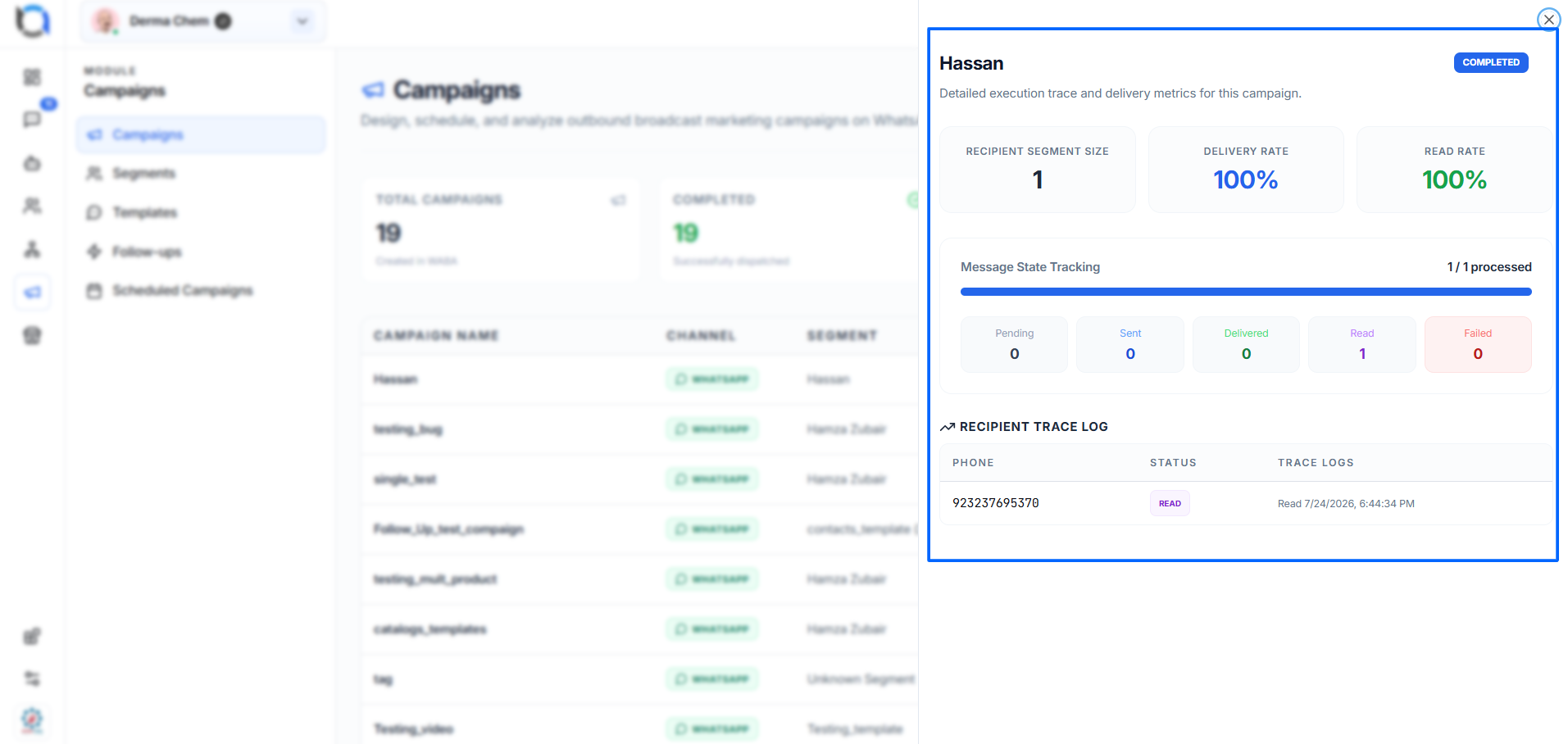
The Campaigns page allows you to manage WhatsApp marketing campaigns from one place. You can view existing campaigns, create a new campaign, and check the delivery and engagement status of each campaign.
Campaign Overview
At the top of the page, you can see a quick summary of your campaigns:
- Total Campaigns – Total number of campaigns created.
- Completed – Campaigns that have been successfully dispatched.
- Sending – Campaigns currently being processed.
- Draft & Scheduled – Campaigns waiting to be launched or scheduled.
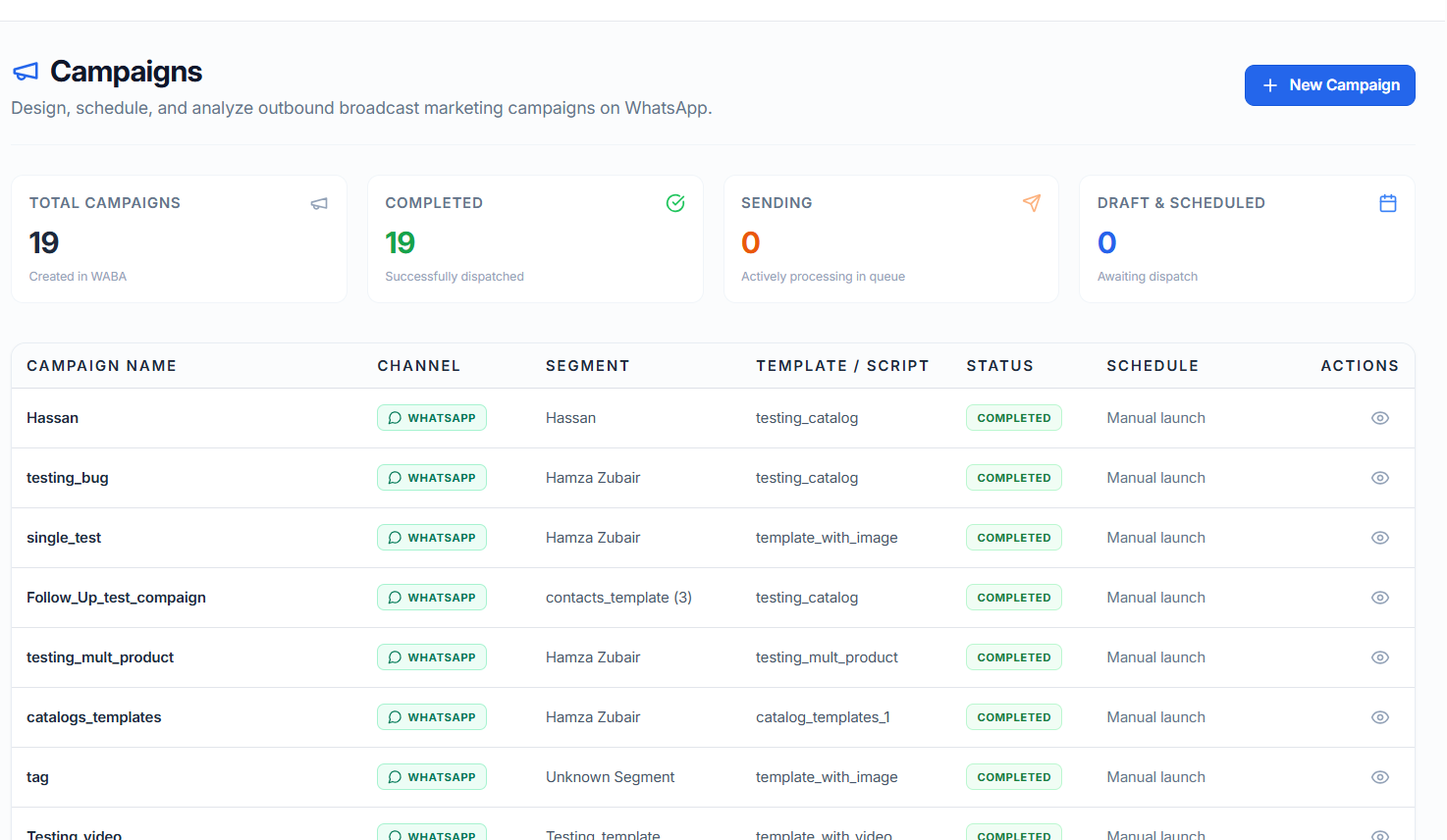
Click New Campaign to create a new WhatsApp campaign.
Campaign List
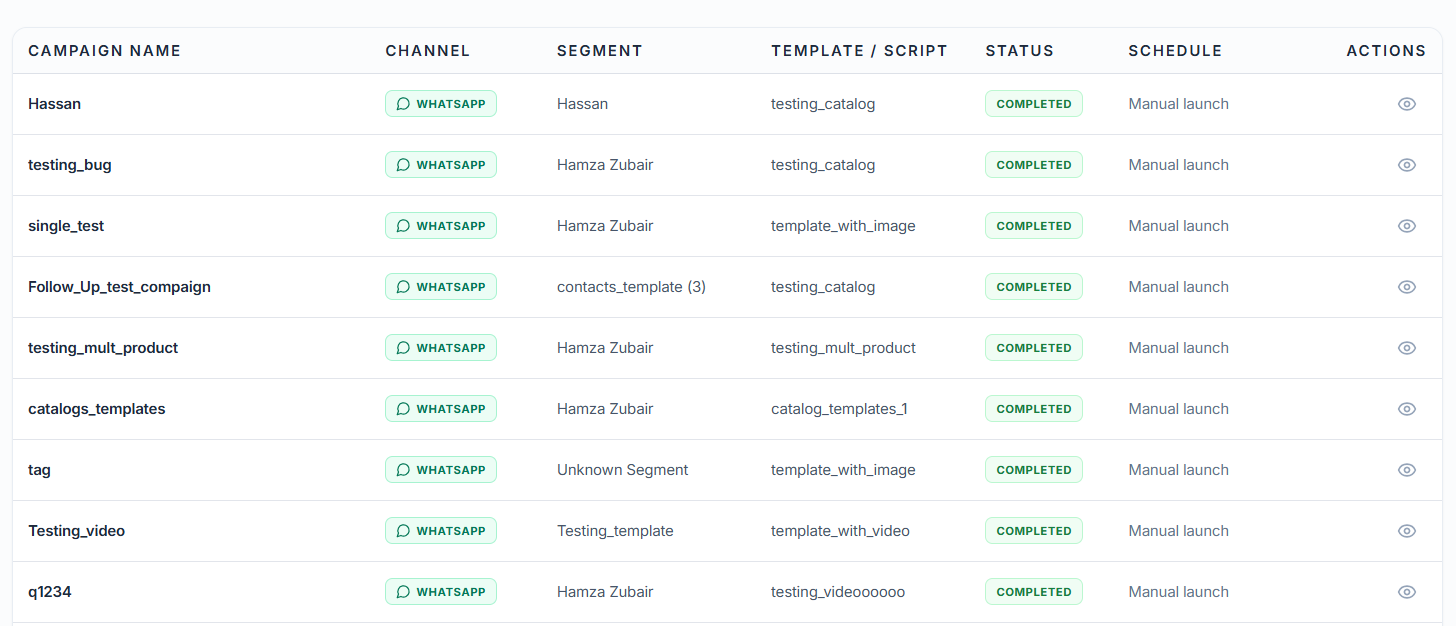
The campaign table shows important information about each campaign:
- Campaign Name – Name given to the campaign.
- Channel – The communication channel used, such as WhatsApp.
- Segment – The group of contacts targeted by the campaign.
- Template / Script – WhatsApp message template used.
- Status – Current campaign status, such as Completed.
- Schedule – Shows whether the campaign was launched manually or scheduled.
- Actions – Click the eye icon to view campaign details and performance.
Create a New Campaign
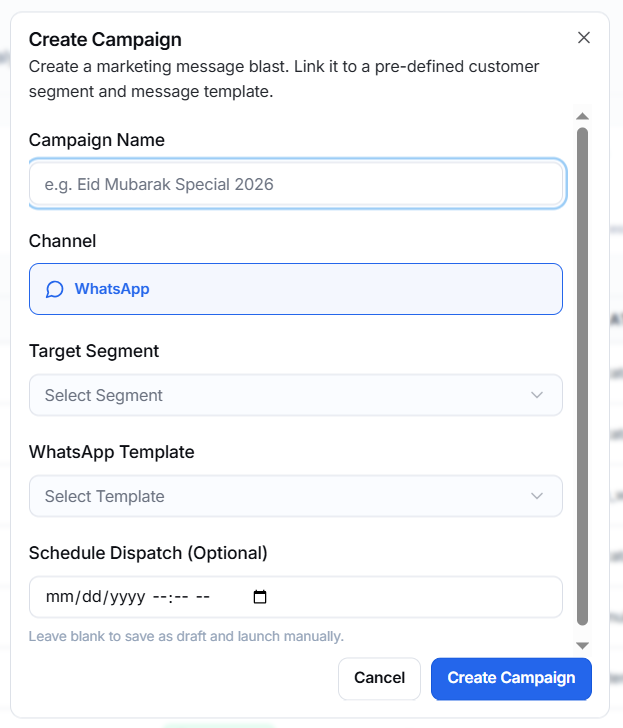
Click New Campaign to open the campaign creation form.
Enter the following information:
- Campaign Name – Enter a name to identify your campaign.
- Channel – Select the available channel, such as WhatsApp.
- Target Segment – Select the contact segment that should receive the campaign.
- WhatsApp Template – Select the approved template to use for the message.
- Schedule Dispatch (Optional) – Select a date and time if you want the campaign to be sent later.
If you leave the schedule field blank, the campaign can be saved and launched manually.
Click Create Campaign to create the campaign.
View Campaign Status
Click the eye icon in the Actions column to open the campaign details.
The details panel shows:
- Recipient Segment Size – Number of contacts targeted.
- Delivery Rate – Percentage of messages successfully delivered.
- Read Rate – Percentage of delivered messages that were read.
- Message State Tracking – Shows the number of messages that are pending, sent, delivered, read, or failed.
- Recipient Trace Log – Shows individual recipient information and the latest message status.