
The Scheduled Campaigns page helps you plan, monitor, and manage upcoming WhatsApp broadcast campaigns. It provides a calendar-based view so you can easily see when campaigns are scheduled to be sent and manage your campaign schedule from one place.
Overview
Scheduled Campaigns is available under the Campaigns module.
From this page, you can:
- View scheduled WhatsApp broadcast campaigns.
- See campaigns organized by their scheduled date.
- Navigate between different months.
- Quickly return to the current date.
- Switch between Calendar View and List View.
- Monitor upcoming campaigns from a single calendar.
How to Access Scheduled Campaigns
- Log in to your account.
- Open the Campaigns module from the left navigation menu.
- Select Scheduled Campaigns.
- The Scheduled Campaigns page opens in Calendar View by default.
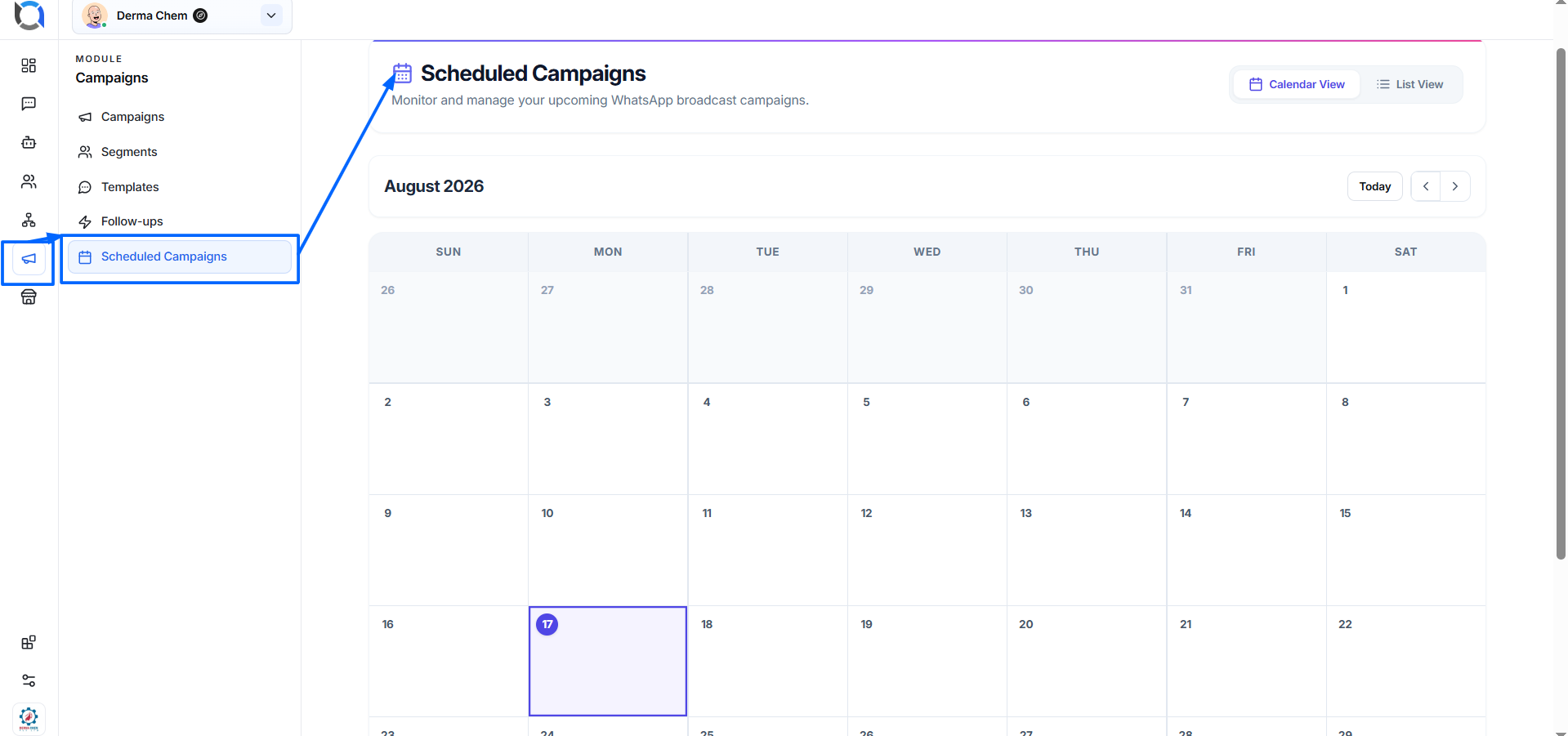
Scheduled Campaigns Page
The page contains the following main sections:
1. Page Header
At the top of the page, you will see:
Scheduled Campaigns
This identifies the page you are currently viewing.
Below the title, a short description explains the purpose of the page:
Monitor and manage your upcoming WhatsApp broadcast campaigns.
This helps users understand that the page is specifically designed for managing campaigns that are scheduled to run in the future.
2. Calendar View and List View
The top-right section contains two viewing options:
Calendar View
The Calendar View displays scheduled campaigns according to their date on a monthly calendar.
This view is useful when you want to understand your campaign schedule visually and see which days have campaigns planned.
List View
The List View displays scheduled campaigns in a list format.
Use this view when you want to review campaign information in a more structured format or quickly scan through multiple scheduled campaigns.
Calendar Navigation
The calendar section displays the currently selected month.
For example:
August 2026
You can use the navigation controls on the right side of the month header to move through the calendar.
Previous Month
Select the left arrow to move to the previous month.
Next Month
Select the right arrow to move to the next month.
Today
Select Today to return the calendar to the current date.
This is useful when you have navigated several months away and want to quickly return to the current schedule.
Understanding the Calendar
The calendar is divided into seven columns:
- Sunday
- Monday
- Tuesday
- Wednesday
- Thursday
- Friday
- Saturday
Each calendar cell represents one day.
The date number is displayed in the upper-left area of each cell. Scheduled campaigns for that date can be displayed within the corresponding calendar cell.
Current Date
The current date is visually highlighted so that you can easily identify today's date.
In the example above, August 17 is highlighted because it is the current date.
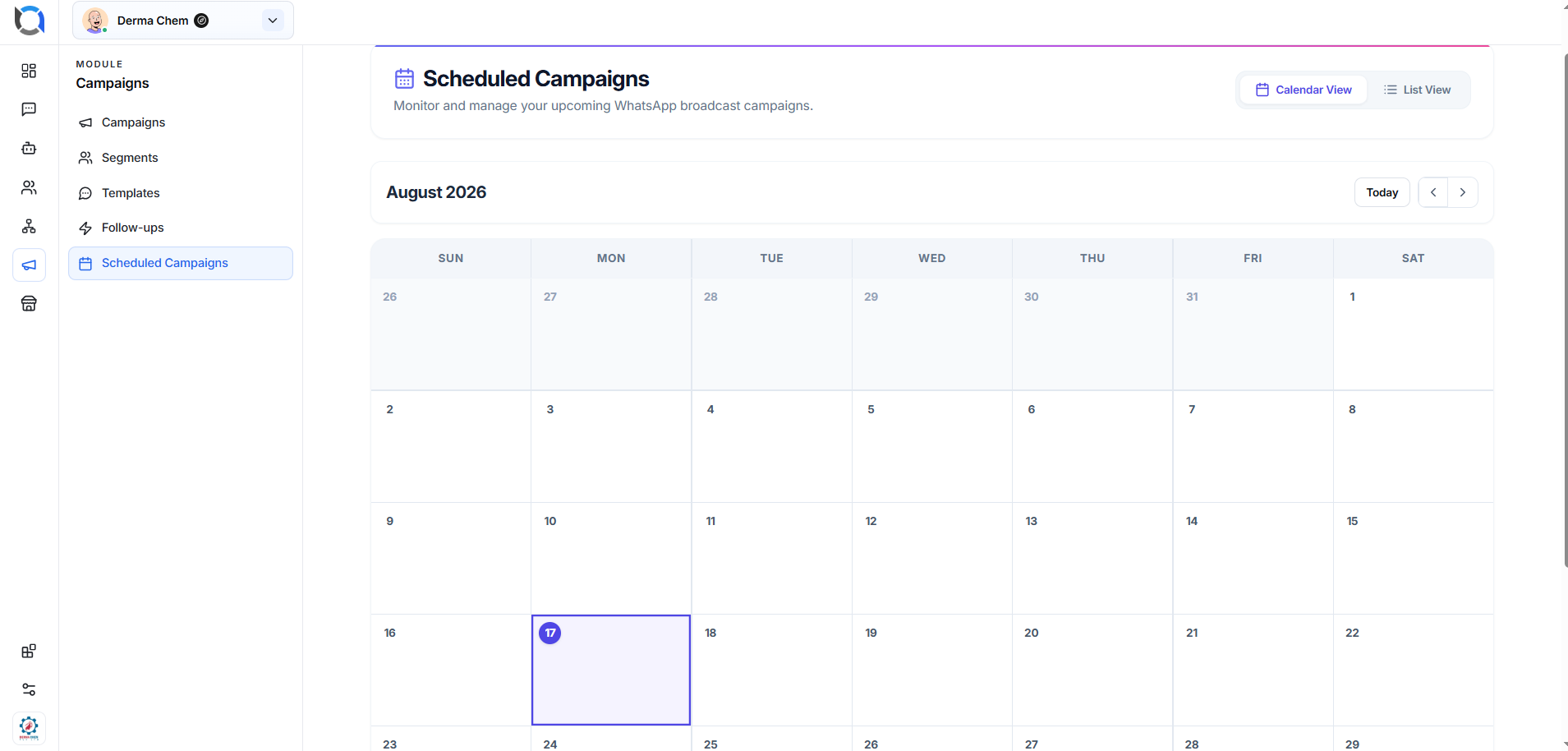
Viewing Scheduled Campaigns
When campaigns are scheduled, they appear on their corresponding dates in the calendar.
For example, if a campaign is scheduled for August 20, it will appear inside the August 20 calendar cell.
This allows users to quickly understand:
- Which days have campaigns scheduled.
- How many campaigns are planned.
- When upcoming broadcasts will be sent.
- Whether multiple campaigns are scheduled around the same period.
Select or open a scheduled campaign, where supported, to review its available campaign information.
List View
The List View provides an alternative way to review scheduled campaigns.
Instead of displaying campaigns on a calendar, scheduled campaigns are presented as individual records.
This view is particularly useful when:
- You have many scheduled campaigns.
- You want to review campaign details quickly.
- You want to scan upcoming campaigns without navigating through calendar dates.
- You prefer a table/list format instead of a calendar.
Use the Calendar View and List View toggle to switch between the two layouts.
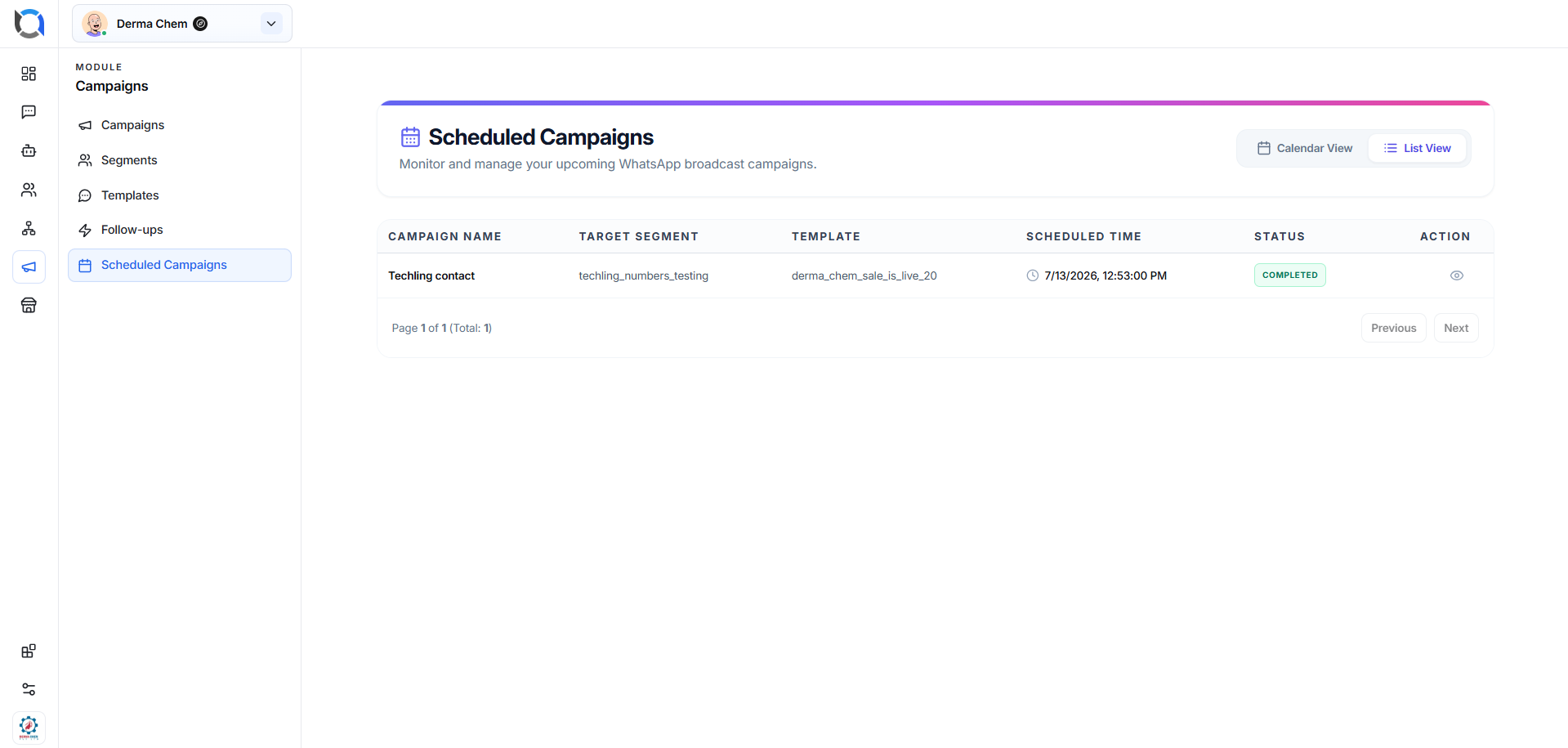
Managing Your Campaign Schedule
The Scheduled Campaigns page can be used as a central place to monitor your upcoming WhatsApp broadcasts.
Before a campaign is sent, review the schedule to make sure:
- The campaign is planned for the correct date.
- The campaign is scheduled at the intended time.
- The correct campaigns are planned for the selected period.
- Multiple campaigns are not unintentionally scheduled too close together.
This helps prevent scheduling conflicts and improves campaign planning.