
Click the Add Links button to manually import additional knowledge sources.
You can import:
- Website URLs
- YouTube videos
This allows you to continuously expand your AI Employee's knowledge base without recreating the employee.
Import from YouTube
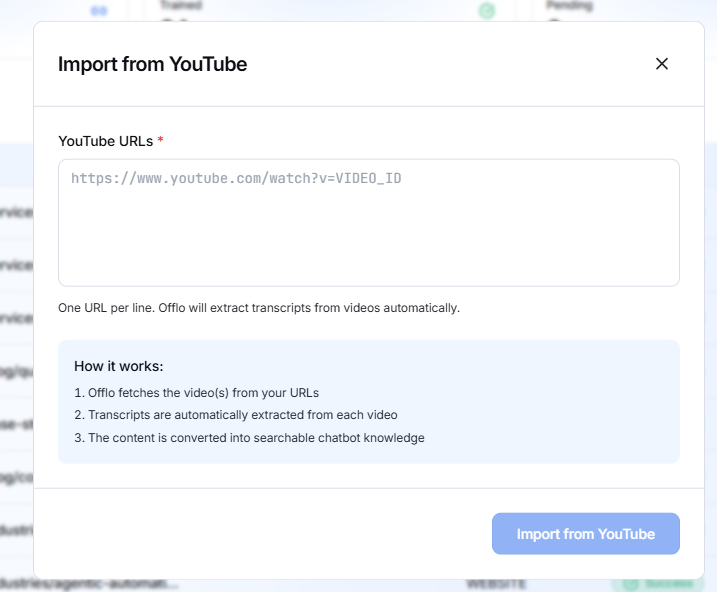
If you select YouTube from the Add Links menu, the following dialog appears.
YouTube URLs
Paste one or more YouTube video URLs.
- One URL per line
- Multiple videos can be imported at once
Example:
https://www.youtube.com/watch?v=VIDEO_ID_1
https://www.youtube.com/watch?v=VIDEO_ID_2
Click Import from YouTube to begin processing.
The system will:
- Fetch the videos.
- Automatically extract the transcript from each video.
- Convert the transcript into searchable AI knowledge.
- Train the AI Employee using the extracted content.
Once completed, the videos will appear in the Website Links list.
Synchronization
Website content may change over time.
The platform records the Last Synced date for every imported source, allowing you to verify when the content was last updated.
If a page has changed, you can synchronize it again (if supported) to keep your AI Employee up to date.
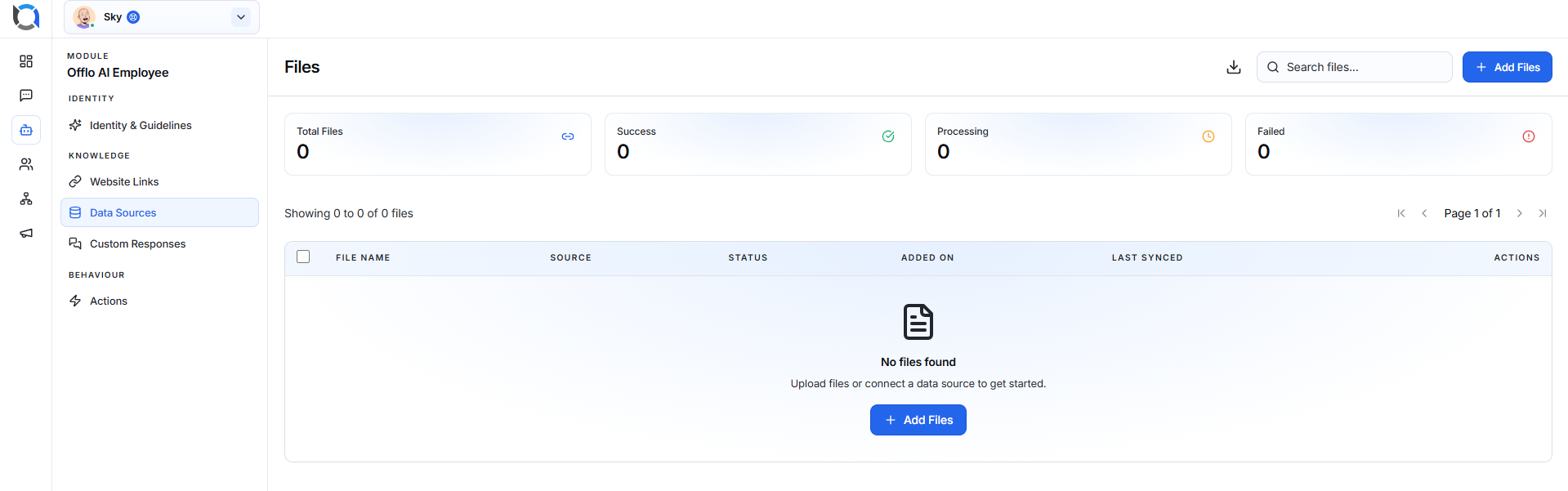
Data Sources (Files)
The Data Sources section allows you to upload documents and files that will be used as additional knowledge sources for your AI Employee.
Once a file is uploaded, the system extracts its content, indexes it, and converts it into searchable knowledge. Your AI Employee can then use the information from these files to answer user questions accurately.
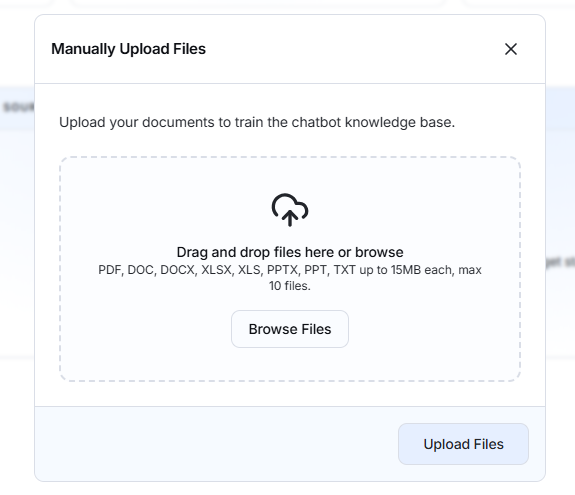
Upload Files
Click Add Files to upload one or more supported documents.
After uploading, the system will:
- Extract text and relevant content from the file.
- Process and index the extracted information.
- Convert the content into searchable knowledge.
- Train the AI Employee using the uploaded document.
Once processing is complete, the file will appear in the Data Sources list.
File Analytics
The analytics cards at the top of the page provide an overview of your uploaded files.
Total Files
Displays the total number of uploaded documents.
Success
Shows the number of files that have been successfully processed and are available as AI knowledge.
Processing
Displays files that are currently being processed and indexed.
Failed
Shows files that could not be processed successfully due to unsupported formats, corrupted files, or processing errors.

Data Sources List
Every uploaded file appears in the table with the following information: