The Shopify Integration allows you to connect your Shopify store with Offlo so your AI agent can access store information during customer conversations.
Before Connection
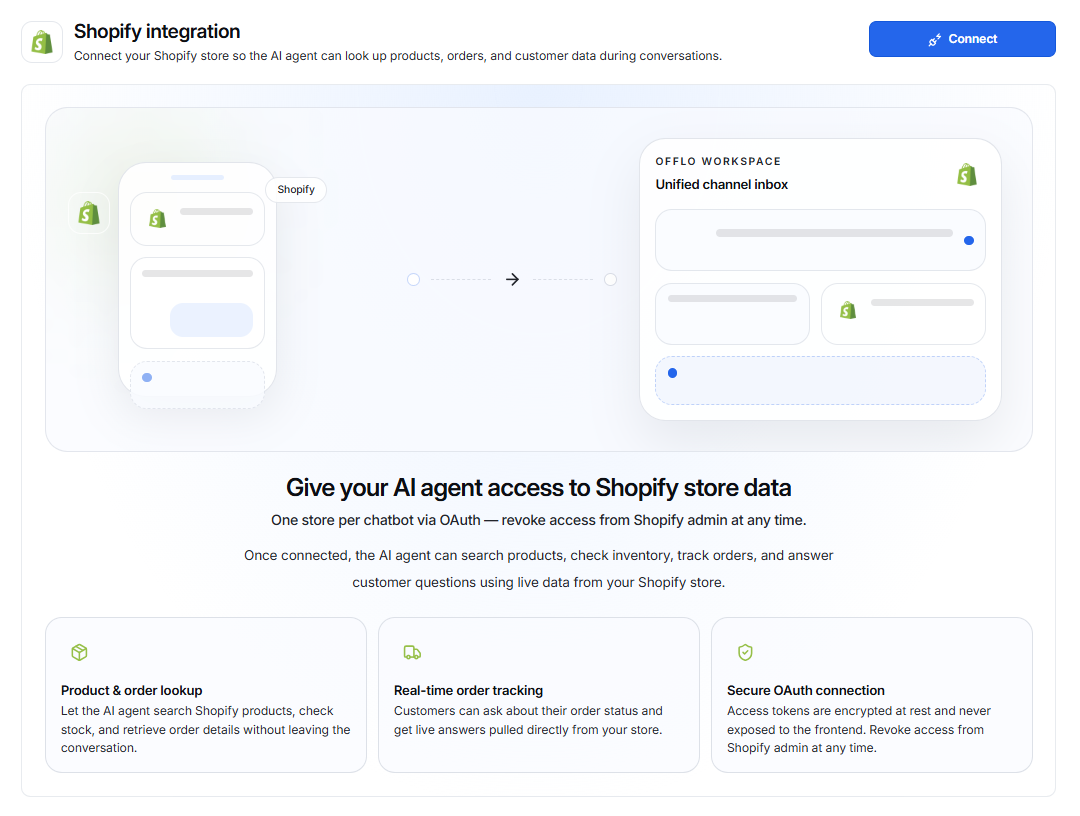
When Shopify is not connected, the page displays:
- Connect button
- Information about connecting your Shopify store
- Key benefits:
- Product & Order Lookup — Search products, check stock, and retrieve order details.
- Real-time Order Tracking — Provide customers with up-to-date order information.
- Secure OAuth Connection — Connect securely through Shopify authorization.
Connect Shopify
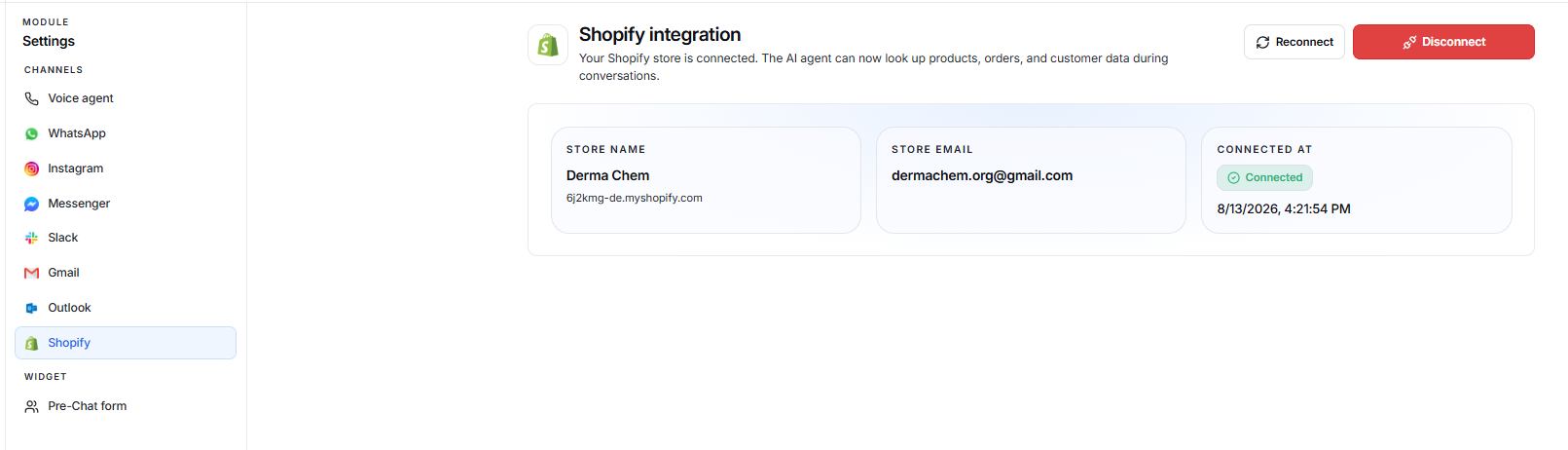
- Go to Settings.
- Select Shopify under Channels.
- Click Connect.
- Follow the Shopify authorization process.
- Select/authorize the Shopify store you want to connect.
- After successful authorization, the store will be connected to Offlo.
Note: One Shopify store can be connected per chatbot.
After Connection
Once Shopify is connected, the page displays:
- Connected status
- Connected Store Name
- Store Email
- Connected At date and time
- Reconnect button
- Disconnect button
Store Information
The connected store section shows:
Store Name Displays the name of the connected Shopify store.
Store Email Displays the email associated with the Shopify store.
Connected At Shows when the Shopify store was connected to Offlo.
Reconnect Shopify
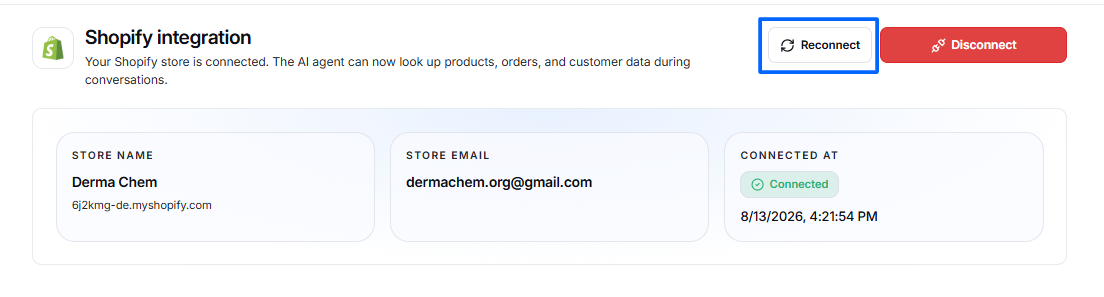
Use Reconnect if the Shopify connection needs to be refreshed or re-authorized.
- Click Reconnect.
- Complete the Shopify authorization process.
- Once successful, the store will be connected again.
Disconnect Shopify
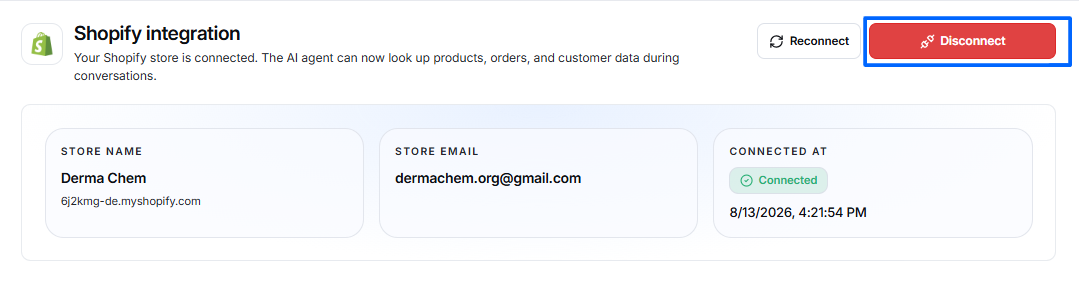
If you no longer want Offlo to access your Shopify store:
- Click Disconnect.
- Confirm the action if prompted.
- The Shopify store will be disconnected from Offlo.
After disconnecting, the AI agent will no longer be able to access Shopify store data.