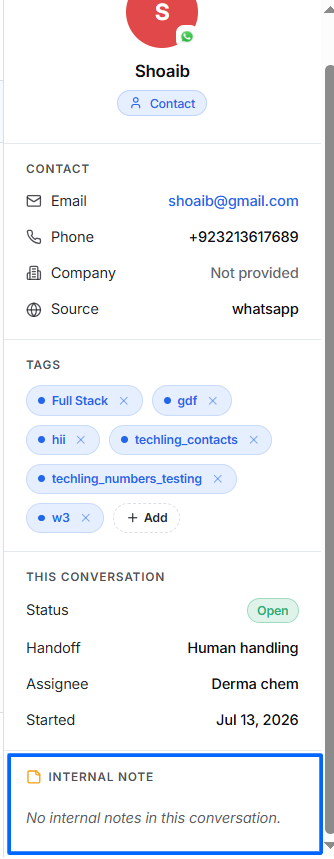
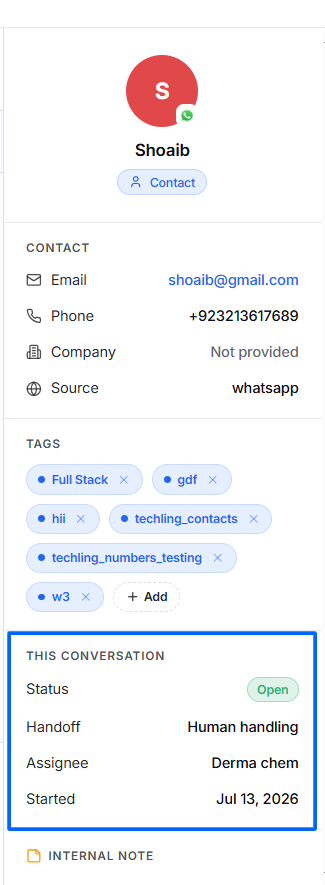
The Customer Information Panel is located on the right side of the Conversations page.
It provides agents with a complete overview of the customer, conversation details, tags, and internal notes. This information helps your support team identify customers quickly, understand the conversation context, and manage customer interactions more efficiently.
Overview
The Customer Information Panel contains the following sections:
- Customer Profile
- Contact Information
- Tags
- Conversation Details
- Internal Notes
Each section updates automatically based on the selected conversation.
Customer Profile
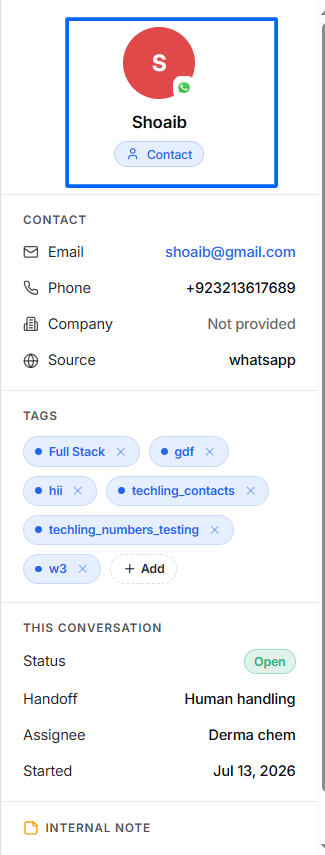
At the top of the panel, the customer's profile information is displayed.
It includes:
- Customer Avatar
- Customer Name
- Connected Channel Indicator
- Contact Tag
If a profile picture is unavailable, the system displays the customer's initials as the avatar.
The communication channel icon (such as WhatsApp, Website, Instagram, or Messenger) appears on the profile image, allowing agents to identify the source of the conversation instantly.
The Contact tag shows the customer is in the contact list.
Contact Information
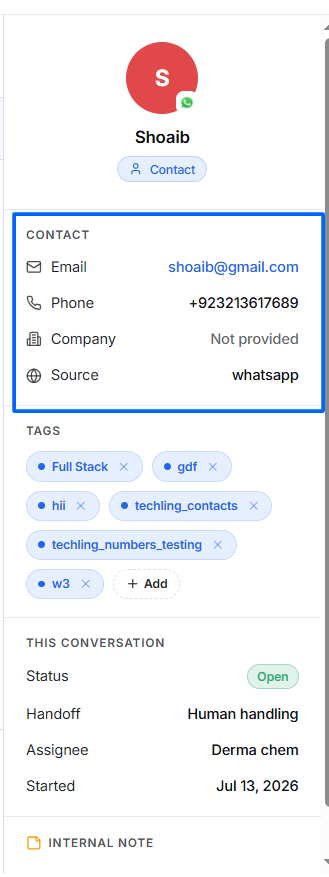
The Contact section displays all available customer details collected during the conversation or through connected channels.
Displays the customer's email address.
If the customer has not shared an email address, the system displays:
Not Provided
Example:
shoaib@gmail.com
Phone Number
Displays the customer's phone number.
This is especially useful for conversations coming from:
- SMS
- CRM integrations
Example:
+92 321 3617689
Company
Displays the customer's company or organization.
If unavailable, the system displays:
Not Provided
This field is useful for B2B support environments.
Source
Shows where the conversation originated.
Supported examples include:
- Website Widget
- Messenger
- Gmail
- Outlook
Example:
Knowing the source helps agents understand the customer's preferred communication channel.
Tags
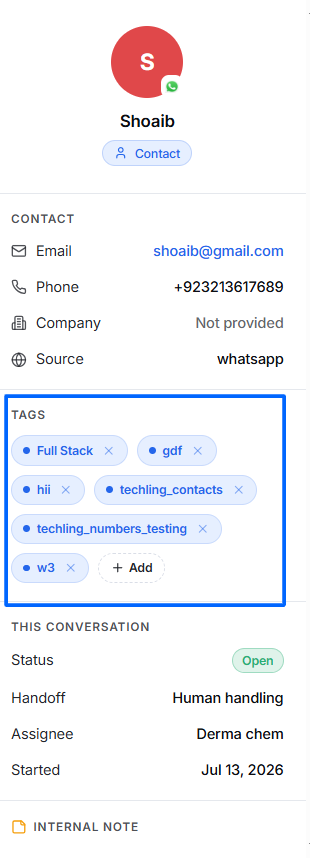
Tags help categorize and organize conversations.
Agents can quickly identify the purpose, department, or category of a conversation without reading the entire chat history.
Example tags include:
- Sales
- Support
- Full Stack
- Technical
- VIP
- Billing
- Follow Up
- Lead
- Customer
- Campaign
Tags improve:
- Search
- Filtering
- Reporting
- Team collaboration
- Workflow automation
Adding Tags
To add a new tag:
- Open a conversation.
- Locate the Tags section.
- Click + Add.
- Select an existing tag or create a new one.
- Save your changes.
The tag is immediately applied to the conversation.
Removing Tags
To remove a tag:
- Locate the tag.
- Click the × icon next to the tag.
- The tag is removed from the conversation.
Removing a tag does not delete it from the system.
Conversation Details
The This Conversation section provides the current status and ownership of the selected conversation.
Status
Indicates the current lifecycle of the conversation.
Possible values include:
Open
The conversation requires attention from a human agent.
Solved
The issue has been resolved, and the conversation has been closed.
Unassigned
The conversation is awaiting assignment to a team member.
The status updates automatically whenever conversation actions are performed.
Handoff
The Handoff field indicates who is currently responsible for handling the conversation.
Possible values include:
AI Handling
The AI Employee is actively managing the conversation.
Human Handling
A team member has taken over the conversation.
Awaiting Human
The AI has escalated the conversation, and it is waiting for a human agent.
The handoff status changes automatically as conversations move between AI and human support.
Assignee
Displays the team member currently responsible for the conversation.
Example: Derma Chem
If no one has accepted the conversation, the field displays: Unassigned
Only one active assignee is responsible for a conversation at a time.
Started
Displays the date when the conversation was first created.
Example: Jul 13, 2026
This allows agents to determine how long the customer has been waiting for assistance.
Internal Notes
The Internal Notes section is designed for private communication between team members.
Customers cannot view internal notes.
Use internal notes to:
- Share troubleshooting details.
- Record customer preferences.
- Leave follow-up reminders.
- Add investigation results.
- Communicate with teammates without notifying the customer.
Adding an Internal Note
To add an internal note:
- Open a conversation.
- Click Internal Note in the reply section.
- Enter your note.
- Save or send the note.
The note becomes visible only to authorized team members.