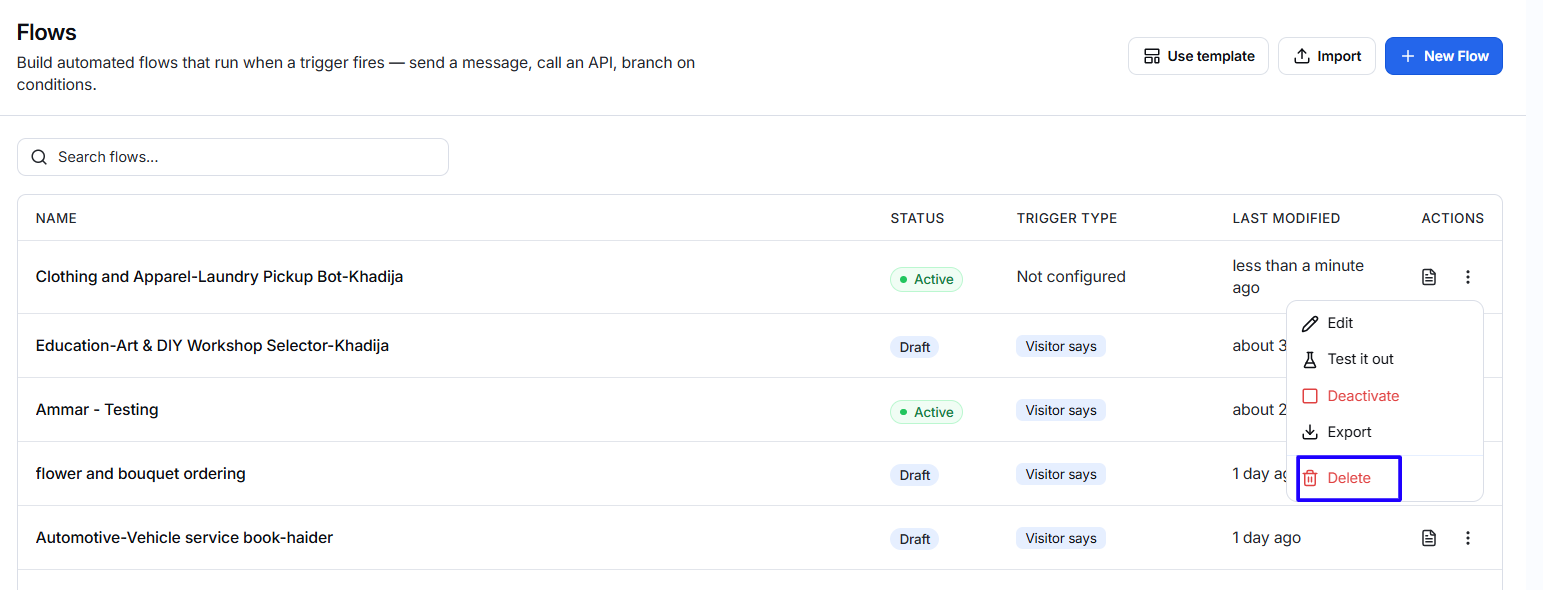
Each flow in My Flows includes an actions menu that allows you to edit, test, activate, export, delete, and review the execution logs of that specific flow.
To open the available options:
- Go to Flows > My Flows.
- Find the flow you want to manage.
- Click the three-dot menu in the Actions column.
- Select the required option.
The available actions may depend on the flow’s current status.
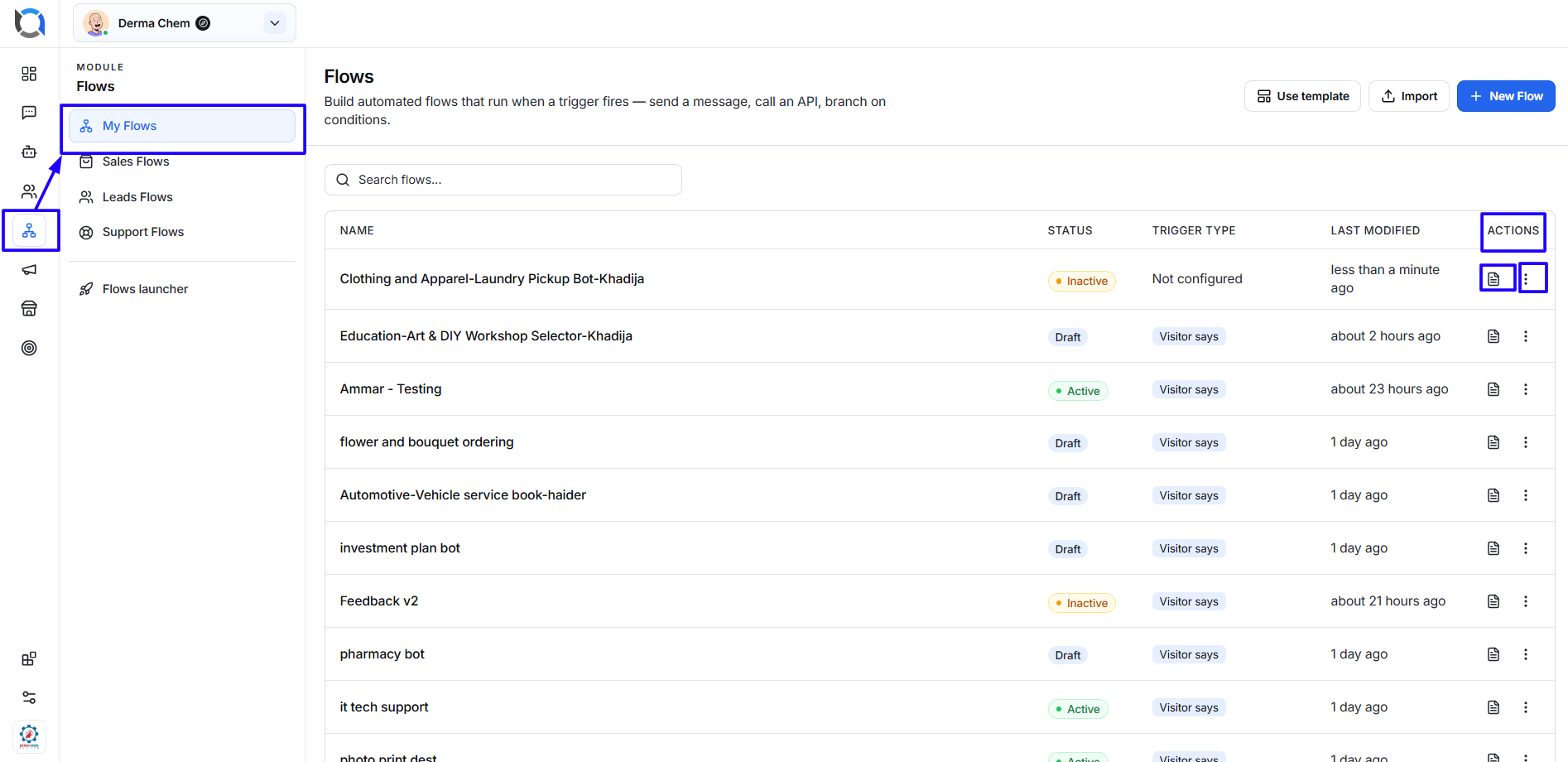
Edit
Select Edit to open the flow in the visual builder.
You can use this option to:
- Update the flow name.
- Change the starting trigger.
- Add, edit, or remove nodes.
- Update automated messages.
- Add or modify conditions.
- Change conversation branches.
- Correct configuration errors.
- Review the complete customer journey.
- Save your latest changes.
After editing an active flow, test it again to confirm that all branches still work correctly.
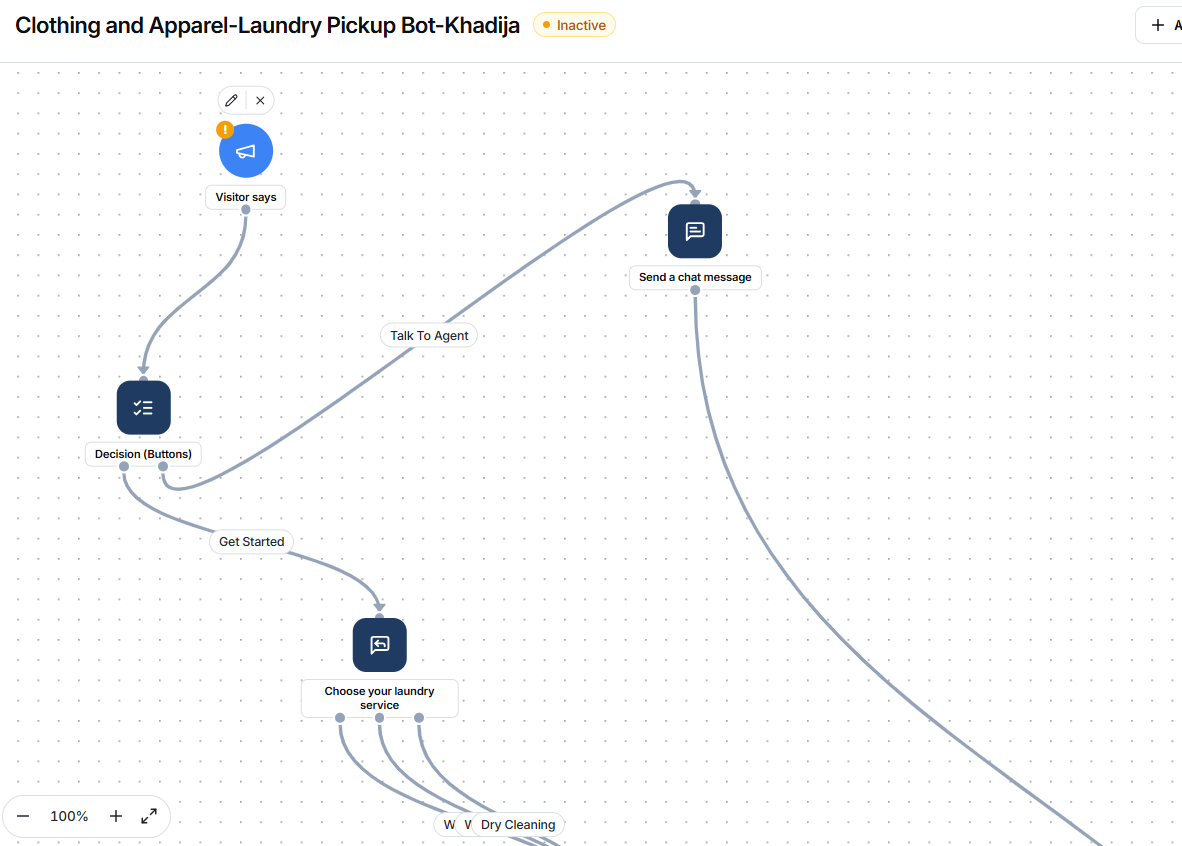
Test It Out
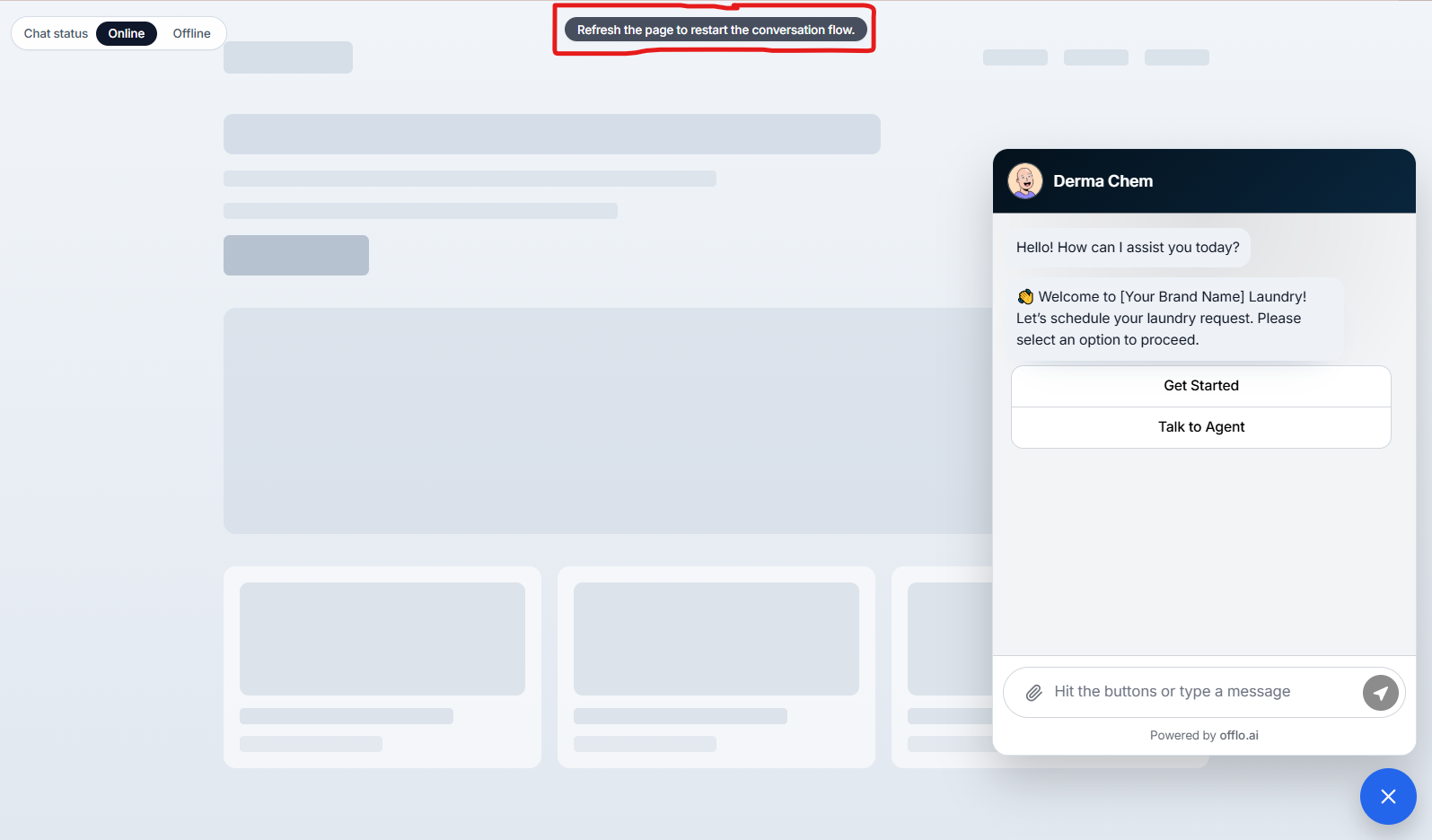
Select Test it out to open the flow inside the chatbot preview.
This option allows you to experience the automation as a website visitor before making it available to real customers.
Test a flow
- Open Flows > My Flows.
- Find the flow you want to test.
- Click its three-dot menu.
- Select Test it out.
- The chatbot testing screen will open.
- Start the conversation by selecting one of the available buttons or entering a message.
- Follow every available conversation path.
- Confirm that the expected messages, questions, buttons, and responses appear.
- Close the chatbot preview when testing is complete.
- Return to Edit if any changes are required.
What to check during testing
Confirm that:
- The correct flow starts.
- The welcome message appears correctly.
- Buttons display the expected labels.
- Every button opens the correct next step.
- Visitor messages receive the expected response.
- Conditions direct visitors to the correct branches.
- Required information can be entered.
- No step causes the conversation to stop unexpectedly.
- The final message or outcome is clear.
- The Talk to Agent option works correctly, if included.
- The flow works properly on both desktop and mobile layouts.
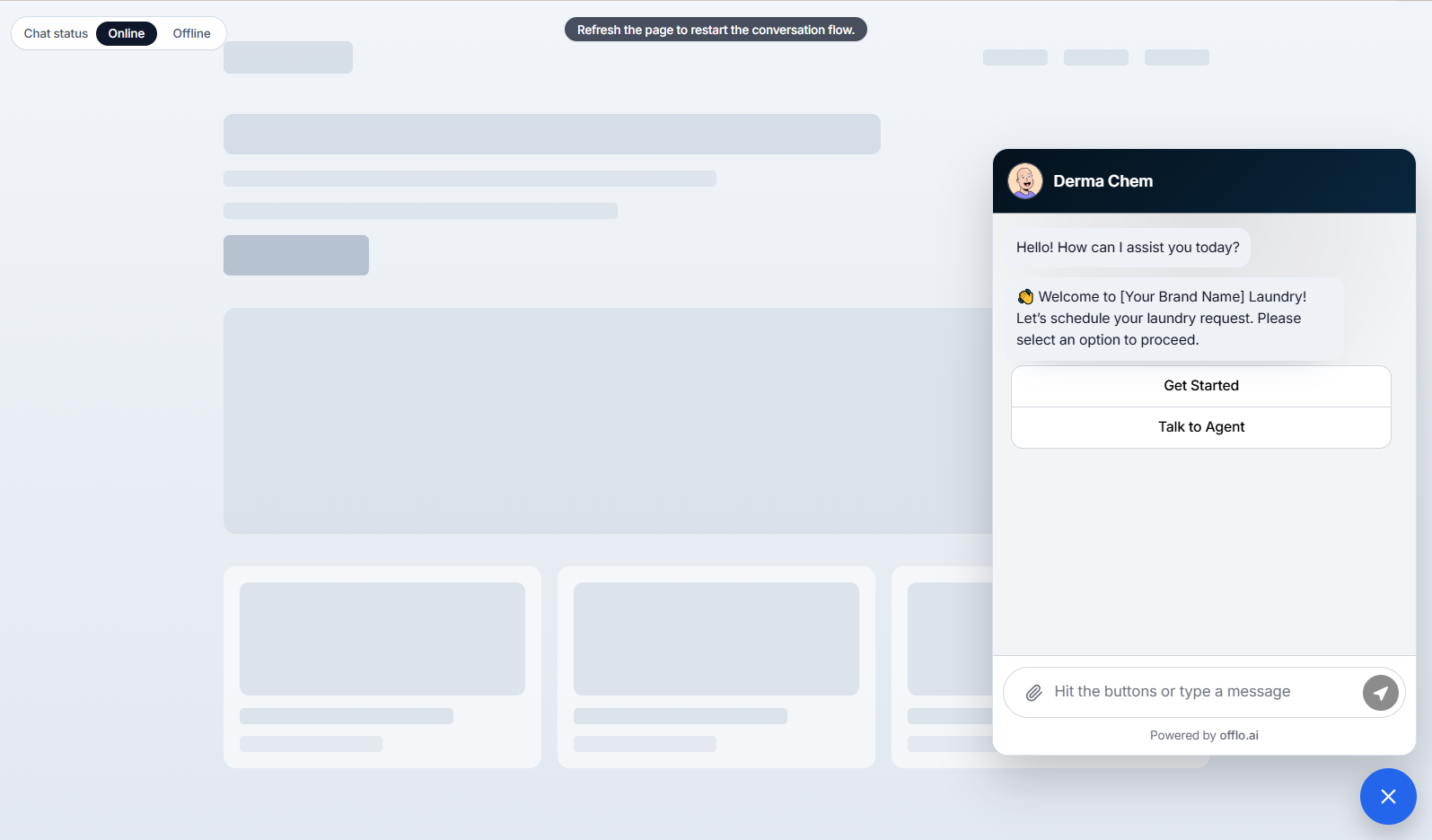
Restart the test
Refresh the testing page when you need to restart the conversation flow from the beginning.
Restarting is useful when you want to test another branch without continuing from the previous conversation.
Chat status
The testing screen may allow you to switch the chat status between:
- Online
- Offline
Use these options to confirm how the chatbot behaves when your support team is available or unavailable.
Close the chatbot preview
Click the X button near the chatbot to close the testing window and return to the Flows list.
Testing a flow does not automatically activate it for real visitors.
Activate
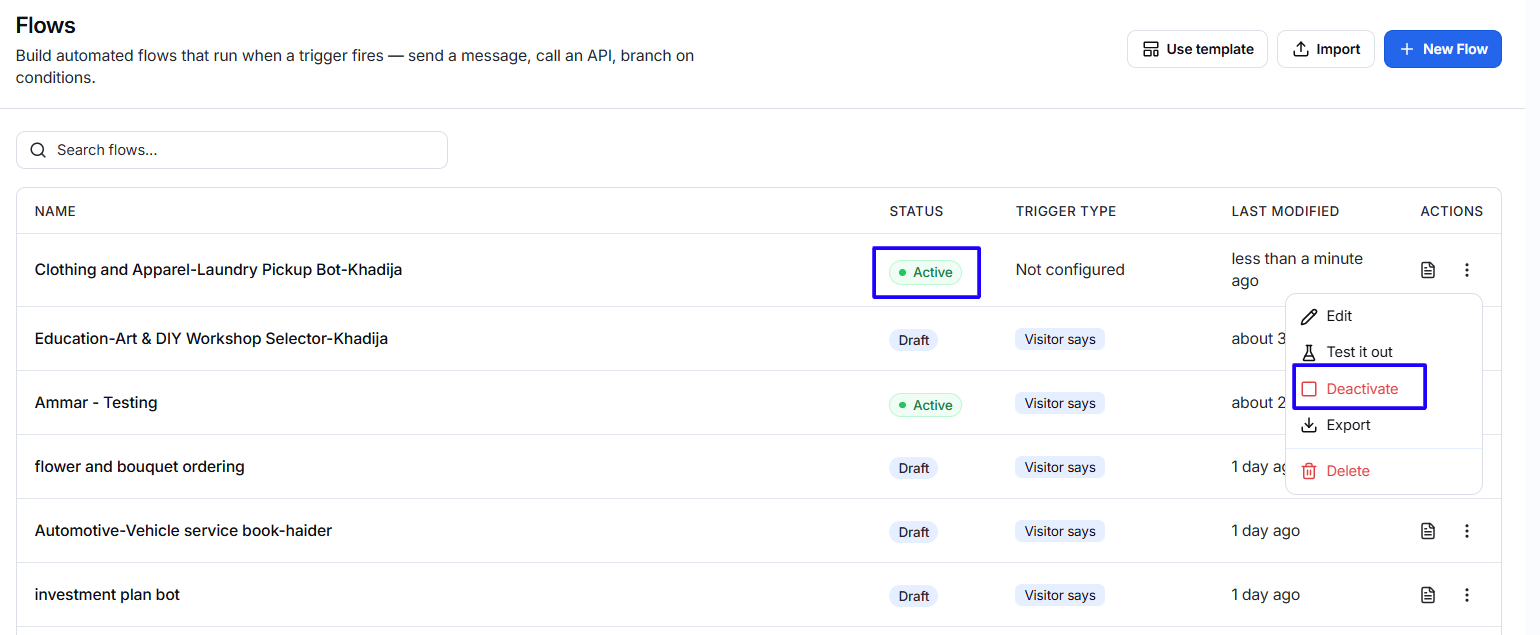
Select Activate when the flow has been completed, validated, and tested.
Once active, the flow can run when its configured trigger occurs.
Before activating a flow
Make sure that:
- All required nodes are configured.
- No validation errors remain.
- Every node is connected.
- All condition outcomes have a valid next step.
- Messages and button labels are correct.
- Required integrations are connected.
- The complete flow has been tested.
- The flow does not conflict with another automation using the same trigger.
After activation, the flow status changes to Active.
Active flow
An Active flow is available to run for visitors when its trigger conditions are met.
Continue monitoring the flow logs after activation to confirm that it executes successfully.
Inactive flow
An Inactive flow remains safe but does not run for visitors.
Deactivate a flow when:
- It is temporarily not required.
- Its content needs to be reviewed.
- A campaign has ended.
- An integration is unavailable.
- Another flow will replace it.
Export
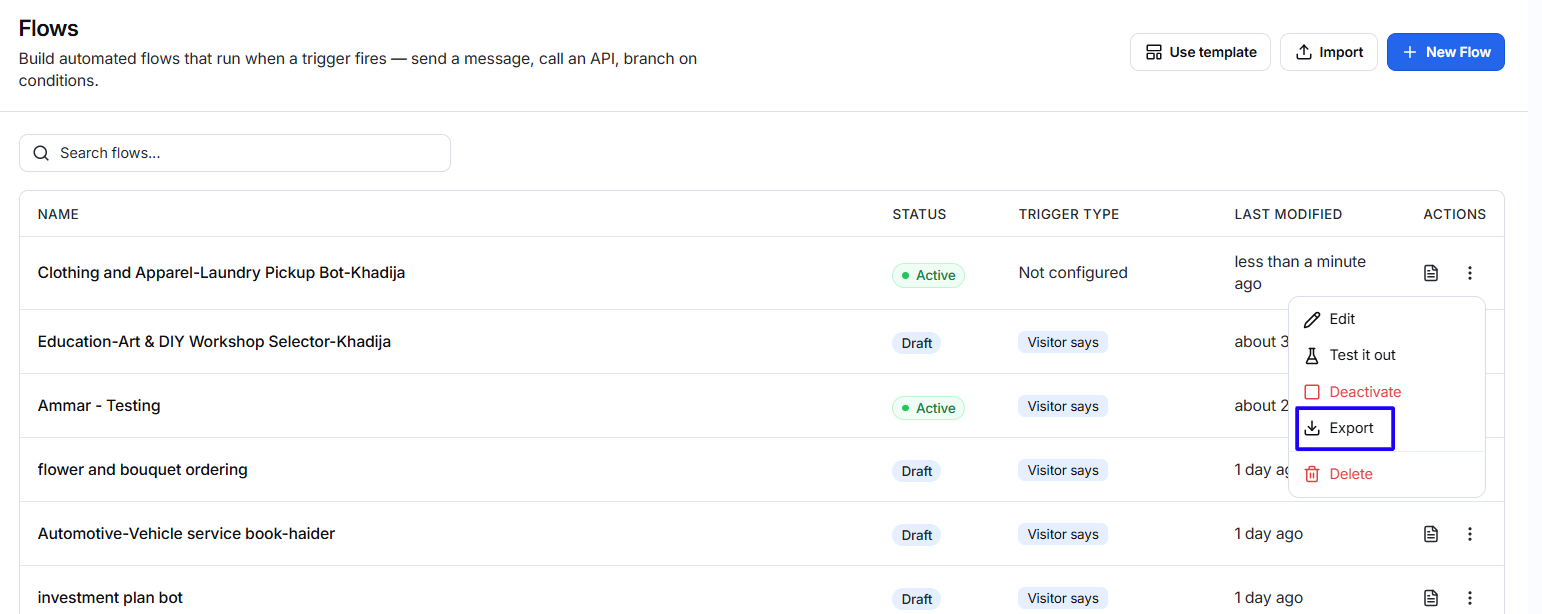
Select Export to download the flow as a JSON file.
Exporting is useful when you want to:
- Create a backup of the flow.
- Transfer it to another supported workspace.
- Reuse the same automation later.
- Share the flow structure with an authorized team member.
- Keep a copy before making major changes.
Keep exported JSON files in a secure location. Avoid manually changing their content unless you understand the required flow format.
An exported flow can be uploaded later using the Import option on the My Flows screen.
Delete
Select Delete to permanently remove a flow.
Use this option carefully because deleting a flow may remove its complete configuration.
Before deleting a flow
- Confirm that the correct flow has been selected.
- Make sure it is no longer required.
- Export a backup if it may be needed later.
- Check whether the flow is currently active.
- Confirm that another automation does not depend on it.
If you only want to stop a flow temporarily, use the inactive status instead of deleting it.