
The logs screen displays the execution history and performance of a specific flow.
Use flow logs to:
- Confirm whether the flow is running.
- Review successful executions.
- Identify failed executions.
- Check which trigger started the flow.
- See which channel was used.
- Review visitor-related execution information.
- Investigate flow issues.
- Monitor the flow’s success rate.
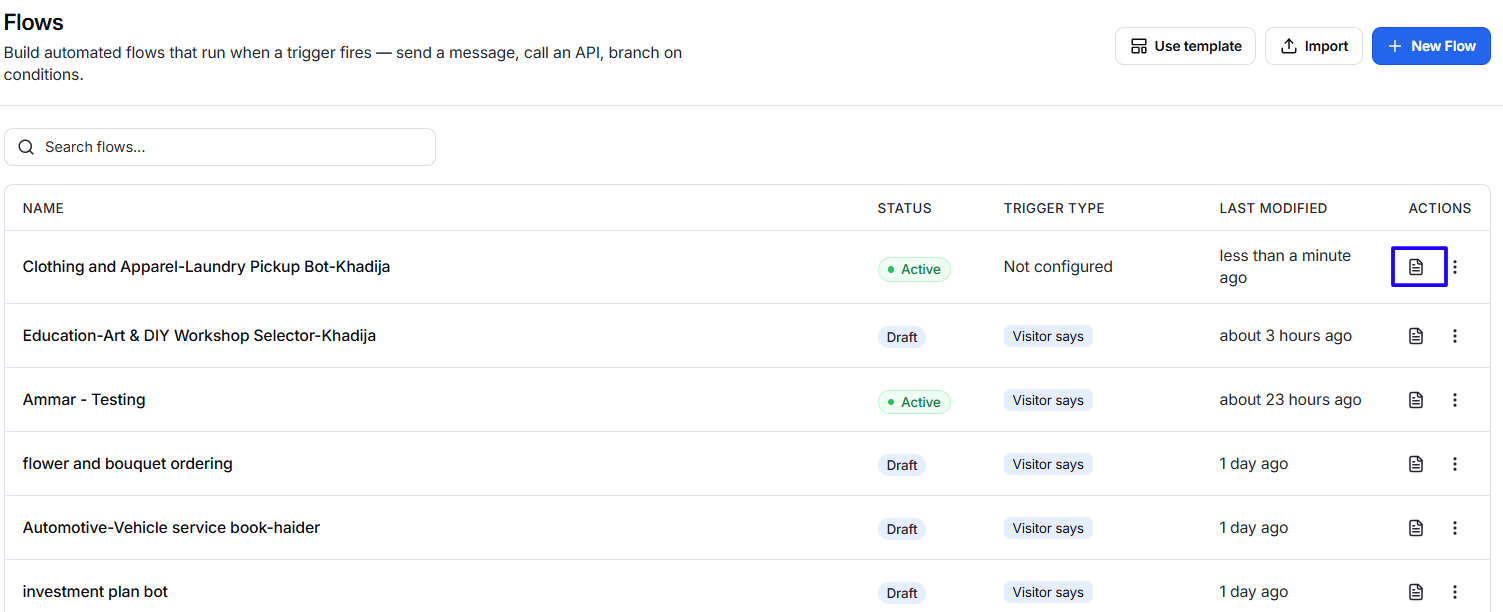
To open the logs, select the logs/document icon in the Actions column for the required flow.
Understanding the Logs screen
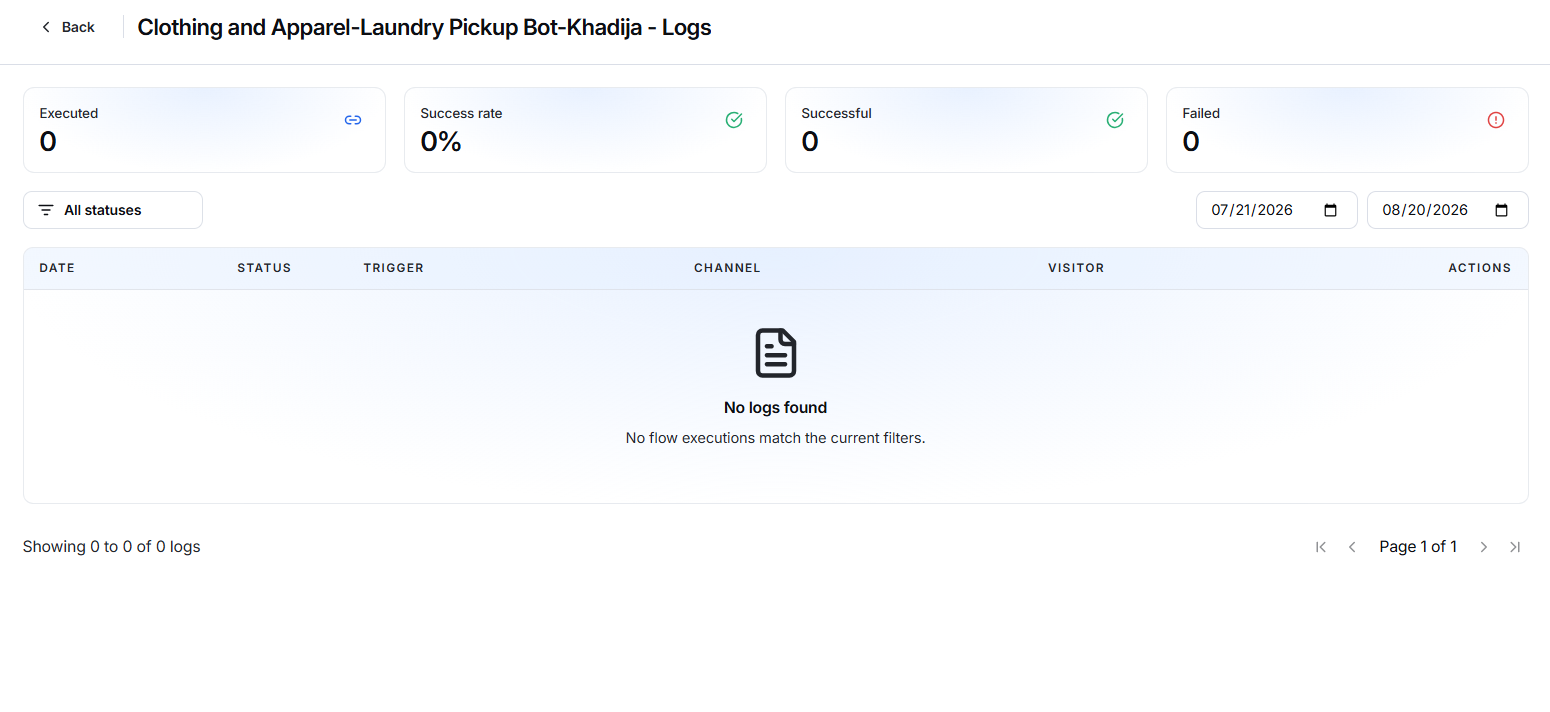
The name of the selected flow appears at the top of the screen, followed by Logs.
For example:
Clothing and Apparel – Laundry Pickup Bot – Logs
This confirms that you are reviewing the execution history of that specific flow.
Back
Click Back to return to the My Flows list.
Flow performance summary
The summary cards at the top of the Logs screen provide an overview of flow activity within the selected date range.
Executed
Shows the total number of times the flow was executed.
Each time the configured trigger starts the flow, an execution may be recorded.
Success Rate
Shows the percentage of flow executions completed successfully.
A higher success rate indicates that most executions ran without recorded failure.
Successful
Shows the total number of successful flow executions.
Use this value to confirm that visitors are moving through the automation correctly.
Failed
Shows the total number of failed flow executions.
Review failed entries to identify configuration, connection, trigger, or integration problems.

Filter flow logs
Filters help you focus on the executions most relevant to your review.
Status filter
Use the All statuses filter to review executions according to their result.
Depending on the available records, you can use it to focus on:
- All executions.
- Successful executions.
- Failed executions.
Date range
Use the two date fields to select the period you want to review.
- Select the starting date.
- Select the ending date.
- Review the updated summary cards and log table.
Make sure the selected range includes the date when the flow was expected to run.

Flow execution table
Each row represents an execution of the selected flow.
Date
Shows when the flow execution occurred.
Use this information to match an execution with a customer interaction or reported issue.
Status
Shows whether the execution completed successfully or failed.
Trigger
Shows which event started the flow.
For example, a Visitor says trigger means the flow started through an interaction in the chat widget.
Channel
Shows the channel through which the flow was executed.
The channel may depend on the trigger and connected communication platform.
Visitor
Shows the visitor associated with the execution when this information is available.
Actions
Provides access to any additional execution details available for the log entry.
Use these details when investigating a specific flow execution.
No Logs Found
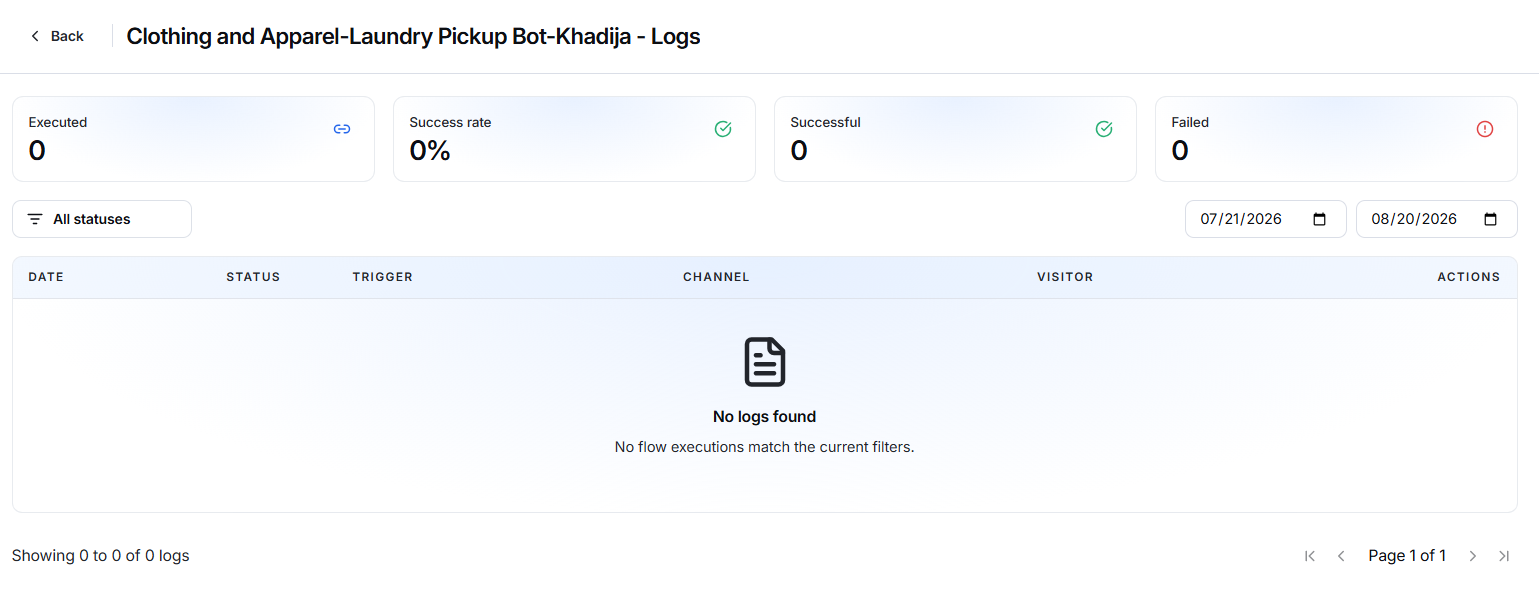
The message No logs found appears when no flow executions match the current filters.
This can happen when:
- The flow has not been executed.
- The flow is still in Draft status.
- The flow is inactive.
- The selected date range does not include any executions.
- A status filter is hiding the available records.
- The configured trigger has not occurred.
- The flow has only been tested but not activated for visitors.
What to do when no logs are displayed
- Confirm that the flow is Active.
- Check the selected date range.
- Change the status filter to All statuses.
- Confirm that the trigger is configured correctly.
- Test the flow using Test it out.
- Trigger the flow from the required channel.
- Return to the logs and review the results.
Log pagination
When a flow contains multiple execution records, use the pagination controls at the bottom of the table to move between pages.
The log counter shows how many records are currently displayed and the total number of available records.