
The Plans & Billing page allows you to view your current subscription, monitor plan usage, manage your subscription, and review your billing history.
This page provides a complete overview of your organization's billing status and resource usage in one place.
Overview
From the Plans & Billing page, you can:
- View your current subscription plan.
- Check your subscription status and billing period.
- See when your subscription will renew.
- Change your subscription plan.
- Monitor chatbot usage.
- Monitor messaging usage.
- Monitor team member usage.
- Monitor storage usage.
- Cancel your subscription.
- View your previous billing transactions.
How to Access Plans & Billing
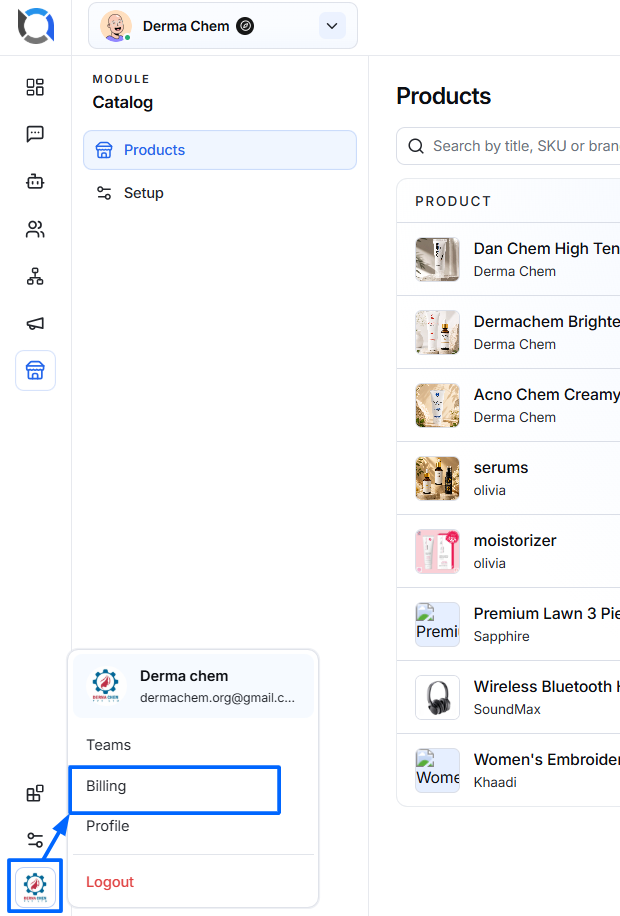
- Log in to your Offlo account.
- Select your organization/workspace from the top navigation if required.
- Open the account or organization menu.
- Select Plans & Billing.
- The Plans & Billing page opens.
Current Plan
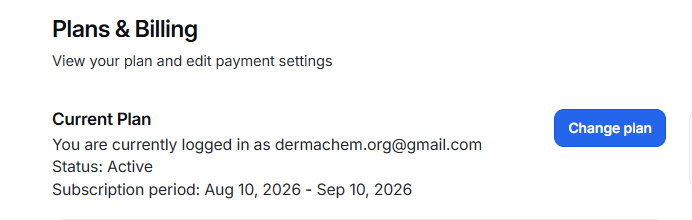
The Current Plan section displays information about the subscription currently assigned to your account.
In the example shown, the account is subscribed to the Pro plan.
The section displays:
Account
Shows the email address associated with the current subscription.
Example:
You are currently logged in as dermachem.org@gmail.com
Subscription Status
Displays whether the subscription is currently active.
Example:
Status: Active
Subscription Period
Shows the start and end dates of the current billing period.
Example:
Aug 10, 2026 – Sep 10, 2026
This allows you to know when the current subscription period begins and ends.
Plan Details
The plan card displays the name and billing frequency of your current plan.
In the example:
Pro
Billed monthly
The plan section also displays the current monthly price.
Example:
$0 / month (Inc. tax)
It also shows the date on which the subscription will renew.
Example:
Renews on Sep 10, 2026
Change Plan
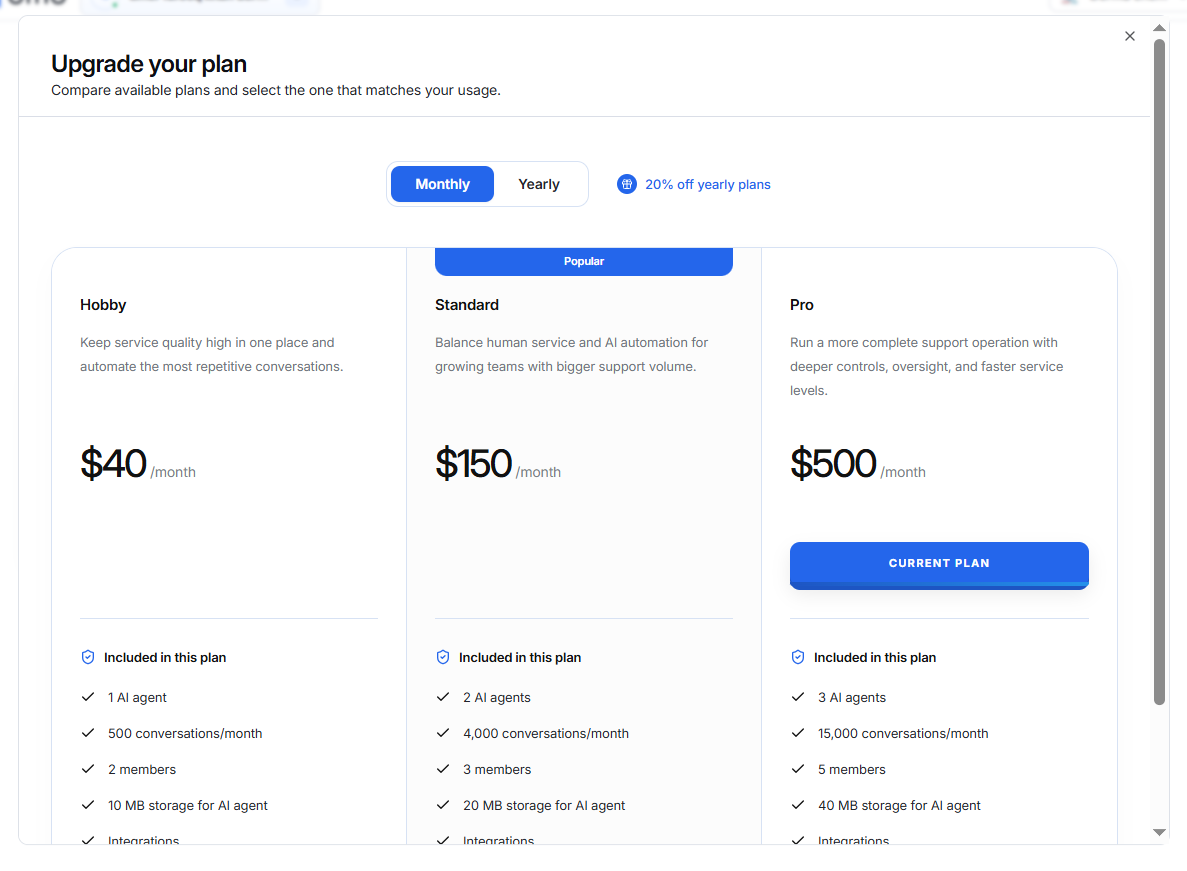
Select Change Plan to view the available subscription plans and switch to another plan.
You may use this option when your current plan no longer meets your organization's requirements.
For example, you may need to upgrade if you require:
- More chatbots.
- More messaging capacity.
- More team members.
- Additional storage.
Usage Overview
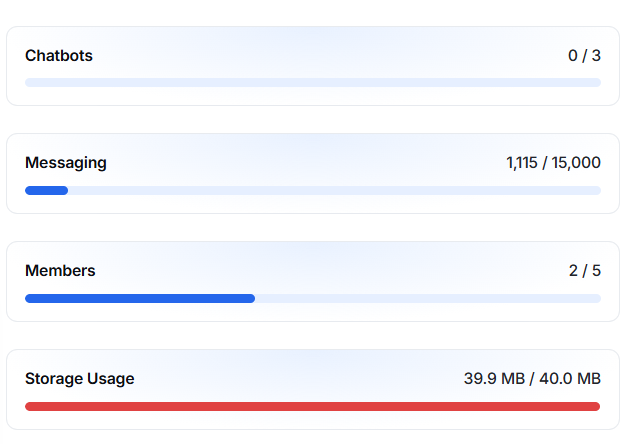
The Usage Overview section shows how much of your plan's resources you are currently using.
Chatbots
Shows the number of chatbots used out of the total available.
Example: 0 / 3 → 0 chatbots used out of 3.
Messaging
Shows the number of messages used out of your monthly limit.
Example: 1,115 / 15,000 → 1,115 messages used out of 15,000.
Members
Shows the number of team members added out of the allowed limit.
Example: 2 / 5 → 2 members added out of 5.
Storage
Shows the storage currently used out of the available storage.
Example: 39.9 MB / 40 MB → Almost all available storage is being used.
Cancel Subscription
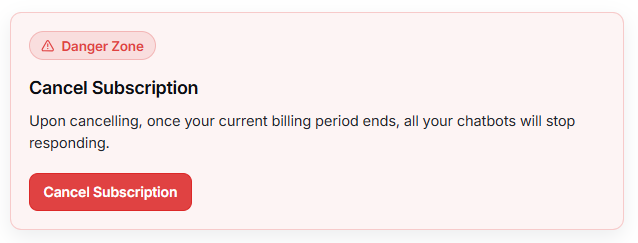
The Cancel Subscription section is located inside the Danger Zone.
This option should be used carefully because canceling the subscription affects the availability of your chatbots.
The page displays a warning:
Upon cancelling, once your current billing period ends, all your chatbots will stop responding.
How to Cancel Your Subscription
- Go to Plans & Billing.
- Locate the Danger Zone section.
- Select Cancel Subscription.
- Review the cancellation information.
- Confirm the cancellation if you want to proceed.
Important
Cancellation does not necessarily mean that your chatbots stop immediately.
According to the information displayed on the page, your chatbots will stop responding once the current billing period ends.
Before canceling, make sure you understand the impact on your organization's chatbot services.
Billing History
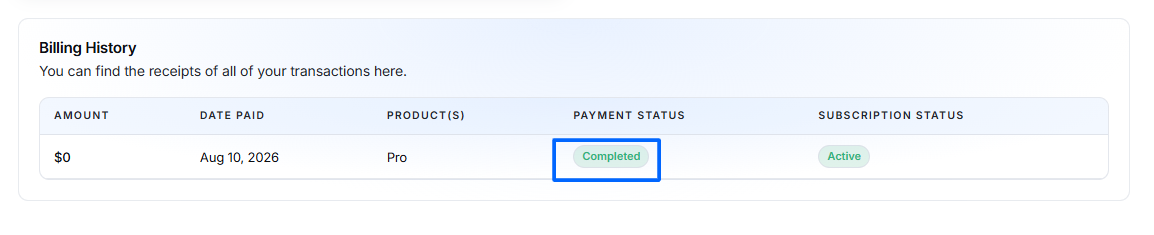
The Billing History section shows your previous payment and subscription transactions.
- Amount: Amount paid for the transaction. Example: $0
- Date Paid: Date the payment was processed. Example: Aug 10, 2026
- Product(s): Subscription plan associated with the payment. Example: Pro
- Payment Status: Shows whether the payment was successful. Example: Completed
- Subscription Status: Shows the current status of the subscription. Example: Active

Understanding Payment Status
The Payment Status indicates whether a billing transaction was successfully processed.
Common statuses may include:
- Completed – The payment was successfully processed.
- Pending – The transaction is still being processed.
- Failed – The payment could not be completed.
Always check the payment status if you are reviewing a billing issue.
Understanding Subscription Status
The Subscription Status indicates the state of the subscription associated with the billing transaction.
For example:
Active
means that the subscription is currently active.
If the subscription is canceled or expires, the status may change accordingly.

Managing Your Plan
Use the Plans & Billing page regularly to monitor your organization's resources.
Upgrade or change your plan when:
- You need additional chatbot capacity.
- Your message usage is approaching the plan limit.
- You need to add more team members.
- Your storage is almost full.
- Your organization's usage has increased.
Review your usage before changing plans
Check the usage indicators first to identify which resource is approaching its limit. This helps you choose a plan that matches your actual requirements.