
The Follow-ups feature helps you automatically reconnect with contacts who do not respond to your marketing campaigns.
You can create a sequence of follow-up messages, decide how long to wait between messages, and choose the WhatsApp template that should be sent at each step.
What you can do here
Use Campaigns > Follow-ups to:
- Select an existing campaign.
- Create a follow-up sequence for the campaign.
- Add one or multiple follow-up steps.
- Set a delay before each follow-up is sent.
- Choose the WhatsApp template for each step.
- Map template variables or provide required media.
- Save the sequence for the selected campaign.
- Review previous follow-up activity from Nudge History & Logs.
Create a Follow-up Sequence
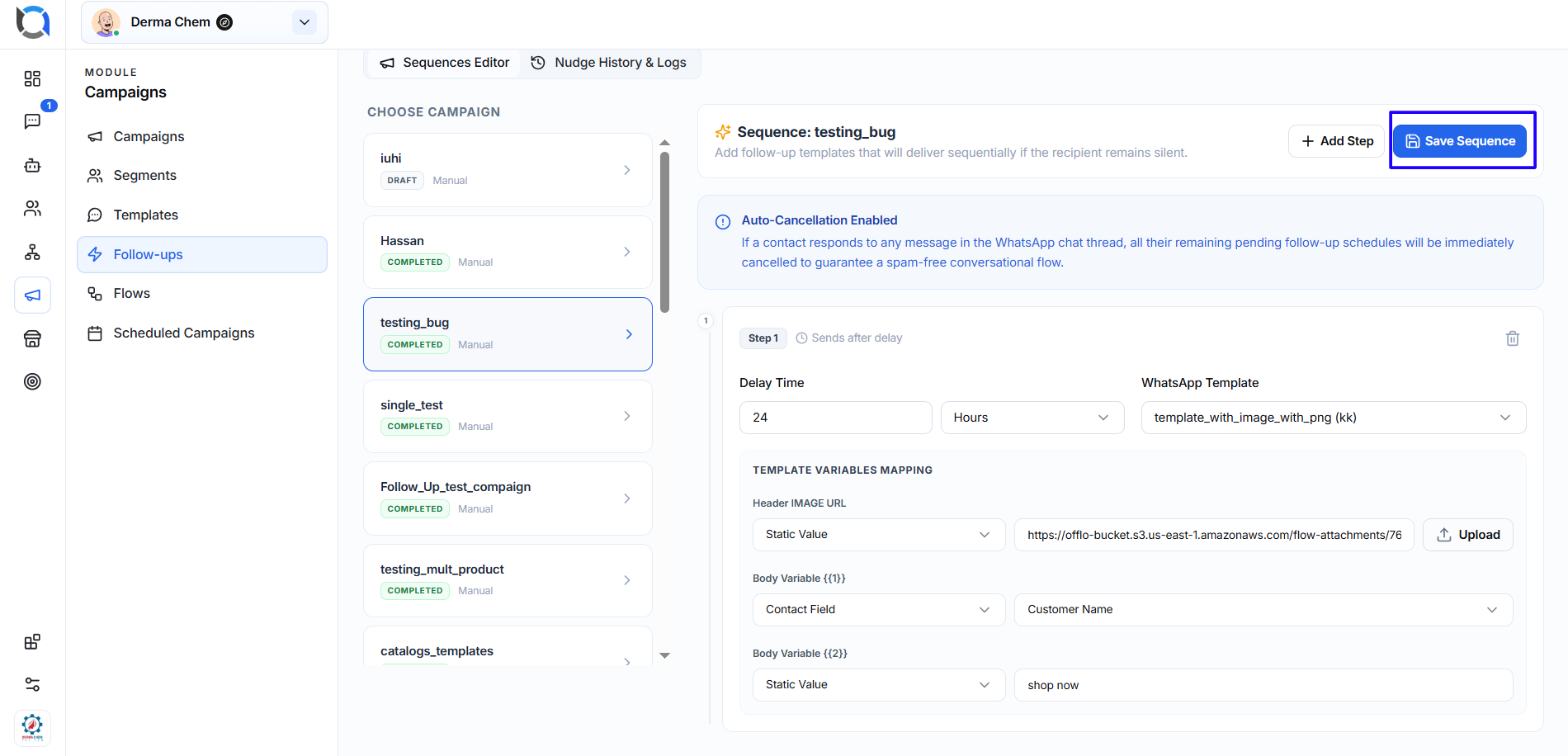
1. Select a campaign
Open Campaigns > Follow-ups.
Under Choose Campaign, select the campaign for which you want to configure follow-up messages.
The selected campaign's sequence will appear in the Sequences Editor.
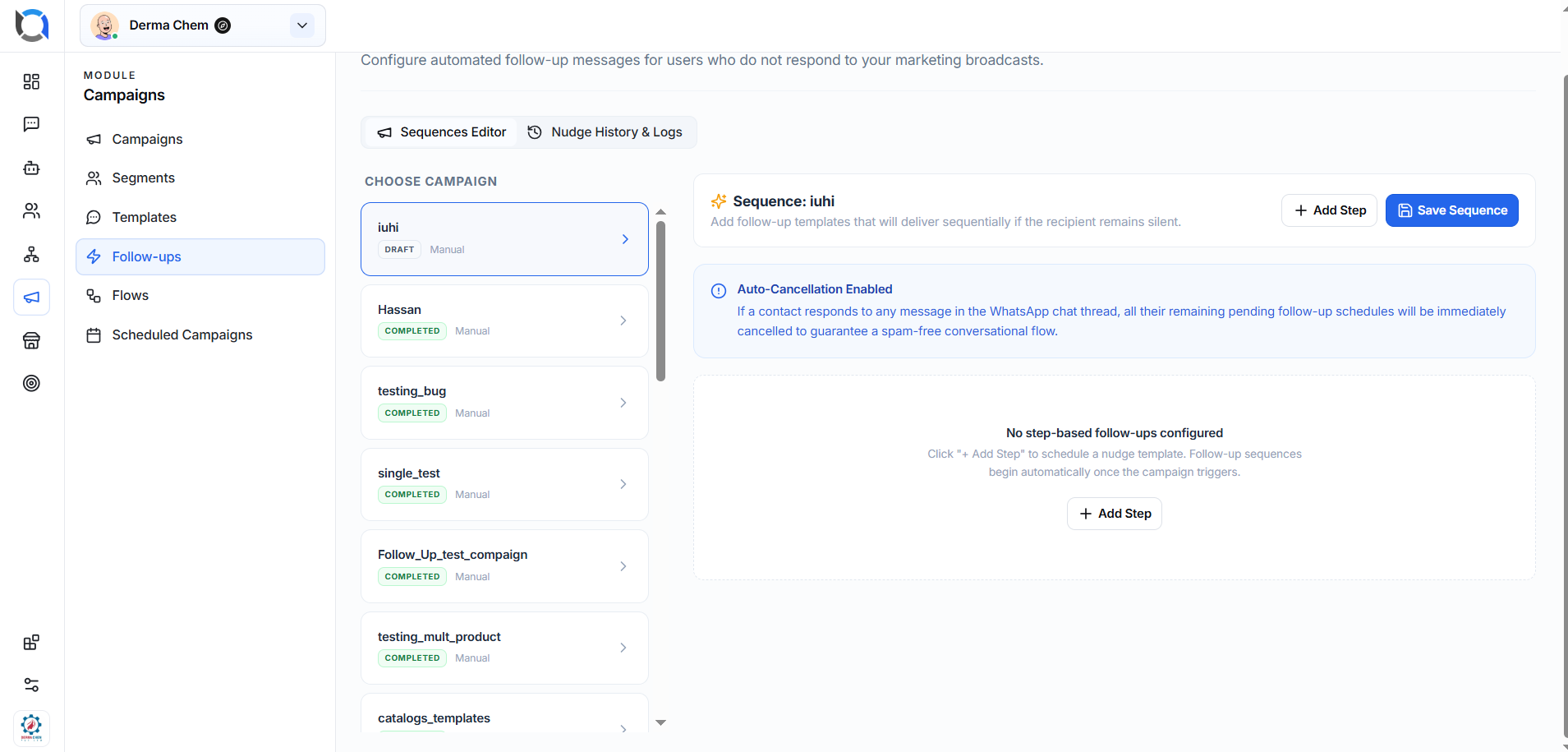
2. Add a follow-up step
Click + Add Step to create a new follow-up message.
Each step represents one message that will be sent if the contact has not responded.
You can add multiple steps to build a sequence, for example:
Campaign sent → Wait 24 hours → Follow-up 1 → Wait again → Follow-up 2
3. Set the Delay Time
Under Delay Time, enter how long the system should wait before sending the follow-up.
Select the required time unit from the dropdown, such as Hours.
For example, setting the delay to 24 Hours means the follow-up will be scheduled after the configured 24-hour delay.
4. Select a WhatsApp Template
Use the WhatsApp Template dropdown to select the template you want to send for this step.
Make sure you select the appropriate template for the purpose of your follow-up.
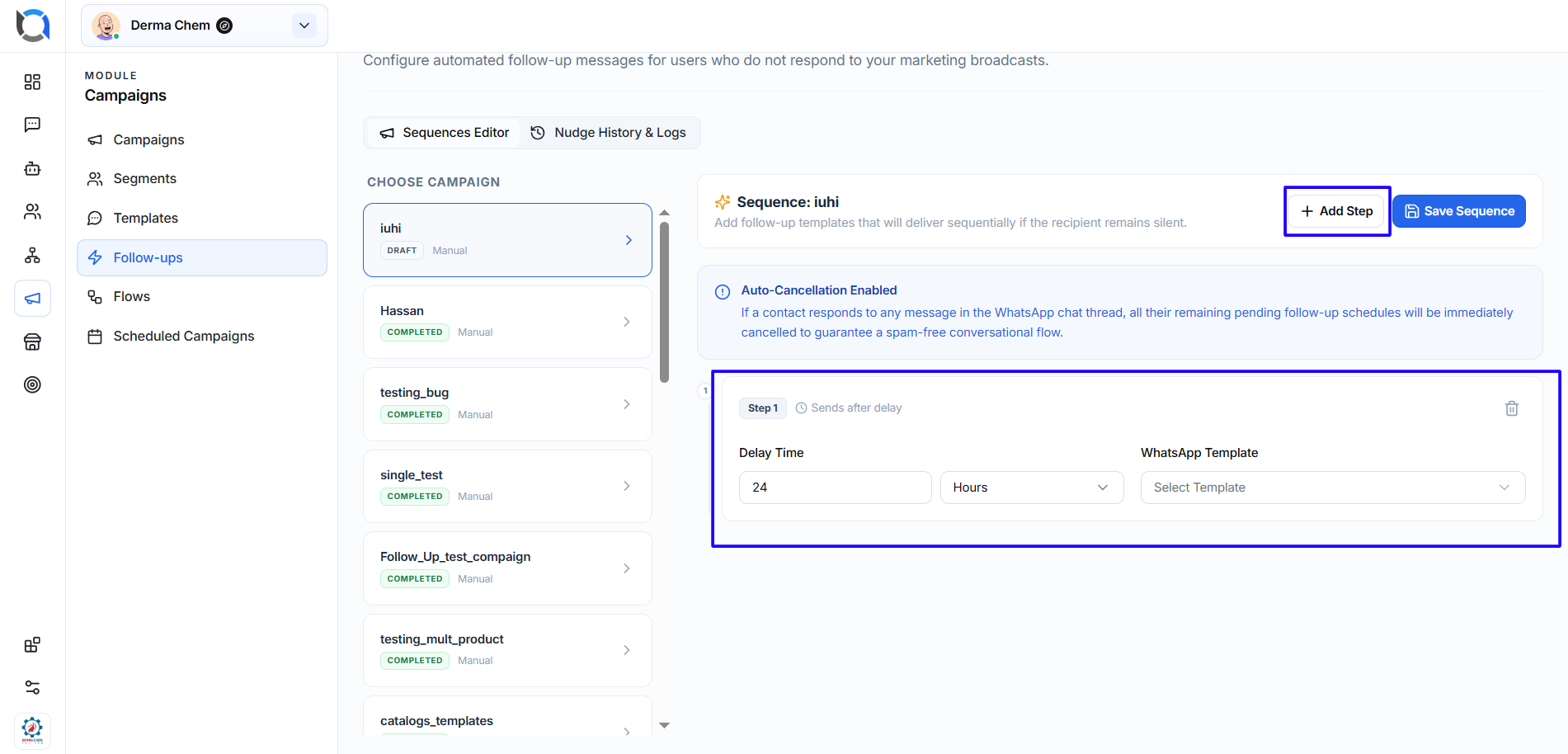
Template Variables Mapping
Some WhatsApp templates require additional information, such as variables, images, documents, or URLs.
When the selected template contains these fields, the Template Variables Mapping section will appear.
For example, if the template contains a Header Document URL, you can:
- Select the required value type, such as Static Value.
- Paste the document URL into the provided field.
- Use Upload to upload the required file when available.
Complete all required template fields before saving the sequence.
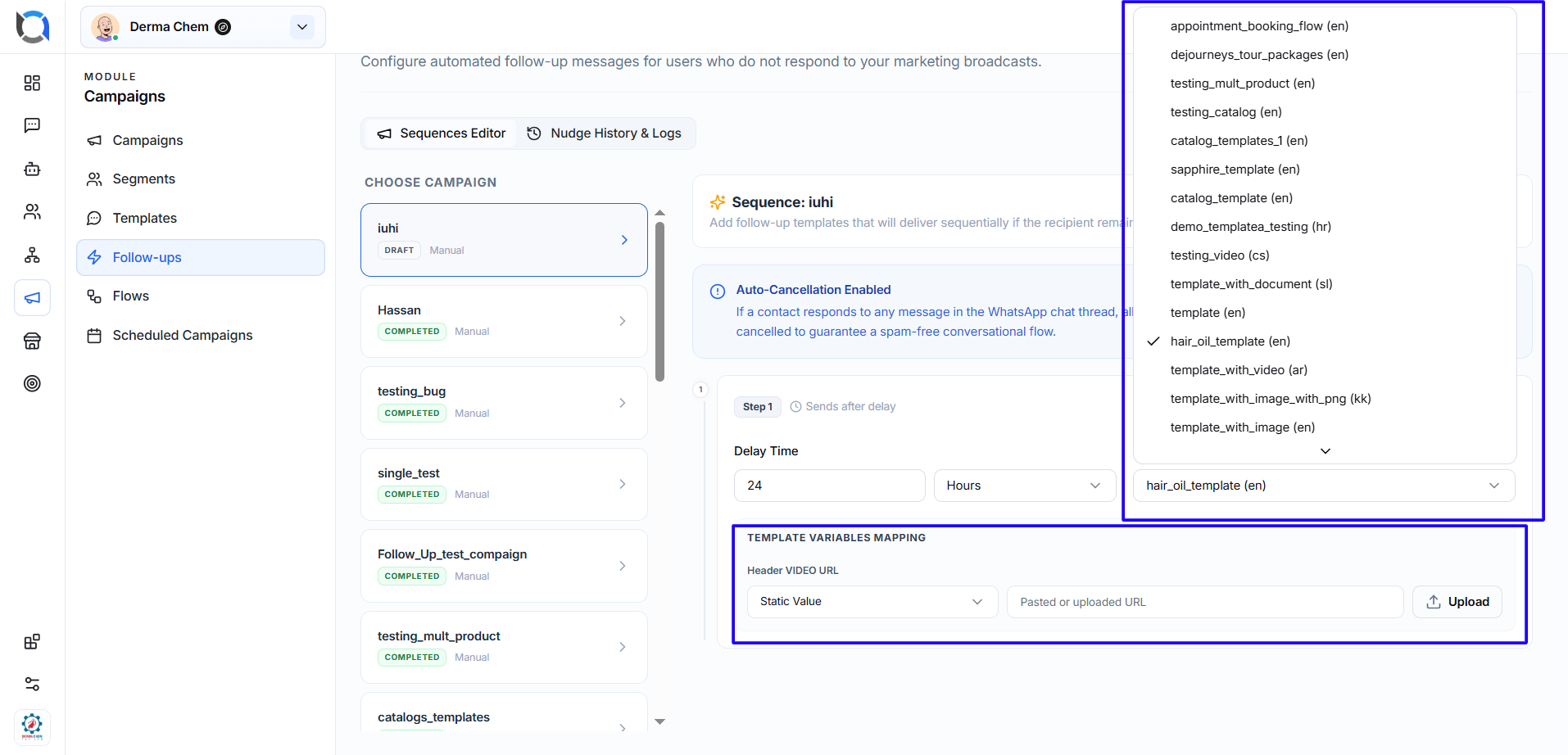
Add More Follow-ups
To continue the conversation automatically, click + Add Step again.
Configure the delay and WhatsApp template for each additional step. This allows you to build a sequence of messages that are delivered one after another while the recipient remains silent.
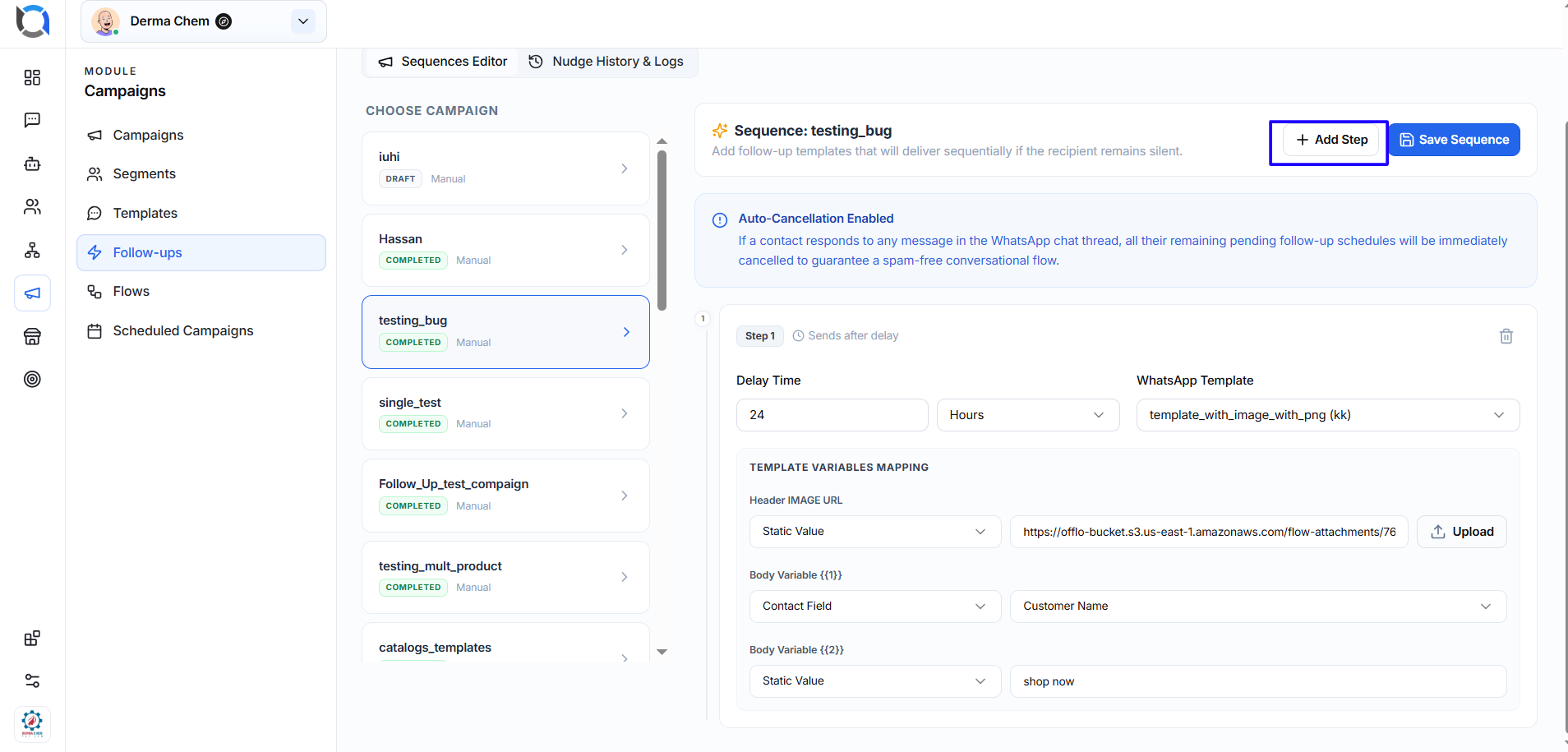
Auto-Cancellation
Follow-up sequences support Auto-Cancellation.
If a contact responds to any message in the WhatsApp conversation, their remaining pending follow-up schedules are automatically cancelled.
This helps prevent unnecessary automated messages from being sent after the customer has already started a conversation with your team.
Save the Sequence
After configuring your follow-up steps, click Save Sequence.
Review the delay, selected templates, and template variables before saving to make sure the sequence behaves as expected.
Nudge History & Logs
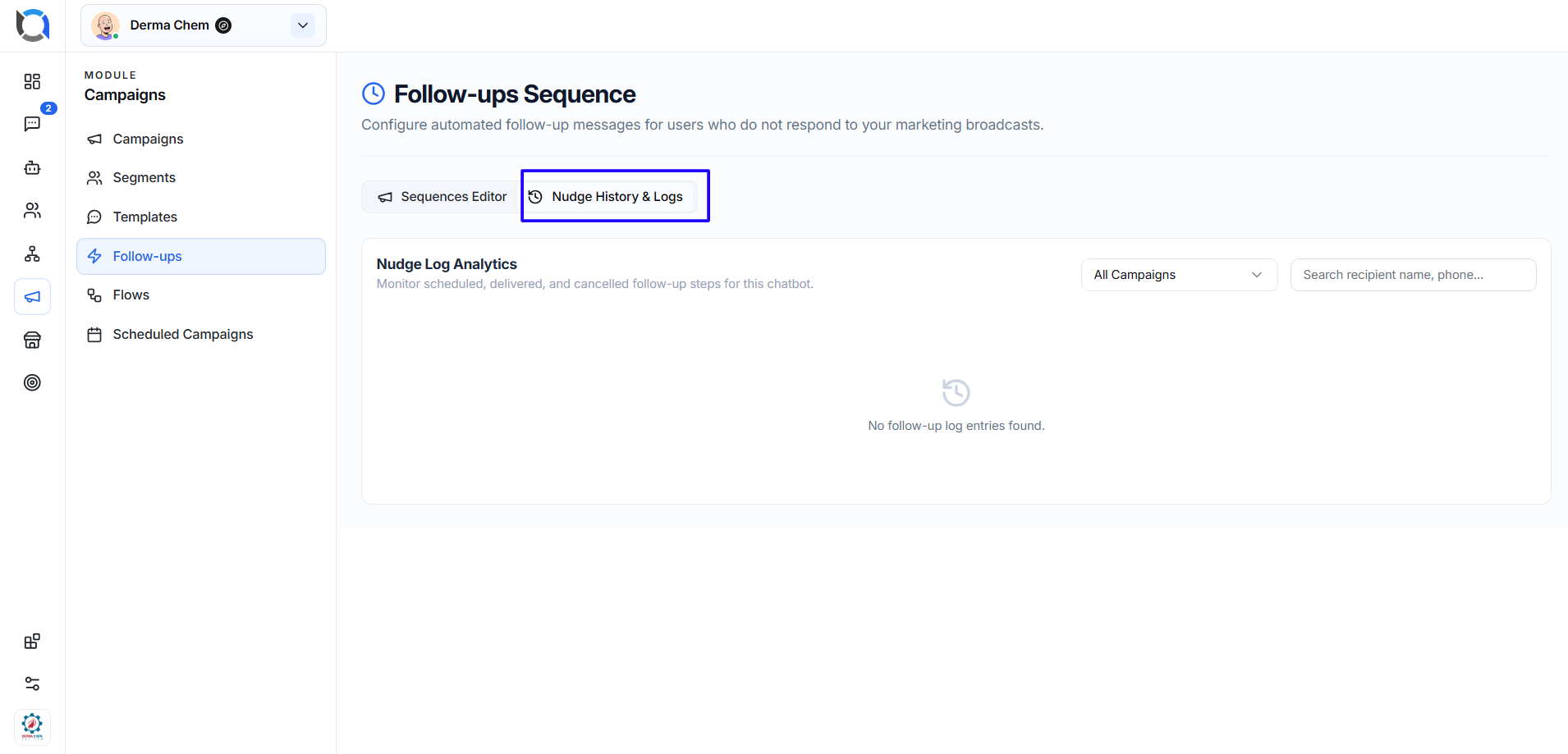
Open Nudge History & Logs to review follow-up activity and track previously processed follow-up messages.
This is useful when checking whether your follow-up automation is working as expected or when investigating campaign follow-up activity.
Example Follow-up Sequence
A simple sequence could look like this:
Initial Campaign. Customer receives your marketing campaign.
Step 1 — After 24 hours. If the customer has not responded, send the first WhatsApp follow-up.
Step 2 — After another delay. If the customer is still silent, send another follow-up template.
Customer replies. Any remaining pending follow-ups are automatically cancelled.