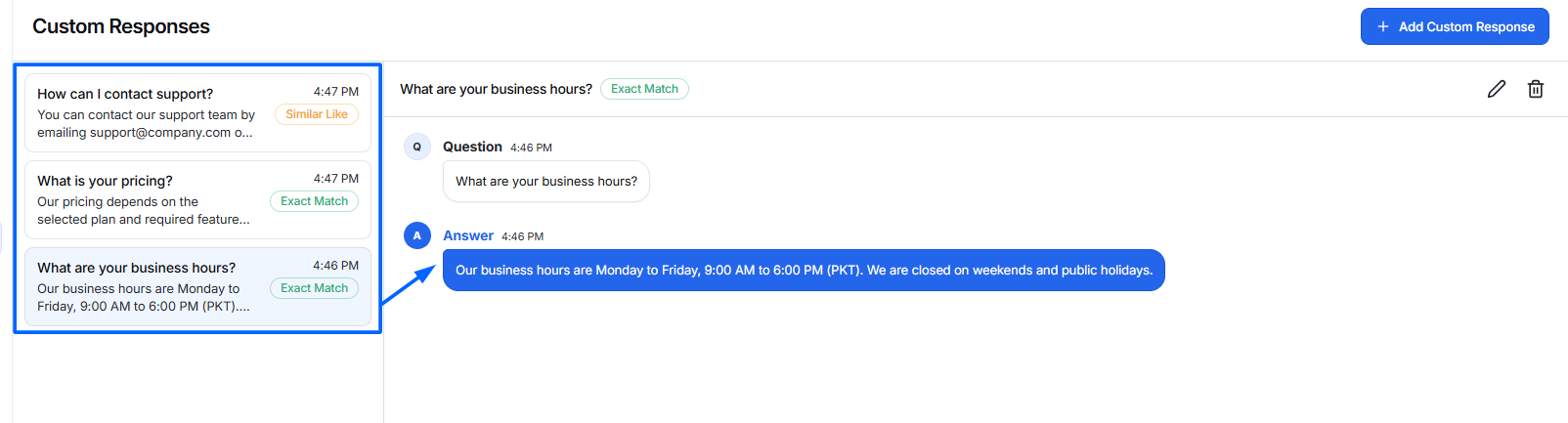
The Custom Responses feature allows you to define predefined answers for specific user questions. These responses take priority over the AI-generated answers, ensuring users receive consistent and accurate information for frequently asked questions.
Custom Responses are ideal for FAQs, pricing details, business hours, company policies, contact information, and other information that should always return a specific answer.
Add a Custom Response
To create a custom response:
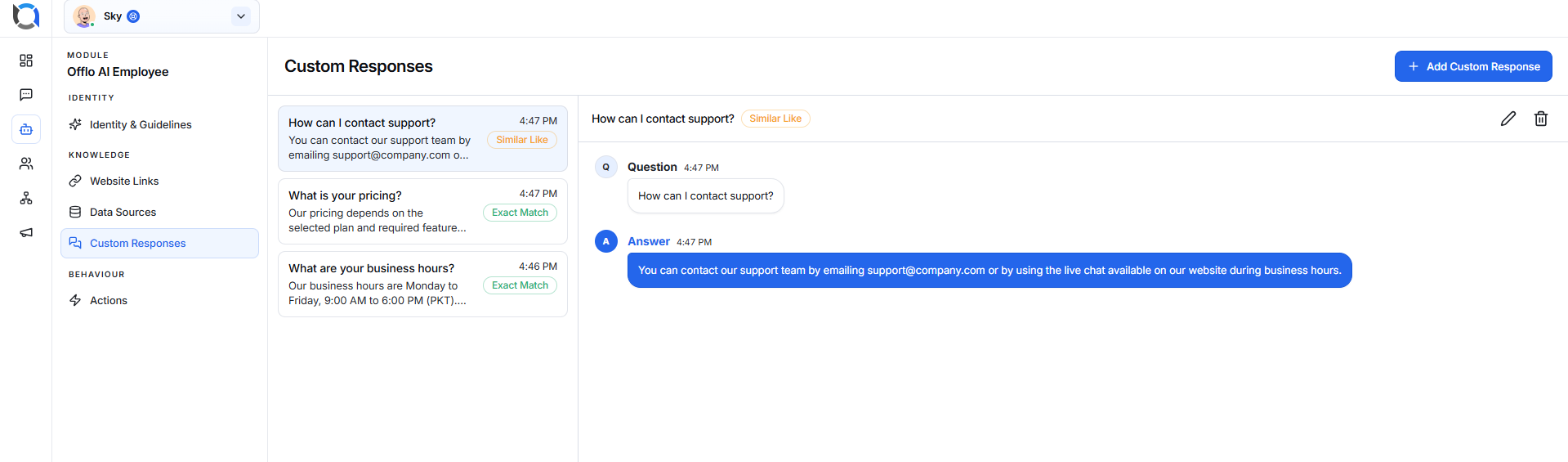
- Navigate to Knowledge → Custom Responses.
- Click Add Custom Response.
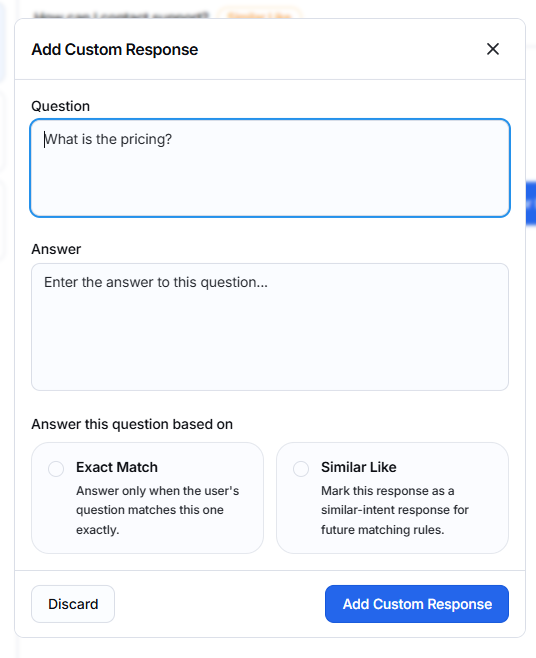
- Complete the required fields:
- Question – Enter the question users are expected to ask.
- Answer – Provide the response the AI Employee should return.
- Matching Rule – Choose how the question should be matched.
- Click Add Custom Response to save the response.
Once saved, the AI Employee will use the custom response whenever a user's question matches the configured rule.
Response Fields
Question
Enter the question or phrase that users are likely to ask.
Example:
What are your business hours?
Answer
Provide the exact response the AI Employee should return.
Example:
Our business hours are Monday to Friday from 9:00 AM to 6:00 PM.
Matching Rules
When creating a custom response, choose one of the following matching methods:
Exact Match
Select Exact Match when you want the response to be returned only if the user's question exactly matches the configured question.
Example
Configured Question
What are your business hours?
Only this exact question will trigger the custom response.
Questions such as:
- What time are you open?
- When do you open?
- Tell me your business hours.
will not trigger this response.
Use Exact Match when the wording must match precisely.
Similar Like
Select Similar Like when you want the AI Employee to recognize questions with similar wording or intent.
For example, if the configured question is:
What are your business hours?
The following questions may also trigger the same response:
- When are you open?
- What time do you open?
- Tell me your office hours.
- What are your working hours?
Use Similar Like for FAQs where users may ask the same question in different ways.
Custom Responses List
After creating a response, it will appear in the Custom Responses list.
From the list, you can:
- View configured questions and answers.
- Edit existing responses.
- Delete responses that are no longer needed.
- Manage your predefined responses in one place.