
WhatsApp Flows allow you to create and publish native, interactive forms that customers can complete directly inside WhatsApp.
You can use them with campaigns to collect information, capture leads, receive feedback, handle support requests, schedule appointments, and complete other structured customer journeys.
What you can do
From Campaigns > Flows, you can:
- Create a new WhatsApp Flow.
- Start with a pre-built template.
- Import an existing Flow using JSON.
- Adopt Flows from your connected WhatsApp account.
- Review Draft and Published Flows.
- Check the Flow version and last update date.
- Delete eligible Flows that are no longer required.
Open WhatsApp Flows
- Open the Campaigns module.
- Select Flows from the left-hand menu.
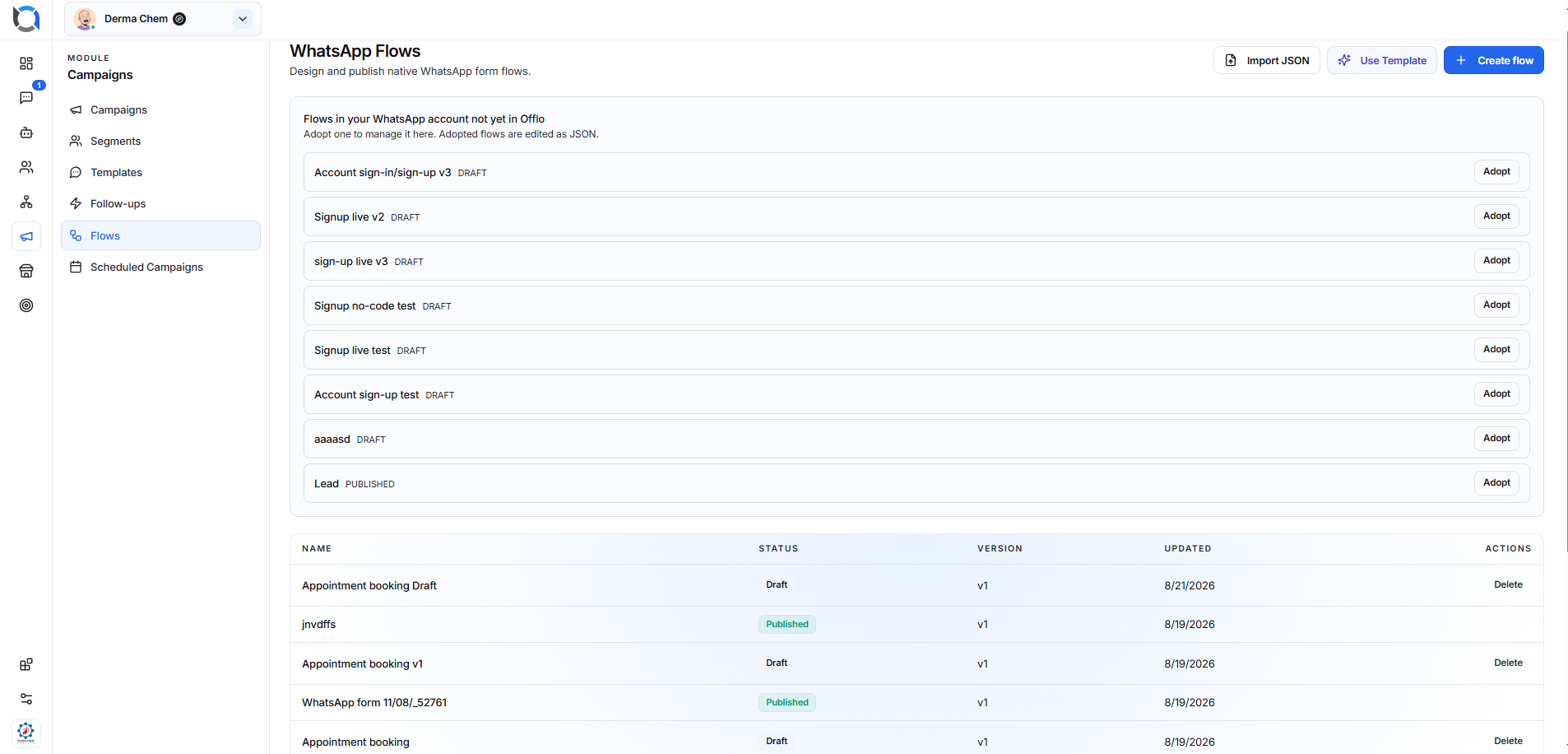
- The WhatsApp Flows screen will open.
A connected WhatsApp Business account may be required to create, adopt, publish, or use a Flow.
Understanding the WhatsApp Flows Screen
The screen contains two main sections:
- Flows available in your WhatsApp account but not yet managed in Offlo.
- Flows already created, imported, or adopted in Offlo.
The following options are available at the top:
- Import JSON
- Use Template
- Create flow
Adopt an Existing WhatsApp Flow
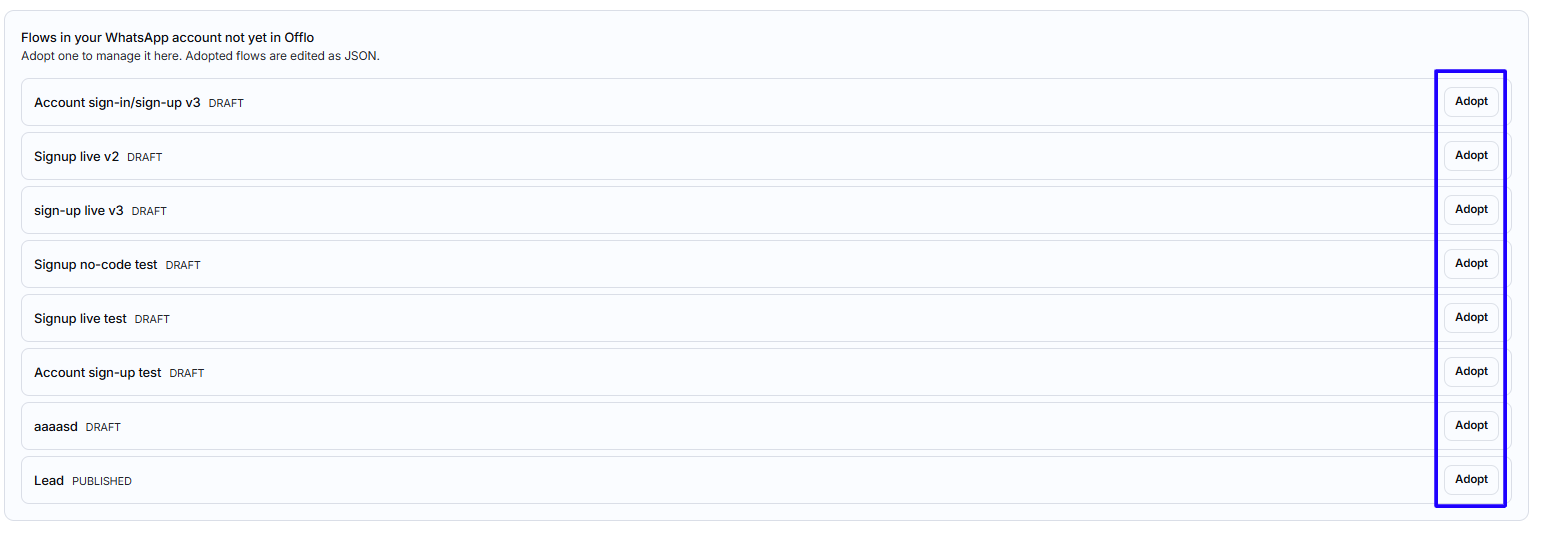
The first section displays Flows found in your connected WhatsApp account that have not yet been added to Offlo.
Each row displays:
- Flow name
- Current status
- Adopt button
Statuses may include:
- Draft
- Published
Adopt a Flow
- Find the required Flow in the WhatsApp account list.
- Check its name and status.
- Click Adopt.
- The Flow will be added to Offlo.
- Review its configuration before using it in a campaign.
Adopted Flows are managed and edited as JSON inside Offlo.
When to use Adopt
Use Adopt when:
- The Flow was created in WhatsApp Manager.
- The Flow was created through another platform.
- The Flow already exists in the connected WhatsApp account.
- You want to manage the existing Flow from Offlo.
Create a New WhatsApp Flow
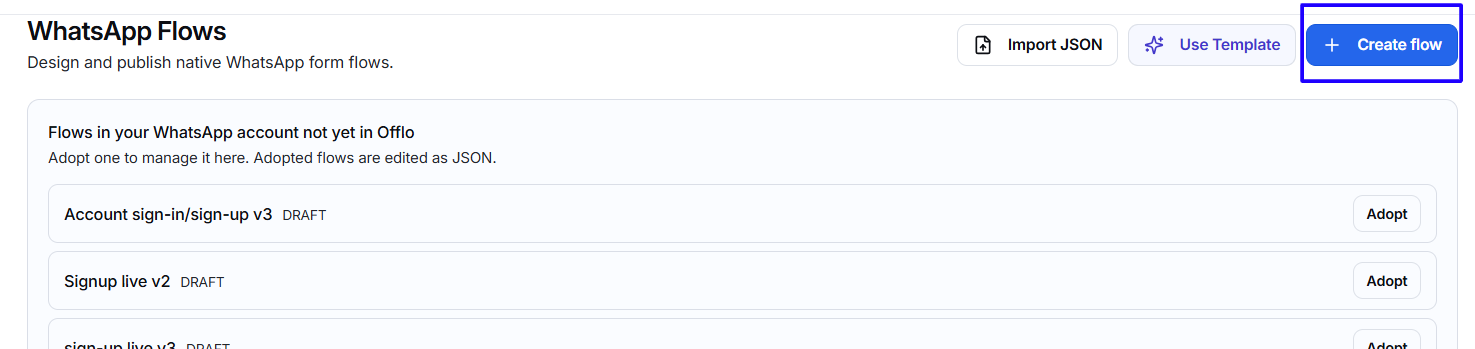
Use Create flow to start a new Flow.
- Click Create flow.
- Enter the Flow name.
- Select a category.
- Click Create.
- Configure the Flow content.
- Save it as a Draft.
- Review and publish it when ready.
Name
Enter a short, descriptive name that explains the purpose of the Flow.
Examples include:
- Lead Capture
- Appointment Booking
- Customer Feedback
- Account Registration
- Support Request
Category
Select the category that best represents the Flow’s purpose.
If no specific category applies, select Other.
Choosing a clear name and relevant category makes the Flow easier to identify and manage.