
Triggers play a vital role in defining the starting point of your offlo flow. In this article, we will explore the concept of triggers and all the available options, empowering you to create dynamic and effective flow experiences.
In this article, you'll learn:
How to add a trigger
What triggers are available in Offlo
Adding a trigger
The main idea behind building the flows is to create maps that show the chat what to do exactly and when. A trigger tells the flow when the workflow starts.
So, the first step in creating a flow is to choose the correct trigger that will tell your flow when to start.
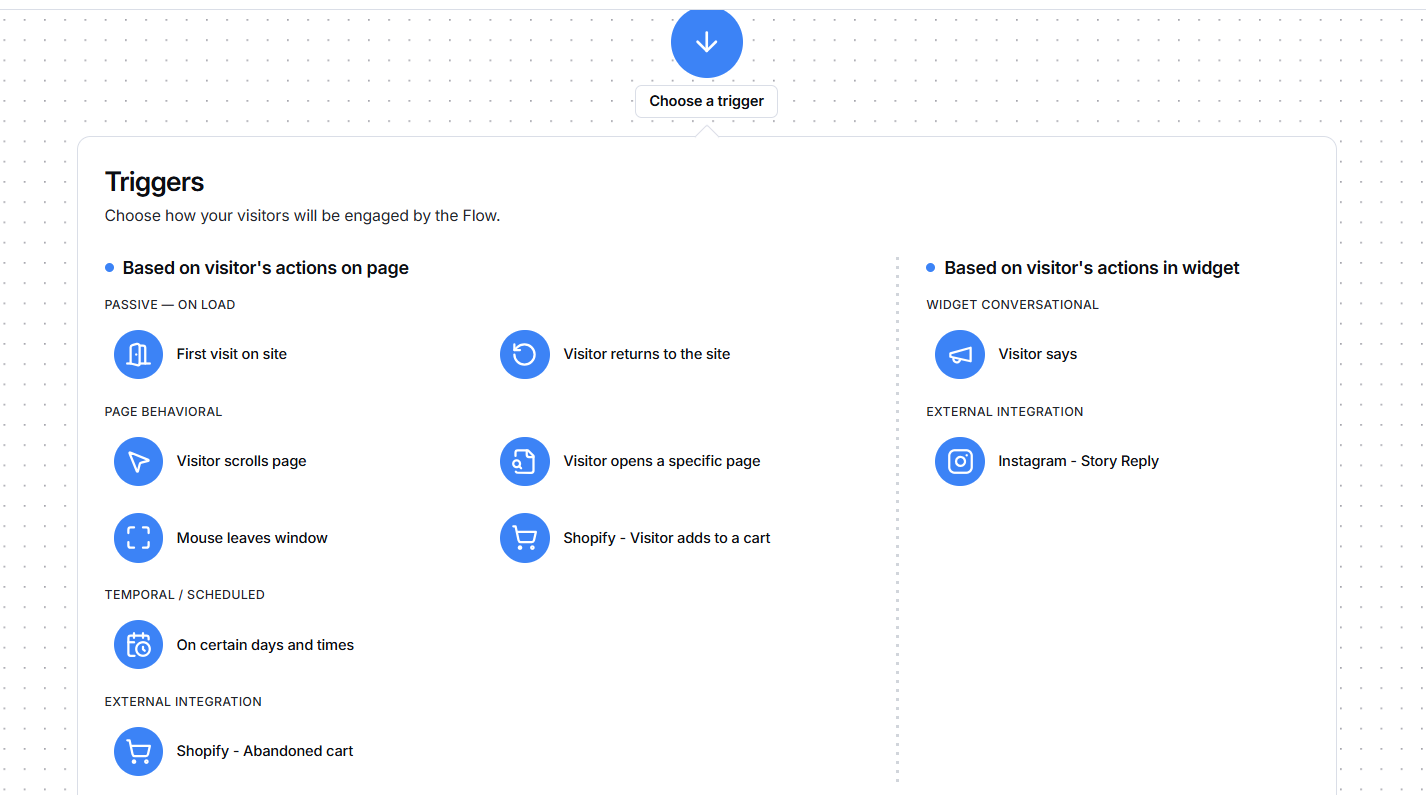
Triggers in Offlo are categorized into three main types, each serving a unique purpose:
Launched by visitors' actions (by the action they made on your page)
By clicking or typing (to/with the flow)
Launched by agents (when you start it)
Some triggers may be repetitive, so you can also find an option to limit them and decide how many times they should be fired per person. You can do that in the right-side window after clicking on the trigger added to your visual flow editor.
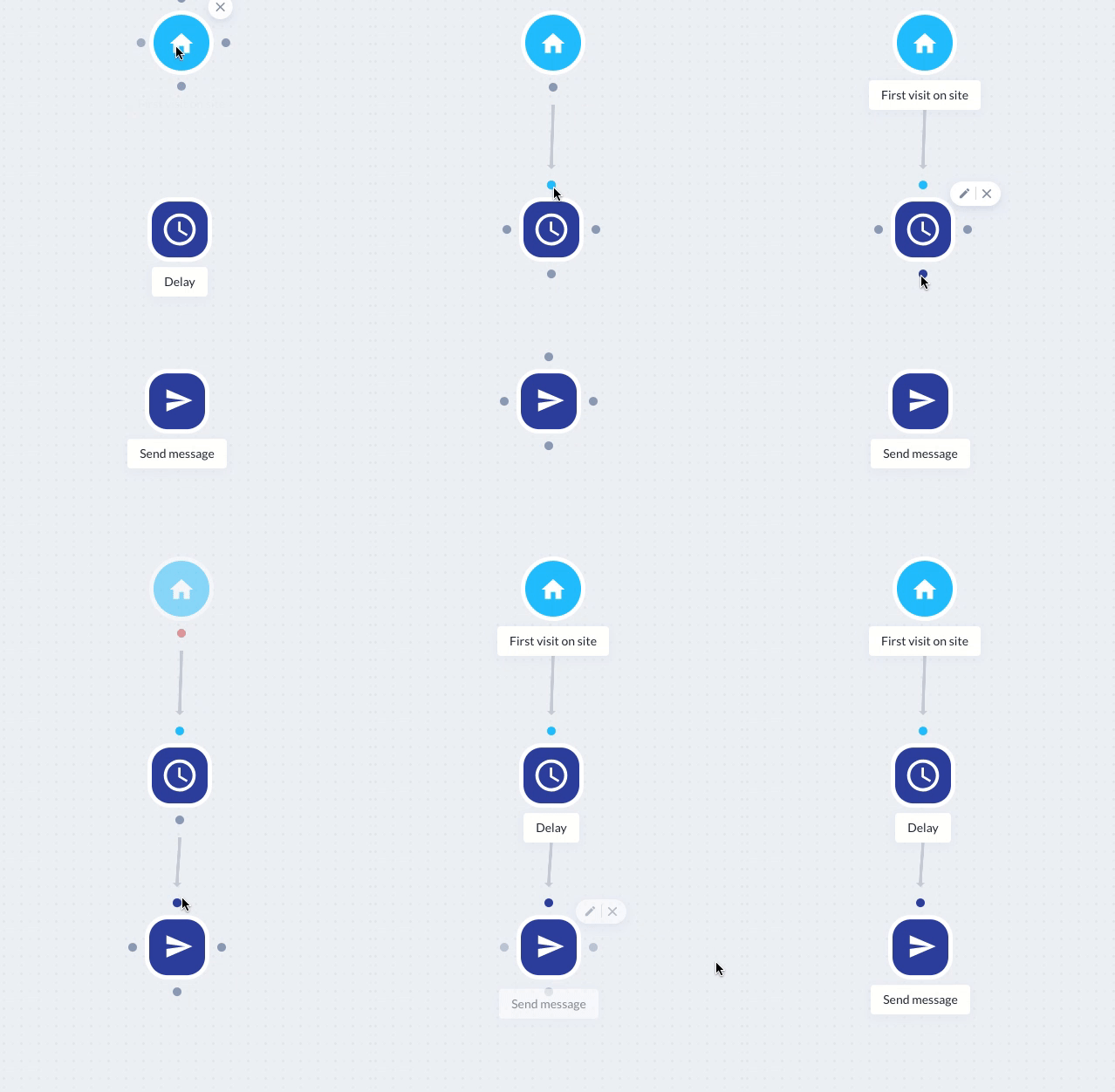
Once you have the starting point specified, you can add and connect the actions that should take place after the trigger has occurred. Since the grid shows the logical chain of events, the actions must be connected in chronological order. The line connecting them needs to be drawn from the action to the reaction that follows.
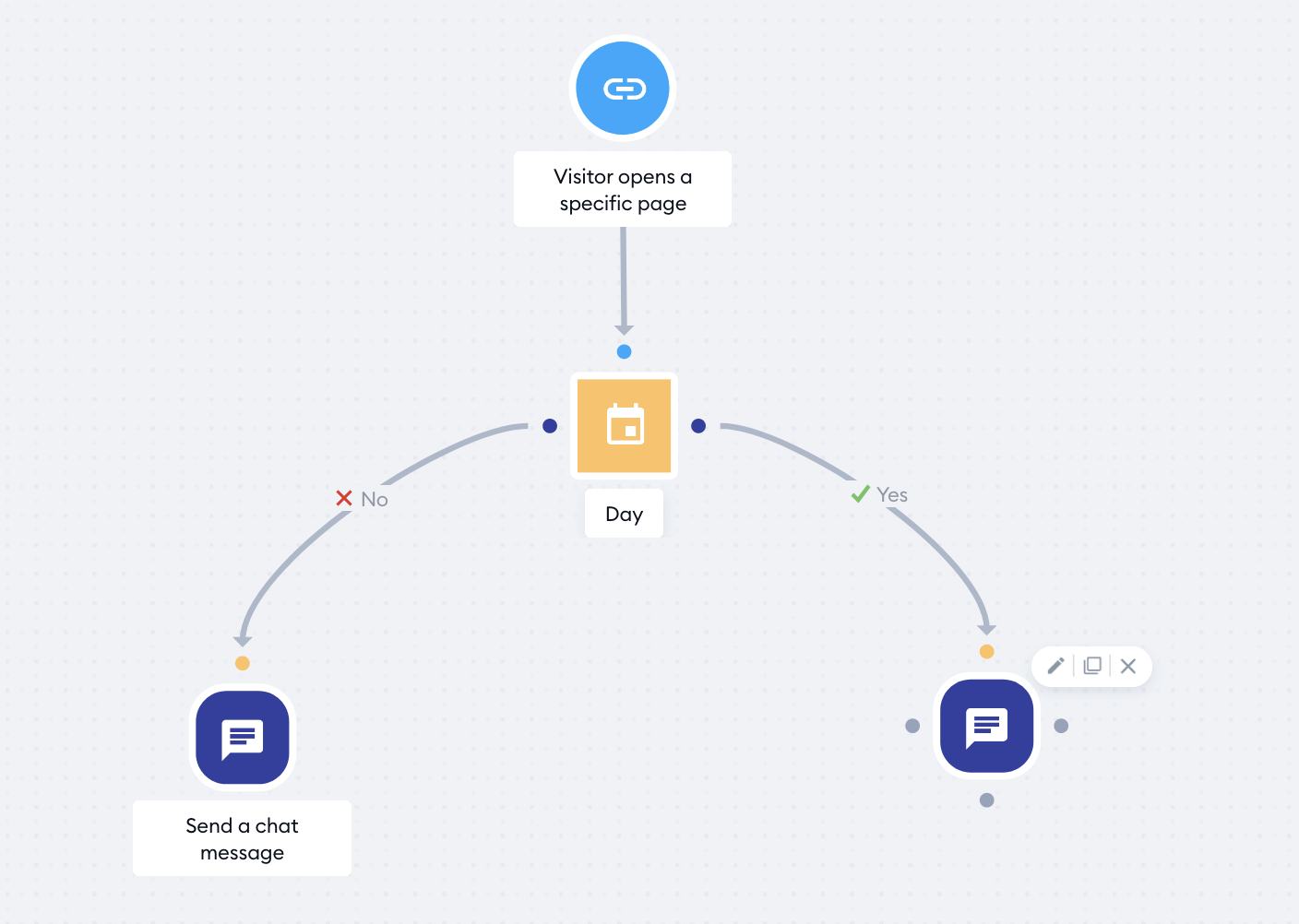
The basic scenarios usually consist of a trigger and the following actions, but you can also build more complex reactions using conditions. Conditions filter out the path for the actions, targeting things like the day, operating system, or even specific names. Each condition branches out with a Yes and No path, allowing you to set a different action for each path.
Available triggers
Click on one of the links below to go to a specific trigger quickly:
- First visit on site
- Visitor returns to the site
- Visitor opens a specific page
- Visitor scrolls page
- Mouse leaves window
- On certain days and times
- Shopify - Visitor adds to a cart
- Form abandoned
- Visitor Says
- Instagram - Story Reply
First visit on site
The flow starts when a new visitor lands on your website for the first time.
Visitor returns to the site
The flow starts when the visitor returns to your site (is not a new visitor).
Visitor opens a specific page
The flow starts when the visitor opens a page you specified inside the trigger.
Visitor scrolls page
The flow will trigger when the visitor scrolls your website by a set percentage.

Mouse leaves window
The flow starts when the visitor's mouse pointer leaves your website window for more than 5 seconds.
On certain days and times
The flow starts only on the specified days and times of the day.
Shopify - Visitor adds to a cart
The flow will trigger when a visitor adds an item to their shopping cart. At this moment, it only works when the integration with Shopify is activated.
Form abandoned
The flow starts when the visitor fills in the form and then leaves it.
Visitor Says
The flow starts based on the defined phrases or words.
Instagram - Story Reply
The flow starts when a visitor replies to your Instagram story.

By understanding triggers in Offlo, you can create flows that respond to specific visitor actions, agent engagement, and flow button/typing interactions. Utilizing triggers effectively enables you to design flow experiences that enhance customer interactions, automate processes, and deliver personalized assistance. Take advantage of triggers to unlock the full potential of your flows.