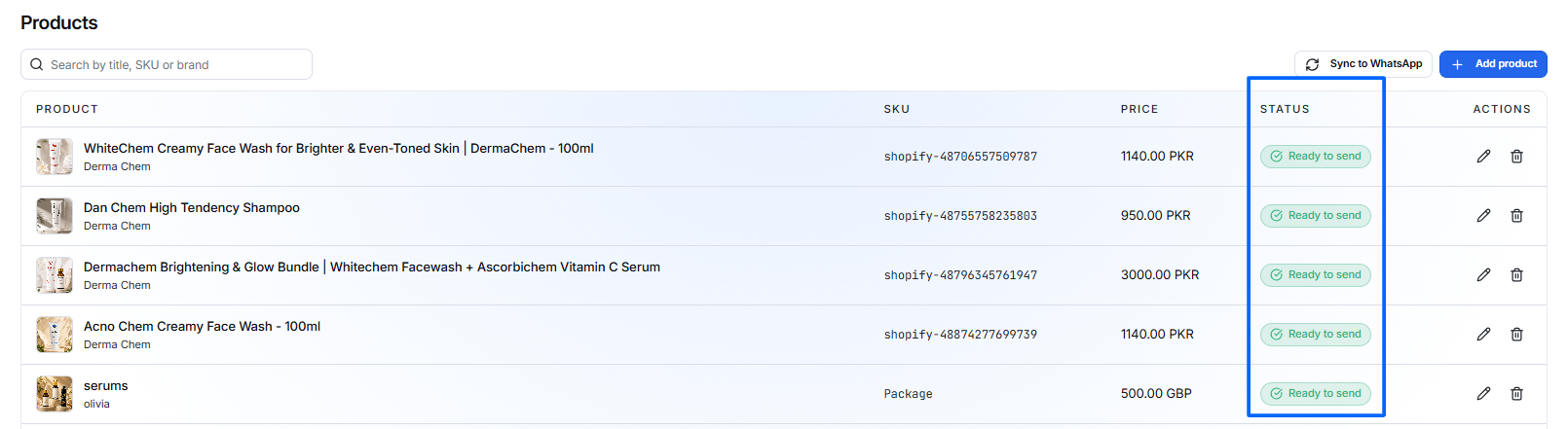
The Products section allows you to manage your product catalog and prepare products for WhatsApp.
What You Can Do Here
From Catalog → Products, you can:
- View your product list
- Search for products
- Add new products
- Edit existing products
- Delete products
- Sync products to WhatsApp
Before You Start
Have the following information ready:
- Product name
- SKU / Content ID
- Price and currency
- Availability
- Condition
- Product image
Product images should be JPEG or PNG and at least 500 × 500 px.
Open Products
- Open the Catalog module from the left navigation.
- Select Products.
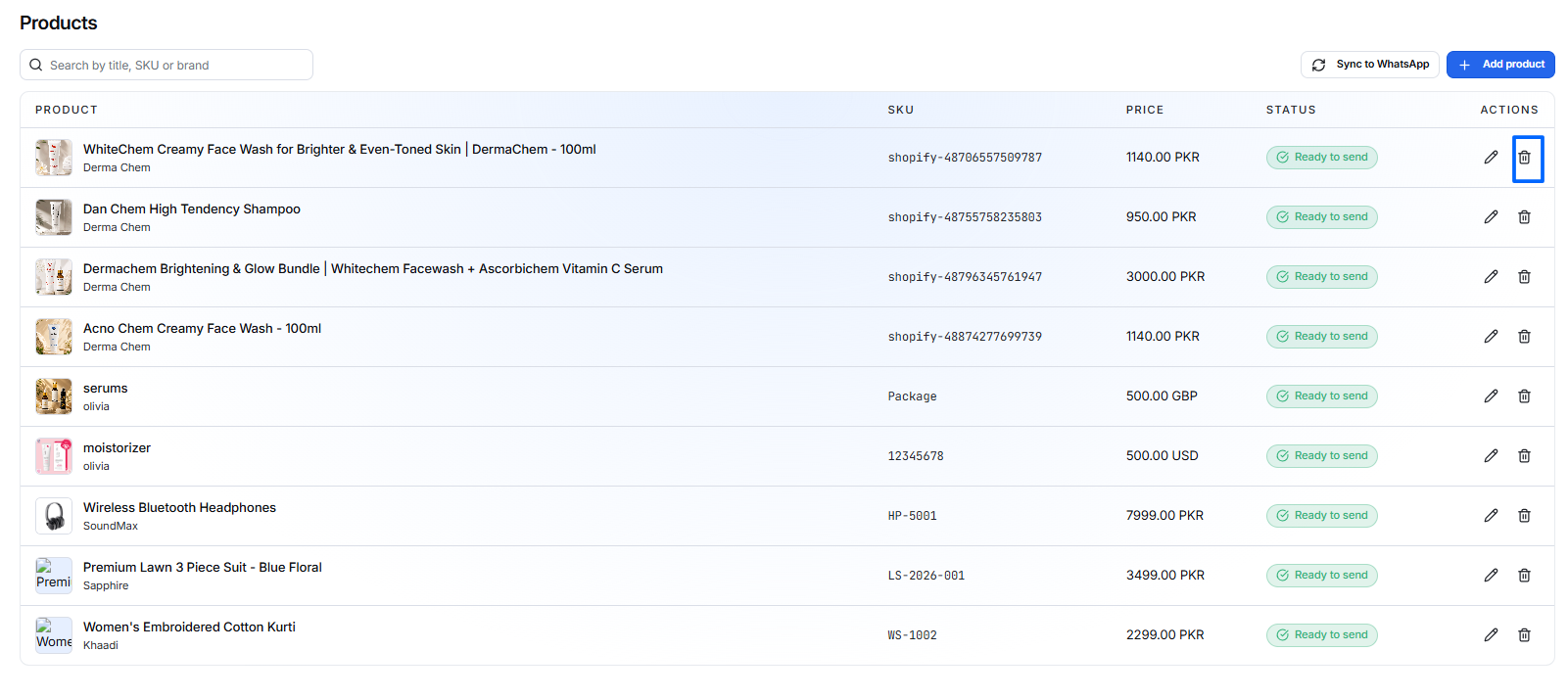
- The Products page displays your available products.
Products Screen
The Products screen provides the main tools for managing your catalog.
Search
Use the search box to find products by:
- Title
- SKU
- Brand
This helps you quickly find a product without scrolling through the list.
Add Product
Click Add Product to create a new product.
Edit Product
Use the Edit icon to update an existing product.
Delete Product
Use the Delete icon to remove a product from the catalog.
Sync to WhatsApp
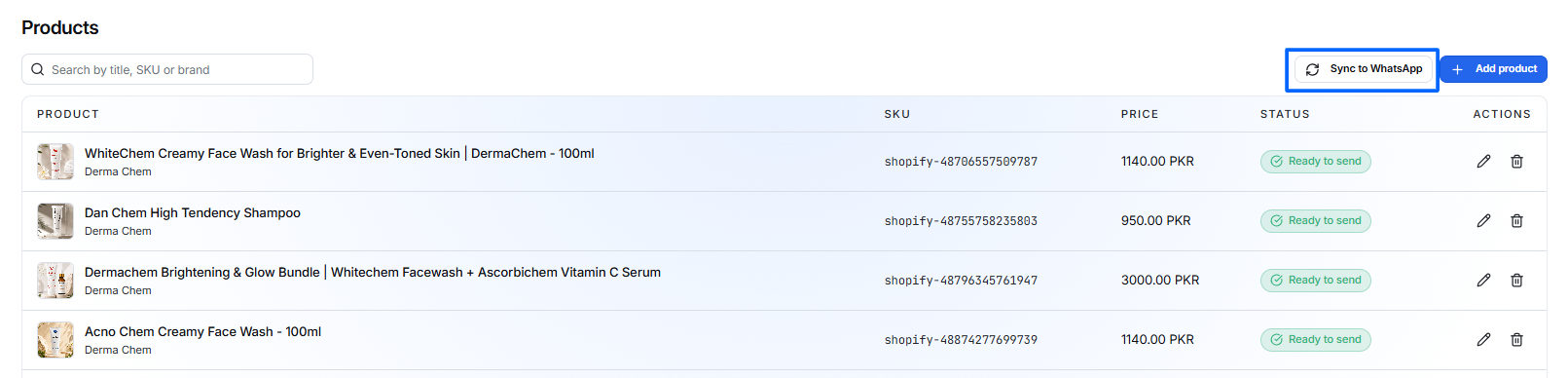
Use Sync to WhatsApp to synchronize your catalog products with WhatsApp.
Add a New Product
Follow these steps to add a product:
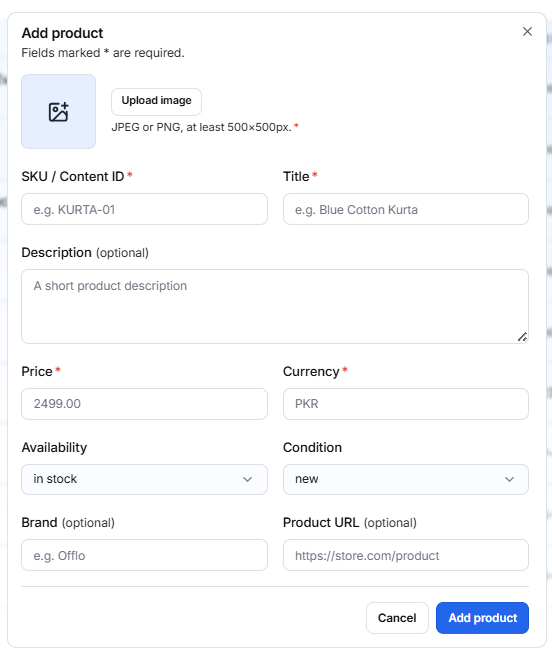
1. Click Add Product
Select Add Product from the Products screen.
2. Upload Product Image
Upload a JPEG or PNG image.
The image should be at least 500 × 500 px.
3. Enter Required Information
Complete the required fields:
- SKU / Content ID
- Title
- Price
- Currency
4. Add Optional Information
You can also provide:
- Description
- Availability
- Condition
- Brand
- Product URL
5. Create the Product
Review the information and click Add Product.
Click Cancel if you want to close the form without creating the product.
Edit or Delete a Product
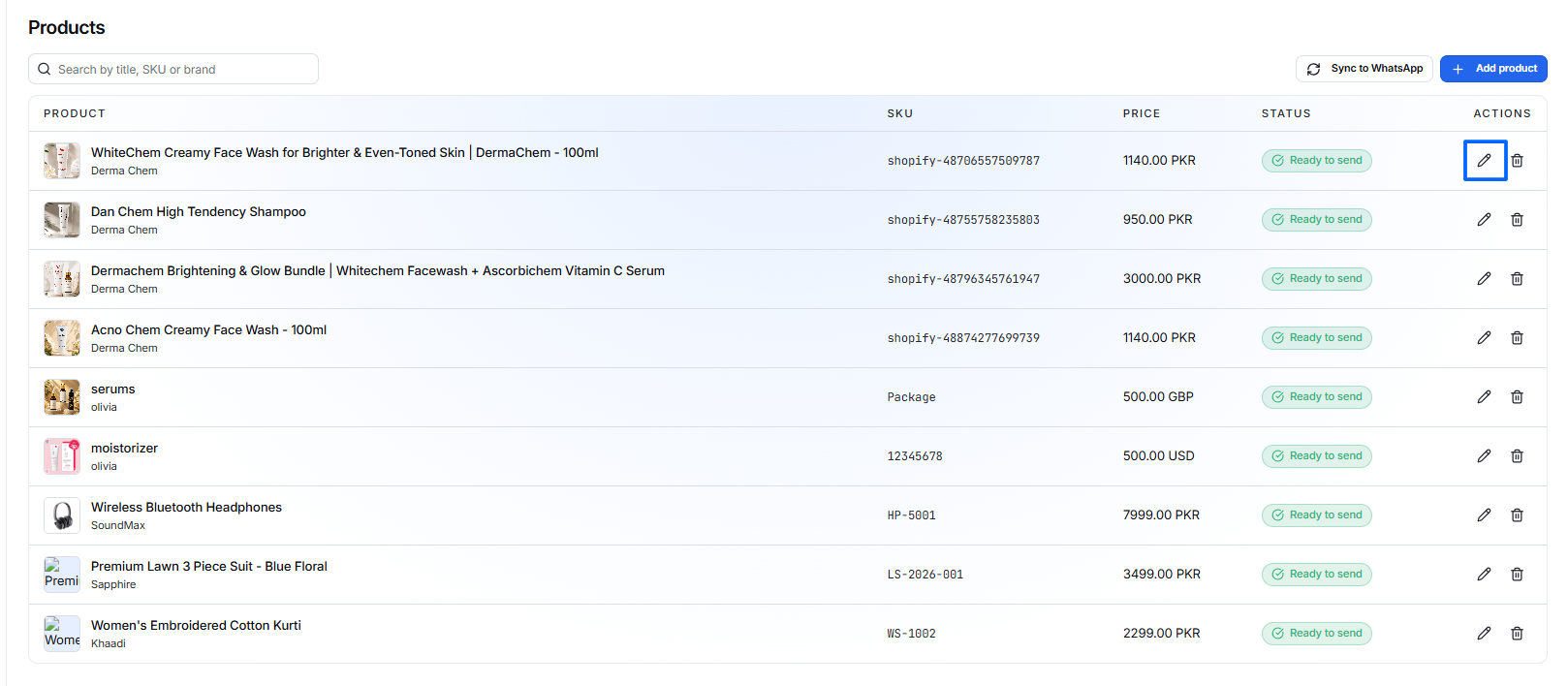
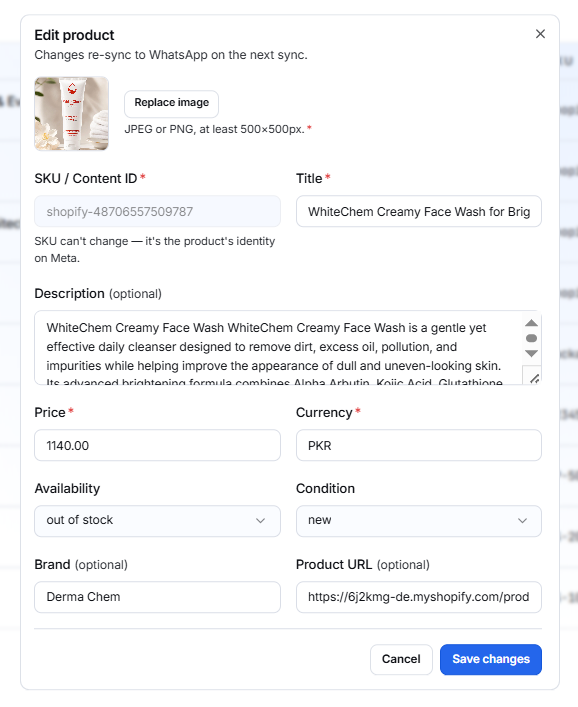
Edit a Product
- Search for the product.
- Click the Edit icon.
- Update the required information.
- Save the changes.
Delete a Product
- Find the product.
- Click the Delete icon.
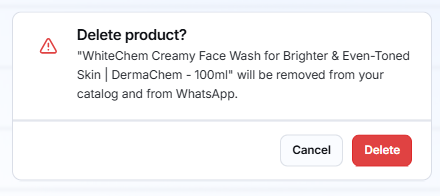
- Confirm the deletion if prompted.
Sync Products to WhatsApp
Use synchronization when you want your catalog products to be available through WhatsApp.
Steps
- Add or update the product.
- Review the product information.
- Click Sync to WhatsApp.
- Check the product status to monitor the synchronization.
Recommended Workflow
Complete product information → Review product → Sync to WhatsApp → Check status
Product Status
The product is currently being synchronized. Wait for the process to complete and check the status again.
Ready to Send
The product is successfully prepared in the catalog workflow and can proceed through the available WhatsApp/catalog workflow.