
Create a new flow from scratch
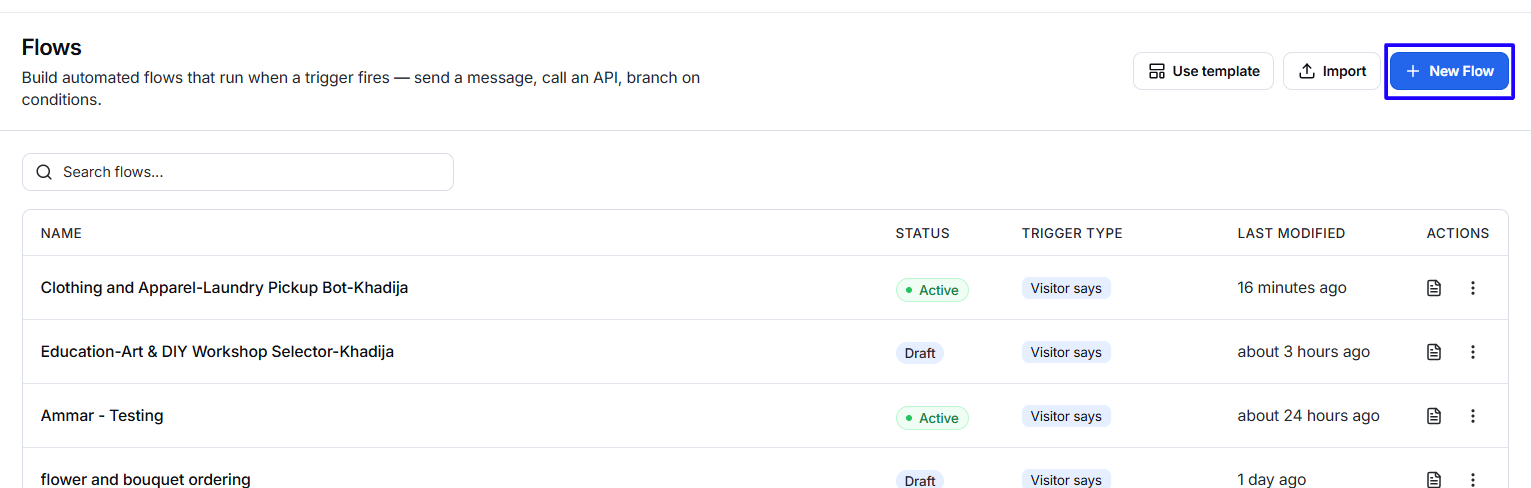
Use the New Flow button when you want to create a custom automation using your own triggers, conditions, and actions.
Start a new flow
- Go to Flows > My Flows.
- Click New Flow.
- The visual flow builder will open with the default name Untitled flow.
- Select a trigger.
- Configure the trigger settings.
- Add the required actions and conditions.
- Connect the nodes in the correct order.
- Resolve any configuration errors.
- Give the flow a meaningful name.
- Click Save.
- Activate the flow when it is ready for visitors.
Choose a trigger
Every flow must have a starting point. The trigger defines the visitor event, schedule, or integration activity that starts the automation.
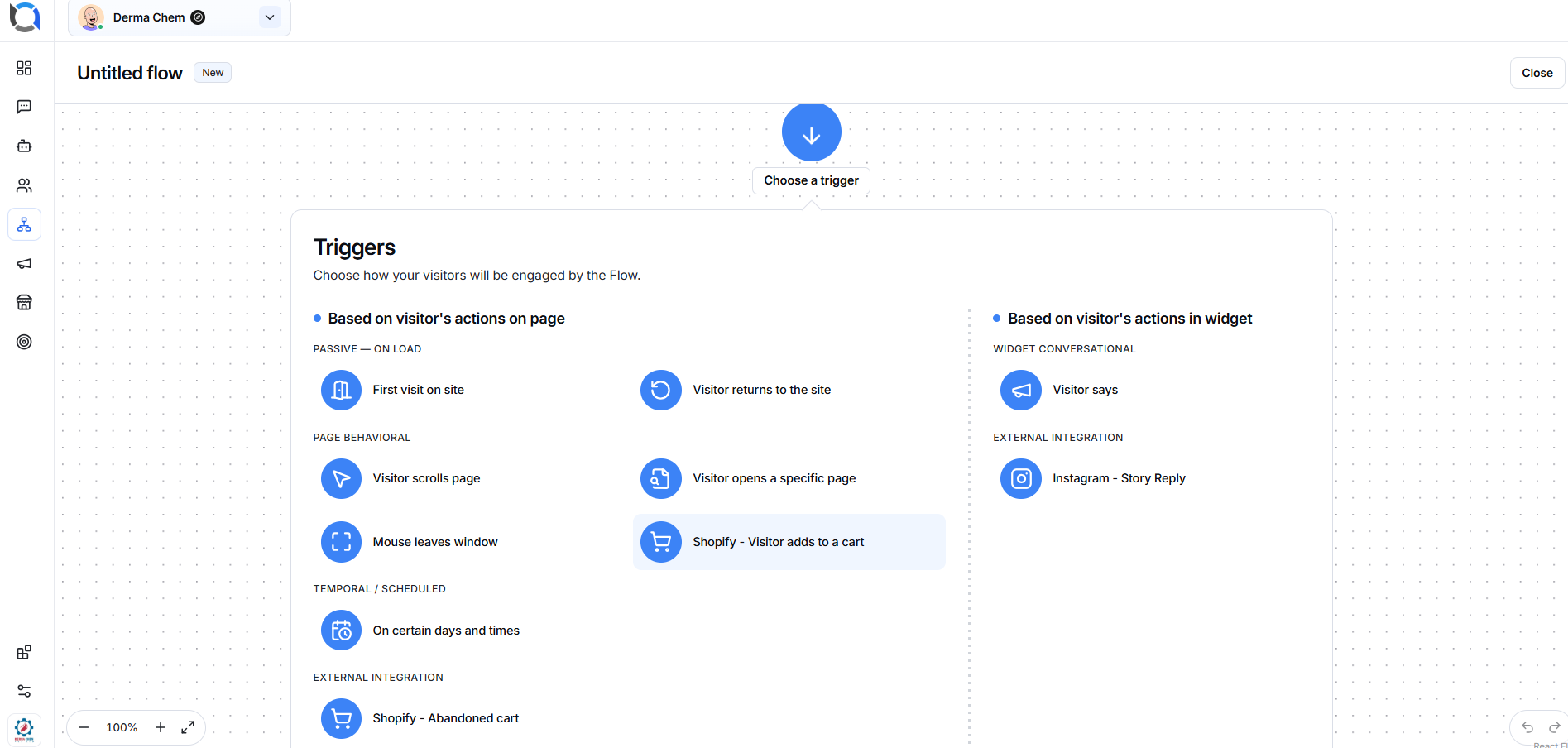
Triggers based on visitor actions on the page
First visit on site
Starts the flow when a visitor opens the website for the first time.
This can be useful for:
- Welcome messages.
- New visitor guidance.
- First-time discount offers.
- Introducing available products or services.
Visitor returns to the site
Starts the flow when a previous visitor returns to the website.
This can be useful for:
- Welcoming returning visitors.
- Continuing customer engagement.
- Showing repeat-visitor offers.
- Helping visitors resume their journey.
Visitor scrolls page
Starts the flow after the visitor scrolls through the page according to the configured behavior.
This can be useful for:
- Engaging visitors who are reading page content.
- Offering help after a visitor explores a product or service page.
- Displaying a relevant call to action.
Visitor opens a specific page
Starts the flow when the visitor opens a selected page.
This can be useful for creating page-specific flows, such as:
- Product assistance on a product page.
- Booking help on an appointment page.
- Pricing guidance on a pricing page.
- Support options on a help page.
Mouse leaves window
Starts the flow when the visitor moves the mouse outside the browser window.
This can be used as an exit-intent trigger to:
- Offer help before the visitor leaves.
- Display a discount or promotion.
- Ask whether the visitor found the required information.
- Encourage the visitor to contact the team.
Shopify – Visitor adds to a cart
Starts the flow when a Shopify visitor adds a product to their cart.
This can be useful for:
- Confirming that an item was added.
- Offering product assistance.
- Recommending related products.
- Helping the customer continue to checkout.
Scheduled trigger
On certain days and times
Starts the flow only on selected days or during configured time periods.
This can be useful for:
- Business-hours greetings.
- Weekend messages.
- Time-based promotions.
- After-hours support notices.
- Scheduled customer engagement.
External integration triggers
Shopify – Abandoned cart
Starts the flow after a Shopify customer leaves products in the cart without completing the purchase, according to the configured criteria.
This can be useful for:
- Reminding the customer about the cart.
- Offering checkout assistance.
- Sharing a limited-time offer.
- Answering product or delivery questions.
A connected and properly configured Shopify integration may be required.
Instagram – Story Reply
Starts the flow when an Instagram user replies to a story.
This can be useful for:
- Responding to campaign engagement.
- Sharing product information.
- Collecting lead details.
- Continuing a promotional conversation.
A connected Instagram account may be required.
Triggers based on actions in the widget
Visitor says
Starts the flow based on a visitor’s message or interaction in the chat widget.
This trigger is useful for conversational flows, including:
- Frequently asked questions.
- Keyword-based conversations.
- Product enquiries.
- Appointment requests.
- Customer-support questions.
Working with the visual flow builder
The flow builder provides a visual workspace where triggers, conditions, and actions are arranged as connected nodes.
Flow canvas
The large dotted area is the flow canvas. It shows the structure of the automation and how visitors will move from one node to another.
Use the canvas to:
- Review the complete customer journey.
- Select and configure nodes.
- Connect nodes.
- Arrange the flow structure.
- Identify incomplete steps.
- Build separate branches for different outcomes.
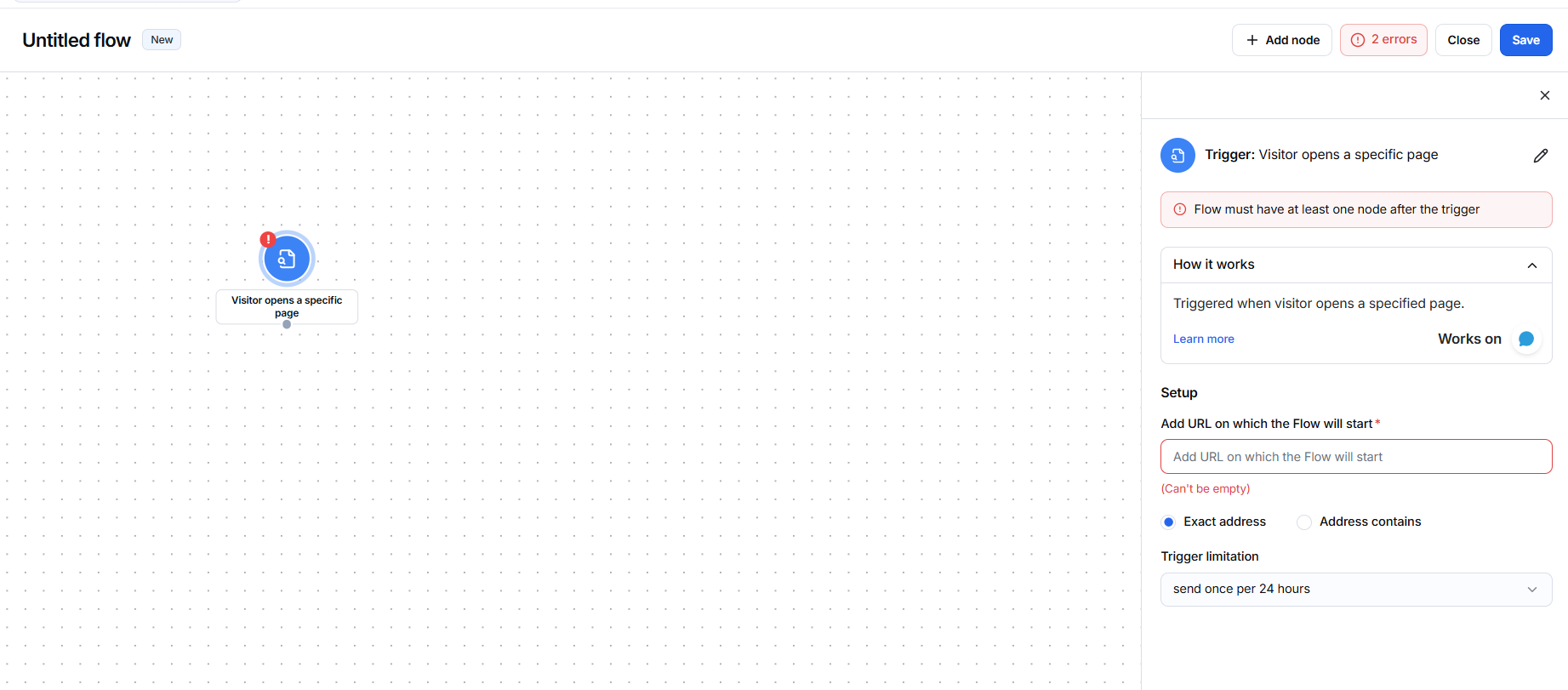
Add Node
Click Add node to open the node panel.
The panel includes three main tabs:
- Triggers
- Conditions
- Actions
Select the required tab and choose the node you want to add.
Connect nodes
Each node must be connected to the next relevant step.
A complete flow may look like this:
- Visitor sends a message.
- Offlo displays a welcome message.
- Offlo asks what type of help is required.
- A condition checks the visitor’s answer.
- The flow sends the visitor to the relevant branch.
- The selected branch continues with the appropriate action.
Make sure that every possible condition outcome leads to a valid next step.
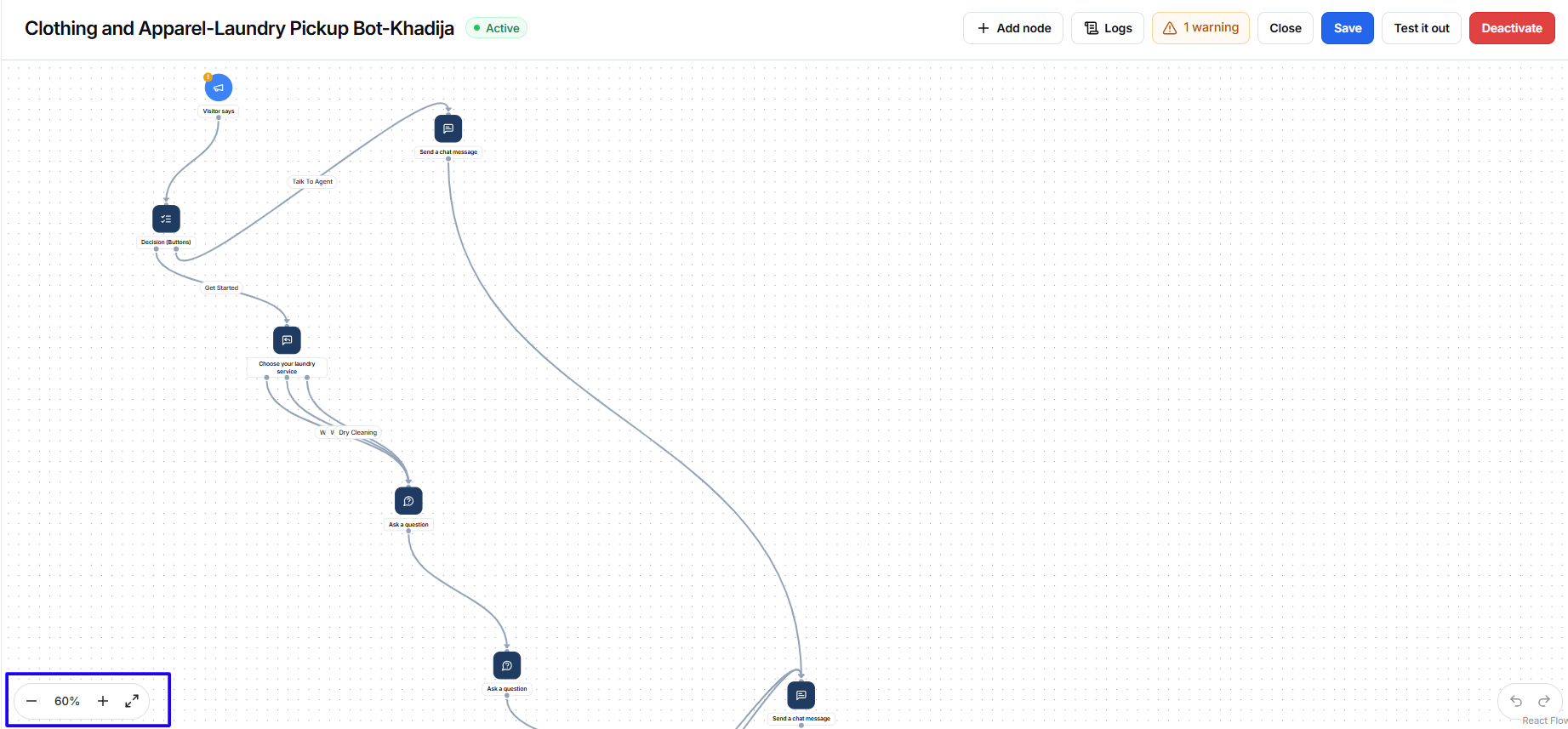
Zoom controls
Use the controls in the lower-left corner of the builder to:
- Zoom out.
- Check the current zoom percentage.
- Zoom in.
- Fit or expand the flow view.
These controls are helpful when working with a large flow containing multiple branches.
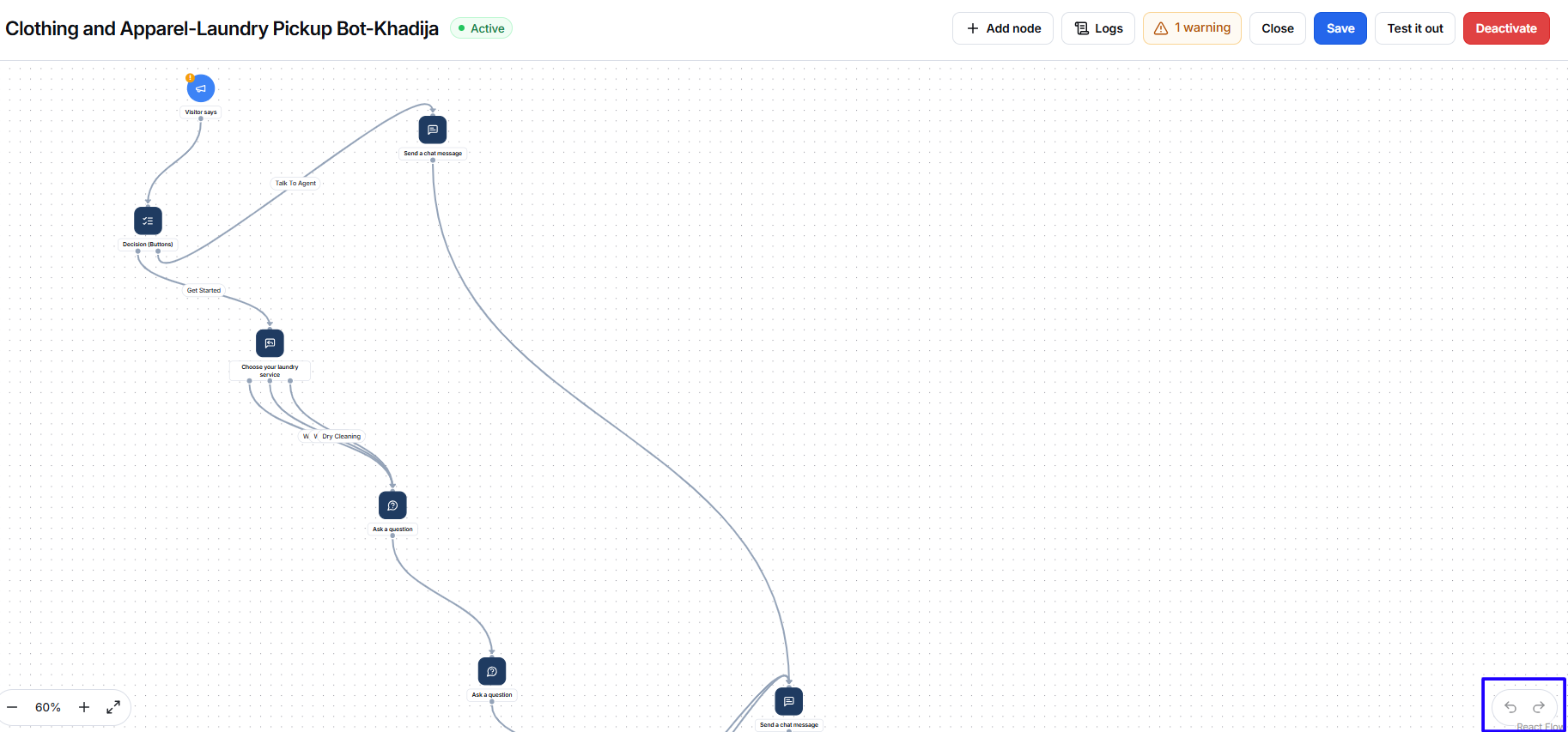
Undo and redo
Use the controls in the lower-right corner to reverse or restore recent changes while editing the flow.
Close
Click Close to exit the flow builder.
Save important changes before closing to avoid losing your latest work.
Save
Click Save to store the current flow configuration.
Saving does not necessarily mean that the flow is active. Review its status after saving and activate it only when configuration is complete.
Adding conditions
Conditions allow a flow to make decisions based on visitor information, behavior, or responses.
How conditions work
A condition compares the available information against selected criteria and creates different paths.
For example:
- Ask the visitor, “Would you like to book an appointment?”
- Add a condition based on the answer.
- Send Yes responses to the booking steps.
- Send No responses to another assistance option.
Conditions are useful when:
- Different answers require different responses.
- Only certain visitors should receive a message.
- A flow needs separate sales and support paths.
- Customer information must be checked before continuing.
- You want to personalize the visitor journey.
Condition best practices
- Use clear criteria that are easy to test.
- Create a path for every expected result.
- Include a fallback route for unexpected answers.
- Avoid adding unnecessary branches.
- Review all connections before activating the flow.
Adding actions
Actions are the tasks performed after the trigger or condition.
Depending on the available nodes, an action can continue a conversation, send information, collect a response, or interact with another service.
How to add an action
- Open the flow in the builder.
- Click Add node.
- Select the Actions tab.
- Choose the required action.
- Configure its content and settings.
- Connect it to the previous node.
- Add the next node if the journey should continue.
- Save the flow.
Action best practices
- Keep automated messages short and clear.
- Ask one question at a time.
- Tell visitors what information is required.
- Use buttons or clear choices where available.
- Confirm important submissions or selections.
- End each branch with a meaningful response or next step.
Flow errors and validation
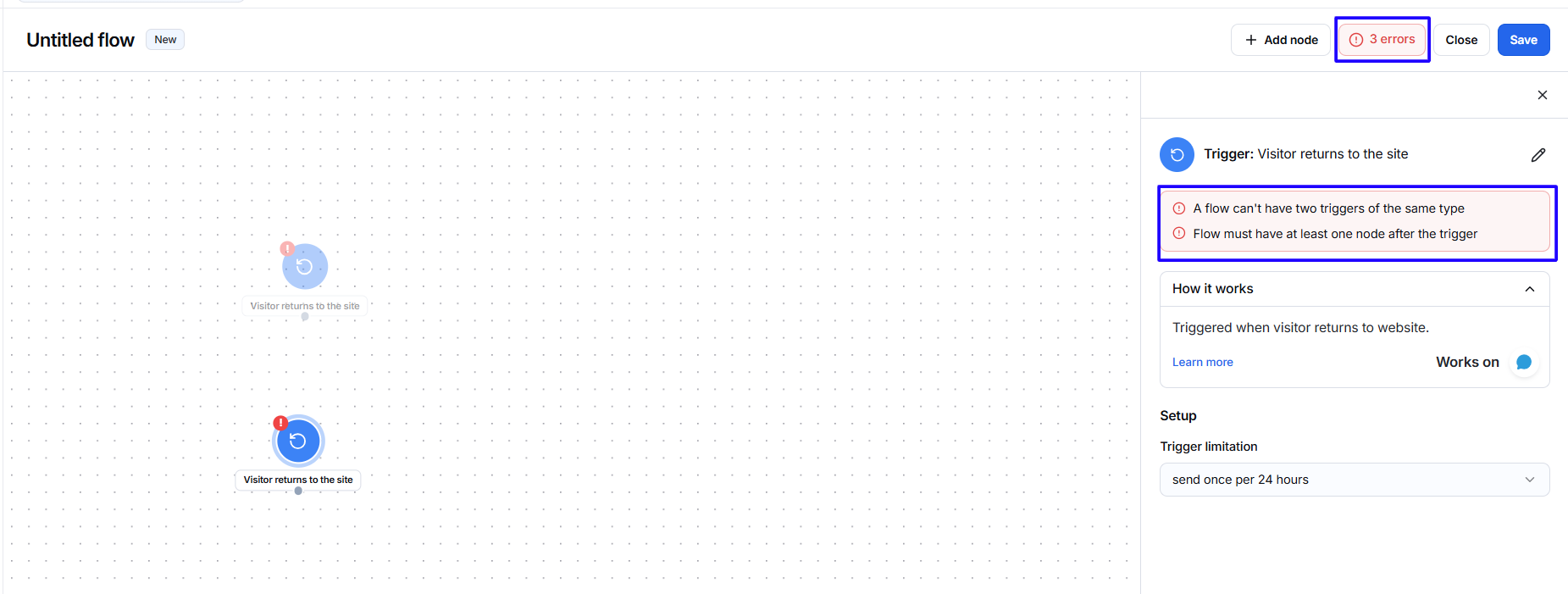
The flow builder displays an error indicator when one or more nodes are incomplete or incorrectly configured.
A red error icon may appear:
- At the top of the flow builder.
- On the affected node.
- Next to a required configuration field.
Common reasons for errors
A flow error may occur when:
- A trigger has not been fully configured.
- A required value is missing.
- A node is not connected.
- A condition does not have a complete path.
- An action is missing required content.
- An integration required by the node is not connected.
Resolve a flow error
- Click the error indicator.
- Locate the node marked with the red error icon.
- Open the node settings.
- Complete the missing information.
- Confirm that the node is connected correctly.
- Save the flow again.
- Check that the error indicator has disappeared.
Resolve all errors before activating the flow.
Import a flow
The Import option allows you to upload a previously exported flow in JSON format.
Import a JSON flow
- Go to Flows > My Flows.
- Click Import.
- The Import a Flow window will open.
- Click Browse and select the JSON file, or drag and drop it into the upload area.
- Confirm that the selected file uses the .json extension.
- Click Import.
- Review the imported flow in the builder.
- Check all triggers, conditions, actions, and integrations.
- Correct any errors.
- Save the flow.
- Activate it when it is ready.
The Import button remains unavailable until a valid file is selected.
Import requirements
- Only .json files are accepted.
- The file must use the supported flow format.
- Imported integration nodes may require reconnection.
- Imported values should be reviewed before activation.
- Invalid or unsupported files may not be imported successfully.
Flows Launcher
The Flows launcher provides access to the available flow-launching options for the selected chatbot.
Use this section to review how applicable flows can be made available or started. The available options may depend on the flow configuration, trigger type, chatbot setup, and connected channels.
Before using a flow through the launcher, confirm that:
- The flow is saved.
- All nodes are configured.
- No validation errors remain.
- The required integrations are connected.
- The flow has the correct status.