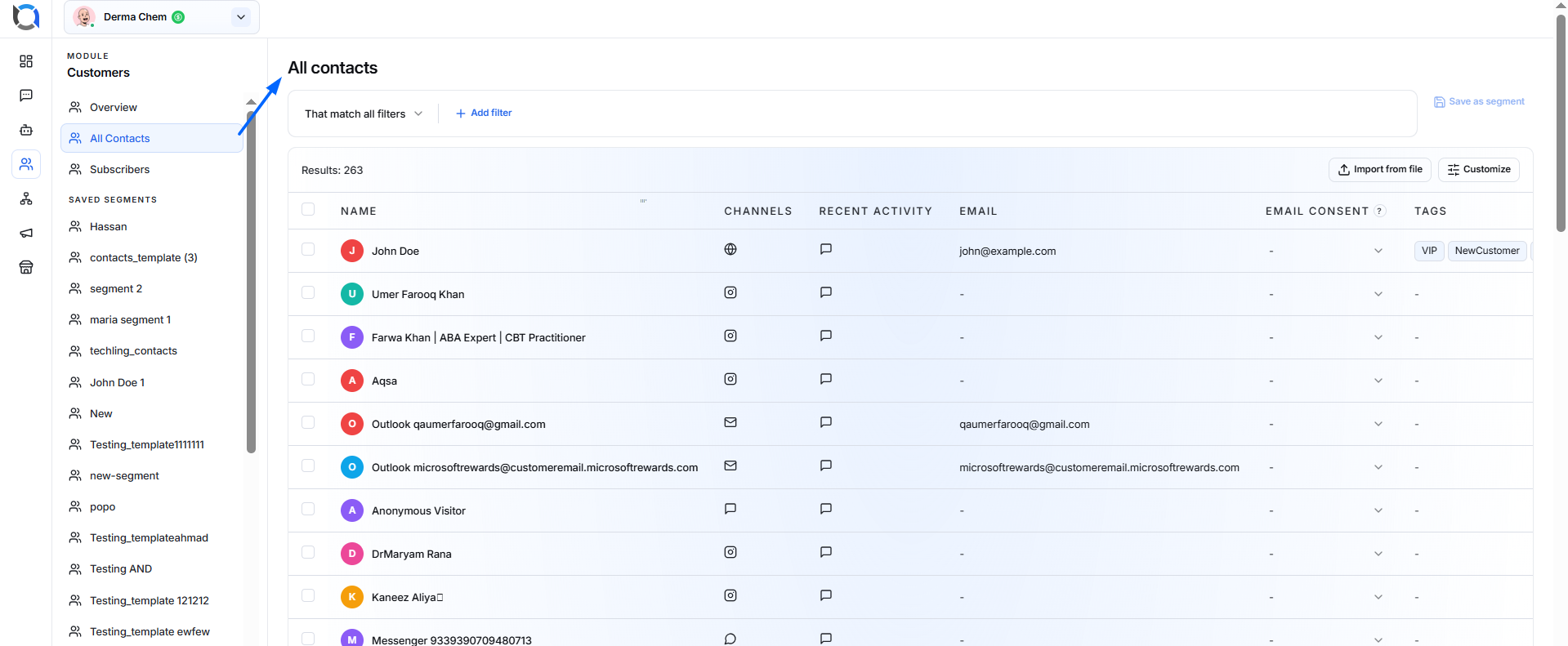
The All Contacts section contains every customer contact stored within your application. This page lets you view, filter, organize, and manage all contacts associated with your application.
This includes contacts that have been:
- Imported manually
- Added through forms
- Created by system integrations
- Added from campaigns
- Synced from external platforms
This serves as your complete customer directory.
View Contacts
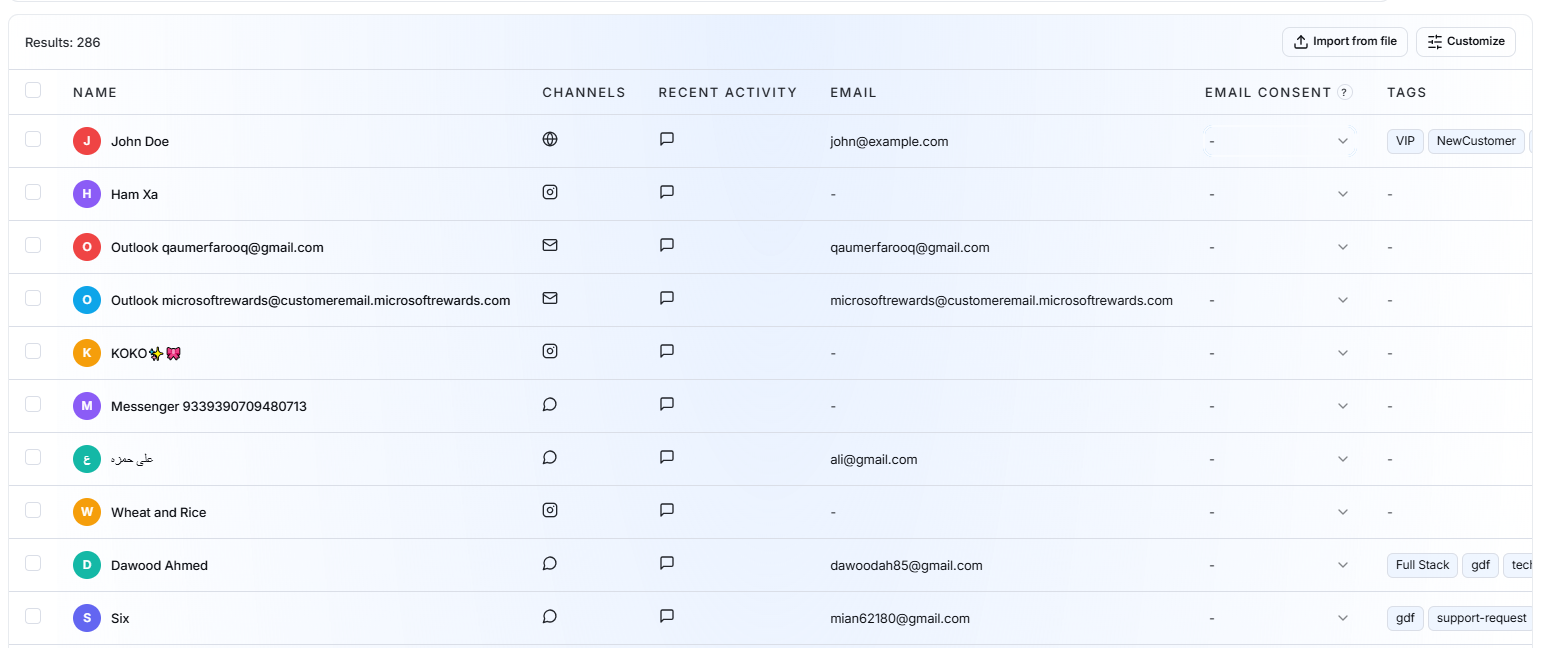
The contact table displays important information such as:
- Name – Contact's name
- Channels – Communication channels associated with the contact
- Recent Activity – Latest contact activity
- Email – Contact's email address
- Email Consent – Shows the contact's current permission status for receiving email communication.
- Tags – Displays the tags assigned to each contact.
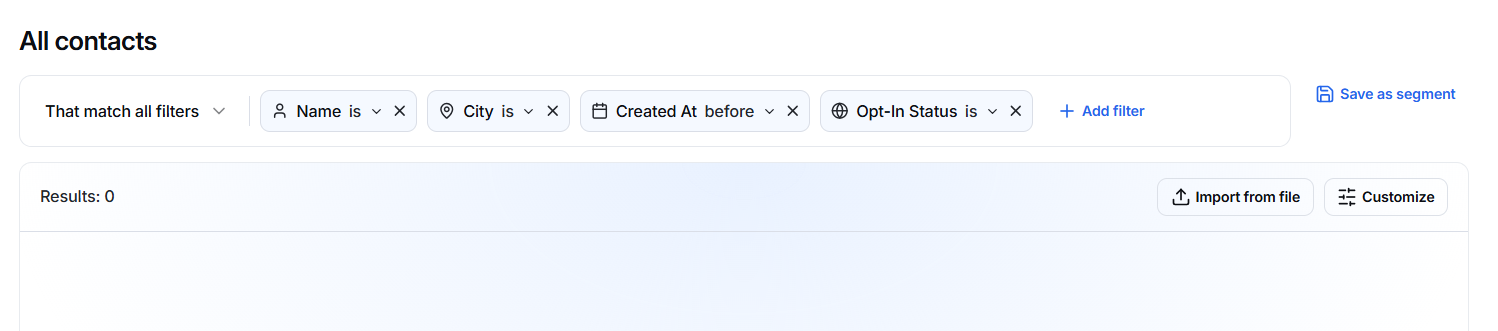
The Results count shows the number of contacts currently matching your filters.
Filter Contacts
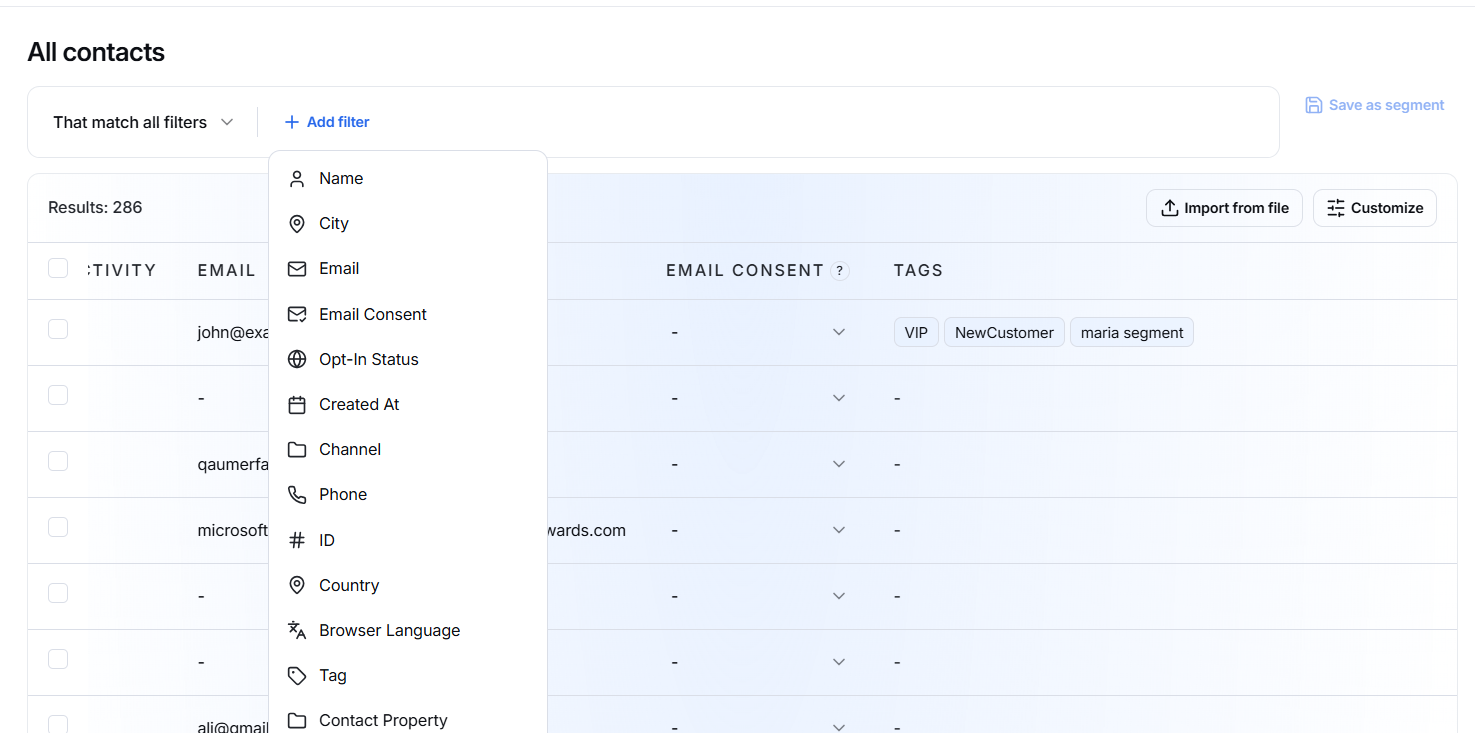
Use Add filter to find specific contacts based on their information.
Available filters include:
- Name
- City
- Email Consent
- Opt-In Status
- Created At
- Channel
- Phone
- Country
- Browser Language
- Tag
- Contact Property
You can add multiple filters to narrow down your results.
For example:
Country = Pakistan Email Consent = Yes
Only contacts matching the selected conditions will be displayed.
Save as Segment
If you frequently use the same filters, click Save as segment to save them for later.
Segments can be used to create specific groups of contacts for:
- Campaigns
- Follow-ups
- Targeted communication
For example, you can create a segment for Email Subscribers or Pakistan Customers.
Import Contacts
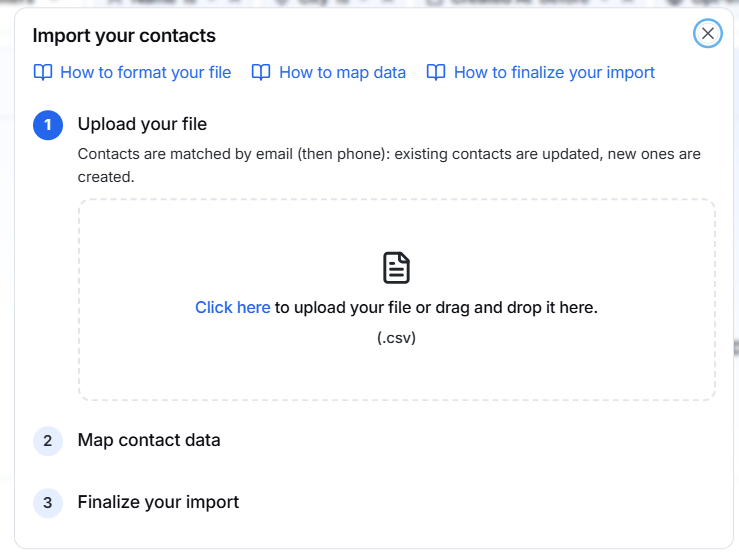
Click Import from file to add multiple contacts using a supported file.
This is useful when your contacts are already stored in a spreadsheet or another file.
Customize Contact List
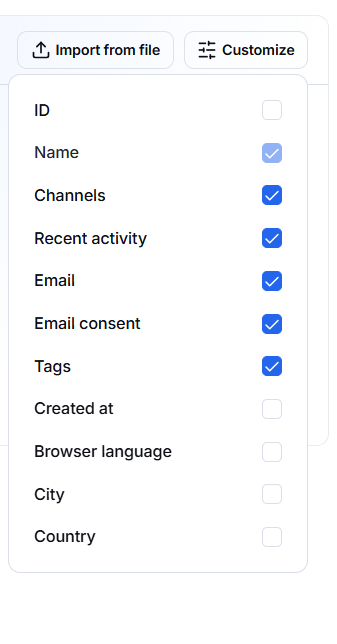
Click Customize to choose which contact information should be displayed in the table.
This helps you keep the contact list focused on the information you need.