The left sidebar provides quick access to important sections of your AI Employee.
To pick up a draggable item, press the space bar. While dragging, use the arrow keys to move the item. Press space again to drop the item in its new position, or press escape to cancel.
Quick Actions
At the top of the dashboard, you'll find key statistics showing your AI Employee's current activity.
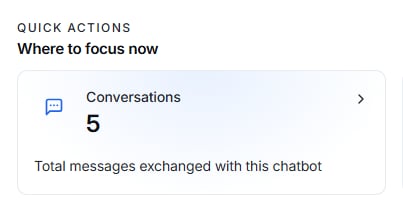
Conversations
Displays the total number of conversations handled by the AI Employee.
- This helps you understand: Total customer interactions
- Overall chatbot usage
- Engagement level
Example: Conversations862
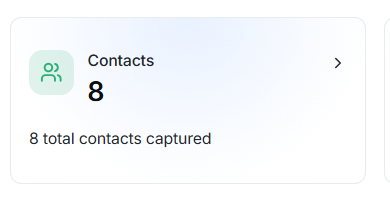
Contacts
Shows the total number of contacts collected through conversations.
Contacts may include visitors who have shared information such as:
- Name
- Email Address
- Phone Number
- Other lead information
Example: Contacts8
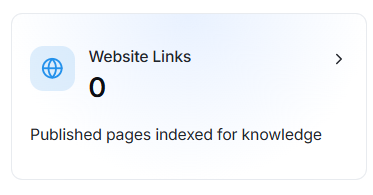
Website Links
Displays the number of website pages currently connected to your AI Employee for knowledge.
When website links are added, the AI Employee can answer questions using your website content.
Example: Website Links0
A value of 0 indicates that no website pages have been indexed yet.
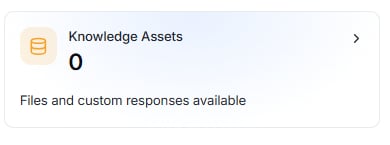
Knowledge Assets
Displays the number of knowledge resources available to the AI Employee.
Knowledge assets include:
- Uploaded files
- Documents
- FAQs
- Custom Responses
- PDFs
- Other supported knowledge sources
Example: Knowledge Assets0
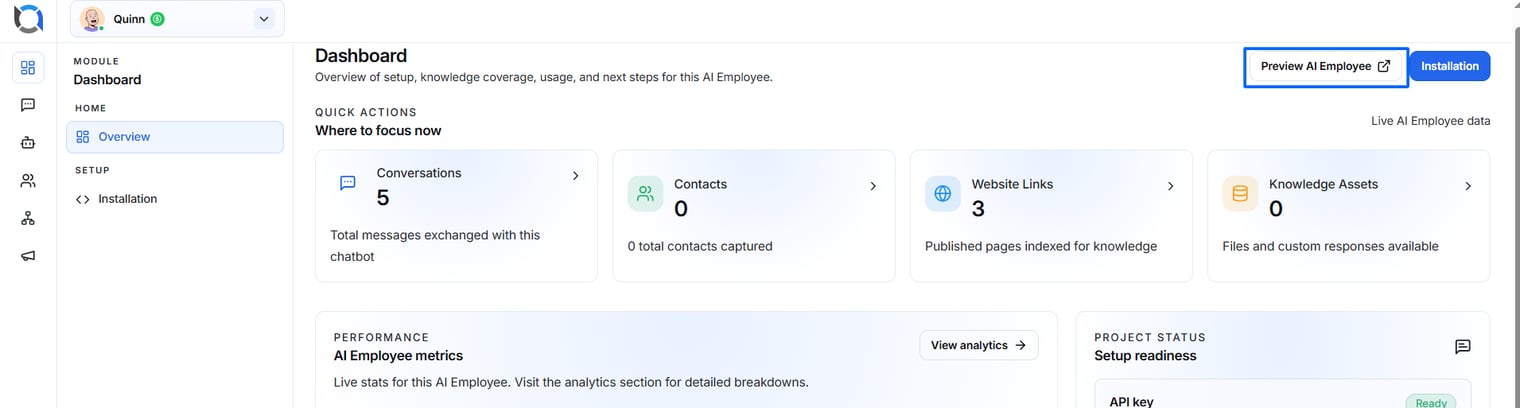
Preview AI Employee
Located in the upper-right corner.
Click Preview AI Employee to test your chatbot before deploying it to customers.
This allows you to:
- Ask questions
- Verify responses
- Test knowledge
- Ensure the AI behaves as expected
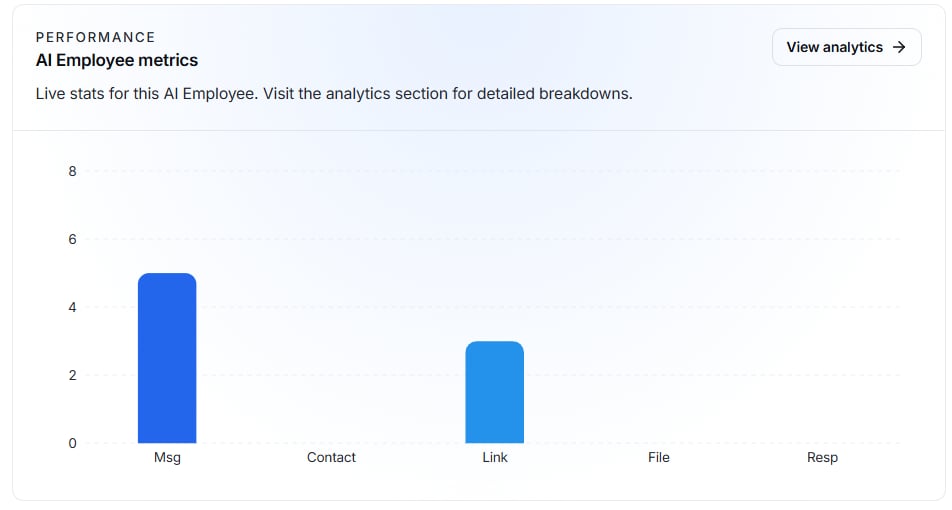
AI Employee Metrics
The AI Employee Metrics section provides a visual summary of chatbot activity.
The chart displays important usage information, including:
- Total Messages
- Contacts Captured
- Website Links
- Uploaded Files
- Custom Responses
Use this graph to monitor overall chatbot engagement and identify trends over time.
Click View Analytics to access detailed performance reports.
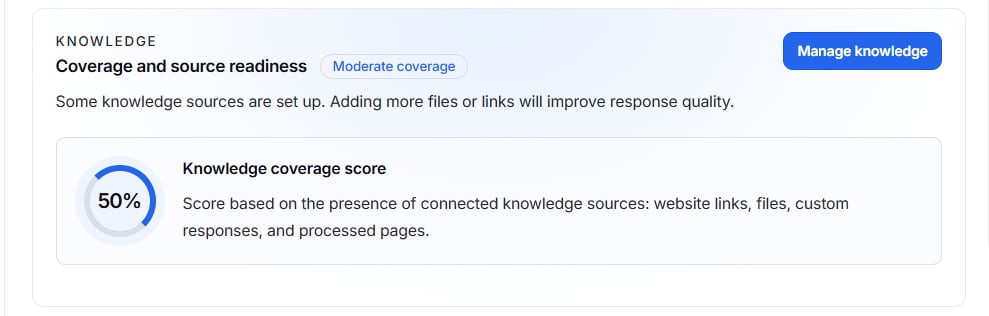
Coverage and Source Readiness
This section shows whether your AI Employee has enough knowledge to answer customer questions effectively.
The dashboard checks:
- Website content
- Uploaded files
- Knowledge documents
- Custom responses
If no knowledge sources have been connected, a warning will appear.
Needs Attention
No knowledge sources are connected yet. Add website links, files, or custom responses to improve response quality.
Click Manage Knowledge to start adding knowledge sources.
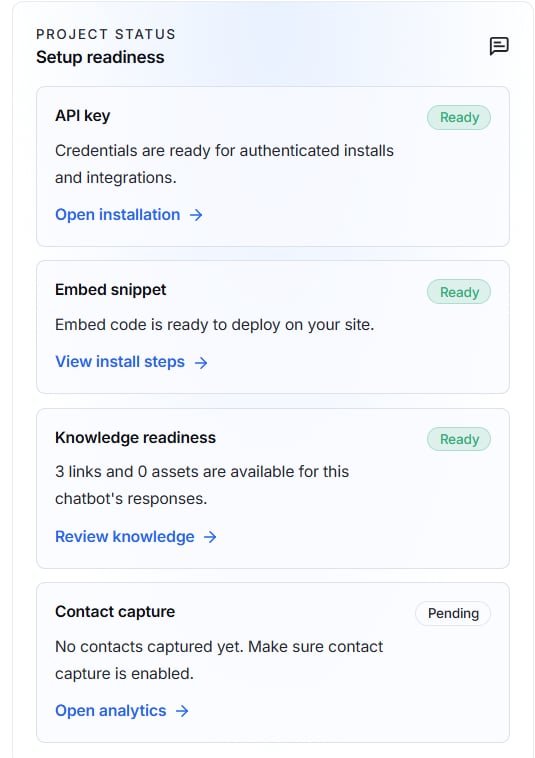
Setup Readiness
The Setup Readiness panel helps ensure that your AI Employee is ready for deployment.
Each setup item displays its current status.
API Key
Status: Ready
The API Key is used to authenticate your AI Employee with external applications and integrations.
Click Open Installation to view or copy your API credentials.
Embed Snippet
Status: Ready
The Embed Snippet is the JavaScript code required to install the chatbot on your website.
Click View Install Steps for detailed installation instructions.
Knowledge Readiness
Status: Attention
This status indicates that your AI Employee currently has no connected knowledge sources.
Without knowledge, the AI will have limited ability to answer customer questions accurately.
To improve performance:
- Add website links
- Upload documents
- Create custom responses
- Connect FAQs
Click Review Knowledge to begin.
Contact Capture
Status: Active
This section displays how many visitor contacts have been collected.
Example: 8 contacts captured so far
Click Open Analytics to review captured contact information and engagement statistics.