
Connect Offlo with the communication, e-commerce, automation, and support tools your team already uses.
Integrations help you manage customer conversations from multiple channels, receive notifications, and access useful business information from one place.
What you can do here
From the Integrations screen, you can:
- View all integrations available for your workspace.
- Search for a specific integration.
- Check which integrations are already installed.
- Select an integration to connect or manage it.
- Bring customer conversations from different channels into Offlo.
- Connect business tools such as Shopify and Slack.
Find an integration
Use the Search integrations field in the upper-right corner of the screen.
Enter the name of an application, such as:
- Messenger
- Slack
- Gmail
- Outlook
- Shopify
The integration list will automatically display the matching result.
Integration status
Each integration card may display a status in its upper-right corner.
Installed
The green Installed label means the integration is available and has already been added to the workspace.
You can select the integration card to review its settings or manage its connection.
Not installed
If the Installed label is not displayed, the integration has not yet been added to the workspace.
Select the integration card to begin the connection process. You may need to sign in to the relevant account and provide the required permissions.
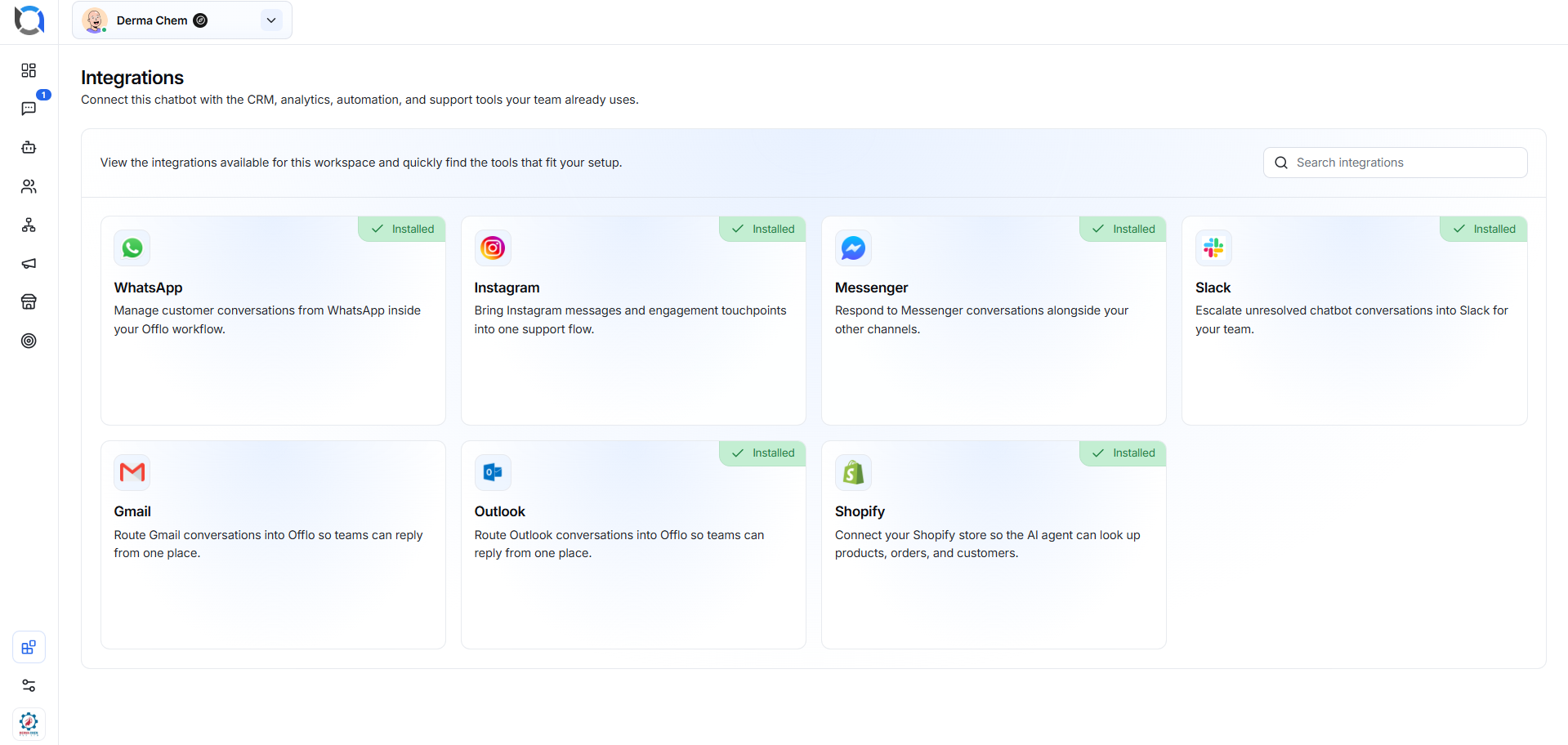
Available integrations
Manage WhatsApp customer conversations directly within your Offlo workflow.
Bring Instagram messages and customer engagement into one unified support flow.
Messenger
Respond to Facebook Messenger conversations alongside messages from your other connected channels.
Slack
Send unresolved chatbot conversations to Slack so your team can review them and respond when needed.
Gmail
Route Gmail conversations into Offlo and allow your support team to manage replies from one place.
Outlook
Connect an Outlook account and route email conversations into Offlo for centralized support.
Shopify
Connect your Shopify store so the AI Agent can access relevant product, order, and customer information when assisting users.
Connect an integration
- Open the Integrations screen.
- Find the integration you want to use.
- Select its integration card.
- Click the available Connect or setup option.
- Sign in to the relevant external account.
- Provide the requested permissions or verification details.
- Complete the setup process.
- Confirm that the integration displays the Installed status.
The exact setup steps may be different for each integration.
Before you connect
Make sure that:
- You have access to the external account you want to connect.
- You have the required administrator permissions.
- You select the correct business, workspace, store, channel, or email account.
- You review the requested permissions before approving the connection.
Troubleshooting
The integration does not connect
Check your internet connection and confirm that you are using the correct account credentials.
Permission error appears
Your account may not have the required administrator permissions. Contact the account or workspace administrator.
The integration is connected but data is not appearing
Confirm that the correct account, channel, inbox, page, or store was selected during setup. You can also reopen the integration settings and check its connection status.
The integration is not visible
Use the search field to find it. If it is still unavailable, the integration may not currently be supported for your workspace.
Available Settings
The Settings section contains different channels and integrations that can be configured for your Offlo account.
Channels
- Voice Agent — Connect and configure a phone line for voice interactions.
- WhatsApp — Configure WhatsApp integration.
- Instagram — Configure Instagram integration.
- Messenger — Configure Facebook Messenger integration.
- Slack — Configure Slack integration.
- Gmail — Configure Gmail integration.
- Outlook — Configure Outlook integration.
- Shopify — Configure Shopify integration.
Widget
- Pre-Chat Form — Configure the form shown to visitors before they start a chat.