
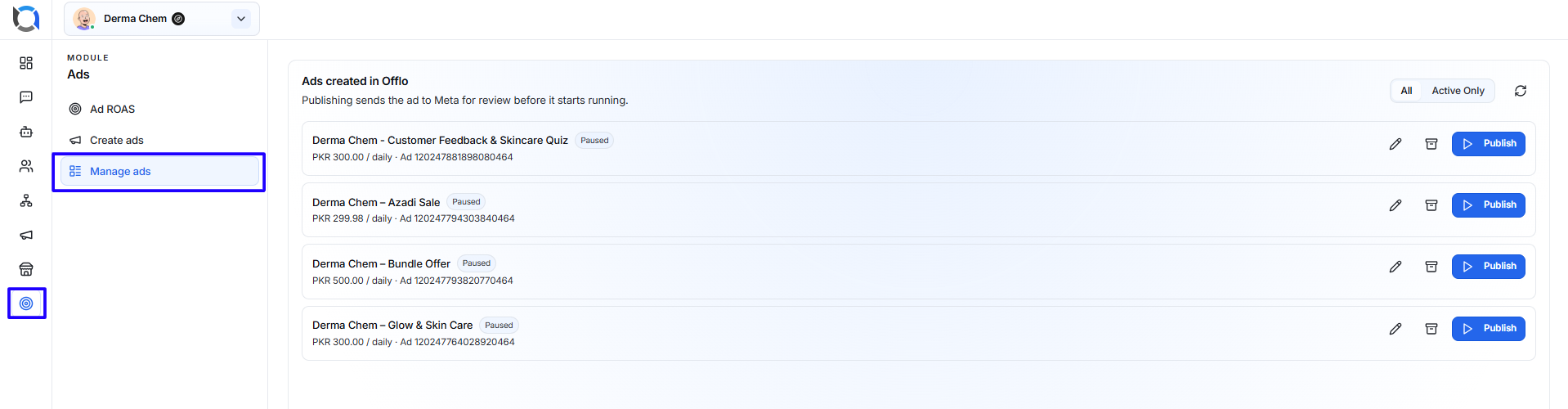
The Manage Ads feature allows you to view, edit, publish, and remove ads created in Offlo. It also shows important information such as the ad name, daily budget, Meta ad ID, and current status.
Open Manage Ads
To access this feature:
- Open the Ads module.
- Select Manage ads from the left menu.
- The list of ads created in Offlo will appear.
Ads List
Each ad record displays the following information:
- Ad name: The name entered while creating the ad.
- Status: The current state of the ad, such as Paused.
- Budget: The daily advertising budget and its currency.
- Ad ID: The unique ID assigned to the ad.
- Available actions: Edit, remove, or publish the ad.
Ad Status
The status label helps you understand the current state of an ad.
Common statuses may include:
- Paused: The ad is not currently running.
- Active: The ad is active and can be delivered to the selected audience.
- In Review: The ad has been submitted and is waiting for Meta’s review.
- Rejected: Meta did not approve the ad.
- Completed: The ad has reached its scheduled end date.
- Draft: The ad has been created but not yet published.
The available statuses may depend on the latest information received from Meta.
Filter Ads
Use the filters in the upper-right corner to control which ads appear.
All
Select All to view every available ad, including paused and inactive ads.
Active Only
Select Active Only to display only ads that are currently active.
This is useful when you want to focus on campaigns that may currently be spending budget.

Refresh the Ads List
Click the Refresh icon to reload the list and retrieve the latest available ad information.
Use this option after publishing or updating an ad if its status has not changed immediately.

Edit an Ad
To update an existing ad:
- Find the required ad in the list.
- Click the Edit icon.
- Review and update the available settings.
- Save the changes.
Depending on the ad’s current status and Meta’s rules, some settings may not be editable after publishing.
Changes to an already submitted ad may require another review from Meta.

Remove an Ad
To remove an ad:
- Find the ad you want to remove.
- Click the Remove/Delete icon.
- Review the confirmation message.
- Confirm the action.
Only remove an ad when you are sure it is no longer required. Removing an ad may not be reversible.

Publish an Ad
Ads created in Offlo remain unpublished or paused until they are sent to Meta.
To publish an ad:
- Find the required ad.
- Review its name, budget, and other available information.
- Click Publish.
- Confirm the action if required.
Publishing sends the ad to Meta for review. The ad will not necessarily start running immediately.
Meta checks the ad against its advertising policies. After approval, the ad can start according to its configured schedule, budget, and status.
Publishing an ad may begin using your Meta advertising budget after Meta approves it and the ad becomes active.

After Publishing
After clicking Publish:
- The ad is submitted to Meta.
- Meta reviews the creative content, audience, destination, and other settings.
- The status may change to In Review.
- After approval, the status may change to Active.
- If Meta finds a policy or configuration issue, the ad may be rejected.
Click Refresh to check the latest status.
Pagination
When many ads are available, the list is divided into multiple pages.
Use the controls at the bottom of the screen to:
- Go to the first page.
- Move to the previous page.
- Move to the next page.
- Go to the last page.
The bottom-left corner also shows how many ads are currently displayed and the total number of available ads.
Before Publishing an Ad
Check the following information before selecting Publish:
- The ad name is correct.
- The daily budget is correct.
- The campaign schedule is correct.
- The selected Facebook Page is correct.
- The WhatsApp number is linked to the selected Facebook Page.
- The audience and locations are correct.
- The image or video meets Meta’s requirements.
- The headline and primary text do not contain errors.
- The ad follows Meta’s advertising policies.
Important Notes
- Publishing sends the ad to Meta for review; it does not guarantee immediate approval.
- Meta controls the review process and final approval decision.
- An active ad may use the budget configured during ad creation.
- Refresh the page if the latest status is not displayed.
- Review an ad carefully before publishing it.
- Avoid removing an ad unless it is no longer needed.
- If an ad is rejected, edit the content or settings based on Meta’s rejection reason and submit it again.