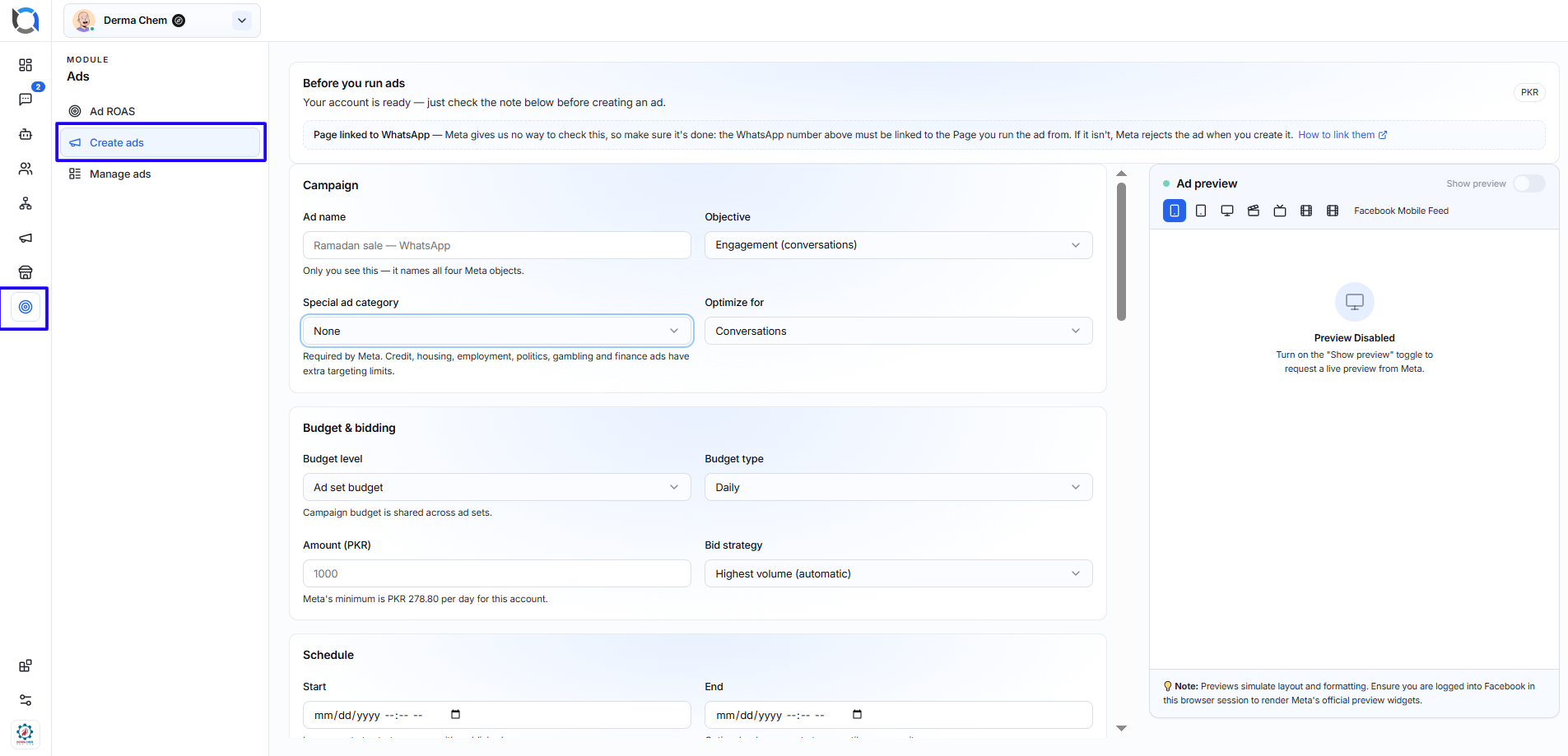
The Create Ads feature allows you to create and publish Meta ads directly from Offlo. You can configure your campaign, select an audience, upload creative content, connect a WhatsApp destination, and preview the ad before publishing it.
Before You Start
Before creating an ad, make sure:
- Your Meta ad account is connected.
- Your Facebook Page is connected to the correct WhatsApp number.
- The selected WhatsApp number belongs to the Page from which the ad will run.
- Your Meta account has permission to create ads for the selected Page.
- A valid payment method is available in your Meta ad account.
Offlo cannot verify whether your Facebook Page and WhatsApp number are linked. If they are not connected correctly, Meta may reject the ad.
Create a New Ad
To create an ad:
- Open the Ads module.
- Select Create ads from the left menu.
- Complete the campaign, audience, placement, destination, and creative settings.
- Review the ad preview.
- Click Create ad.
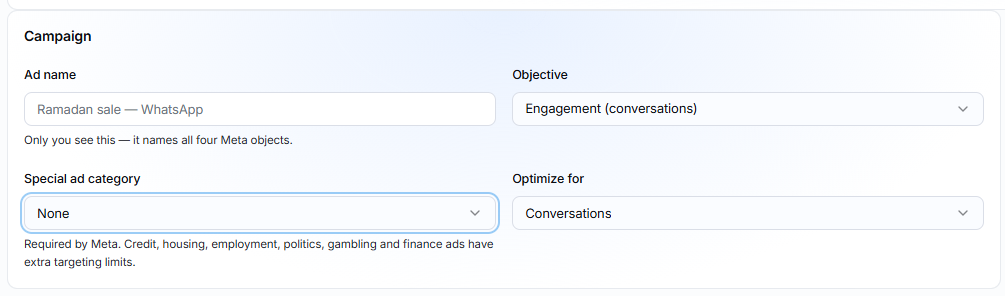
1. Campaign
Use the Campaign section to define the purpose of your ad.
Ad name
Enter an internal name that will help you recognize the ad.
The ad name is visible only to you and is used to name the related Meta campaign objects.
Example:
Ramadan Sale — WhatsApp
Objective
Select the main goal of your campaign.
For WhatsApp ads, you can select an engagement objective focused on starting conversations with potential customers.
- Engagements
- Leads
- Sales
- Traffic
Special ad category
Select a special category if your ad relates to regulated subjects such as:
- Credit
- Housing
- Employment
- Social issues, electronics and Politics
- Online Gambling and gaming
- Financial products and services
Select None if your ad does not belong to a special category.
Meta may apply additional targeting restrictions to ads in special categories.
Optimize for
Choose the result Meta should prioritize when delivering your ad. For a WhatsApp campaign, select Conversations to encourage people to start a chat.
For Optimize there are more options like:
- Conversations
- Link clicks
- Impressions
- Reach
- Post Engagement
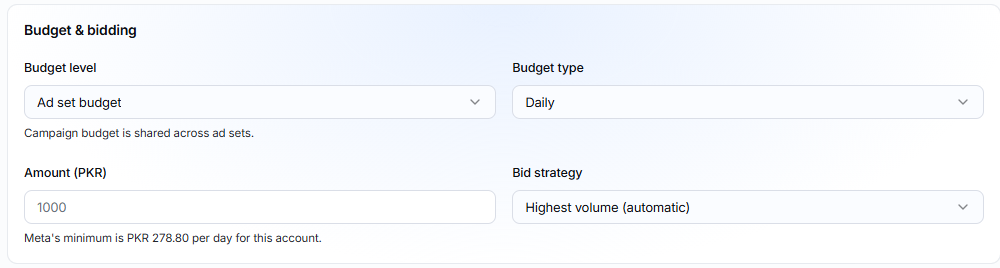
2. Budget and Bidding
Use this section to control how much you want to spend and how Meta should use your budget.
Budget level
Select where the budget will be managed, such as at the campaign or ad-set level.
Budget type
Choose how the budget should be applied:
- Daily: Sets the average amount that can be spent each day.
- Lifetime: Sets the total amount that can be spent during the complete campaign schedule, when available.
Amount
Enter the amount you want to spend in the currency displayed on the page.
Meta may require a minimum daily budget. A message below the field shows the minimum amount allowed for the connected ad account.
Bid strategy
Select how Meta should bid for ad results.
The Highest volume (automatic) option allows Meta to try to generate the highest number of results within your available budget.
3. Schedule
Use the Schedule section to control when your ad will run.
- Start: Select the date and time when the campaign should begin.
- End: Select the date and time when the campaign should stop.
Review the dates carefully before creating the ad.

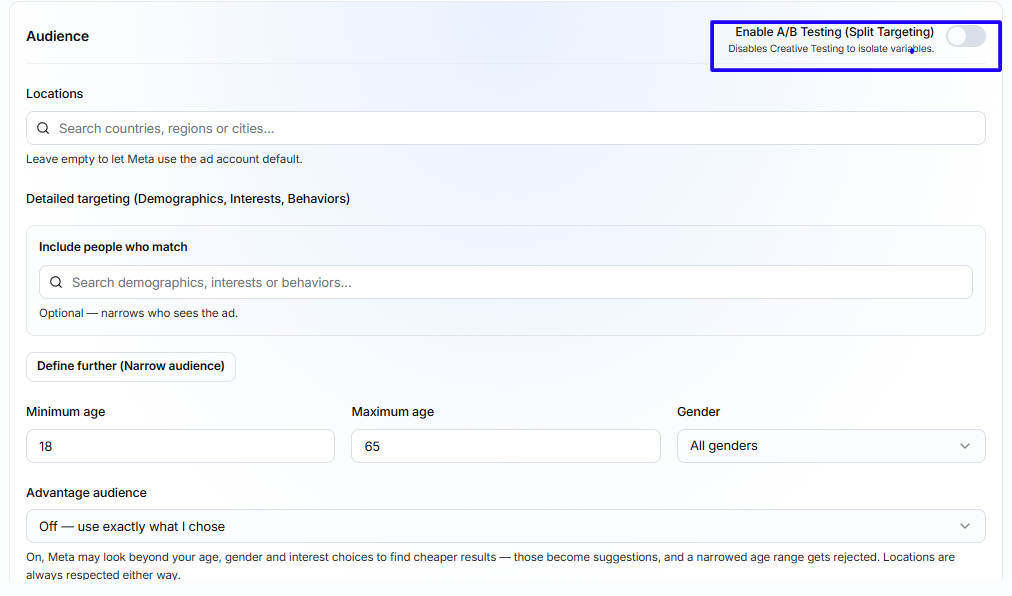
4. Audience
The Audience section allows you to choose who can see your ad.
Locations
Search for and select the countries, regions, or cities where you want to display the ad.
If you leave the field empty, Meta may use the default location configured for the ad account.
Detailed targeting
Use detailed targeting to include people based on:
- Demographics
- Interests
- Behaviors
Search for and select targeting options related to your ideal audience.
Define further
Select Define further (Narrow audience) when you want users to match additional targeting conditions. This helps create a more specific audience.
Age
Enter the minimum and maximum age of the people you want to reach.
Gender
Select the appropriate gender option:
- All genders
- Men
- Women
Advantage audience
Use this setting to decide whether Meta can expand beyond some of your selected audience criteria to find potentially better results.
- Select Off when you want Meta to follow your selected audience more closely.
- Enable an available Advantage audience option when you want Meta to search more broadly for potential results.
Locations are still respected according to Meta’s targeting rules.
5. A/B Testing
Enable A/B Testing (Split Targeting) when you want to compare different audience groups or targeting settings.
This option helps you understand which audience performs better.
Enabling multiple creative variants may disable split targeting so that only one type of variable is tested at a time.
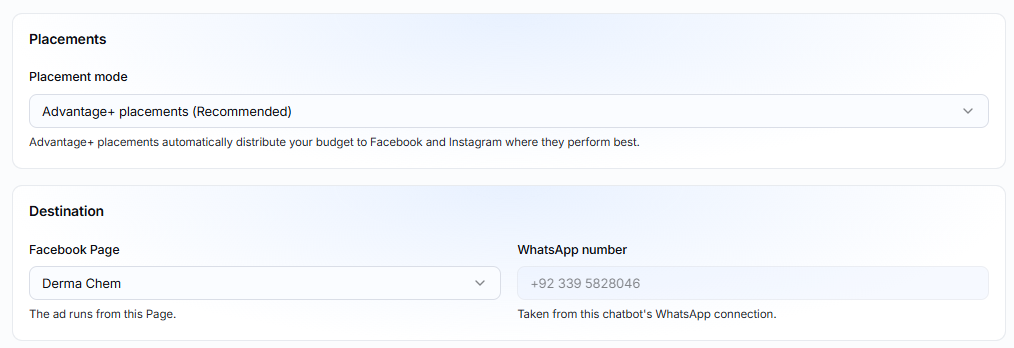
6. Placements
Placements define where your ad can appear across Meta platforms.
Select Advantage+ placements (Recommended) to allow Meta to automatically distribute the budget across suitable Facebook and Instagram placements.
This can include mobile feeds, desktop feeds, Stories, Reels, and other supported placements.
7. Destination
The destination determines where users will contact your business after interacting with the ad.
Facebook Page
Select the Facebook Page from which the ad will run.
WhatsApp number
Confirm the WhatsApp number connected to the selected chatbot or account.
The WhatsApp number must also be linked to the selected Facebook Page. Otherwise, Meta may reject the ad.
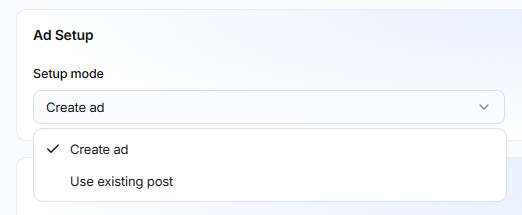
8. Ad Setup
Use Setup mode to define how the ad should be created.
Select Create ad to build a new advertisement using the information and creative content entered on this page.
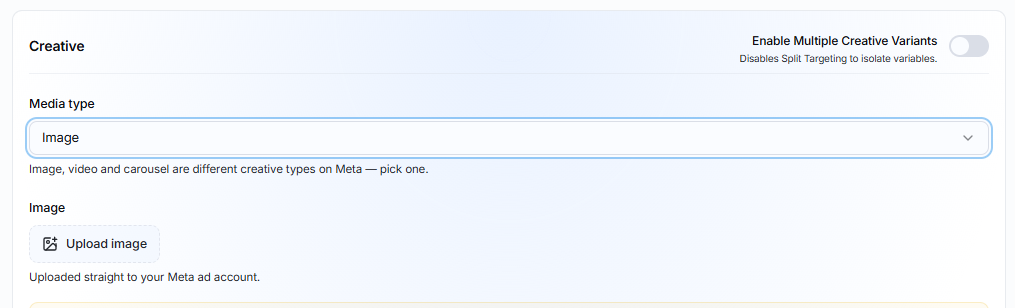
9. Creative
The Creative section controls how your advertisement will look.
Multiple creative variants
Enable Multiple Creative Variants if you want to test different versions of your creative content.
Media type
Select the type of media you want to use, such as:
- Image
- Video
- Carousel
Available fields may change depending on the selected media type.
Upload image
Click Upload image and select the image you want to use in your ad.
The image is uploaded to your connected Meta ad account.
For Stories and Reels placements, a vertical 9:16 image with a recommended size of 1080 × 1920 pixels provides the best visual experience. Square or landscape images may be cropped, resized, padded, or blurred by Meta.
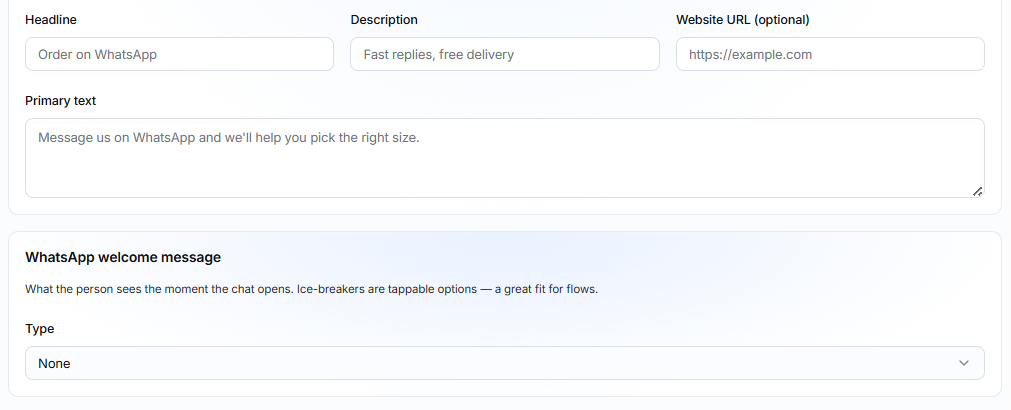
Headline
Enter a short and clear title for the ad.
Example:
Order on WhatsApp
Description
Add a brief description that supports your headline.
Example:
Fast replies and free delivery
Website URL
Add a website address if you want to include a supporting website link. This field is optional.
Primary text
Enter the main message users will see with the advertisement.
Example:
Message us on WhatsApp and we’ll help you choose the right product.
Keep the text simple, relevant, and focused on the action you want the customer to take.
10. WhatsApp Welcome Message
The welcome message is displayed when a customer opens the WhatsApp conversation from the ad.
Select an available message type and configure the message according to your campaign.
You can use welcome messages to:
- Greet the customer.
- Introduce your offer.
- Ask what the customer needs.
- Provide tappable conversation starters.
- Connect the customer with an automated flow.
Select None if you do not want to configure a welcome message.
11. Ad Preview
The Ad preview panel shows how your advertisement may appear across different Meta placements.
To view it:
- Turn on the Show preview toggle.
- Select a placement icon, such as mobile feed, desktop feed, Stories, Reels, or another available format.
- Review the layout, image, and text.
You may need to be signed in to Facebook in the same browser for Meta’s official preview to load.
The preview simulates the ad’s layout and formatting. The final appearance may vary slightly depending on the device and placement.
12. Create the Ad
When all required information is complete:
- Review your campaign settings.
- Confirm the budget and schedule.
- Check the selected audience and placements.
- Confirm the Facebook Page and WhatsApp number.
- Review the creative content and preview.
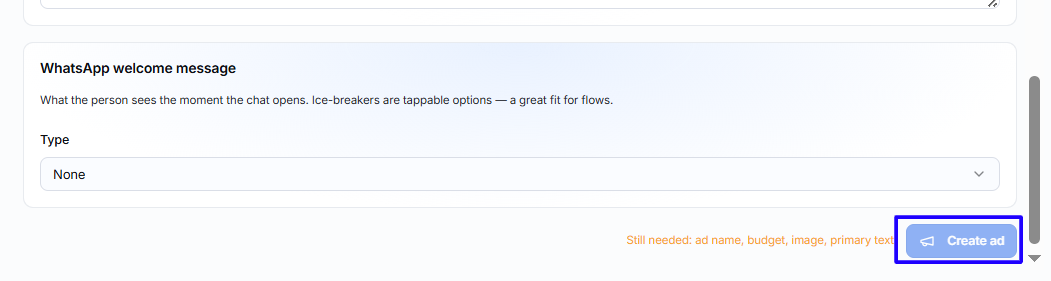
- Click Create ad.
If the button is disabled, check the message beside it. Offlo will show which required information is missing, such as:
- Ad name
- Budget
- Image
- Primary text
After the ad is created, you can open Manage ads to review and monitor it.