
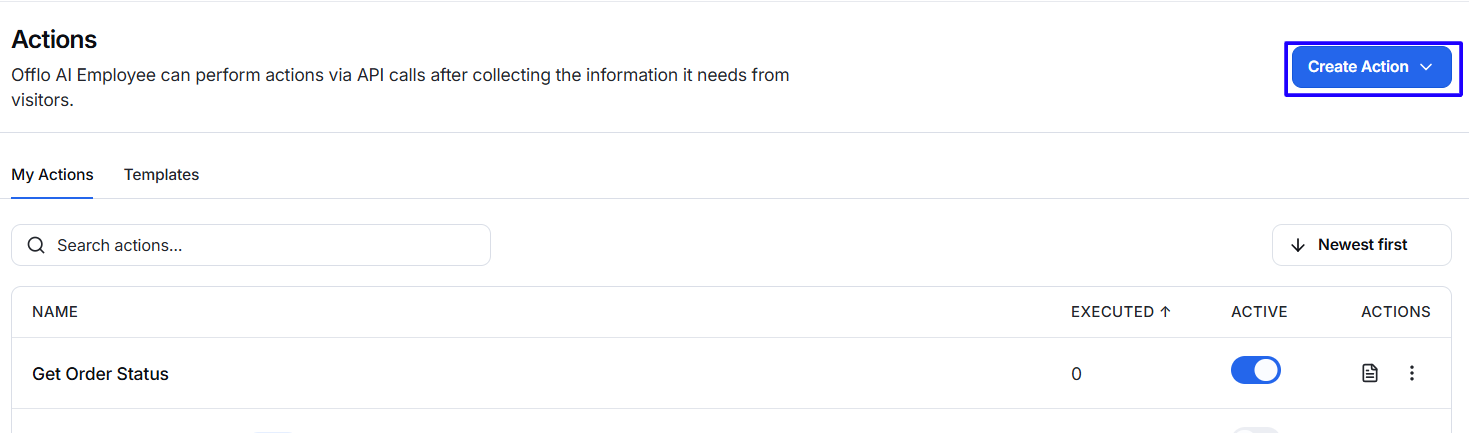
Click Create Action and select one of the available options:
- Create from template
- Create from scratch
Create from Template
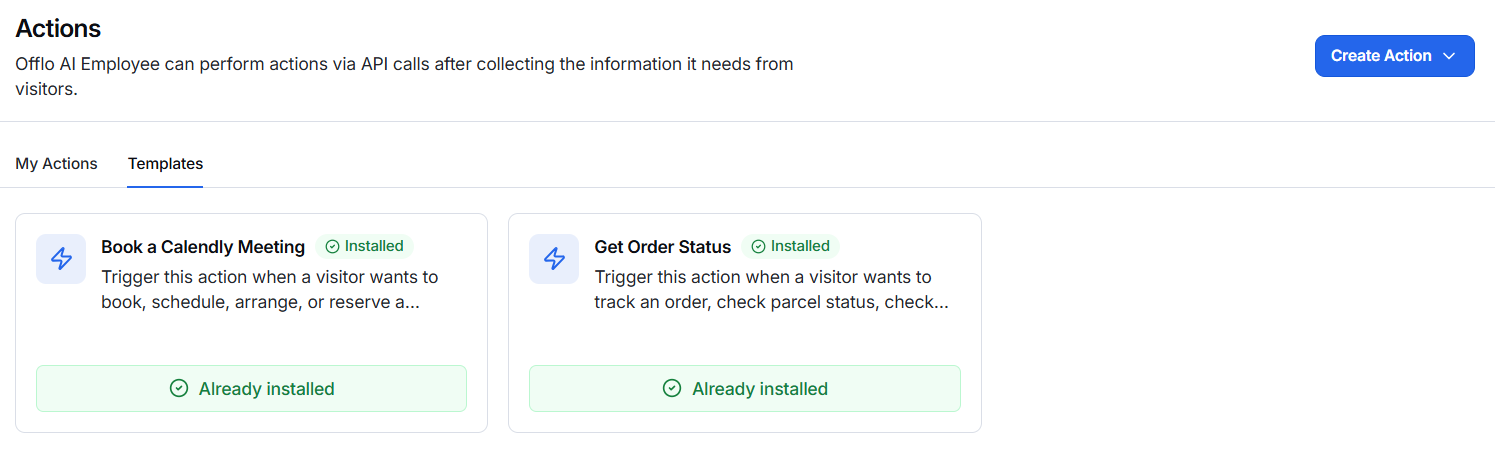
Use Create from template to start with a ready-made Action configuration.
- Click Create Action.
- Select Create from template.
- Browse the available templates.
- Select a suitable template.
- Review and update its settings.
- Configure any required API details and variables.
- Save or activate the Action.
Templates reduce setup time, but all fields should be reviewed before activation.
Create from Scratch
Use Create from scratch when you want to build a custom Action.
- Click Create Action.
- Select Create from scratch.
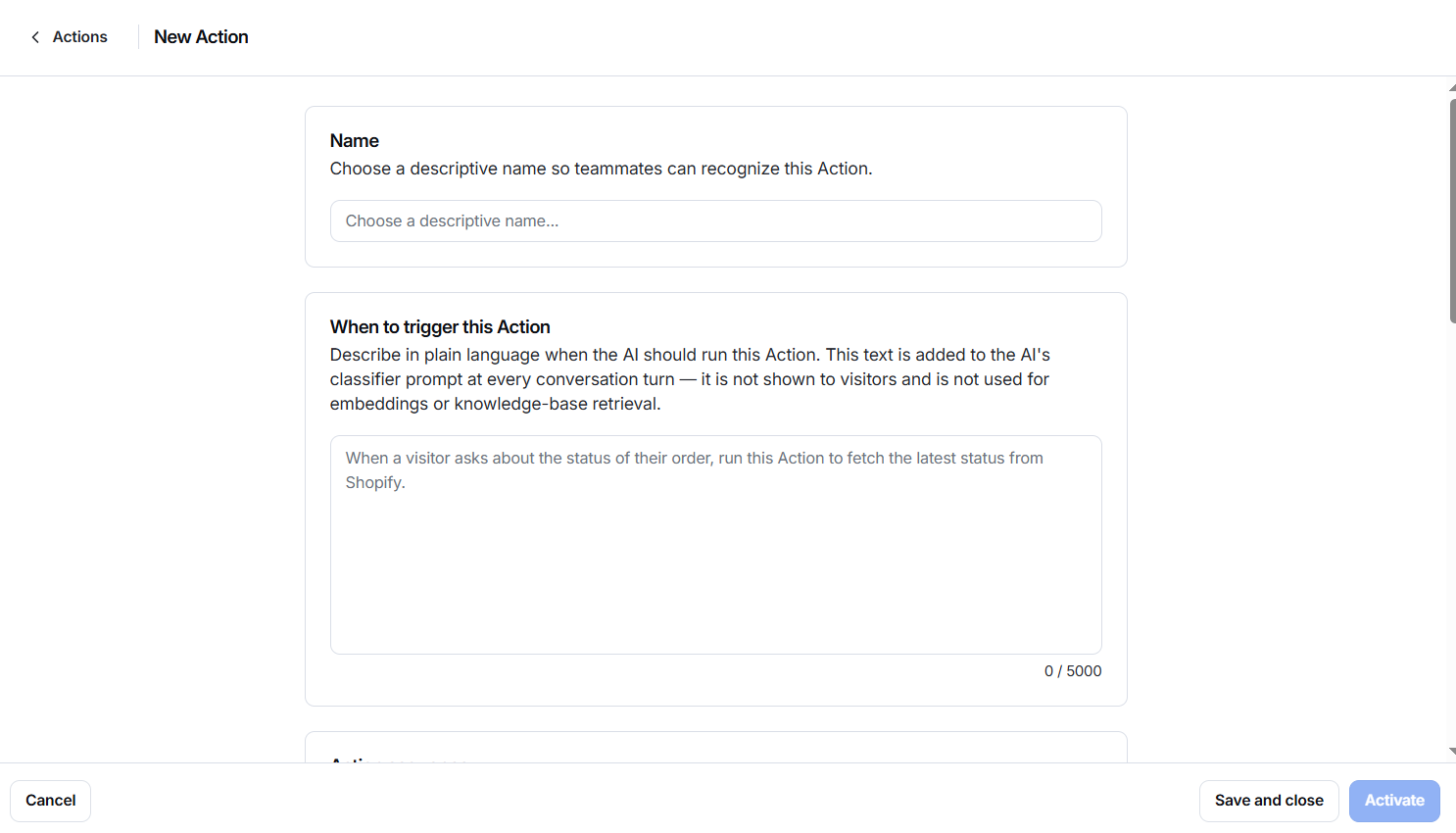
- Enter a descriptive name.
- Explain when the AI should trigger the Action.
- Create the Action sequence.
- Configure input variables.
- Configure output variables.
- Choose whether visitor confirmation is required.
- Save the Action as a draft or activate it.
Action Name
Enter a clear and descriptive name so teammates can easily recognize the Action.
Examples include:
- Get Order Status
- Book a Calendly Meeting
- Check Appointment
- Submit Refund Request
- Update Customer Details
The name should describe the task performed by the Action.
When to Trigger This Action
Use this field to explain, in plain language, when the AI Employee should run the Action.
This instruction is added to the AI’s classifier prompt during every conversation turn. It is not displayed to visitors and is not used as knowledge-base content.
The field supports up to 5,000 characters.
Example
When a visitor asks about the status of their order, run this Action to retrieve the latest order status from Shopify.
Writing effective trigger instructions
The description should clearly explain:
- What the visitor is trying to do.
- Which request should activate the Action.
- Which information may be required.
- When the Action should not run.
Avoid vague descriptions such as:
Use this Action when needed.
Use a specific instruction instead:
Run this Action when a visitor wants to check an existing appointment and can provide their email address or booking reference.
Action Sequence
The Action sequence defines the API calls, conditions, and outcomes that the Action can run.
When the sequence is empty, click Create sequence to open the sequence editor.
Use the sequence to define:
- What information starts the Action.
- Which API request should be sent.
- How visitor information is included in the request.
- What happens after the response is received.
- Which output values should be returned.
- How successful and unsuccessful outcomes are handled.
- Whether additional API calls or conditions are required.
Create a sequence
- Click Create sequence.
- Add the required starting or trigger step.
- Add the API request.
- Configure the request details.
- Map the required input variables.
- Map the API response to output variables.
- Add conditions or additional requests where required.
- Configure success and failure outcomes.
- Save the sequence.
- Return to the Action settings.
Test the complete sequence before activating the Action.
Input Variables
Input variables are values that the AI Employee must collect from the visitor before the Action runs.
Examples include:
- Customer email address
- Order number
- Appointment ID
- Product name
- Phone number
- Refund reason
Input variables can be added from the sequence editor’s trigger node or by selecting Add variable.
Input variable information
The input variable list displays:
- Type: The format of the information.
- Name: The variable’s identifying name.
- Required: Whether the Action can run without the value.
When a required variable is missing, the AI Employee should ask the visitor for the information before running the Action.
Example
For an order-status Action:
- Name: Order number
- Type: Text
- Required: Yes
The AI Employee collects the order number before sending the API request.
Output Variables
Output variables are values produced while the Action is running, usually from an API response.
Examples include:
- Order status
- Tracking number
- Appointment time
- Refund request ID
- Available product quantity
- API success message
Output variables are populated by adding HTTP request output mappings in the sequence editor.
Available for Offlo AI Employee
Use this option to control whether an output value is made available to the AI Employee.
When enabled, the AI can use the value in its reply to the visitor.
For example, an order-status API can return:
- Order status: Shipped
- Tracking number: TRK12345
If these outputs are available to the AI Employee, it can use them to answer the visitor.
Avoid exposing sensitive or unnecessary API response data.
Ask Visitor to Confirm Action
The Ask visitor to confirm Action toggle requires the visitor to approve the task before it runs.
Keep this option enabled for Actions that:
- Create or update information.
- Book or cancel appointments.
- Submit orders or refunds.
- Send data to another system.
- Perform irreversible tasks.
- Affect the visitor’s account.
Confirmation may be unnecessary for read-only Actions, such as checking an order status. However, it should not be disabled for irreversible or sensitive operations.
Save and Close
Click Save and close to save the Action without making it available to the AI Employee.
The Action remains in Draft status and can be edited or activated later.
Use this option when:
- Configuration is incomplete.
- API details still need testing.
- Variables have not been finalized.
- Another team member needs to review the Action.
Activate
Click Activate when the Action has been fully configured and tested.
An Action should only be activated when:
- It has a clear name.
- Trigger instructions are complete.
- The sequence contains valid API calls.
- Required input variables are configured.
- Output mappings are correct.
- Errors and failure outcomes are handled.
- Visitor confirmation is configured correctly.
- The external API has been tested.
After activation, the Action becomes available to the AI Employee.