
The Ad ROAS dashboard connects Meta advertising costs with the contacts, leads, purchases, and revenue generated through Click-to-WhatsApp ads.
It helps you understand which ads are attracting customers and whether your advertising spend is producing revenue.
Open the Ad ROAS Dashboard
To access this feature:
- Open the Ads module.
- Select Ad ROAS from the left menu.
- The performance dashboard for the connected Meta account will appear.
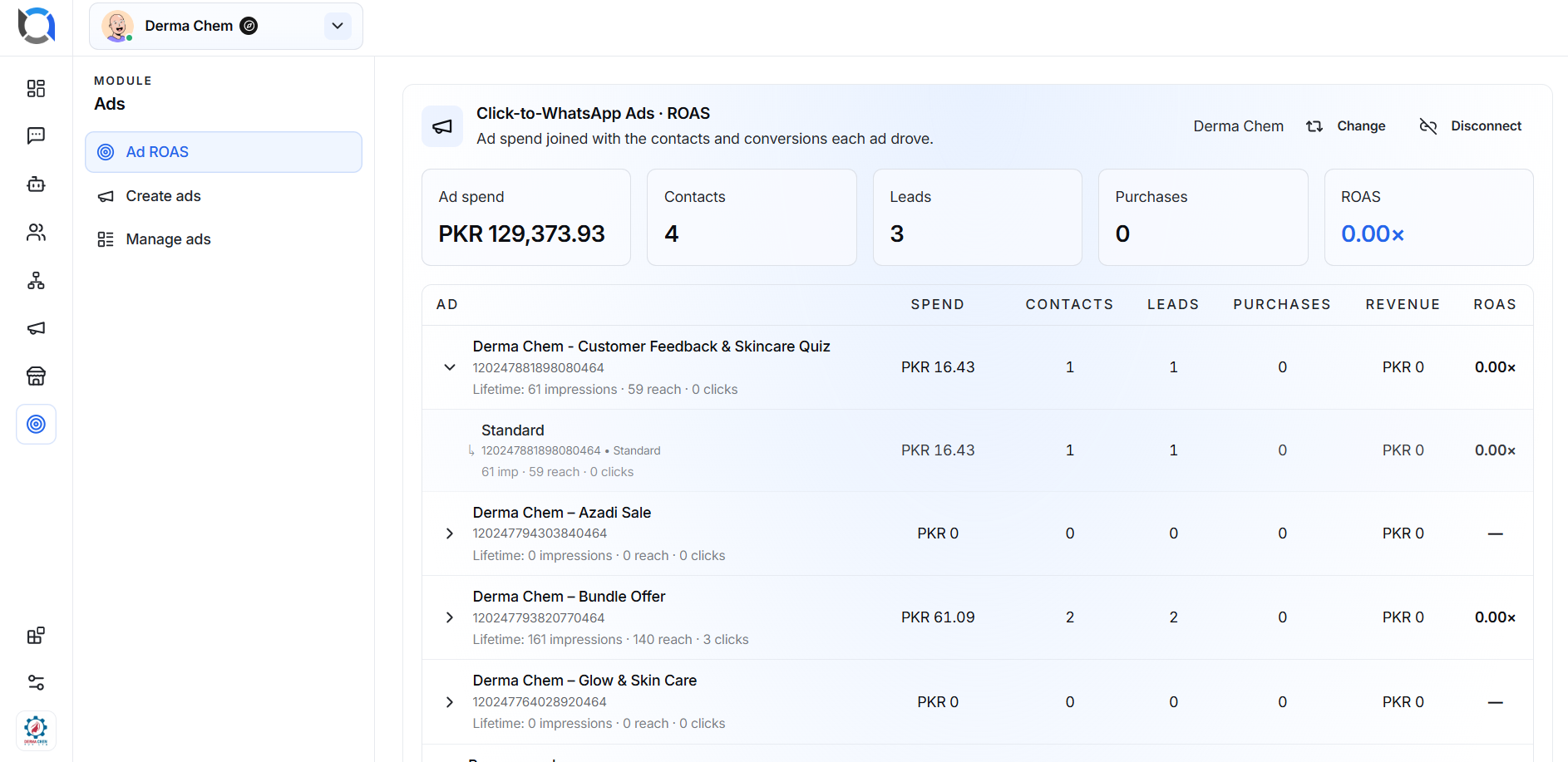
Connected Account
The connected Facebook Page or Meta ad account appears in the upper-right corner of the dashboard.
Change account
Click Change to select a different available Page or advertising account.
After changing the account, the dashboard will display advertising and conversion data for the newly selected account.
Disconnect account
Click Disconnect to remove the current Meta account connection.
After disconnecting, Offlo will no longer be able to retrieve advertising spend and performance information until an account is connected again.

Performance Summary
The cards at the top of the dashboard provide an overview of advertising and conversion performance.
Ad spend
Ad spend shows the total amount spent on the displayed ads.
The value is shown in the currency of the connected Meta ad account.
Contacts
Contacts shows the number of people or conversations associated with the ads.
A contact is recorded when a person interacts with the Click-to-WhatsApp ad and is identified in Offlo.
Leads
Leads shows the number of referred contacts that were qualified or recorded as leads.
This helps you understand how many ad-generated contacts became potential customers.
Purchases
Purchases shows the number of completed purchases attributed to the ads.
A purchase must be properly tracked in Offlo for it to appear in this metric.
ROAS
ROAS, or Return on Ad Spend, shows how much revenue was generated for every unit of currency spent on advertising.
It is calculated as:
ROAS = Revenue ÷ Ad Spend
For example, if an ad generates PKR 10,000 in revenue from PKR 2,000 of ad spend, its ROAS is 5.00×.
If no purchase revenue has been recorded, the ROAS may appear as 0.00×.

Ad Performance Table
The table provides a detailed breakdown of performance for each advertisement.
Ad
This column displays:
- Ad name
- Meta ad ID
- Lifetime impressions
- Lifetime reach
- Clicks
These metrics help you understand how many people saw and interacted with the ad.
Spend
Shows the amount spent on the individual ad.
Contacts
Shows how many contacts were generated by the ad.
Leads
Shows how many of those contacts were recorded or qualified as leads.
Purchases
Shows the number of purchases attributed to the ad.
Revenue
Shows the total purchase revenue connected to the ad.
ROAS
Shows the return generated by the ad compared with its advertising cost.
A dash may appear when the ad has no spend or when there is not enough data to calculate ROAS.
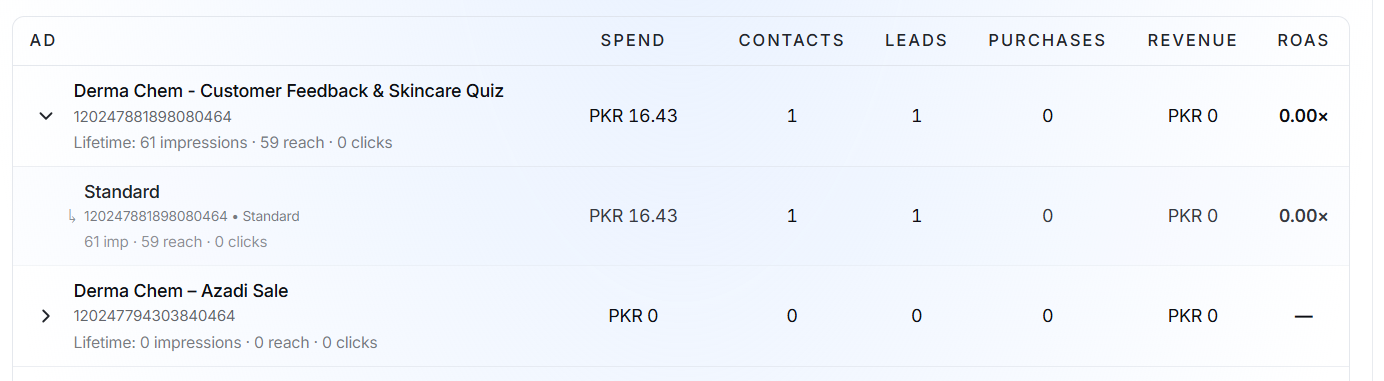
Advertising Metrics
The following Meta metrics appear below each ad:
- Impressions: The total number of times the ad was displayed. The same person may generate multiple impressions.
- Reach: The estimated number of individual people who saw the ad.
- Clicks: The number of times people clicked or interacted with the ad link.
These figures are lifetime totals retrieved from Meta for the displayed ad.
View Ad Details
Click the arrow beside an ad to expand its details.
The expanded section can display the underlying ad set, creative, or variation, such as Standard, along with its individual:
- Meta ID
- Spend
- Impressions
- Reach
- Clicks
- Contacts
- Leads
- Purchases
- Revenue
- ROAS
Click the arrow again to collapse the details.
This breakdown is useful when an ad has multiple variations or underlying Meta objects.
Understanding Your Results
Use the dashboard to compare ads and identify which ones perform best.
For example:
- High spend with few contacts may indicate weak targeting or creative content.
- Many contacts but few leads may indicate that the ad is attracting an unsuitable audience.
- Many leads but no purchases may indicate a problem with follow-up, pricing, or the sales process.
- A higher ROAS means the ad is generating more revenue compared with its cost.
- A ROAS of 0.00× means that no attributed revenue has been recorded.
Performance should be evaluated using several metrics together. A high number of impressions alone does not mean that an ad is profitable.
How Attribution Works
Offlo combines information from different sources:
- Meta provides ad spend and delivery information.
- A customer clicks a Click-to-WhatsApp ad.
- The contact or conversation is recorded in Offlo.
- The contact may be qualified as a lead.
- A completed purchase and its revenue are linked to the contact.
- Offlo uses the purchase revenue and ad spend to calculate ROAS.
Correct tracking depends on the customer journey and conversion information being recorded properly.
Important Notes
- Meta advertising data may take some time to update.
- Contacts, leads, and purchases must be correctly connected to an ad for accurate attribution.
- Revenue must be recorded for ROAS to be calculated.
- An ad with spending but no recorded revenue will show 0.00× ROAS.
- Ads without spending may show a dash instead of a ROAS value.
- The account currency is used for spend and revenue values.
- Changing the connected account also changes the data displayed on the dashboard.
- Disconnecting the account stops Offlo from retrieving new Meta advertising information.