
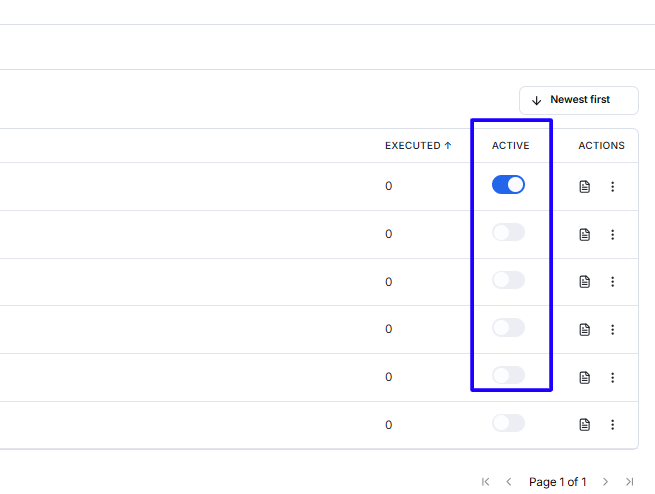
You can control an Action directly from the Active column.
- Turn the toggle on to make the Action available.
- Turn the toggle off to prevent the AI Employee from using it.
Deactivating an Action does not delete its configuration.
Use deactivation when:
- An external API is temporarily unavailable.
- The Action needs to be updated.
- The related service is no longer active.
- You want to stop the Action without deleting it.
Edit an Action
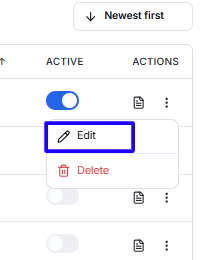
- Find the Action in My Actions.
- Click the three-dot menu.
- Select Edit.
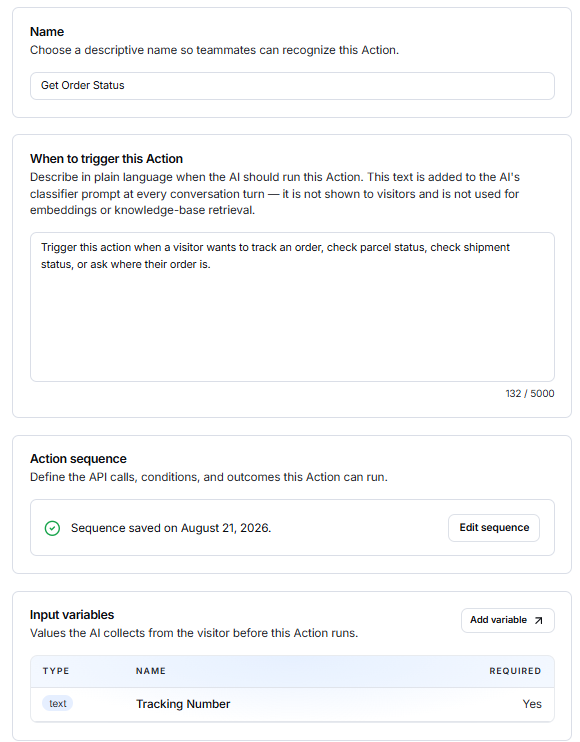
- Update the required settings.
- Save or activate the Action again.
After editing an active Action, test it again to confirm that the API sequence and response mappings still work correctly.
Delete an Action
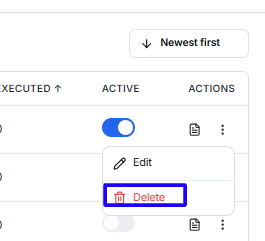
- Find the Action in My Actions.
- Click the three-dot menu.
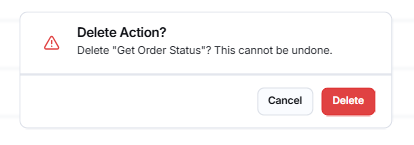
- Select Delete.
- Confirm the deletion when prompted.
Delete an Action only when it is no longer required. If it may be needed again, deactivate it instead.
Review Action Executions
The Executed column shows how many times an Action has run.
Use the execution or log icon to review available details for a specific Action. These details can help you:
- Confirm that the Action was triggered.
- Review successful executions.
- Identify failed API requests.
- Check collected input values.
- Review returned output values.
- Investigate unexpected AI responses.
Review logs regularly after activating a new or updated Action.
Example: Order Status Action
A basic order-status Action can work as follows:
- A visitor asks for an order update.
- The trigger description tells the AI to use the Get Order Status Action.
- The AI collects the visitor’s order number.
- The Action sends the number to the connected order API.
- The API returns the current status.
- The response is mapped to an output variable.
- The output is made available to the AI Employee.
- The AI explains the order status to the visitor.